
Product Overview
The Targus Presenter AMP09AP is a multimedia presentation remote designed for ease of use during presentations. It features a laser pointer for highlighting content, backlit buttons for low-light environments, and an ergonomic design for comfortable handling. This remote also offers cursor control for remote program access and volume adjustment for media. Its wireless technology provides a range of up to 50 feet, and the USB receiver conveniently stores within the presenter.
Setup Guide
1. Unpacking
Carefully remove the Targus Presenter AMP09AP and its components from the packaging. The box should contain:
- One Targus Presentation Remote
- One USB Receiver
2. Battery Installation
The Targus Presenter AMP09AP requires batteries (not included). Use alkaline batteries for optimal performance.
- Locate the battery compartment on the back of the presenter.
- Open the battery compartment cover.
- Insert the required batteries, ensuring correct polarity (+/-).
- Close the battery compartment cover securely.
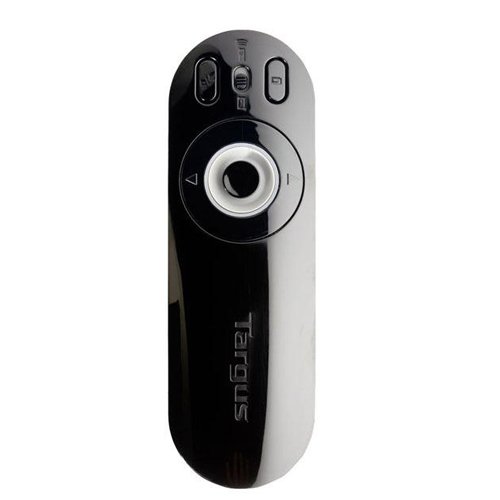
Image: The Targus Presenter AMP09AP, its USB receiver, and the open battery compartment revealing two AAA batteries.
3. Connecting the USB Receiver
- Remove the USB receiver from its storage slot within the presenter.
- Plug the USB receiver into an available USB port on your computer.
- The computer should automatically detect and install the necessary drivers.
The remote is now ready for use.
Operating Instructions
Presentation Mode
The presenter's simplistic layout allows for easy navigation during presentations.
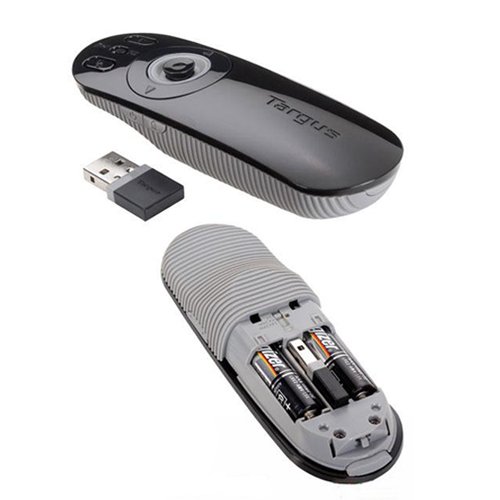
Image: Top view of the Targus Presenter AMP09AP, highlighting the laser pointer button, slide navigation buttons, and the mode switch.
- Laser Pointer: Press and hold the dedicated laser button to activate the laser pointer for highlighting content.
- Next Slide: Press the forward arrow button to advance to the next slide.
- Previous Slide: Press the backward arrow button to return to the previous slide.
- Backlit Buttons: Buttons are backlit for visibility in dimly lit rooms.
Cursor Control Mode
The presenter features cursor control for remote access to programs and media functions.
- Activating Cursor Control: Use the mode switch (located at the top right of the remote) to toggle between presentation and cursor control modes.
- Moving Cursor: Use the central circular button (joystick/directional pad) to move the mouse cursor on the screen.
- Clicking: Press the center of the circular button to perform a left-click action.
- Volume Control: Adjust the volume for music and videos remotely using the designated volume controls (if available on your specific model).
Wireless Range
The wireless technology allows operation up to 50 feet (approximately 15 meters) from the computer, providing flexibility during presentations.
Maintenance
- Cleaning: Wipe the presenter with a soft, dry cloth. Avoid using harsh chemicals or abrasive cleaners.
- Battery Replacement: Replace batteries when the indicator light (if present) signals low power, or when performance degrades. Ensure correct polarity during replacement.
- Storage: When not in use, store the USB receiver inside the presenter's dedicated slot to prevent loss. Store the presenter in a cool, dry place.
Troubleshooting
| Problem | Possible Cause | Solution |
|---|---|---|
| Presenter not responding | Low or dead batteries | Replace batteries with new alkaline batteries. |
| Presenter not responding | USB receiver not properly connected | Ensure the USB receiver is securely plugged into a working USB port on your computer. Try a different USB port. |
| Presenter not responding | Out of range | Move closer to the computer (within 50 feet / 15 meters). |
| Laser pointer not working | Low battery | Replace batteries. |
| Cursor control erratic or not working | Interference or mode not activated | Ensure no obstructions between presenter and receiver. Check if cursor control mode is active using the mode switch. |
Specifications
| Feature | Detail |
|---|---|
| Brand | Targus |
| Model Number | AMP09AP-51 |
| Color | Black and Gray |
| Dimensions (LxWxH) | 12.1 x 3.8 x 2.5 cm |
| Item Weight | 140 g |
| Connectivity Technology | Wireless |
| Wireless Range | Up to 50 feet (approx. 15 meters) |
| Battery Type | Alkaline (not included) |
| Included Components | Presentation Remote, USB Receiver |
| Special Features | Ergonomic design, Laser pointer, Cursor control, Backlit buttons |
Warranty and Support
For warranty information and technical support, please refer to the documentation provided with your purchase or visit the official Targus website. Keep your proof of purchase for warranty claims.
