
Brother PTD200
Brother P-touch Home and Office Labeler (PT-D200) Instruction Manual
Model: PTD200 | Brand: Brother
1. Introduction and Overview
The Brother P-touch Home and Office Labeler (PT-D200) is designed for easily creating unique labels for your home and office. It utilizes TZe laminated tapes, which are protected by a thin, clear film, making them resistant to water, grease, fading, and abrasion. These labels are suitable for both indoor and outdoor use, as well as hot and cold environments.
Key Features:
- One-touch keys for quickly accessing fonts, symbols, frames, and patterns.
- Graphical Display allows you to preview your label before printing.
- 8 professional fonts for label variety.
- Uses Laminated "TZe" Tapes up to 12mm wide.
- Operates on 6 x "AAA" batteries or an optional AC adapter (neither included).

Figure 1: Brother P-touch PT-D200 Labeler, a compact and user-friendly device for creating custom labels.
2. Setup
2.1. Powering the Device
The PT-D200 labeler operates on 6 AAA batteries. To install, open the battery compartment on the back of the device and insert the batteries, ensuring correct polarity. An optional AC adapter can also be used for continuous power without batteries.
2.2. Installing the TZe Tape Cassette
The labeler comes with a starter TZe laminated tape cassette. To install, open the tape compartment cover located on the back of the device. Insert the tape cassette firmly until it clicks into place. Ensure the tape is properly aligned with the tape guide. Close the cover securely.
Video 1: Official product video demonstrating the features and ease of use, including tape installation and basic operation of the Brother P-touch PT-D200 labeler.
3. Operating Instructions
3.1. Basic Label Creation
Turn on the labeler by pressing the power button. Use the QWERTY keyboard to type your desired text. The graphical display will show you how your label will look before printing.
3.2. Customizing Labels
- Font: Press the Font button to access various font styles and sizes. Use the arrow keys to navigate and the OK button to select.
- Frame: Press the Frame button to add decorative borders around your text. There are 95 frames available.
- Symbol: Press the Symbol button to insert symbols and pictographs. Over 600 symbols are available.
- Deco Mode: Press the Deco Mode button for pre-designed label patterns and layouts, including 12 Deco Mode patterns and 6 Name Badge formats.
3.3. Printing Labels
Once your label text and design are complete, press the Print button. You can select the number of copies you wish to print. The labeler will then print and cut the label automatically.

Figure 2: Labels can be used to categorize folders, facilitating quick identification and retrieval of documents.

Figure 3: Organize storage containers and drawers with clear, easy-to-read labels.

Figure 4: Create durable labels for garden markers, resisting outdoor elements.

Figure 5: Personalize items like backpacks to ensure they are easily identified and returned if misplaced.

Figure 6: Label travel-sized bottles for toiletries, ensuring contents are clearly marked.

Figure 7: Durable labels can be applied to sporting equipment for easy identification.
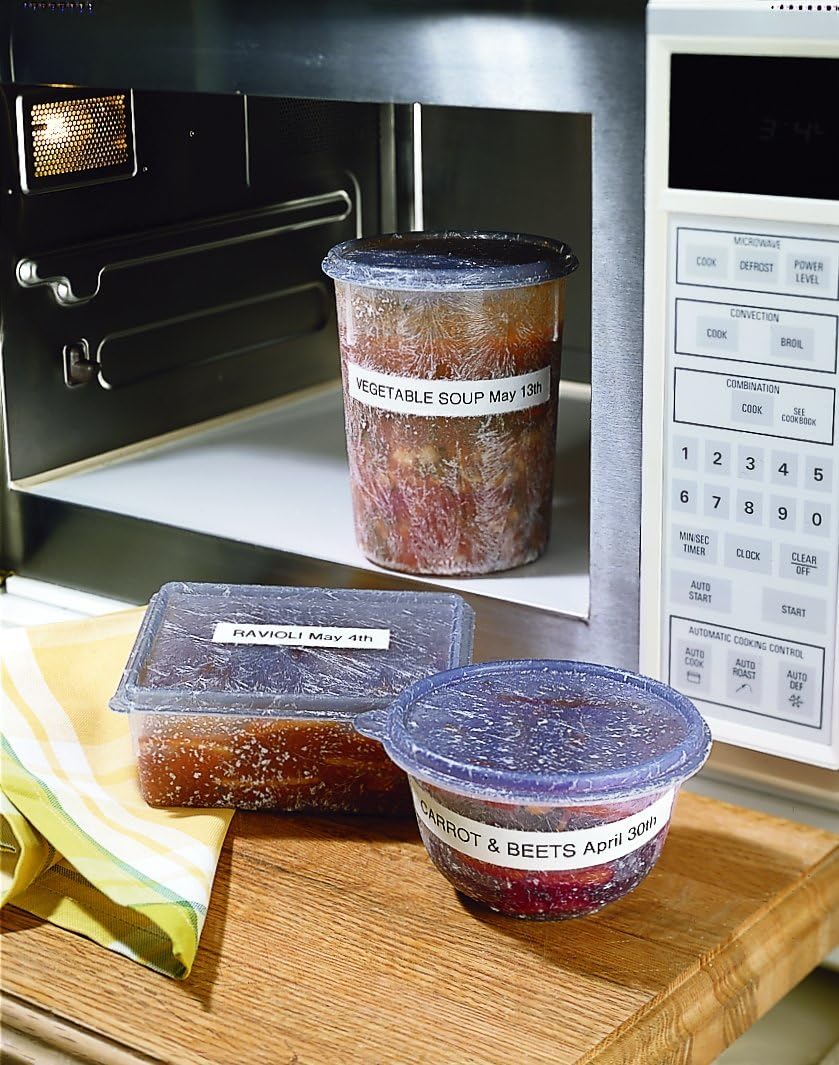
Figure 8: Keep track of food items in the refrigerator or freezer with laminated labels that withstand temperature changes and washing.
4. Maintenance
4.1. Tape Replacement
When the tape cassette runs out or you wish to change tape colors/types, open the tape compartment cover. Gently pull out the empty cassette. Insert a new TZe tape cassette, ensuring it clicks into place. Close the cover.
4.2. Cleaning
To maintain optimal performance, periodically clean the print head and tape cutter with a soft, dry cloth. Do not use liquids or abrasive cleaners.
5. Troubleshooting
If the labeler is not functioning as expected, try the following:
- No Power: Check if batteries are correctly installed or if the AC adapter is securely connected. Replace batteries if low.
- Poor Print Quality: Ensure the tape cassette is installed correctly. Clean the print head.
- Tape Jam: Open the tape compartment and carefully remove any jammed tape. Reinstall the cassette.
- "Low Battery" Warning: Replace all 6 AAA batteries with new ones.
6. Specifications
| Feature | Detail |
|---|---|
| Model Number | PTD200 |
| Dimensions | 6.1 x 6.5 x 2.7 inches |
| Item Weight | 1.1 pounds |
| Tape Type | TZe Laminated Tapes |
| Max Tape Width | 12mm (0.47 inches) |
| Power Source | 6 x "AAA" batteries or AC adapter (neither included) |
| Display Type | LCD Graphical Display |
| Fonts | 8 Professional Fonts |
| Frames | 95 Frames |
| Symbols | Over 600 Symbols |
| Deco Mode Patterns | 12 Patterns |
| Memory Storage | Up to 30 "Favorite" Labels |
7. Warranty and Support
The Brother P-touch Home and Office Labeler (PT-D200) comes with a 1-Year Limited Warranty. For further assistance, please refer to the official Brother support channels or visit their website for online support and resources.
Related documentsPTD200


Ask a question about this manual
Ask about setup, troubleshooting, compatibility, parts, safety, or missing instructions. Manuals+ will review the question and use this page’s manual context to help answer it.