
Introduction
This manual provides detailed instructions for the installation, operation, and maintenance of your CORSAIR VENGEANCE C70 Mid-Tower Case. Designed for durability and extensive cooling, the C70 offers a robust platform for your PC build.
Setup and Installation
Follow these steps to set up your CORSAIR VENGEANCE C70 Mid-Tower Case.
1. Preparing the Case
The CORSAIR VENGEANCE C70 features quick-release side panels for easy access. To open, locate the latches on the top rear of each side panel and flip them open. Gently pull the panels away from the chassis.
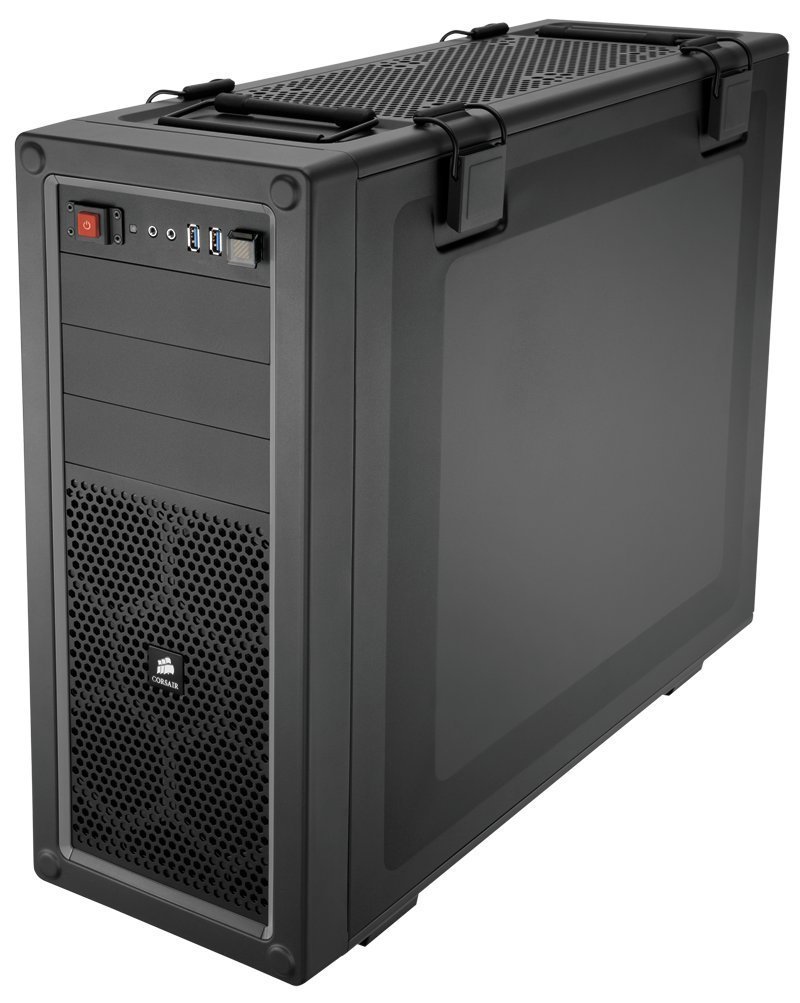
Image: Internal view of the Corsair Vengeance C70 Mid-Tower Case, showcasing the spacious interior with a motherboard, CPU cooler, graphics cards, power supply, and drive bays installed. Note the cable management and fan placements.
2. Motherboard Installation
- The C70 supports ATX and mATX motherboards.
- Install the I/O shield into the rear opening of the case.
- Align your motherboard with the pre-installed standoffs. Secure the motherboard using the provided screws. Ensure all mounting points are utilized for stability.
3. Power Supply Installation
- The case supports ATX power supplies, mounted at the bottom.
- Slide the power supply into its designated bay at the bottom rear of the case.
- Secure it with screws from the rear of the chassis.
4. Drive Installation
- 5.25" Optical Drives: The case features three 5.25" external drive bays. Remove the front bezel cover, slide the drive in, and secure it using the tool-less locking mechanism.
- 3.5"/2.5" Hard Drives/SSDs: The case includes six 3.5"/2.5" drive caddies. These caddies support both 3.5" HDDs and 2.5" SSDs. Slide your drive into a caddy and then slide the caddy into one of the internal drive bays until it clicks into place. The drive cages are removable for increased space or custom cooling solutions.
5. Expansion Cards
- The C70 provides eight expansion slots.
- Remove the necessary slot covers, insert your expansion card (e.g., graphics card), and secure it with the provided screws or tool-less clips.
6. Cooling System
- The case comes with two 120mm intake fans and one 120mm exhaust fan pre-installed.
- Additional fan mounting locations are available for enhanced airflow, supporting up to 10 fans. These include locations on the top, bottom, and side panel.
- The case also supports 240mm radiators for liquid cooling solutions in the top, front (with drive cage removal), or bottom (with drive cage removal).
7. Cable Management
Utilize the routing holes and tie-down points behind the motherboard tray to organize cables. This improves airflow and maintains a clean internal appearance.
Operation
Front I/O Panel
The front I/O panel provides convenient access to essential ports and controls:
- Power Button: Located on the top front, used to power on/off the system.
- Reset Button: Located near the USB ports, often protected by a clear cover to prevent accidental presses. Press to restart the system.
- USB 3.0 Ports (x2): For high-speed data transfer with compatible devices.
- Headphone Jack (x1): For audio output.
- Microphone Jack (x1): For audio input.
Maintenance
Regular maintenance helps ensure optimal performance and longevity of your PC components.
- Dust Filter Cleaning: The C70 includes dust filters to prevent dust buildup. Regularly check and clean these filters. The bottom filter is easily accessible. The front filter may require removing the front panel for thorough cleaning.
- Interior Cleaning: Periodically open the side panels and use compressed air to remove dust from internal components, especially fans, heatsinks, and radiators.
- Exterior Cleaning: Wipe the exterior of the case with a soft, damp cloth. Avoid harsh chemicals that may damage the finish.
Troubleshooting
This section addresses common issues you might encounter.
- System Not Powering On:
- Ensure the power supply is properly connected to the wall outlet and the power switch on the PSU is in the 'ON' position.
- Verify all power cables (24-pin ATX, 8-pin CPU, PCIe for GPU) are securely connected to the motherboard and components.
- Check the front panel power switch connector on the motherboard.
- Excessive Noise:
- Inspect all fans (CPU, GPU, case fans) for obstructions or loose mounting.
- Ensure cables are not interfering with fan blades.
- Check for vibrations from loose components or side panels. The C70 side panel latches should be firmly closed.
- Poor Airflow/High Temperatures:
- Clean all dust filters and internal components as described in the Maintenance section.
- Verify that fans are oriented correctly (intake vs. exhaust).
- Ensure proper cable management to avoid obstructing airflow.
Specifications
| Brand | Corsair |
| Model Name | C70 |
| Model Number | CC-9011016-WW |
| Case Type | Mid Tower |
| Material | Alloy Steel |
| Color | Gunmetal Black |
| Motherboard Compatibility | ATX, mATX |
| Drive Bays | (x3) 5.25", (x6) 3.5"/2.5" Drive Caddies |
| Expansion Slots | 8 |
| Cooling (Included) | (x2) 120mm Intake fans, (x1) 120mm Exhaust Fan |
| Fan Mount Locations | Up to 10 |
| Front I/O | (x2) USB 3.0, (x1) Headphone, (x1) Mic |
| Power Supply Type | ATX (not included) |
| Item Weight | 18.3 Pounds |
Warranty Information
The CORSAIR VENGEANCE C70 Mid-Tower Case comes with a 2 Year Warranty from the date of purchase. Please retain your proof of purchase for warranty claims. This warranty covers defects in materials and workmanship under normal use.
Support
For technical assistance or customer service, please contact Corsair support:
- Phone: 1-888-222-4346 opt. 1
- Website: Visit the official Corsair website for additional resources, FAQs, and support tickets.


