
Introduction
This manual provides detailed instructions for the installation, operation, and maintenance of your Conceptronic 3.5-inch USB 3.0 Hard Drive Enclosure, model C20-300. Please read this manual thoroughly before using the product to ensure proper functionality and to prevent damage.
Safety Information
- Keep the device away from water, moisture, and extreme temperatures.
- Do not open the enclosure or attempt to repair it yourself. Refer all servicing to qualified personnel.
- Use only the provided power adapter. Using an incorrect adapter may damage the device.
- Ensure proper ventilation around the enclosure to prevent overheating.
- Handle hard drives with care to avoid data loss or physical damage.
Package Contents
Please check the package contents. If any items are missing or damaged, contact your retailer.
- Conceptronic 3.5-inch USB 3.0 Hard Drive Enclosure (C20-300)
- USB 3.0 Cable
- Power Adapter
- Screws and Screwdriver (if applicable for enclosure type)
- User Manual (this document)
Setup
Follow these steps to install a 3.5-inch SATA hard drive into the enclosure and connect it to your computer.
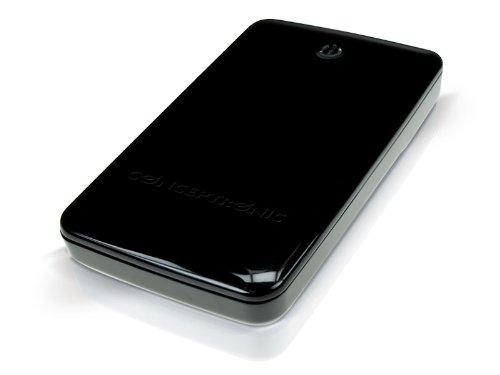
An image showing the Conceptronic 3.5-inch USB 3.0 Hard Drive Enclosure, typically black or silver, with its sleek design and USB 3.0 port visible.
- Open the Enclosure: Depending on the model, slide open the cover or remove the screws to access the internal bay.
- Install the Hard Drive: Carefully slide your 3.5-inch SATA hard drive into the enclosure's connector until it is firmly seated. Ensure the drive is oriented correctly.
- Secure the Hard Drive: If your enclosure uses screws, secure the hard drive within the bay using the provided screws.
- Close the Enclosure: Reattach the cover or secure the enclosure with screws.
- Connect USB Cable: Plug one end of the USB 3.0 cable into the enclosure's USB port and the other end into an available USB 3.0 port on your computer.
- Connect Power Adapter: Plug the power adapter into the enclosure's power input and then into an electrical outlet. The enclosure typically has an LED indicator that will light up when powered.
- Initialize/Format (First Use): For new hard drives, you may need to initialize and format the drive through your operating system's Disk Management (Windows) or Disk Utility (macOS) before it can be used. Follow your operating system's instructions for this process.
Operating
- Connecting: Once connected and powered, your computer should automatically detect the enclosure and the installed hard drive.
- Data Transfer: You can now access the hard drive as an external storage device. Drag and drop files, or use copy/paste functions to transfer data.
- Safe Removal: Always use the "Safely Remove Hardware" option (Windows) or drag the drive icon to the Trash/Eject (macOS) before disconnecting the USB cable or power to prevent data corruption.
Maintenance
- Cleaning: Use a soft, dry cloth to clean the exterior of the enclosure. Do not use liquid cleaners or solvents.
- Storage: When not in use, store the enclosure in a cool, dry place away from direct sunlight.
- Firmware: Periodically check the Conceptronic website for any available firmware updates for your model.
Troubleshooting
- Enclosure not detected:
- Ensure the power adapter is securely connected and the enclosure is powered on.
- Check the USB cable connection at both ends. Try a different USB port on your computer.
- Verify the hard drive is correctly installed and seated within the enclosure.
- Test with a different USB 3.0 cable if available.
- Slow data transfer speeds:
- Ensure you are connected to a USB 3.0 port on your computer. USB 2.0 ports will result in slower speeds.
- Check if other USB devices are consuming significant bandwidth.
- Verify your hard drive's health and performance.
- Hard drive not appearing in 'My Computer' or 'Finder':
- For new drives, ensure it has been initialized and formatted (refer to Setup section).
- Check Disk Management (Windows) or Disk Utility (macOS) to see if the drive is recognized but unallocated or unformatted.
Specifications
| Brand | Conceptronic |
| Model Number | C20-300 |
| Interface | USB 3.0 |
| Drive Form Factor | 3.5-inch SATA HDD |
| Dimensions (approx.) | 25.5 x 19 x 6.5 cm |
| Weight (approx.) | 580 g |
| Manufacturer | CONCEPTRONIC |
Warranty and Support
This Conceptronic product is covered by a limited warranty. For specific warranty terms and conditions, please refer to the warranty card included with your product or visit the official Conceptronic website. For technical support, driver downloads, or further assistance, please visit the Conceptronic support page or contact their customer service.


