
Carrefour CBK01
Carrefour CBK01 USB Keyboard User Manual
Model: CBK01 | ASIN: B007G8QC4C
Introduction
Thank you for choosing the Carrefour CBK01 USB Keyboard. This manual provides essential information for setting up, operating, maintaining, and troubleshooting your new keyboard. Please read this manual thoroughly before using the product to ensure proper function and longevity.
Product Overview
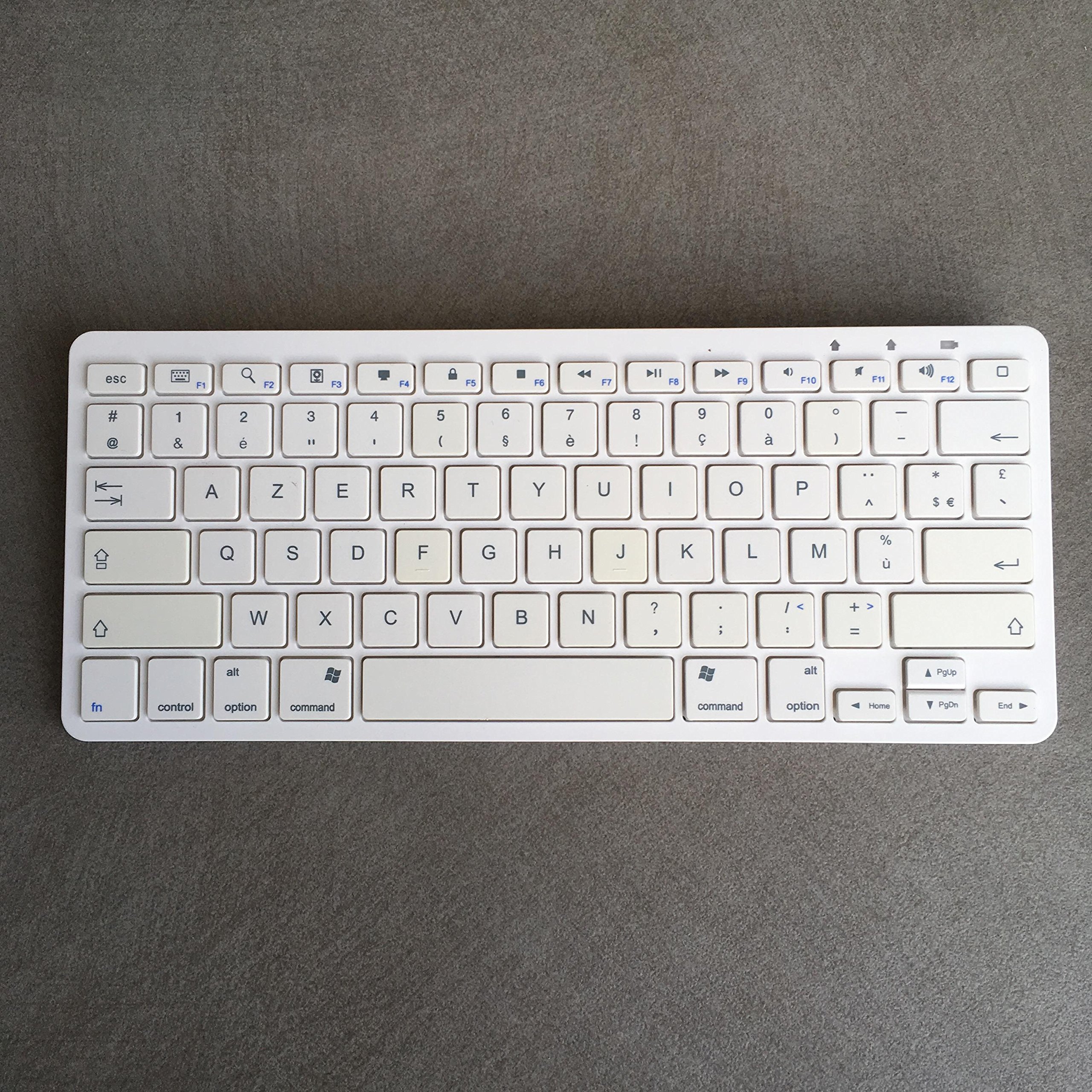
Figure 1: The Carrefour CBK01 USB Keyboard. This image displays the full keyboard with its standard QWERTY layout, numeric keypad, and function keys. The USB cable is visible extending from the top edge.
The Carrefour CBK01 is a standard USB keyboard designed for reliable and comfortable typing. It features a full-size layout with a numeric keypad, function keys, and a durable construction suitable for everyday use with desktop computers or laptops.
Setup
Connecting the Keyboard
- Unpack the Keyboard: Carefully remove the Carrefour CBK01 keyboard from its packaging.
- Identify the USB Connector: Locate the USB-A connector at the end of the keyboard's cable.
- Connect to Computer: Plug the USB-A connector into an available USB port on your computer (desktop PC, laptop, or compatible device).
- Driver Installation: The keyboard is plug-and-play. Your operating system (Windows, macOS, Linux) should automatically detect and install the necessary drivers within a few seconds. No additional software installation is typically required.
- Verify Connection: Once connected, the keyboard should be ready for use. Test by typing in a text editor or browser.
Ensure the USB port is functioning correctly. If the keyboard does not respond, try a different USB port.
Operating Instructions
Basic Keyboard Functions
- Typing: Use the alphanumeric keys for text input.
- Numeric Keypad: The dedicated numeric keypad on the right allows for quick entry of numbers. Ensure the "Num Lock" indicator light is on for the numeric keypad to function. Press the "Num Lock" key to toggle it on or off.
- Function Keys (F1-F12): These keys perform various system or application-specific functions. Their behavior may vary depending on your operating system and active software.
- Modifier Keys: Keys like Shift, Ctrl (Control), Alt, and Windows/Command are used in combination with other keys to perform shortcuts or special actions.
- Navigation Keys: Arrow keys, Home, End, Page Up, and Page Down are used for navigating documents and web pages.
Ergonomic Use
For comfortable and healthy use, position the keyboard directly in front of you. Keep your wrists straight and relaxed, avoiding bending them up, down, or to the sides. Adjust your chair and desk height so your forearms are roughly parallel to the floor.
Maintenance
Cleaning the Keyboard
- Disconnect: Always disconnect the keyboard from your computer before cleaning.
- Surface Cleaning: Use a soft, lint-free cloth lightly dampened with water or a mild, non-abrasive cleaning solution to wipe the keycaps and surface. Avoid excessive moisture.
- Between Keys: Use compressed air to remove dust, crumbs, and debris from between the keys. A soft brush can also be used.
- Avoid: Do not use harsh chemicals, abrasive cleaners, or immerse the keyboard in liquid.
Storage
When not in use, store the keyboard in a clean, dry environment away from direct sunlight and extreme temperatures.
Troubleshooting
- Keyboard Not Responding:
- Ensure the USB cable is securely plugged into a working USB port on your computer.
- Try plugging the keyboard into a different USB port.
- Restart your computer.
- Check your computer's device manager (Windows) or System Information (macOS) to see if the keyboard is recognized.
- Keys Not Working or Sticking:
- Clean the keyboard as described in the Maintenance section to remove any debris under the keys.
- If individual keys are consistently failing, the keyboard may require replacement.
- Numeric Keypad Not Working:
- Press the "Num Lock" key. The "Num Lock" indicator light should illuminate when active.
Specifications
| Brand | Carrefour |
| Model | CBK01 |
| Connectivity | USB-A Wired |
| Layout | Standard QWERTY (full-size with numeric keypad) |
| Compatibility | Windows, macOS, Linux (Plug & Play) |
| ASIN | B007G8QC4C |
Warranty and Support
For warranty information and customer support, please refer to the documentation provided with your purchase or contact Carrefour customer service directly. Keep your proof of purchase for warranty claims.
Ask a question about this manual
Ask about setup, troubleshooting, compatibility, parts, safety, or missing instructions. Manuals+ will review the question and use this page’s manual context to help answer it.