
Targus THZ17101US
Targus Versavu Keyboard Case Instruction Manual
Model: THZ17101US
Introduction
The Targus Versavu Keyboard Case is designed to enhance your Apple iPad 3rd Generation experience by providing both protection and a functional typing solution. This case features a unique 360-degree rotating design, allowing for versatile viewing angles, and integrates a low-profile Bluetooth keyboard for improved typing accuracy and speed.
Its durable, stain-resistant exterior and soft-touch interior lining ensure your iPad is well-protected from scratches and dust. The keyboard is rechargeable and offers a cable-free user experience, making it ideal for both work and travel.
Package Contents
- Targus Versavu Keyboard Case
- Integrated Bluetooth Keyboard
- USB Charging Cable (for keyboard)
Setup
1. Inserting Your iPad
Gently align your Apple iPad 3rd Generation with the custom-fit cradle within the Versavu case. Press firmly but carefully until the iPad is securely seated in the casing. Ensure all corners are properly engaged to prevent accidental dislodgement.

Image: iPad securely seated in the Targus Versavu Keyboard Case, ready for use.
2. Charging the Keyboard
Before initial use, fully charge the integrated Bluetooth keyboard. Locate the micro-USB charging port on the keyboard, typically on the side or back edge. Connect the provided USB charging cable to the keyboard and the other end to a USB power source (e.g., computer USB port, wall adapter). The charging indicator light will illuminate during charging and turn off or change color when fully charged.

Image: Close-up view of the micro-USB charging port on the integrated keyboard.
3. Pairing the Bluetooth Keyboard
- Ensure the keyboard is charged and powered on. There is usually a power switch on the keyboard itself.
- On your iPad, go to Settings > Bluetooth and ensure Bluetooth is turned On.
- The iPad will search for discoverable devices. The Targus Versavu Keyboard should appear in the list.
- Tap on the keyboard name to initiate the pairing process. You may be prompted to enter a code displayed on your iPad screen using the physical keyboard.
- Once paired, the keyboard will show as "Connected" in your iPad's Bluetooth settings.
Operating Instructions
Using the 360-Degree Rotation
The Versavu case features a patent-pending 360-degree rotating design, allowing you to effortlessly switch between portrait and landscape viewing modes without removing your iPad from the case. Simply rotate the iPad within its frame to your desired orientation.

Image: Side view of the Targus Versavu case demonstrating the 360-degree rotation feature.
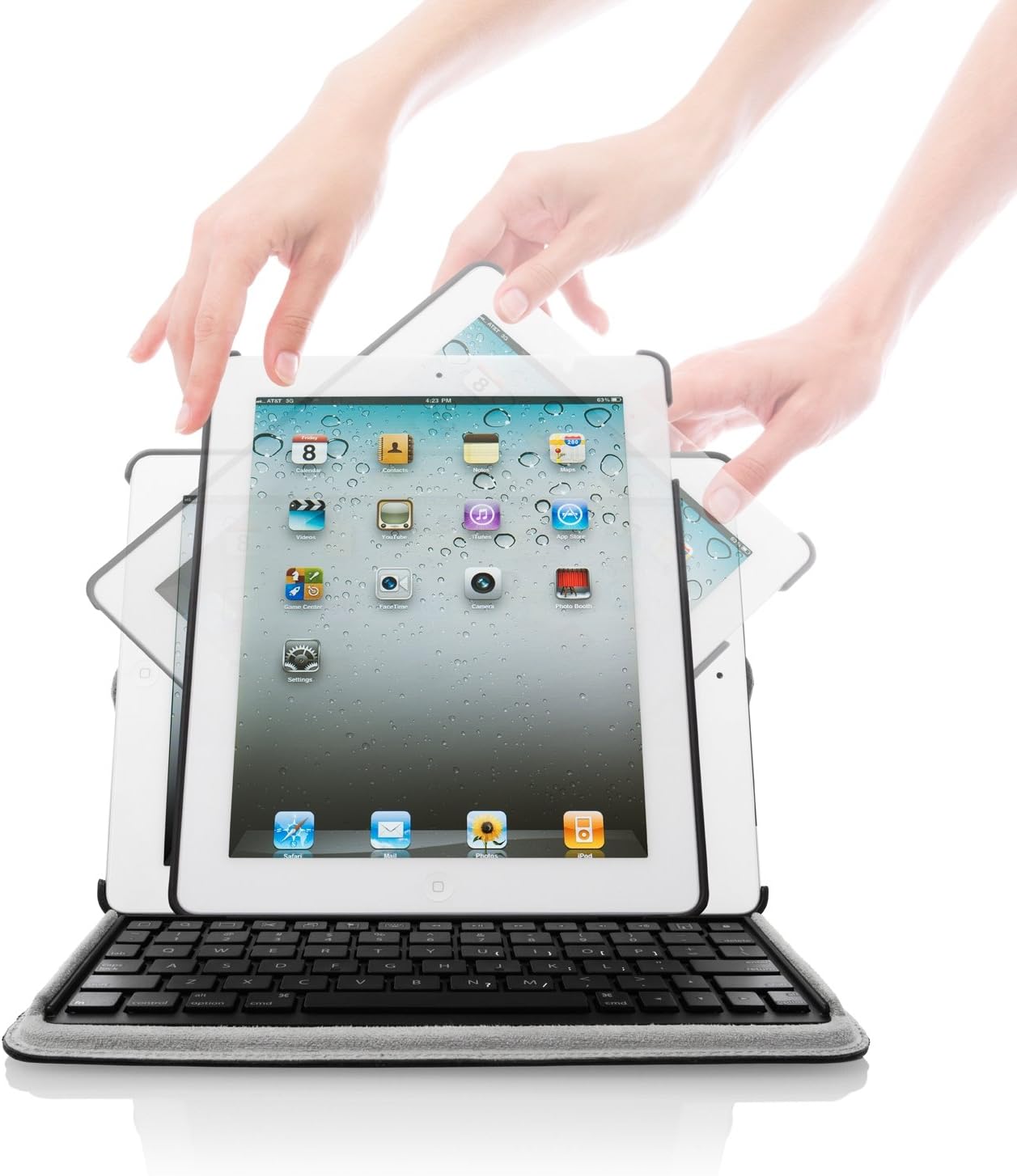
Image: Hands demonstrating the rotation of the iPad within the Versavu case, showing multiple viewing angles.
Typing with the Integrated Keyboard
The QWERTY, low-profile Bluetooth keyboard provides tactile feedback for a comfortable and efficient typing experience. The keyboard is recessed to prevent it from touching or rubbing against your iPad screen when the case is closed.

Image: Front view of an iPad in the Targus Versavu case with the integrated keyboard in use.
Access to Ports and Camera
The case is designed with precision cut-outs to allow full access to all iPad ports, buttons, and the camera without needing to remove the device. The camera hole is specifically designed to prevent shadowing when taking pictures.

Image: Open Targus Versavu case showing the iPad, keyboard, and a dedicated stylus holder.
Maintenance
Cleaning the Case
The exterior of the Versavu Keyboard Case is made from a stain-resistant padded material that can be wiped clean with water. For the soft-touch inner lining, use a dry, soft cloth to gently remove dust or debris. Avoid using harsh chemicals or abrasive cleaners, as these may damage the material.
Keyboard Care
Keep the keyboard free from crumbs and dust by regularly wiping it with a soft, dry cloth. Avoid spilling liquids on the keyboard. If the keyboard becomes unresponsive, ensure it is fully charged and properly paired with your iPad.
Troubleshooting
Keyboard Not Pairing
- Ensure the keyboard is fully charged and powered on.
- Turn off and then on your iPad's Bluetooth.
- Forget the device in iPad Bluetooth settings and attempt to re-pair.
- Restart your iPad.
Keyboard Not Charging
- Verify the USB charging cable is securely connected to both the keyboard and the power source.
- Try a different USB port or wall adapter.
- Ensure the charging cable is not damaged.
iPad Not Seating Properly in Case
- Ensure your iPad is the correct model (Apple iPad 3rd Generation).
- Gently press all four corners of the iPad into the custom-fit cradle until it clicks into place.
- Check for any debris or obstructions in the cradle that might prevent a proper fit.
Specifications
| Brand | Targus |
| Model Number | THZ17101US |
| Compatible Devices | Apple iPad 3rd Generation (16 GB, 32 GB, 64 GB Wi-Fi/3G Models) |
| Color | Black |
| Item Weight | 1.25 pounds |
| Product Dimensions (LxWxH) | 7.39 x 9.5 x 0.37 inches |
| Keyboard Type | Integrated Bluetooth QWERTY |
| Battery Life (Keyboard) | Up to 90 hours (approximate) |
| Special Features | 360-degree rotating stand, stylus storage, precision-cut camera hole, open access to charging ports |
Warranty and Support
Targus products are manufactured to high quality standards. For information regarding warranty coverage, product registration, or technical support, please refer to the official Targus website or contact Targus customer service directly. Keep your proof of purchase for warranty claims.
For the most up-to-date support information, visit the Targus Support Page.
Related documentsTHZ17101US


Ask a question about this manual
Ask about setup, troubleshooting, compatibility, parts, safety, or missing instructions. Manuals+ will review the question and use this page’s manual context to help answer it.