
PenPower WCU02A
PenPower WorldCard Pro Business Card Scanner User Manual
Model: WCU02A
1. Introduction
This manual provides detailed instructions for the installation, operation, and maintenance of your PenPower WorldCard Pro Business Card Scanner. Please read this manual thoroughly before using the device to ensure proper functionality and to maximize its capabilities.

Figure 1.1: The PenPower WorldCard Pro Business Card Scanner shown alongside its retail packaging. The scanner is a compact, black device designed for desktop use.
2. Package Contents
Please verify that all items are present in the package:
- PenPower WorldCard Pro Business Card Scanner Unit
- USB Connection Cable
- Software Installation CD (or download instructions)
- Quick Start Guide
3. Setup
3.1 Hardware Connection
- Place the PenPower WorldCard Pro scanner on a stable, flat surface near your computer.
- Connect one end of the provided USB cable to the USB port on the scanner.
- Connect the other end of the USB cable to an available USB port on your computer.
3.2 Software Installation
The WorldCard Pro software is compatible with both Windows and Mac operating systems.
- Insert the software installation CD into your computer's CD/DVD drive. If your computer does not have a CD/DVD drive, please visit the official PenPower website to download the latest software version.
- Follow the on-screen instructions to complete the software installation. This typically involves accepting the license agreement, choosing an installation directory, and confirming the installation.
- Once the installation is complete, restart your computer if prompted.
- Launch the WorldCard Pro application from your desktop shortcut or Start Menu/Applications folder.
4. Operating Instructions
4.1 Scanning a Business Card
The WorldCard Pro scanner features an intelligent mailbox concept with an indication light to guide the scanning process.
- Ensure the WorldCard Pro software is running on your computer.
- Gently open the tilting entrance of the scanner.
- Insert a business card into the entrance, face up, ensuring it is aligned properly. The scanner's intelligent mailbox concept will guide the card.
- The scanner will automatically detect the card and pull it through for scanning. An indication light may illuminate during this process.
- Once scanned, the card's information will be processed by the software and displayed on your screen for review and editing.

Figure 4.1: A business card being inserted into the tilting entrance of the PenPower WorldCard Pro scanner, demonstrating the ease of use for digitizing contact information.

Figure 4.2: The PenPower WorldCard Pro software interface displaying a scanned business card's details, with an arrow indicating the data flow from the scanner to the digital record.
5. Software Features
The WorldCard Pro software offers a comprehensive suite of features for managing your digitized business cards:
- Accurate Digitization: Scans and recognizes business cards, converting them into accurate digital formats within seconds.
- Multi-Language Support: Recognizes business cards in 24 different languages.
- Data Exchange:
- Export contacts to Address Book, Microsoft Entourage, vCard, CSV, Text, HTML, or image file formats.
- Import contacts from vCard, CSV, or WorldCard File formats.
- Synchronize with Gmail contacts and exchange data with mobile devices.
- Efficient Management: Provides complete functions for editing information, assigning multiple categories, and adding individual details and photos to contact entries.
- Quick Search: Utilize "Text Search" and "Advanced Search" functions to quickly locate contacts by keyword.
- Direct Linking: Clicking on an address or website within a contact's information will directly link to a map or the contact's website.

Figure 5.1: A conceptual representation of business card data being integrated into a global network, illustrating the scanner's capability to manage and connect contacts efficiently.
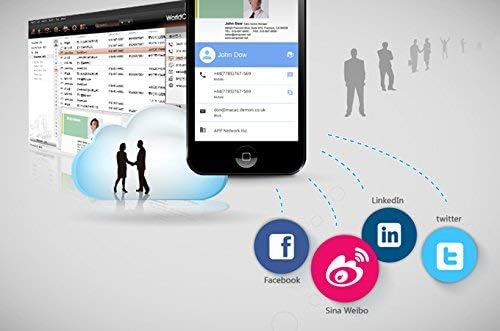
Figure 5.2: A smartphone screen displaying contact information, with icons for various social media platforms (Facebook, LinkedIn, Twitter, Sina Weibo) indicating the software's integration capabilities.
6. Maintenance
6.1 Cleaning the Scanner
Regular cleaning helps maintain optimal scanning performance:
- Ensure the scanner is disconnected from the power source (USB cable) before cleaning.
- Use a soft, lint-free cloth slightly dampened with water or a mild, non-abrasive cleaner to wipe the exterior of the scanner.
- For the card feed path and internal rollers, use a dry, soft brush or compressed air to remove dust and debris. Avoid using liquid cleaners directly inside the scanner.
- Allow all parts to dry completely before reconnecting the scanner.
6.2 Software Updates
Periodically check the PenPower official website for software updates. Updates may include performance improvements, bug fixes, and new features.
7. Troubleshooting
If you encounter issues with your PenPower WorldCard Pro scanner, refer to the following common problems and solutions:
- Scanner Not Detected:
- Ensure the USB cable is securely connected to both the scanner and the computer.
- Try connecting the scanner to a different USB port on your computer.
- Restart your computer and the WorldCard Pro software.
- Reinstall the scanner drivers if necessary.
- Card Not Feeding/Scanning:
- Check for any obstructions in the card feed path.
- Ensure the business card is inserted correctly and straight into the tilting entrance.
- Clean the internal rollers as described in the Maintenance section.
- Poor Recognition Accuracy:
- Ensure the business card is clean and free from smudges or damage.
- Verify that the card is inserted correctly and scanned without skewing.
- Update the WorldCard Pro software to the latest version.
- Software Crashes/Freezes:
- Close other applications running on your computer.
- Ensure your computer meets the minimum system requirements for the software.
- Reinstall the WorldCard Pro software.
If the issue persists, please contact PenPower customer support for further assistance.
8. Specifications
| Feature | Specification |
|---|---|
| Model Name | WorldCard Pro |
| Item Model Number | WCU02A |
| Product Dimensions | 12 x 12 x 6 inches |
| Item Weight | 6 ounces (0.17 Kilograms) |
| Connectivity Technology | USB |
| Resolution | 300 DPI |
| Scanner Type | Business Card |
| Media Type | Business Card |
| Standard Sheet Capacity | 1 |
| Light Source Type | LED |
| Language | English (Software supports 24 languages) |
| Manufacturer | Penpower Inc. |
9. Warranty and Support
For warranty information and technical support, please refer to the documentation included with your product or visit the official PenPower Inc. website. PenPower Inc. is the manufacturer of this device.
Manufacturer: Penpower Inc.
Date First Available: January 14, 2012
Related documentsWCU02A

Ask a question about this manual
Ask about setup, troubleshooting, compatibility, parts, safety, or missing instructions. Manuals+ will review the question and use this page’s manual context to help answer it.