
Introduction
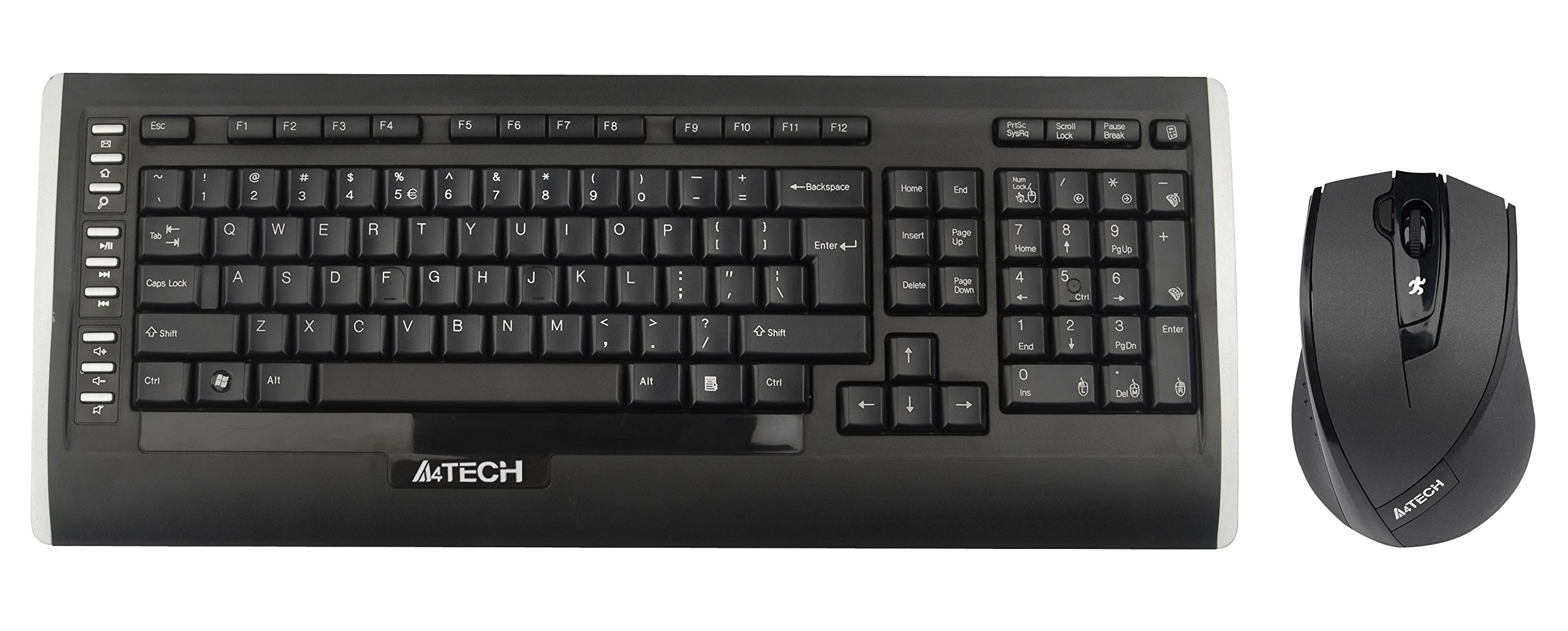
This user manual provides comprehensive instructions for the A4Tech 9300F Wireless RF Keyboard and Mouse Combo. Please read this manual thoroughly before using the product to ensure proper setup and operation. This combo features a wireless keyboard and a mouse with V-Track technology, designed for reliable performance and ease of use with your personal computer.
Setup
Follow these steps to set up your A4Tech 9300F Wireless RF Keyboard and Mouse Combo.
1. Battery Installation
- Locate the battery compartments on the underside of both the keyboard and the mouse.
- Open the battery compartment covers.
- Insert two AA alkaline batteries into the keyboard and two AA alkaline batteries into the mouse, ensuring correct polarity (+/-).
- Close the battery compartment covers securely.
2. Connecting the Receiver
- Locate the USB receiver, typically stored within the mouse's battery compartment or packaged separately.
- Plug the USB receiver into an available USB port on your personal computer.
- Your operating system should automatically detect and install the necessary drivers. This process may take a few moments.
- Once drivers are installed, the keyboard and mouse should be ready for use. If not, ensure the power switches on both devices are in the "ON" position.
Operating Instructions
This section details the basic and advanced functions of your A4Tech 9300F combo.
Keyboard Functions
- Standard Typing: The keyboard features a standard QWERTY layout with comfortable, round-edged keycaps for general typing tasks.
- Numeric Keypad: The dedicated numeric keypad allows for efficient data entry.
- Function Keys (F1-F12): These keys perform various system or application-specific functions. Refer to your operating system or application documentation for specific uses.
- Dual-Function Keys: Some keys may have secondary functions accessible via a modifier key (e.g., Fn key, if present). These can include media controls or quick access to applications.
Mouse Functions and V-Track Technology
- Standard Mouse Operation: The mouse provides precise cursor control with left, right, and scroll wheel buttons.
- V-Track Technology: This innovative optical technology uses vertical light to ensure smooth and accurate tracking on virtually any surface, including soft fabrics, without the need for a mouse pad. This technology is characterized by:
- Vertical light for enhanced precision.
- Short light path for lower power consumption.
- Incomparable adaptability on diverse surfaces.
- Smooth operation even on soft textiles.
- Tiny lens hole for optimal precision.
- Screen Capture Tool: The mouse may support a screen capture tool with value-added functions such as screen capture, TutorPen, 16-in-One, 4-way wheel, multi-link management, and DPI adjustment. Refer to the manufacturer's website for software download and updates related to this feature.
Maintenance
Proper maintenance ensures the longevity and optimal performance of your wireless combo.
Cleaning
- Disconnect the USB receiver from your computer before cleaning.
- Use a soft, dry, lint-free cloth to wipe the surfaces of the keyboard and mouse.
- For stubborn dirt, slightly dampen the cloth with water or a mild, non-abrasive cleaner. Avoid excessive moisture.
- Do not spray cleaning solutions directly onto the devices.
- Use compressed air to remove dust and debris from between the keyboard keys.
Battery Replacement
- When the devices exhibit reduced performance or stop responding, it is likely time to replace the batteries.
- Follow the battery installation steps outlined in the "Setup" section.
- Always replace all batteries in a device at the same time with new, fresh alkaline batteries of the specified type (AA).
- Dispose of used batteries responsibly according to local regulations.
Troubleshooting
If you encounter issues with your A4Tech 9300F combo, refer to the following common solutions.
- No Response from Keyboard/Mouse:
- Ensure the batteries are correctly installed and not depleted. Replace if necessary.
- Check that the power switches on both devices are turned "ON".
- Verify the USB receiver is securely plugged into a working USB port on your computer. Try a different USB port.
- Ensure the devices are within the 15-meter operating range of the receiver and there are no significant obstructions.
- Restart your computer.
- Lag or Intermittent Connection:
- Move the devices closer to the USB receiver.
- Avoid placing the receiver near other wireless devices or large metal objects that could cause interference.
- Replace batteries if they are low.
- Mouse Cursor Jumps or is Inaccurate:
- Ensure the mouse lens is clean and free of dust or debris.
- While V-Track technology works on most surfaces, extreme textures or highly reflective surfaces might still affect performance. Try using the mouse on a different surface.
- Specific Keys Not Working:
- Check for physical obstructions under the keycap.
- If multiple keys are affected, try the general troubleshooting steps for no response.
Specifications
| Model Number | 9300F |
| Brand | A4Tech |
| Connectivity Technology | Radio Frequency (RF) |
| Wireless Range | Up to 15 meters |
| Keyboard Form Factor | Standard QWERTY |
| Mouse Tracking Technology | Optical (V-Track) |
| Power Source | Battery Powered |
| Battery Type | AA Alkaline (2 for keyboard, 2 for mouse) |
| Compatible Devices | Personal Computer |
| Color | Black |
| Item Weight | Approximately 1.85 Pounds (0.84 kg) |
Warranty and Support
For warranty information and technical support, please refer to the documentation included with your product or visit the official A4Tech website. Keep your purchase receipt as proof of purchase for warranty claims.
Manufacturer: A4Tech
Website: www.a4tech.com


