
Product Overview
The JVC KD-R792BT is a Single-Din car stereo receiver designed to provide a comprehensive audio experience in your vehicle. It features built-in Bluetooth for wireless connectivity, allowing for dual phone connection and seamless audio streaming. This unit supports various media playback options including CD, MP3, USB, and AUX input, along with AM/FM radio. Advanced features include Pandora and Spotify control, iHeart Radio compatibility, and Android Music Playback.

Figure 1: Front view of the JVC KD-R792BT car stereo receiver, showcasing its single-din design, central display, control knob, and illuminated buttons.
Key Features:
- MOS-FET 50W x 4: Provides powerful and clear audio output.
- Sub Woofer Direct Connection (Mono Lch): Simplifies subwoofer integration.
- Bluetooth Wireless Technology (Built-in): Enables hands-free calling, audio streaming, and dual phone connection.
- Smartphone Integration: Supports Pandora Control for Android via Bluetooth, Spotify, and iHeart Radio.
- Versatile Media Playback: CD, MP3, USB, and AUX input.
- USB Charging: Features a 1.5A USB port for device charging.

Figure 2: An illustrative overview of the JVC KD-R792BT's key functionalities, including Bluetooth, Pandora, Spotify integration, dual phone connectivity, USB charging, and remote control capabilities.
Setup and Installation
Proper installation is crucial for optimal performance. It is recommended to have this unit installed by a qualified professional to ensure correct wiring and vehicle compatibility. The KD-R792BT is a full-DIN chassis size unit.
1. Wiring and Connections:
Before beginning installation, disconnect the vehicle's negative battery terminal to prevent electrical shorts. Use a vehicle-specific wiring harness adapter if available to simplify connections. Connect the power, ground, speaker, and accessory wires according to the wiring diagram provided with your unit. The unit features a subwoofer direct connection (Mono Lch) and RCA pre-outs for external amplifiers.
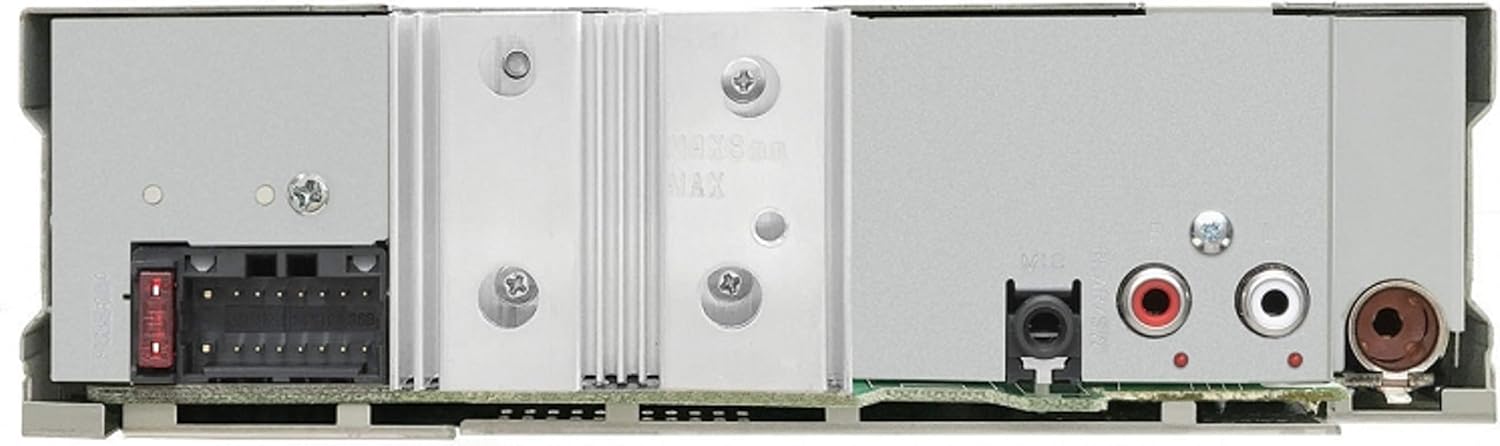
Figure 3: Rear view of the JVC KD-R792BT, illustrating the various connection points including the main wiring harness input, heatsink for heat dissipation, antenna input, and RCA pre-outputs for audio expansion.
- Power (Yellow): Connect to constant 12V power.
- Accessory (Red): Connect to switched 12V power.
- Ground (Black): Connect to a clean chassis ground point.
- Speaker Wires: Connect to corresponding vehicle speaker wires.
- Remote Turn-On (Blue/White): For external amplifiers or power antenna.
- Dimmer (Orange/White): Connect to vehicle's illumination circuit for automatic display dimming.
- External Microphone Input: Connect the supplied external microphone for hands-free calling.
2. Initial Power On and Settings:
After installation, reconnect the battery. The unit should power on. You may need to press the SRC button to select a source. The VFD (Vacuum Fluorescent Display) provides clear visibility. Adjust initial settings such as:
- Clock Setting: Set the current time. Note that the clock may not display when the unit is completely powered off.
- Display Color: Customize the illumination color of the display and buttons to match your vehicle's interior.
- Brightness: Adjust day and night brightness levels. The auto-dimming feature will automatically adjust brightness when headlights are turned on.
Operation
1. Basic Controls:
- Volume Knob: Rotate to adjust volume. Pressing the knob may mute the audio. Be mindful of accidental presses when adjusting volume.
- SRC (Source) Button: Press to cycle through available audio sources (CD, Tuner, USB, AUX, Bluetooth Audio).
- Menu Button: Press and hold to access the main menu for advanced settings.
2. Audio Adjustments:
The unit offers various audio customization options:
- Equalizer (EQ): Press the EQ button to access preset equalizer curves or customize bass, mid, and treble levels.
- Fader/Balance: Adjust the front-to-rear (fader) and left-to-right (balance) audio distribution. These settings are typically found within the audio menu.
- Subwoofer Control: Adjust subwoofer output level and crossover frequency if a subwoofer is connected.
3. Bluetooth Functions:
The built-in Bluetooth allows for seamless smartphone integration.
- Pairing: Enable Bluetooth on your smartphone and search for "JVC KD-R792BT". Select the unit to pair. Android devices may support automatic pairing.
- Hands-Free Calling (HFP 1.6): Make and receive calls directly through the stereo. The unit supports wideband speech for clearer call quality.
- Dual Phone Connection: Connect two phones simultaneously, allowing for easy switching between devices for calls.
- Audio Streaming (A2DP/AVRCP): Stream music wirelessly from your smartphone. Use the unit's controls to play, pause, skip tracks, and adjust volume.
- Voice Recognition Dialing/Siri EyesFree: Utilize your smartphone's voice assistant directly through the unit.
- Phone Book Access (PBAP): View your phone's contact list on the unit's display.
4. USB and AUX Playback:
The unit supports various digital media playback.
- USB Input: Connect USB flash drives or compatible smartphones to the front or rear USB ports. The unit supports AAC audio files. It can also read music files from certain hard disk drives (FAT32 format recommended). The front USB port provides 1.5A charging.
- AUX Input: Connect external audio devices using a 3.5mm stereo mini-jack cable to the front AUX input.
5. Radio Functions:
Tune into your favorite AM/FM stations.
- Tuning: Use the seek buttons to find stations or manually tune.
- Presets: Store your favorite stations for quick access.
6. App Control:
Control popular streaming services directly from the head unit.
- Pandora Control: For Android smartphones connected via Bluetooth.
- Spotify Control: Integrate with your Spotify account for seamless music playback.
- iHeart Radio: Access iHeart Radio stations.

Figure 4: An angled perspective of the JVC KD-R792BT, providing a clearer view of the display, main control knob, and the arrangement of the illuminated function buttons.
Maintenance
Regular maintenance helps ensure the longevity and optimal performance of your JVC KD-R792BT.
- Cleaning the Unit: Use a soft, dry cloth to wipe the display and control panel. For stubborn dirt, slightly dampen the cloth with water. Avoid using abrasive cleaners, solvents, or alcohol, as these can damage the surface.
- Removable Faceplate: The unit features a removable faceplate for security. When removing, handle it carefully to avoid scratching the display or damaging the connectors. Store the faceplate in the provided case to protect it from dust and damage.
- CD Slot: Keep the CD slot free of dust and debris. Avoid inserting foreign objects.
Troubleshooting
This section addresses common issues you might encounter with your JVC KD-R792BT.
| Problem | Possible Cause | Solution |
|---|---|---|
| No sound or distorted sound. | Incorrect wiring; volume too low; fader/balance settings incorrect; speaker issues. | Check all wiring connections. Increase volume. Adjust fader/balance settings. Verify speaker connections and functionality. |
| Bluetooth call quality is poor (other party cannot hear clearly). | Microphone placement or sensitivity; faulty microphone. | Ensure the external microphone is positioned correctly, away from vents or road noise, and pointed towards the driver. Adjust microphone gain settings in the unit's menu. Consider replacing the microphone if issues persist. |
| Clock does not display when unit is off. | Unit design. | This is a characteristic of the unit. To see the clock, the unit must be powered on, even if no audio is playing. |
| Cannot access Fader/Balance or other audio settings easily. | Menu navigation complexity. | Press and hold the MENU button to enter the main settings. Navigate through the options to find the "Audio" menu, then locate Fader and Balance. Refer to the detailed operation section for specific menu paths. |
| USB drive not recognized or "File Error" message. | Unsupported file system; incompatible audio format; corrupted files. | Ensure the USB drive is formatted to FAT32. Verify that audio files are in a supported format (e.g., AAC, MP3). Try reformatting the drive and re-adding files, or use a different USB drive. |
| Volume knob accidentally mutes audio. | Sensitive design of the volume knob. | Be gentle when rotating the volume knob to avoid pressing it inward, which activates the mute function. |
Specifications
| Feature | Detail |
|---|---|
| Model Number | KD-R792BT |
| Chassis Size | Single-DIN (Full-DIN) |
| Output Power | MOS-FET 50W x 4 |
| Preamp Voltage | 5 Volts |
| Display Type | VFD (Vacuum Fluorescent Display) |
| Connectivity Technology | Bluetooth, USB, 3.5mm Jack (AUX) |
| Bluetooth Features | HFP 1.6 (Wideband Speech), 2 Phones Full-Time Connection, A2DP, AVRCP, Voice Recognition Dialing, Siri EyesFree, PBAP, Android Automatic Pairing |
| Media Playback Supported | CD, MP3, AAC (via USB) |
| USB Charging | 1.5A (Front USB) |
| Special Features | Pandora Control, Spotify Control, iHeart Radio Receiver, Sub Woofer Direct Connection |
| Compatible Devices | Smartphone, Speaker |
| Audio Output Mode | Mono, Stereo |
| Surround Sound Channel Configuration | 4.0 |
| Color | Black |
| Item Weight | 2.89 pounds (approx. 1310 grams) |
| Product Dimensions (L x W x H) | 9.7 x 4.5 x 10.8 inches |
| Manufacturer | JVC Mobile Company |
| Date First Available | December 29, 2011 |
Warranty and Support
For specific warranty information regarding your JVC KD-R792BT car stereo receiver, please refer to the warranty card included with your product or contact JVC customer support directly. Warranty terms and conditions may vary based on region and retailer.
Important Note: The product listing includes a legal disclaimer stating "No returns/refunds" from the seller "Dealsonik". This may pertain to specific purchase conditions. Always verify return and warranty policies with your point of purchase or the manufacturer.
For technical support, product registration, or service inquiries, please visit the official JVC website or contact their customer service department. Keep your proof of purchase handy when contacting support.


