
1. Introduction
This manual provides essential information for the proper installation, operation, and maintenance of the Cisco 2.4 GHz 2 dBi/5 GHz 4 dBi Dipole Antenna (Model: AIR-ANT2524DW-R). This dual-band antenna is designed to enhance wireless coverage and performance for compatible Cisco Access Points.
2. Product Overview
The Cisco AIR-ANT2524DW-R is a white, dual-band dipole antenna featuring a 2 dBi gain for the 2.4 GHz band and a 4 dBi gain for the 5 GHz band. It utilizes an RP-TNC connector for secure attachment to compatible access points.
2.1 Key Features
- Dual-Band Operation: Supports both 2.4 GHz and 5 GHz wireless frequencies.
- Optimized Gain: Provides 2 dBi gain at 2.4 GHz and 4 dBi gain at 5 GHz for improved signal strength.
- RP-TNC Connector: Ensures a reliable and standard connection to compatible devices.
- Wide Compatibility: Designed for use with Cisco Access Points including 1600, 1700, 2600, 2700, 3500, 3600, and 3700 Series.
- Color: White finish to blend with various environments.
2.2 Package Contents
- 1 x Cisco AIR-ANT2524DW-R Dipole Antenna
2.3 Product Images

Figure 1: Front view of the Cisco dual-band dipole antenna, showing its white casing and RP-TNC connector.
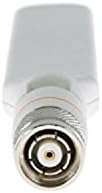
Figure 2: Close-up view of the RP-TNC connector at the base of the antenna, designed for secure attachment.
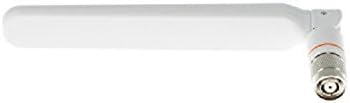
Figure 3: The antenna shown in an angled position, demonstrating its adjustable joint for optimal signal direction.

Figure 4: The antenna in a straight, upright position, illustrating its compact form factor.

Figure 5: A visual representation of the antenna's articulation, showing its range of motion for flexible positioning.

Figure 6: A diagram indicating the antenna's approximate length of 7.0 inches (17 cm).
3. Setup
Follow these steps to properly install your Cisco Dipole Antenna:
- Identify Compatible Access Point: Ensure your Cisco Access Point is one of the compatible models (1600, 1700, 2600, 2700, 3500, 3600, or 3700 Series) and has an available RP-TNC antenna port.
- Power Off Device: For safety, power off the access point before attaching or detaching antennas.
- Align Connector: Carefully align the RP-TNC connector of the antenna with the corresponding port on the access point.
- Secure Connection: Gently screw the antenna onto the port until it is finger-tight. Do not overtighten, as this can damage the connector.
- Adjust Orientation: Once secured, adjust the antenna's angle to achieve optimal signal coverage. Typically, a vertical orientation is recommended for omnidirectional coverage, but specific environments may benefit from slight angling.
- Power On Device: Power on the access point and verify proper operation.
4. Operating
Once installed, the Cisco Dipole Antenna operates passively to extend the wireless range and improve signal quality of your compatible Cisco Access Point. It supports simultaneous operation on both 2.4 GHz and 5 GHz bands, allowing your access point to efficiently manage traffic across both frequencies.
- The antenna automatically utilizes the appropriate frequency band (2.4 GHz or 5 GHz) based on the access point's configuration and client device capabilities.
- For best performance, ensure the antenna is positioned away from obstructions and sources of interference.
5. Maintenance
The Cisco Dipole Antenna requires minimal maintenance. Follow these guidelines to ensure its longevity and optimal performance:
- Cleaning: Use a soft, dry cloth to gently wipe the antenna's surface. Do not use liquid cleaners or abrasive materials.
- Inspection: Periodically check the antenna and its connection to the access point for any signs of damage or loose connections.
- Environment: Ensure the antenna is used within its specified operating environment to prevent damage from extreme temperatures or moisture.
6. Troubleshooting
If you experience issues with your antenna, consider the following troubleshooting steps:
| Problem | Possible Cause | Solution |
|---|---|---|
| Poor Wi-Fi signal or limited range. | Antenna not securely connected. Incorrect antenna orientation. Interference from other devices or physical obstructions. | Ensure the antenna is tightly screwed into the access point. Adjust the antenna's angle and position for optimal coverage. Relocate the access point and antenna away from potential interference sources (e.g., microwaves, cordless phones) or large metal objects. |
| Antenna does not fit the access point. | Incorrect connector type. | Verify that your access point requires an RP-TNC connector. This antenna is designed for RP-TNC ports. Do not force the connection. |
| No improvement in signal after installation. | Access point not compatible. Antenna or access point malfunction. | Confirm your access point is listed as compatible (1600, 1700, 2600, 2700, 3500, 3600, 3700 Series). Test with a known working antenna if possible. If issues persist, contact Cisco support. |
7. Specifications
| Brand | Cisco |
| Model Number | AIR-ANT2524DW-R |
| Wireless Type | 2.4 GHz Radio Frequency (also supports 5 GHz) |
| Antenna Gain | 2 dBi (2.4 GHz), 4 dBi (5 GHz) |
| Connector Type | RP-TNC |
| Color | White |
| Item Weight | 1.41 ounces (approx. 40 grams) |
| Product Dimensions (LxWxH) | Approx. 7.0 inches (17 cm) in length |
| Compatible Access Points | Cisco 1600, 1700, 2600, 2700, 3500, 3600, 3700 Series |
| UPC | 796594479727, 882658459795, 012304762720, 796594388593, 803982749895 |
8. Warranty and Support
For detailed warranty information and technical support, please refer to the official Cisco website or contact Cisco customer service. Keep your purchase receipt and product model number (AIR-ANT2524DW-R) readily available when seeking support.
Cisco Support: https://www.cisco.com/c/en/us/support/index.html


