
1. Introduction
The SilverLit 1:16 Enzo Ferrari Bluetooth R/C Car offers an interactive remote control experience using your iOS device (iPod touch, iPhone, or iPad). This manual provides essential information for the proper setup, operation, and maintenance of your R/C car.
This product is designed for users aged 8 and above.

Image: The SilverLit 1:16 Enzo Ferrari R/C Car in red, shown alongside an iPhone displaying the car's control dashboard app. The car is depicted in motion, suggesting its remote-controlled nature.
2. Setup
2.1 Battery Installation
- Locate the battery compartment on the underside of the Enzo Ferrari R/C car.
- Open the battery compartment cover.
- Insert 4 AA batteries, ensuring correct polarity (+/-). The batteries are included with the product.
- Close the battery compartment cover securely.
2.2 App Download and Installation
- Ensure your iOS device (iPod touch, iPhone, or iPad) is connected to the internet.
- Open the Apple App Store on your device.
- Search for the "SilverLit Enzo Ferrari" application.
- Download and install the official application.
- Note: This product is designed for iOS devices. An Android application is not available for this model.
2.3 Bluetooth Connection
- Turn on the Enzo Ferrari R/C car.
- On your iOS device, go to "Settings" and ensure Bluetooth is enabled.
- Open the SilverLit Enzo Ferrari application.
- The app will automatically search for and connect to the R/C car via Bluetooth. No other attachments are required.
- Once connected, the app will display the Ferrari dashboard interface, ready for control.

Image: The product packaging for the SilverLit Interactive Bluetooth R/C Enzo Ferrari car, showing the car model and an iPhone displaying the control app. The box highlights compatibility with iPod touch, iPhone, and iPad.
3. Operation
The SilverLit Enzo Ferrari R/C Car offers two primary control modes: gesture control and virtual joystick control, both accessible through the dedicated iOS application.
3.1 Gesture Control
- Acceleration/Braking: Tilt your iOS device forward to accelerate. Tilt it backward to brake and reverse.
- Steering: Tilt your iOS device left or right to steer the car in the corresponding direction.
- The app provides force feedback, simulating engine rumble that intensifies with speed.
3.2 Virtual Joystick Control
- Within the app, select the virtual joystick mode for traditional control.
- Use the on-screen joysticks or controls to manage speed and direction.
3.3 Lighting and Sound Effects
- The app dashboard features controls for headlights, tail lights, and signal lights, which are triggered directly from the application.
- Experience authentic Ferrari engine rev sounds directly from your device.
Video: An official demonstration of the SilverLit Enzo Ferrari R/C Car in action, showcasing its Bluetooth connectivity and control via an iOS device. The video highlights gesture control, responsive driving, and the detailed app interface, including lighting functions.
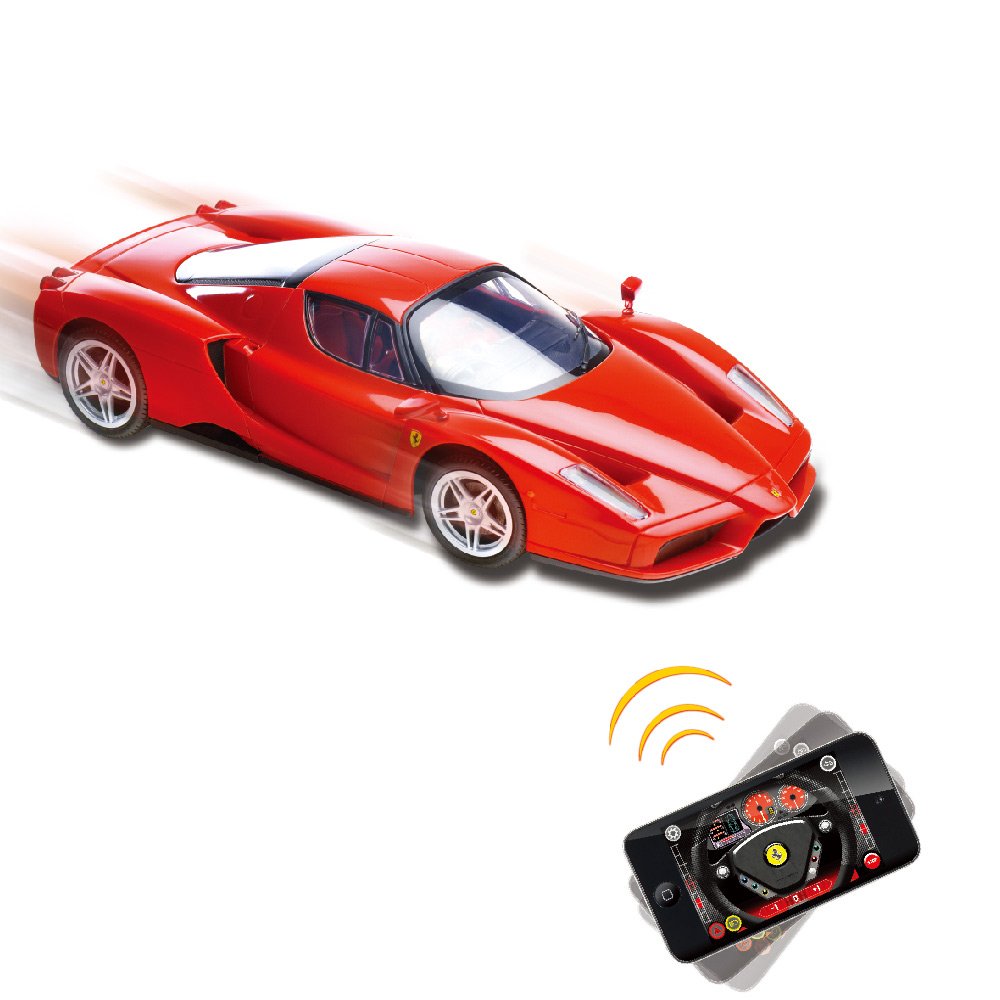
Image: A red SilverLit Enzo Ferrari R/C Car on a white surface, with an iPhone displaying the control app. Blue lines emanate from the phone towards the car, symbolizing the Bluetooth connection and control.
4. Maintenance
- Cleaning: Use a soft, dry cloth to clean the car's exterior. Avoid using water or chemical cleaners, as they may damage the electronics or paint finish.
- Battery Care: Remove batteries from the car if it will not be used for an extended period to prevent leakage.
- Storage: Store the R/C car in a cool, dry place away from direct sunlight and extreme temperatures.
- Handling: Handle the car with care to avoid damage to its detailed body and internal components.

Image: A detailed rear view of the red SilverLit 1:16 Enzo Ferrari R/C Car, showcasing its tail lights, exhaust pipes, and the Ferrari emblem.
5. Troubleshooting
- Car not responding:
- Ensure the car's power switch is ON.
- Check if the batteries are correctly installed and have sufficient charge. Replace if necessary.
- Verify that Bluetooth is enabled on your iOS device.
- Ensure the SilverLit Enzo Ferrari app is open and attempting to connect.
- Move your iOS device closer to the car to ensure it's within Bluetooth range (typically up to 5 feet for optimal performance, as noted in some user reviews).
- Restart both the car and the app.
- App not connecting:
- Confirm your device is an iOS device (iPod touch, iPhone, or iPad). The app is not compatible with Android.
- Check your device's Bluetooth settings.
- Close and reopen the app.
- Ensure no other Bluetooth devices are interfering with the connection.
- Poor control response:
- Ensure your iOS device's screen is clean and free of obstructions for accurate gesture or joystick input.
- Practice with both gesture and virtual joystick modes to find your preferred control style.
- Check for any physical obstructions or damage to the car's wheels or steering mechanism.
6. Specifications
| Feature | Detail |
|---|---|
| Brand | SilverLit |
| Model Name | 86067 |
| Scale | 1:16 Scale |
| Toy Vehicle Form | Car |
| Subject Character | Enzo Ferrari |
| Colour | Red |
| Operation Mode | App Control (Bluetooth) |
| Power Source | Battery Powered |
| Batteries Required | 4 AA batteries (included) |
| Item Weight | 1.1 Pounds |
| Item Dimensions (L x W x H) | 35.6 x 12.7 x 20.3 Centimeters |
| Assembly Required | No |
| Age Range Description | Adult (as per product data, though often used by younger users with supervision) |
7. Warranty and Support
For warranty information and customer support, please refer to the documentation included in the product packaging or visit the official SilverLit website. Keep your purchase receipt as proof of purchase for any warranty claims.
Manufacturer: Innovation & Invention LLP
