
TRENDnet TEW-711BR
TRENDnet 150Mbps Wireless N Home Router (TEW-711BR) User Manual
Model: TEW-711BR
1. Introduction
This manual provides comprehensive instructions for the installation, operation, maintenance, and troubleshooting of your TRENDnet 150Mbps Wireless N Home Router, model TEW-711BR. Please read this manual thoroughly before using the device to ensure proper setup and optimal performance.
2. Product Overview
The TRENDnet TEW-711BR is a reliable 150Mbps Wireless N Home Router designed to provide wireless connectivity for sharing files, playing games, and browsing the internet in small to medium-sized homes. It incorporates advanced encryption for network security and Access Control tools to manage network access. The router also features embedded GREENnet technology, which can reduce power consumption by up to 50%.

Figure 2.1: Angled front view of the TRENDnet TEW-711BR Wireless N Home Router, showcasing its compact design and single antenna.
3. Features
- 150Mbps Wireless N Speed: Provides sufficient bandwidth for streaming video, downloading files, online communication, and gaming.
- Wi-Fi Protected Setup (WPS): Allows for easy and secure connection of compatible devices with a single touch.
- GREENnet Technology: Reduces power consumption by up to 50%, contributing to energy savings.
- Advanced Encryption: Secures your wireless network to protect data and privacy.
- Access Control Tools: Helps manage and restrict access to unwanted websites and unknown users on your network.
- Multiple Ethernet Ports: Equipped with four LAN ports for wired connections to computers, printers, and storage devices.
4. Package Contents
Verify that all items are present in your product package. If any items are missing or damaged, please contact your retailer or TRENDnet customer support.
- TRENDnet 150Mbps Wireless N Home Router (TEW-711BR)
- Power Adapter
- Ethernet Cable
- Quick Installation Guide
- CD-ROM (with User's Guide and Utility Software)

Figure 4.1: Retail packaging of the TRENDnet TEW-711BR, indicating the product and its key features.
5. Setup
Follow these steps to set up your TRENDnet TEW-711BR router. A step-by-step CD installation is provided for ease of setup.
- Connect the Modem: Connect one end of the provided Ethernet cable to the WAN port on the back of the TEW-711BR router and the other end to your cable or DSL modem.
- Connect Power: Plug the power adapter into the router's power port and then into a power outlet. Ensure the Power LED on the front of the router illuminates.
- Connect Computers (Optional Wired): For wired connections, connect an Ethernet cable from your computer's network adapter to any of the LAN ports (1-4) on the back of the router.
- Initial Configuration:
- Insert the included CD-ROM into your computer's CD/DVD drive.
- Follow the on-screen instructions to run the installation wizard. This wizard will guide you through the initial network settings, including setting up your wireless network name (SSID) and password.
- Alternatively, you can access the router's web-based interface by opening a web browser and typing the default IP address (usually 192.168.10.1, refer to the Quick Installation Guide for confirmation) into the address bar. Log in with the default credentials (typically admin/admin or as specified in the guide).
- Wireless Connection:
- On your wireless device (laptop, smartphone, tablet), search for available Wi-Fi networks.
- Select the SSID you configured during the setup process.
- Enter your wireless password (security key) when prompted.
- For WPS-enabled devices, press the WPS button on the side of the router and then activate WPS on your device within two minutes to establish a secure connection automatically.

Figure 5.1: Rear panel of the TEW-711BR router, highlighting the WAN port for modem connection, four LAN ports for wired devices, and the power input.

Figure 5.2: Side view of the TEW-711BR router, featuring the Wi-Fi Protected Setup (WPS) button for quick and secure wireless connections.
Video 5.1: An official TRENDnet video demonstrating the features and basic setup of the TEW-711BR router. This video highlights its suitability for light internet users and its energy-saving GREENnet technology.
6. Operating the Router
Once set up, your TRENDnet TEW-711BR router operates continuously to provide network connectivity. Here are some key operational aspects:
- LED Indicators: The front panel features LEDs for Power, Status, WAN, WLAN, and LAN ports (1-4). These indicators provide visual feedback on the router's operational status and network activity.
- Web-Based Management: Access the router's web interface via a web browser to configure advanced settings such as:
- Wireless Security (WPA/WPA2, WEP)
- Access Control (MAC filtering, URL filtering)
- Port Forwarding and Virtual Servers
- Firmware Upgrades
- Network Status Monitoring
- Wireless Coverage: The 150Mbps Wireless N standard provides good coverage for typical home environments. Factors like walls, interference from other devices, and distance can affect signal strength.
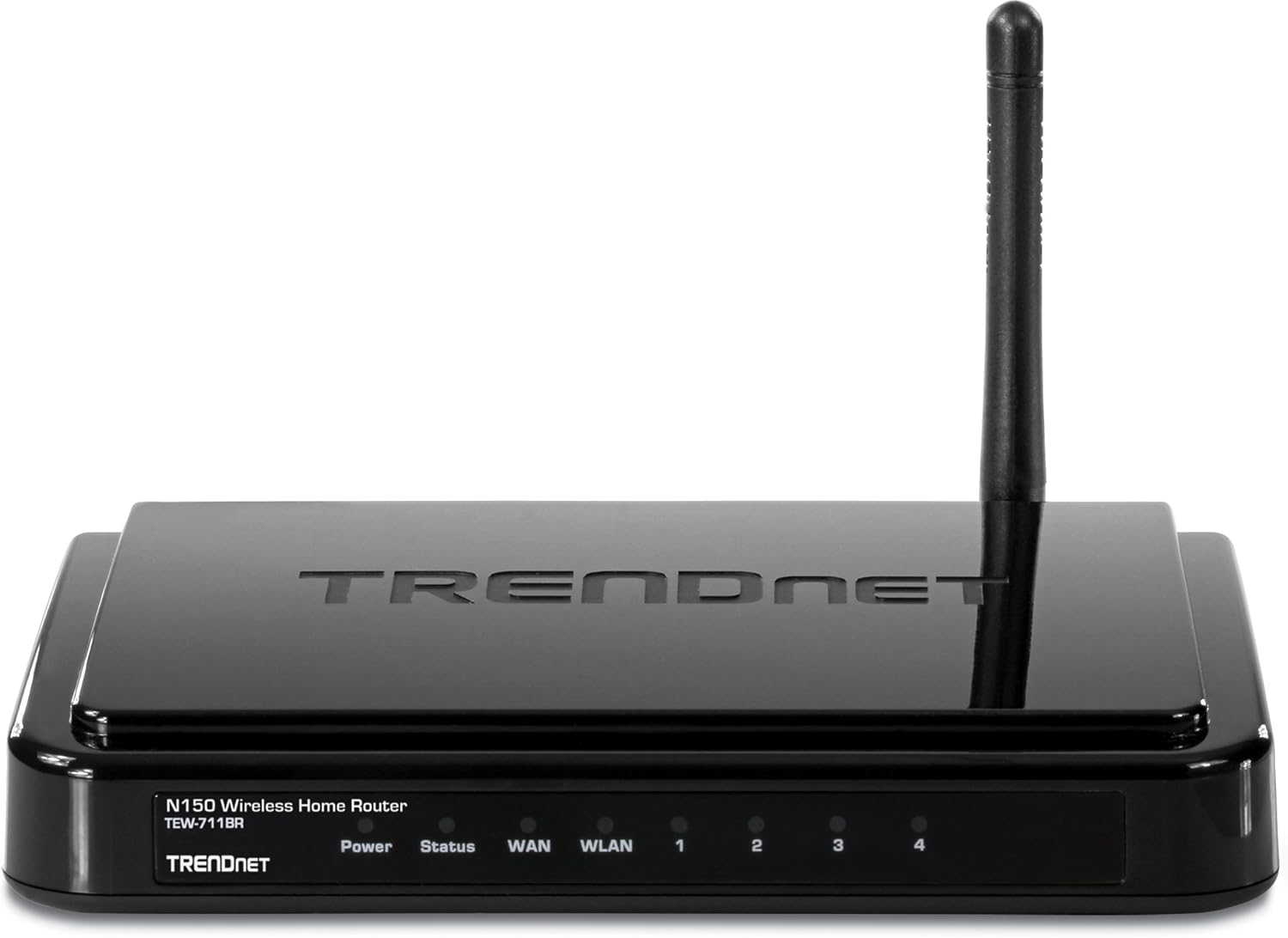
Figure 6.1: Front view of the TEW-711BR router, displaying the LED indicators for Power, Status, WAN, WLAN, and individual LAN ports, which provide real-time operational status.

Figure 6.2: Angled front view of the TEW-711BR router, emphasizing the "GREENnet" logo, which signifies its energy-saving capabilities.
7. Maintenance
Regular maintenance helps ensure the longevity and optimal performance of your router.
- Firmware Updates: Periodically check the TRENDnet official website for new firmware versions. Updating the firmware can improve performance, add new features, and fix security vulnerabilities.
- Physical Cleaning: Keep the router in a clean, dust-free environment. Use a soft, dry cloth to clean the exterior. Do not use liquid cleaners.
- Ventilation: Ensure the router is placed in a location with adequate ventilation to prevent overheating. Do not cover the ventilation holes.
- Rebooting: If you experience network issues, a simple reboot (power cycling) of the router can often resolve them. Unplug the power adapter, wait 10 seconds, and then plug it back in.

Figure 7.1: Rear view of the TEW-711BR router, showing the power button, which can be used for a controlled reboot.
8. Troubleshooting
This section addresses common issues you might encounter with your TEW-711BR router.
| Problem | Possible Cause | Solution |
|---|---|---|
| No Internet Access | Incorrect WAN settings, modem issue, or cable disconnection. |
|
| Cannot Connect to Wi-Fi | Incorrect Wi-Fi password, Wi-Fi disabled, or signal interference. |
|
| Slow Wireless Speed | Interference, distance, or too many devices on the network. |
|
| Cannot Access Router Settings Page | Incorrect IP address, network configuration issue, or firewall. |
|
9. Specifications
| Attribute | Detail |
|---|---|
| Model | TEW-711BR |
| Wireless Type | 802.11n |
| Wireless Communication Standard | 802.11n |
| Frequency Band Class | Dual-Band (Note: Typically 2.4GHz for N150, but listed as Dual-Band in specifications) |
| Frequency | 5 GHz (Note: Typically 2.4GHz for N150, but listed as 5 GHz in specifications) |
| Connectivity Technology | Wi-Fi |
| Special Feature | WPS (Wi-Fi Protected Setup) |
| Item Weight | 7.2 ounces (204.12 Grams) |
| Product Dimensions (LxWxH) | 4.29 x 6.22 x 1.34 inches |
| Compatible Devices | Personal Computer |
| Recommended Uses For Product | Indoor/Outdoor (Note: Typically Indoor for home routers) |
| Manufacturer | TRENDnet |
| Date First Available | November 2, 2011 |
10. Warranty and Support
For detailed warranty information and technical support, please refer to the official TRENDnet website or the documentation included with your product. You can also find FAQs, driver downloads, and contact information for customer service.
- Online Support: Visit the TRENDnet Support Page for the latest drivers, firmware, and troubleshooting guides.
- Contact Information: Refer to your product's packaging or the TRENDnet website for specific contact details for technical support in your region.
Related documentsTEW-711BR


Ask a question about this manual
Ask about setup, troubleshooting, compatibility, parts, safety, or missing instructions. Manuals+ will review the question and use this page’s manual context to help answer it.