
Introduction
This manual provides essential information for the installation, operation, and maintenance of your ADTRAN NetVanta 644 VoIP Gateway. The NetVanta 644 is designed to provide reliable voice over IP (VoIP) services, integrating traditional telephony with modern IP networks. Please read this manual thoroughly before operating the device to ensure proper functionality and safety.
Safety Information
- Power Source: Use only the power adapter supplied with the device. Ensure the power outlet meets the specified voltage requirements.
- Ventilation: Do not block ventilation openings. Ensure adequate airflow around the device to prevent overheating.
- Location: Install the device in a dry, stable environment, away from direct sunlight, heat sources, and excessive moisture.
- Servicing: Do not attempt to open or service the device yourself. Refer all servicing to qualified ADTRAN personnel.
- Cables: Ensure all cables are securely connected and routed to prevent tripping hazards or damage.
Package Contents
Verify that your package contains the following items:
- ADTRAN NetVanta 644 VoIP Gateway (Model 1700144G1)
- Power Adapter
- Ethernet Cable
- Quick Start Guide (if applicable)
Product Overview
The ADTRAN NetVanta 644 is a versatile VoIP gateway designed for business and home use, facilitating the integration of traditional T1/E1 lines with IP-based communication systems. It features multiple ports for network connectivity and voice interfaces.
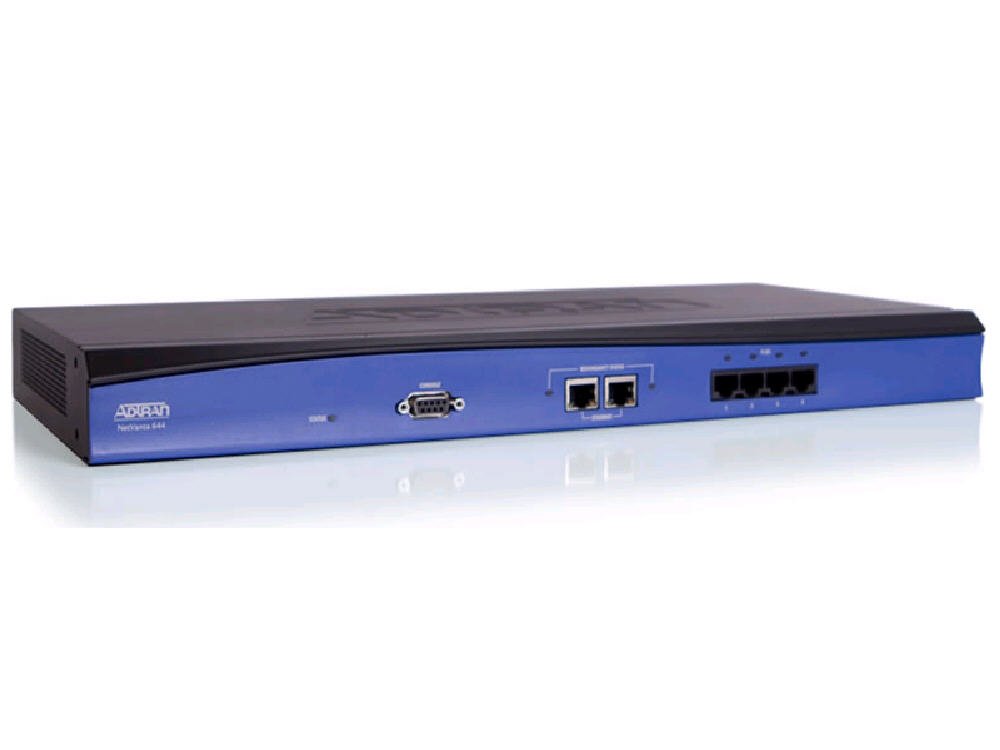
Figure 1: Front view of the ADTRAN NetVanta 644 VoIP Gateway, showing various ports and indicator lights.
Key components typically include:
- Ethernet Ports: For connecting to your local area network (LAN) and wide area network (WAN).
- T1/E1 Ports: For connecting to traditional telephony lines. The NetVanta 644 features 4 T1/E1 ports.
- Console Port: For local management and configuration via a serial connection.
- Power Input: For connecting the power adapter.
- LED Indicators: Provide status information for power, network activity, and voice line status.
Setup
1. Physical Installation
- Unpack the Device: Carefully remove the NetVanta 644 from its packaging.
- Placement: Place the gateway on a flat, stable surface or mount it in a standard equipment rack (mounting hardware sold separately). Ensure proper ventilation.
- Connect T1/E1 Lines: Connect your T1/E1 lines to the corresponding T1/E1 ports on the gateway.
- Connect Ethernet Cables: Connect an Ethernet cable from your LAN to an appropriate Ethernet port on the gateway. If connecting to a WAN, use the designated WAN port.
- Connect Power: Connect the power adapter to the gateway's power input and then plug it into a suitable electrical outlet.
2. Initial Configuration
Upon powering on, the device will initiate its boot sequence. Initial configuration is typically performed via a web-based interface or a command-line interface (CLI) through the console port. Refer to the ADTRAN documentation for detailed configuration steps specific to your network environment and desired VoIP services.
- Accessing the Web Interface: Typically, the device will obtain an IP address via DHCP or use a default static IP. Consult the Quick Start Guide for the default IP address and login credentials.
- CLI Access: Connect a serial cable from your computer to the gateway's console port. Use a terminal emulation program (e.g., PuTTY) with settings: 9600 baud, 8 data bits, no parity, 1 stop bit, no flow control.
Operating
Basic Operation
Once configured, the NetVanta 644 operates as an intermediary between your IP network and traditional T1/E1 voice lines. It translates voice signals between these two environments, enabling calls to be routed efficiently.
- Status Monitoring: Monitor the LED indicators on the front panel for operational status. Green LEDs typically indicate normal operation, while amber or red may indicate a fault or warning.
- Voice Call Routing: The gateway will automatically route calls based on the configuration settings established during setup.
Advanced Features
The NetVanta 644 supports various advanced VoIP features, including:
- SIP (Session Initiation Protocol) support for connecting to IP PBXs or VoIP service providers.
- H.323 protocol support.
- Quality of Service (QoS) mechanisms to prioritize voice traffic.
- Security features such as VPN and firewall capabilities.
Detailed configuration of these features is available in the comprehensive ADTRAN operating system (AOS) documentation, accessible via the ADTRAN support website.
Maintenance
- Firmware Updates: Periodically check the ADTRAN support website for firmware updates. Keeping the firmware current ensures optimal performance, security, and access to new features. Follow ADTRAN's instructions carefully when performing updates.
- Cleaning: Gently wipe the exterior of the device with a soft, dry cloth. Do not use liquid cleaners or aerosols. Ensure ventilation openings are free from dust accumulation.
- Configuration Backup: Regularly back up your device configuration. This allows for quick restoration in case of accidental changes or system failures.
- Environmental Checks: Ensure the operating environment remains within specified temperature and humidity ranges.
Troubleshooting
This section addresses common issues you might encounter with your NetVanta 644.
LED Indicators Guide
| LED | Status | Description |
|---|---|---|
| Power | Solid Green | Device is powered on and operating normally. |
| Power | Off | No power or device malfunction. Check power connection. |
| Ethernet Link/Act | Solid Green | Ethernet link established. |
| Ethernet Link/Act | Flashing Green | Data activity on the Ethernet port. |
| T1/E1 Status | Solid Green | T1/E1 line is active and synchronized. |
| T1/E1 Status | Flashing Amber/Red | Indicates a line error or synchronization issue. Check cabling and service provider status. |
Common Issues and Solutions
- No Power: Ensure the power adapter is securely connected to both the device and a working electrical outlet. Verify the power outlet is functional.
- No Network Connectivity: Check Ethernet cable connections. Verify that the Ethernet Link/Act LED is solid or flashing. Confirm network settings (IP address, subnet mask, gateway) are correct.
- Voice Calls Not Working: Check T1/E1 Status LEDs. If amber or red, inspect physical connections and contact your service provider. Verify VoIP configuration settings (SIP/H.323 registration, dial plans).
- Cannot Access Web Interface: Ensure your computer is on the same network segment as the gateway. Verify the gateway's IP address. Try clearing your browser's cache or using a different browser.
If issues persist, consult the detailed troubleshooting guides available on the ADTRAN support website or contact ADTRAN technical support.
Specifications
| Feature | Detail |
|---|---|
| Model Number | 1700144G1 |
| Product Dimensions | 22.5 x 16 x 6 inches |
| Item Weight | 5 pounds |
| Manufacturer | ADTRAN, INC. |
| Date First Available | October 24, 2011 |
| Special Feature | WPS (Wi-Fi Protected Setup - Note: This feature is typically for Wi-Fi devices. For a VoIP Gateway, this might refer to a related network security feature or be a general specification listed.) |
| Compatible Devices | Personal Computer |
| Recommended Uses | Business, Home |
| Connectivity Technology | Ethernet |
| Control Method | Voice |
| LAN Port Bandwidth | 10/100/1000 megabits per second |
| UPC | 607565032691, 604501605254 |
Warranty and Support
ADTRAN products are typically covered by a limited warranty. For specific warranty terms and conditions applicable to your NetVanta 644 (Model 1700144G1), please refer to the warranty information provided at the time of purchase or visit the official ADTRAN website.
For technical support, documentation, firmware downloads, and additional resources, please visit the official ADTRAN support portal. You may need your product's serial number for support inquiries.
ADTRAN Official Website: www.adtran.com


