
1. Introduction
The Antec Eleven Hundred is a Super Mid Tower computer case designed to accommodate high-performance PC builds. It supports a wide range of components, including XL-ATX motherboards and multiple graphics card configurations. The case features an advanced cooling system with pre-installed fans and multiple additional fan mounts, along with efficient cable management solutions to ensure a clean and optimized internal layout.
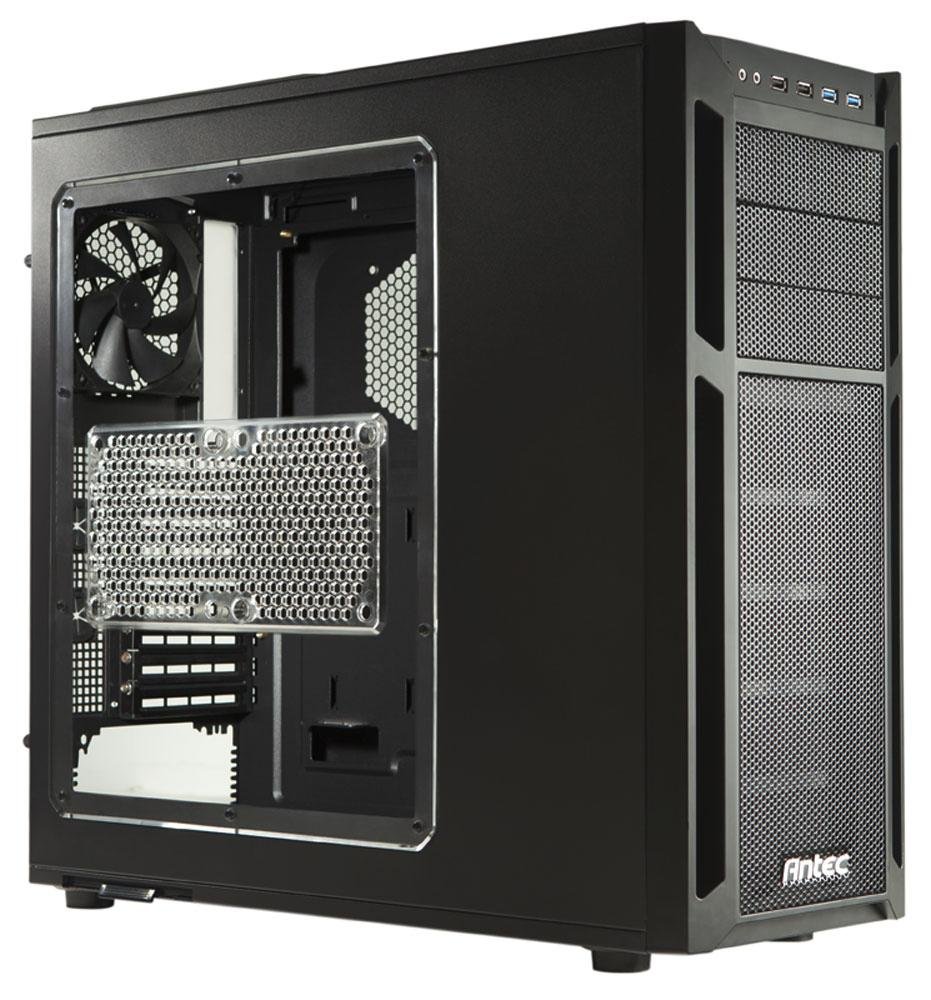
2. Setup and Component Installation
This section provides instructions for installing various components into your Antec Eleven Hundred case.
2.1 Motherboard Installation
The Eleven Hundred case supports XL-ATX motherboards (up to 10.3 x 13.6 inches).
- Prepare the motherboard tray by installing the necessary standoffs for your motherboard form factor.
- Carefully place your motherboard onto the standoffs, aligning the screw holes.
- Secure the motherboard with screws.
2.2 Graphics Card (GPU) Installation
The case features nine expansion slots and can accommodate graphics cards up to 13 inches (330 mm) in length, supporting multi-GPU configurations (e.g., three-way NVIDIA SLI or four-way AMD CrossFireX™).
- Remove the necessary expansion slot covers from the rear of the case.
- Insert the graphics card into the appropriate PCIe slot on your motherboard.
- Secure the graphics card with the provided thumb screws.
2.3 Drive Installation
The Eleven Hundred offers eleven drive bays: three 5.25-inch bays and six 3.5-inch tool-less bays. Additionally, there are two 2.5-inch drive mounts.
- 5.25-inch Drives: Utilize the tool-less mechanisms for easy installation of optical drives or other 5.25-inch devices.
- 3.5-inch Drives: The six 3.5-inch bays feature tool-less trays. Slide your hard drive into a tray and then slide the tray into the bay until it clicks into place.
- 2.5-inch Drives (SSDs): Dedicated mounts are available for 2.5-inch solid-state drives. Secure these drives with screws.
2.4 Cooling System and Fan Installation
The case includes a 200 mm blue LED top exhaust fan and a 120 mm rear exhaust fan. It also provides mounts for up to seven additional fans for enhanced cooling.
- Additional Fan Mounts: Strategic positions are available for optional fans, including an intake fan mount behind the motherboard tray for CPU cooling.
- Fan Power Hub: A convenient fan power hub allows connection of up to four 3-pin fans to a single Molex connector, simplifying cable management.
- Liquid Cooling Compatibility: The Eleven Hundred is compatible with Antec KÜHLER H2O liquid CPU coolers.
2.5 Cable Management
Effective cable management is crucial for airflow and aesthetics. The case provides 36 mm of space behind the motherboard tray and features grommet-lined cable routing holes.
- Route power supply cables and data cables through the grommeted holes to the rear of the motherboard tray.
- Utilize the ample space behind the tray to organize and secure cables using cable ties.
- Connect front panel I/O cables (USB 3.0, USB 2.0, HD Audio) to the corresponding headers on your motherboard. The two front USB 3.0 ports connect via internal motherboard connectors.
3. Operation
Once all components are installed and connected, close the side panels. Power on your system. The pre-installed fans will begin operating to provide cooling.
3.1 Front Panel I/O
The front panel provides convenient access to:
- 2 x USB 3.0 ports
- 2 x USB 2.0 ports
- HD Audio jacks (headphone and microphone)
- Power button
- Reset button
4. Maintenance
Regular maintenance helps ensure optimal airflow and component longevity.
4.1 Cleaning Air Filters
The Eleven Hundred case is equipped with removable and washable air filters to prevent dust buildup.
- PSU Air Intake Filter: Located at the bottom of the case, beneath the power supply.
- Front Air Intake Filter: Located behind the quick-release front bezel.
To clean:
- Gently remove the filters.
- Wash them with water and mild soap, or use a vacuum cleaner to remove dust.
- Ensure filters are completely dry before re-installing them.
4.2 General Cleaning
Use a soft, dry cloth to wipe down the exterior of the case. For internal cleaning, use compressed air to remove dust from fans and components. Ensure the system is powered off and unplugged before performing any internal cleaning.
5. Troubleshooting
This section addresses common issues you might encounter.
5.1 Excessive Fan Noise
If you experience unusual or excessive noise from the fans, particularly the top 200mm fan:
- Check for Obstructions: Ensure no cables or debris are interfering with the fan blades.
- Fan Mounting: Verify that all fans are securely mounted and screws are tightened.
- Power Connection: The included fans connect via Molex. If connected to a motherboard fan header, ensure fan speed settings in the BIOS/UEFI or operating system are appropriate.
- Component Wear: Over time, fan bearings can wear out, leading to increased noise. Consider replacing the fan if it remains noisy after checking the above.
5.2 Poor Airflow or Overheating
If components are running hotter than expected:
- Clean Filters: Ensure all air intake filters are clean and free of dust.
- Cable Management: Verify that internal cables are neatly routed and not obstructing airflow.
- Fan Configuration: Ensure fans are oriented correctly for optimal airflow (intake at front/bottom, exhaust at rear/top). Consider adding optional fans to improve cooling.
- Component Seating: Check that CPU coolers and GPU heatsinks are properly seated and making good contact.
6. Specifications
| Brand | Antec |
| Model | Eleven Hundred |
| Case Type | Super Mid Tower |
| Color | Black |
| Material | Alloy Steel |
| Motherboard Compatibility | XL-ATX, ATX, Micro-ATX, Mini-ITX |
| Expansion Slots | 9 |
| Drive Bays | 3 x 5.25" (external), 6 x 3.5" (internal, tool-less), 2 x 2.5" (internal) |
| Front I/O Ports | 2 x USB 3.0, 2 x USB 2.0, HD Audio In/Out |
| Included Fans | 1 x 200mm Top Exhaust (Blue LED), 1 x 120mm Rear Exhaust |
| Optional Fan Mounts | Up to 7 additional fans |
| Maximum GPU Length | 13 inches (330 mm) |
| Cable Management Space | 36 mm behind motherboard tray |
| Dimensions (H x W x D) | 20.7 x 9.3 x 21.5 inches (52.6 x 23.6 x 54.6 cm) |
| Weight | 20 lbs (9 kg) |
| UPC | 761345159500 |
| ASIN | B005X3E4YC |
7. Warranty and Support
7.1 Manufacturer's Warranty
The Antec Eleven Hundred computer case is backed by a manufacturer's three-year limited warranty, covering both parts and labor. Please retain your proof of purchase for warranty claims.
7.2 Customer Support
For technical assistance, warranty inquiries, or to report any issues, please contact Antec customer support. Refer to the official Antec website for the most current contact information and support resources.


