
Introduction
Thank you for purchasing the Edifier Tick Tock Retro Multifunctional Alarm Clock. This device combines a retro design with modern functionality, offering an alarm clock, FM radio, and media playback from SD cards, USB drives, and auxiliary input. This manual provides detailed instructions for setup, operation, and maintenance to ensure optimal performance and longevity of your device.
Product Features
- SD card reader and USB input port for media playback.
- LCD display screen for time, date, alarm status, and input mode (SD/USB/FM/AUX).
- Alarm clock function with customizable audio sources: SD card, USB drive, FM radio, or Auxiliary input.
- Auxiliary 3.5mm input jack for connecting external audio devices.
- FM radio function with 24 preset channels for easy access to your favorite stations.
- Two 360° omni-directional full-range speakers for rich, multi-directional sound.
Controls and Ports
Rear Panel Ports
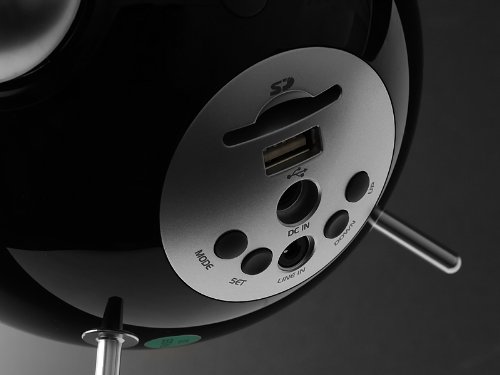
This image displays the rear panel of the Edifier Tick Tock alarm clock. Visible ports and buttons include:
- SD Card Slot: Insert an SD card for music playback.
- USB Port: Connect a USB flash drive for music playback.
- DC IN: Power input for the included AC adapter.
- LINE IN (AUX): 3.5mm audio input for external devices.
- MODE Button: Cycles through input modes (SD, USB, FM, AUX).
- SET Button: Used for entering settings menus (e.g., time, alarm).
- UP/DOWN Buttons: Navigate menus, adjust volume, or change settings.
Top Panel Controls
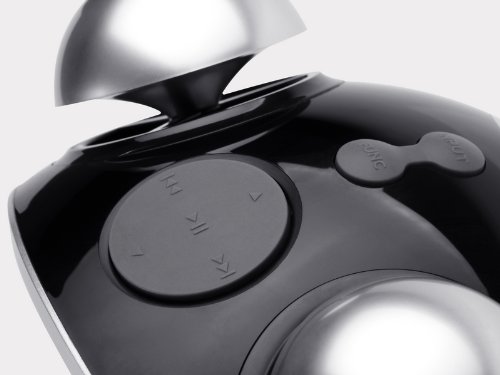
This image shows the top panel controls of the Edifier Tick Tock alarm clock. These include:
- Play/Pause Button: Starts or pauses media playback.
- Previous/Next Track Buttons: Skips to the previous or next track during media playback. Also used for tuning FM radio.
- Volume Up/Down Buttons: Adjusts the audio output volume.
- SNOOZE/LIGHT Button: Activates snooze during an alarm or adjusts display brightness.
Setup
- Unpacking: Carefully remove the alarm clock and all accessories from the packaging. Ensure all components are present: the alarm clock unit, AC power adapter, and this user manual.
- Power Connection: Connect the AC power adapter to the "DC IN" port on the rear of the alarm clock. Plug the adapter into a standard wall outlet. The display should illuminate.
- Initial Power On: The unit should power on automatically. If not, press the power button (if available, otherwise it's always on when plugged in).
- Antenna (FM Radio): Extend the FM antenna located at the back of the unit for optimal radio reception.
Operating Instructions
Setting Time and Date
- Press and hold the SET button until the time display starts flashing.
- Use the UP and DOWN buttons to adjust the hour. Press SET to confirm and move to minutes.
- Adjust minutes using UP and DOWN. Press SET to confirm.
- Continue this process to set the year, month, and day. Press SET to exit the time/date setting mode.
Setting the Alarm
- Press the SET button once (do not hold) to enter alarm setting mode. The alarm time will flash.
- Use the UP and DOWN buttons to adjust the alarm hour. Press SET to confirm and move to minutes.
- Adjust minutes using UP and DOWN. Press SET to confirm.
- Next, select the alarm source (FM, SD, USB, AUX). Use UP and DOWN to cycle through options. Press SET to confirm.
- If FM is selected, use UP and DOWN to select a preset FM station (P01-P24).
- If SD or USB is selected, ensure a card/drive with audio is inserted. The alarm will play the first track.
- If AUX is selected, ensure an external device is connected and playing audio.
- Press SET again to activate the alarm. An alarm icon will appear on the display.
- To deactivate the alarm, press SET until the alarm icon disappears.
- When the alarm sounds, press the SNOOZE/LIGHT button to activate snooze (typically 9 minutes). To turn off the alarm completely, press any other button.
FM Radio Operation
- Press the MODE button repeatedly until "FM" appears on the display.
- Auto Scan and Preset: Press and hold the PLAY/PAUSE button. The radio will automatically scan for available stations and save them to presets (P01-P24).
- Manual Tuning: Use the PREVIOUS/NEXT TRACK buttons to fine-tune the frequency.
- Selecting Presets: In FM mode, briefly press the PREVIOUS/NEXT TRACK buttons to cycle through saved preset stations.
- Adjust volume using the UP and DOWN buttons on the rear panel.
SD Card / USB Playback
- Insert an SD card into the SD card slot or a USB flash drive into the USB port on the rear panel.
- Press the MODE button repeatedly until "SD" or "USB" appears on the display. The device will automatically start playing audio files.
- Use the PLAY/PAUSE button to pause or resume playback.
- Use the PREVIOUS/NEXT TRACK buttons on the top panel to skip tracks.
- Adjust volume using the UP and DOWN buttons on the rear panel.
Auxiliary Input (LINE IN)
- Connect an external audio device (e.g., smartphone, MP3 player) to the "LINE IN" (3.5mm) port on the rear panel using an audio cable (not included).
- Press the MODE button repeatedly until "AUX" appears on the display.
- Start playback on your connected external device.
- Adjust volume using the UP and DOWN buttons on the rear panel, and also control volume from your external device.
Display Brightness
Briefly press the SNOOZE/LIGHT button on the top panel to cycle through different display brightness levels.
Maintenance
- Cleaning: Use a soft, dry cloth to clean the surface of the alarm clock. Do not use abrasive cleaners, waxes, or solvents.
- Placement: Place the unit on a stable, flat surface. Avoid direct sunlight, high temperatures, humidity, or dusty environments.
- Power: Disconnect the power adapter from the wall outlet if the unit will not be used for an extended period.
Troubleshooting
| Problem | Possible Cause / Solution |
|---|---|
| No power / Display off |
|
| No sound from speakers |
|
| Poor FM radio reception |
|
| Alarm does not sound or plays static |
|
| Display is too bright at night |
|
Specifications
| Brand | Edifier |
| Model Number | MF240Reto |
| Display Type | LCD |
| Connectivity Technology | AUX, USB |
| Special Features | Alarm, Radio, SD Card Reader, USB Playback |
| Power Source | Corded Electric |
| Material | Plastic |
| Item Weight | 0.74 Pounds (approx. 0.34 kg) |
| Manufacturer | Edifier USA |
Warranty and Support
This Edifier product comes with a 2-year manufacturer warranty. For warranty claims, technical support, or further assistance, please contact Edifier USA customer service. Please retain your proof of purchase for warranty validation.
For the most up-to-date support information, please visit the official Edifier website.