
1. Introduction
The TP-Link TL-R470T+ Load Balance Broadband Router is designed for small businesses requiring robust and flexible network connectivity. This device offers advanced features to ensure consistent network uptime and reliable Ethernet connectivity, optimizing internet access through multiple WAN connections.
2. Product Features
- Multi-WAN Ports: Features three changeable WAN/LAN ports, allowing configuration for up to four WAN ports to meet diverse internet access requirements.
- Smart Load Balancing: Automatically distributes network traffic across multiple WAN connections based on load and bandwidth, ensuring optimal performance and reliability.
- Advanced Security: Includes Denial of Service (DoS) attack detection and blocking (TCP/UDP/ICMP flooding, Ping of Death), along with IP/MAC/URL/Web filtering functions to protect against intruders and viruses.
- Efficient Access Management: Supports PPPoE server functionality for user authentication and IP-based bandwidth control to manage bandwidth usage. The e-bulletin feature allows for periodic web-page notifications to user groups.
- Lightning Protection: Incorporates professional lightning protection technology designed to prevent electrical surges up to 4KV, safeguarding networking infrastructure.
- DDNS Support: Facilitates easy remote management using a domain name.
- IP and MAC Binding: Prevents ARP virus attacks by binding IP addresses to MAC addresses.
3. Package Contents
Verify that your package contains the following items:
- TP-Link TL-R470T+ Load Balance Broadband Router
- Power Cord
- RJ-45 Ethernet Cable
- Quick Installation Guide
4. Setup
Follow these steps to set up your TL-R470T+ router:
- Physical Connection:
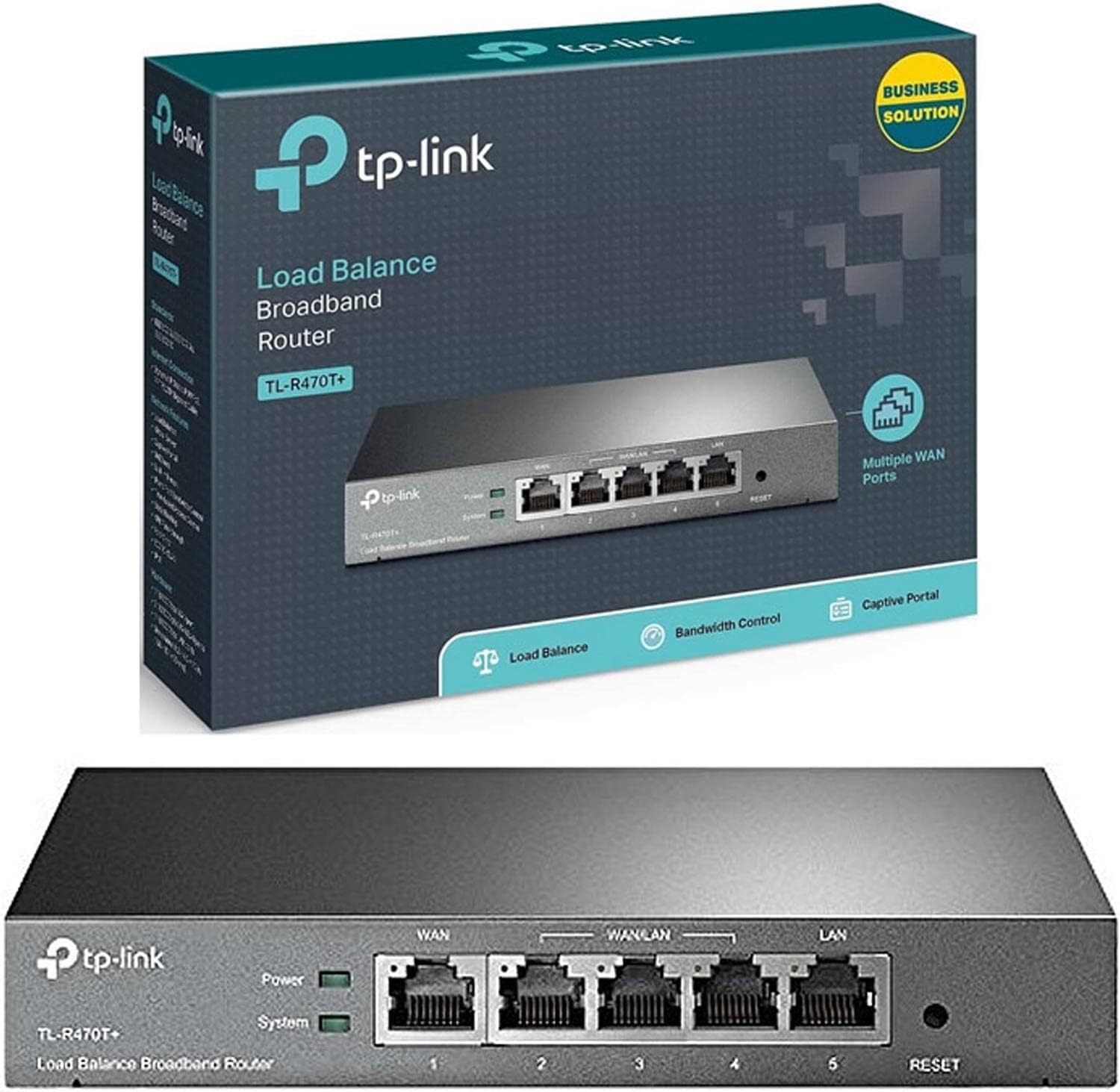
Image: Front view of the TL-R470T+ router, displaying the WAN port, three configurable WAN/LAN ports, and one dedicated LAN port, along with power and system LED indicators.
- Connect your modem's Ethernet cable to the router's dedicated WAN port (Port 1).
- If using additional WAN connections, connect them to the configurable WAN/LAN ports (Ports 2-4).
- Connect your local network devices (computers, switches) to the LAN port (Port 5) or other configurable ports set as LAN.
- Connect the power adapter to the router's power input and plug it into an electrical outlet.
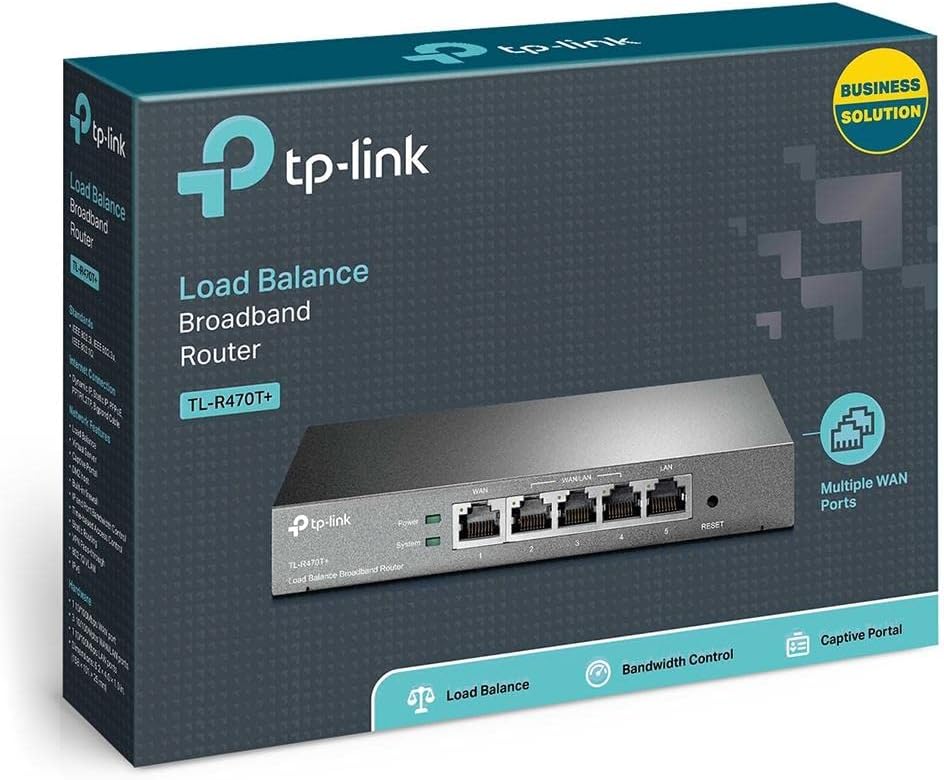
Image: Back view of the TL-R470T+ router, highlighting the power input (9V=0.6A) and a Kensington lock slot for physical security.
- Initial Configuration:
- Open a web browser on a computer connected to the router's LAN port.
- Enter the default IP address (usually 192.168.0.1) into the address bar.
- Log in using the default username and password (refer to the Quick Installation Guide for details).
- Follow the on-screen wizard to configure your WAN connections and basic network settings.
5. Operating Instructions
Once set up, the TL-R470T+ operates to manage your network traffic efficiently.
- Load Balancing: The router intelligently distributes internet traffic across active WAN connections. You can configure load balancing policies via the web interface to prioritize certain connections or applications.
- Firewall and Filtering: Access the security settings in the web interface to configure IP/MAC/URL filtering rules and enable DoS attack protection. This helps secure your network from external threats.
- Bandwidth Control: Utilize the IP-based bandwidth control feature to allocate specific bandwidth limits to different users or devices on your network, ensuring fair usage and preventing congestion.
- Port Forwarding (Virtual Servers): For applications requiring external access to internal network resources (e.g., FTP servers, gaming servers), configure Virtual Servers (Port Forwarding) in the router's settings.
- Dynamic DNS (DDNS): If you have a dynamic public IP address, configure DDNS to associate a fixed domain name with your router, enabling consistent remote access.
6. Maintenance
Regular maintenance ensures optimal performance and longevity of your router.
- Firmware Updates: Periodically check the TP-Link official website for firmware updates. Updating the firmware can improve performance, add new features, and fix security vulnerabilities.
- Configuration Backup: Regularly back up your router's configuration settings through the web interface. This allows for quick restoration in case of accidental changes or a factory reset.
- Physical Environment: Ensure the router is placed in a well-ventilated area, away from direct sunlight, heat sources, and moisture. Keep the device clean and free from dust accumulation.
- Lightning Protection: While the device has built-in lightning protection, ensure proper grounding of your electrical system to maximize its effectiveness.
7. Troubleshooting
This section addresses common issues you might encounter.
- No Internet Access:
- Verify that your modem is working correctly and providing an internet connection.
- Check the WAN port LED indicators on the router; they should be lit.
- Ensure WAN settings (IP address, DNS) are correctly configured in the router's web interface.
- Restart both your modem and the router.
- Slow Internet Speed:
- Check your internet service provider's speed.
- Review load balancing settings to ensure optimal distribution across WANs.
- Check for any active bandwidth control rules that might be limiting speed for your device.
- Cannot Access Web Management Page:
- Ensure your computer is connected to a LAN port of the router.
- Verify your computer's IP address is in the same subnet as the router (e.g., 192.168.0.x).
- Try clearing your browser's cache or using a different browser.
- If the issue persists, perform a factory reset by pressing and holding the reset button for approximately 5-10 seconds while the router is powered on. Note: This will erase all custom configurations.
8. Specifications
| Item Model Number | TL-R470T+ |
| Brand | TP-Link |
| Interface Type | 1 Fixed Ethernet WAN Port, 1 Fixed Ethernet LAN Port, 3 Changeable Ethernet WAN/LAN Ports |
| Number of Ports | 5 |
| Data Transfer Rate | 100 Megabits Per Second |
| Voltage | 240 Volts |
| Item Weight | 0.46 Kilograms (1.02 pounds) |
| Product Dimensions | 8.3 x 1.1 x 5 inches |
| Operating System Compatibility | Microsoft Windows 8, 7, Vista, XP or MAC OS, NetWare, UNIX or Linux |
| Wireless Type | 802.11ac (Note: This device is a wired router, 802.11ac refers to internal component compatibility, not wireless functionality) |
| Flash Memory Size | 4 MB |
9. Warranty and Support
For warranty information, technical support, and further assistance, please refer to the official TP-Link website or contact TP-Link customer service directly. The Quick Installation Guide included with your product may also contain specific warranty details for your region.


