
Sandberg 5705730133732
Sandberg 133-73 USB 3.0 Multi Card Reader
Model: 5705730133732
Introduction
The Sandberg 133-73 USB 3.0 Multi Card Reader is a versatile and high-speed device designed to provide instant access to various memory card formats. Crafted from durable aluminum, this card reader offers a reliable and efficient solution for transferring data from your digital cameras, smartphones, and other devices to your computer. Its plug-and-play functionality ensures ease of use across all major operating systems.
Product Features
- Easy to Handle: Designed for straightforward operation and portability.
- First-Class Quality: Constructed with premium materials for durability and performance.
- Easy to Use: Simple plug-and-play setup with no drivers required for most operating systems.
- USB 3.0 SuperSpeed: Achieves data transfer speeds of up to 5 Gbit/s.
- Wide Compatibility: Supports a broad range of memory card types including CompactFlash, Memory Stick, Memory Stick Micro, SD Card, and xD Picture Card.
- Durable Aluminum Casing: Provides robust protection and a sleek design.
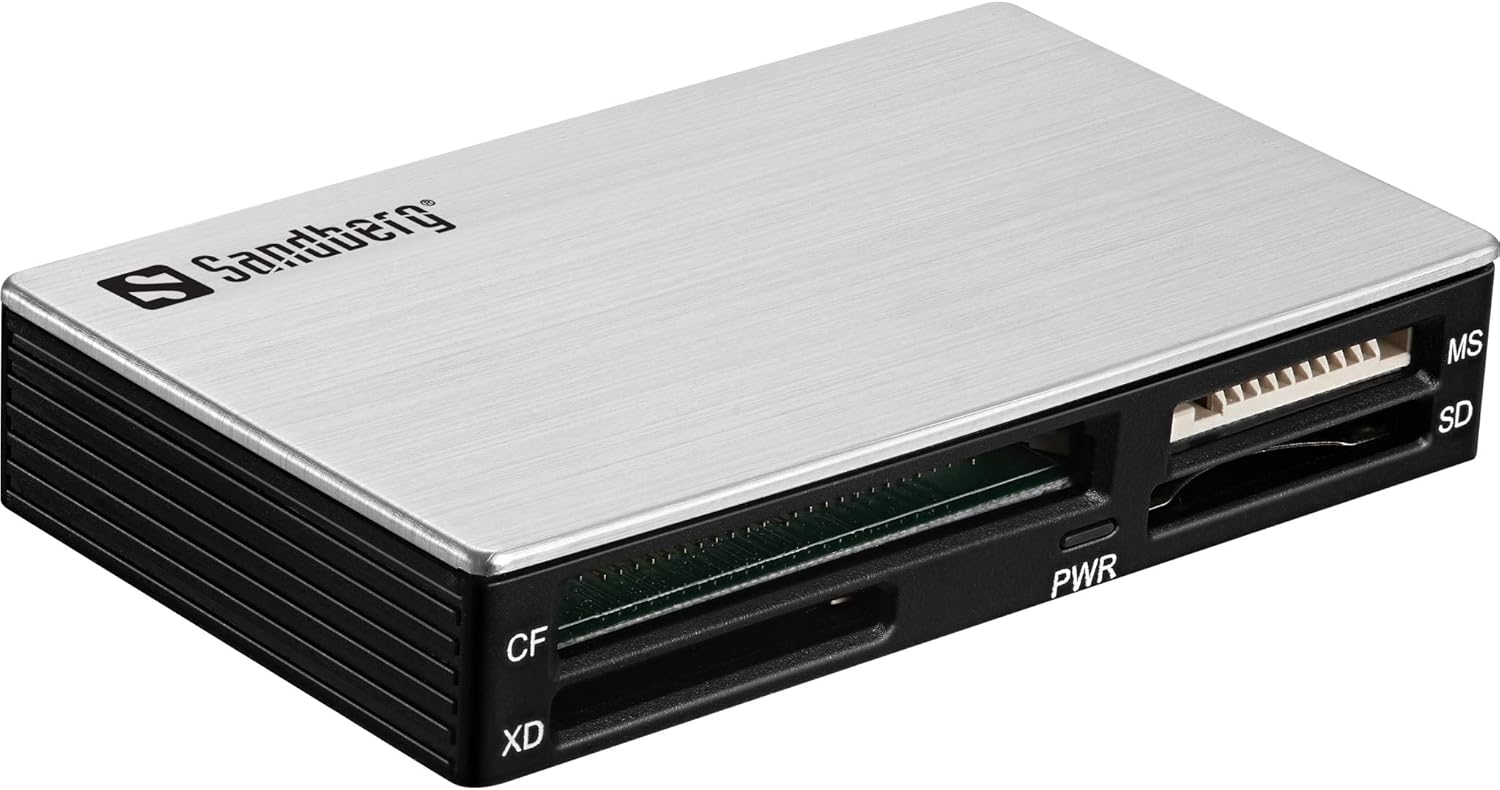
Image: The Sandberg 133-73 USB 3.0 Multi Card Reader, showcasing its aluminum casing and multiple card slots (CF, XD, SD, MS) with a power indicator light.
Setup Guide
- Unpack the Device: Carefully remove the Sandberg USB 3.0 Multi Card Reader from its packaging.
- Connect to Computer: Plug the USB connector of the card reader into an available USB 3.0 port on your computer. While compatible with USB 2.0, a USB 3.0 port is recommended for optimal performance and transfer speeds.
- Driver Installation (Automatic): The card reader is designed to be plug-and-play. Your operating system (Windows, macOS, Linux) should automatically detect the device and install any necessary drivers. No manual driver installation is typically required.
- Power Indicator: Once connected, the "PWR" indicator light on the card reader will illuminate, indicating that the device is receiving power and is ready for use.

Image: A visual representation of the card reader in use, highlighting its seamless integration into a modern workspace. This device acts as an adapter that simplifies technology and provides access to all memory card types.
Operating Instructions
- Insert Memory Card: Gently insert your memory card into the corresponding slot on the card reader. Ensure the card is inserted correctly, aligning with the slot's shape and pin configuration. Do not force the card.
- CF (CompactFlash): Insert into the wider slot with multiple pins.
- XD (xD Picture Card): Insert into the designated smaller slot.
- SD (Secure Digital): Insert into the SD slot. This slot also supports SDHC, SDXC, and miniSD/microSD with an adapter.
- MS (Memory Stick): Insert into the Memory Stick slot. This slot also supports MS Pro, MS Duo, MS Pro Duo, and M2 with an adapter.
- Accessing Data: Once the card is inserted, your computer's operating system will typically recognize it as a removable drive. You can then access the card's contents through "My Computer" (Windows) or "Finder" (macOS).
- Transferring Files: Drag and drop files to and from the memory card as you would with any other drive. For optimal speed, ensure you are connected to a USB 3.0 port.
- Safely Remove Hardware: Before disconnecting the card reader or removing the memory card, always safely eject the device from your operating system to prevent data corruption. Right-click the drive icon in your system tray (Windows) or drag the drive icon to the Trash (macOS) and select "Eject".
Maintenance
- Cleaning: Use a soft, dry, lint-free cloth to clean the exterior of the card reader. Do not use liquid cleaners or aerosols.
- Storage: Store the card reader in a cool, dry place away from direct sunlight and extreme temperatures. When not in use, it is advisable to keep it in its original packaging or a protective pouch to prevent dust and damage.
- Avoid Moisture: Keep the device away from water and high humidity.
- Handle with Care: Avoid dropping the device or subjecting it to strong impacts. Do not bend or twist the USB cable excessively.
Troubleshooting
- Problem: The card reader is not recognized by the computer.
- Ensure the USB cable is securely connected to both the card reader and a functioning USB port on your computer.
- Try connecting the card reader to a different USB port on your computer.
- Restart your computer.
- Verify that your operating system is up to date.
- Problem: Memory card is not detected when inserted.
- Ensure the memory card is fully and correctly inserted into the appropriate slot. Do not force the card.
- Check if the memory card itself is damaged or corrupted. Try the card in another device if possible.
- Verify that the memory card is compatible with the card reader (e.g., not a format not listed in specifications).
- For CompactFlash (CF) cards, ensure proper alignment with the pins in the slot. Some users have reported difficulty with CF card insertion; ensure the card is oriented correctly and gently push it in without excessive force to avoid bending pins.
- Problem: Data transfer speeds are slow.
- Ensure the card reader is connected to a USB 3.0 port on your computer. USB 2.0 ports will result in significantly slower speeds.
- Verify that your memory card supports high-speed data transfer (e.g., Class 10 SD cards, UHS-I/II).
- Close any unnecessary applications running in the background that might be consuming system resources.
Specifications
| Brand | Sandberg |
| Model Number | 5705730133732 |
| Color | Aluminum |
| Voltage | 5 Volts |
| Supported Card Types | CompactFlash, Memory Stick, Memory Stick Micro, SD Card, xD Picture Card |
| Power Source | Mechanical (Bus-powered via USB) |
| Hardware Platform | PC |
| Operating System Compatibility | All operating systems (Windows, macOS, Linux) |
| Product Weight | 46 g |
| Connectivity Technology | USB (USB 3.0 interface) |
| Data Transfer Speed | Up to 5 Gbit/s (USB 3.0 SuperSpeed) |
| Compatible Devices | Camera, Laptop, Desktop, Tablet, Smartphone, Game Console, Printer |
Warranty and Support
The Sandberg 133-73 USB 3.0 Multi Card Reader comes with a 5-year warranty, ensuring long-term reliability and peace of mind. For technical support, troubleshooting assistance beyond this manual, or warranty claims, please visit the official Sandberg website or contact their customer service department. Keep your proof of purchase for warranty validation.
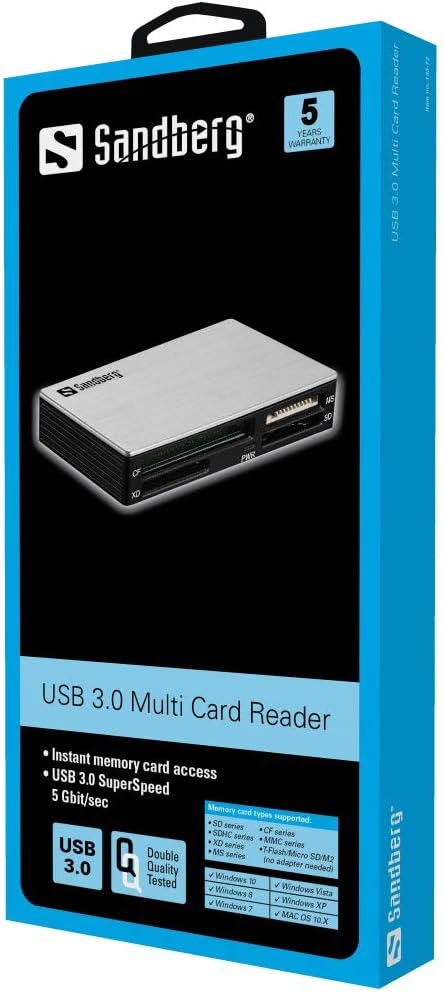
Image: The product packaging, clearly indicating "5 Years Warranty" and "USB 3.0 Multi Card Reader".
Related documents5705730133732


Ask a question about this manual
Ask about setup, troubleshooting, compatibility, parts, safety, or missing instructions. Manuals+ will review the question and use this page’s manual context to help answer it.