
1. Introduction
The Cirago BTA7300 is a compact USB mini adapter designed to provide both Bluetooth 3.0 High Speed and Wi-Fi 802.11n connectivity to your computer. This device enables wireless communication with various Bluetooth-enabled peripherals and connection to Wi-Fi networks, offering a versatile solution for desktop and laptop users.
2. Product Overview
The BTA7300 adapter integrates two essential wireless technologies into a single, convenient USB device. It is designed for ease of use and portability.
Key Features:
- Bluetooth 3.0 + HS (High Speed) for fast data transfer.
- Wi-Fi 802.11n for wireless network connectivity.
- Up to 8 times faster Bluetooth transfer rate compared to Bluetooth 2.0 or 3.0 (non-HS).
- Backwards compatible with Bluetooth 2.0 devices.
- Supports Windows 8, 7, Vista, and XP operating systems.
- Compact USB design for minimal protrusion.
- USB powered, 5V, with power consumption less than 300mA.
- Operating range of up to 10 meters (33 feet).
Package Contents:
- Cirago BTA7300 USB Mini Adapter
- Driver CD (may vary by region/package)
- Quick Installation Guide (this manual serves as a comprehensive guide)

Image 1: The Cirago BTA7300 USB Mini Adapter, demonstrating its compact size relative to a US quarter.
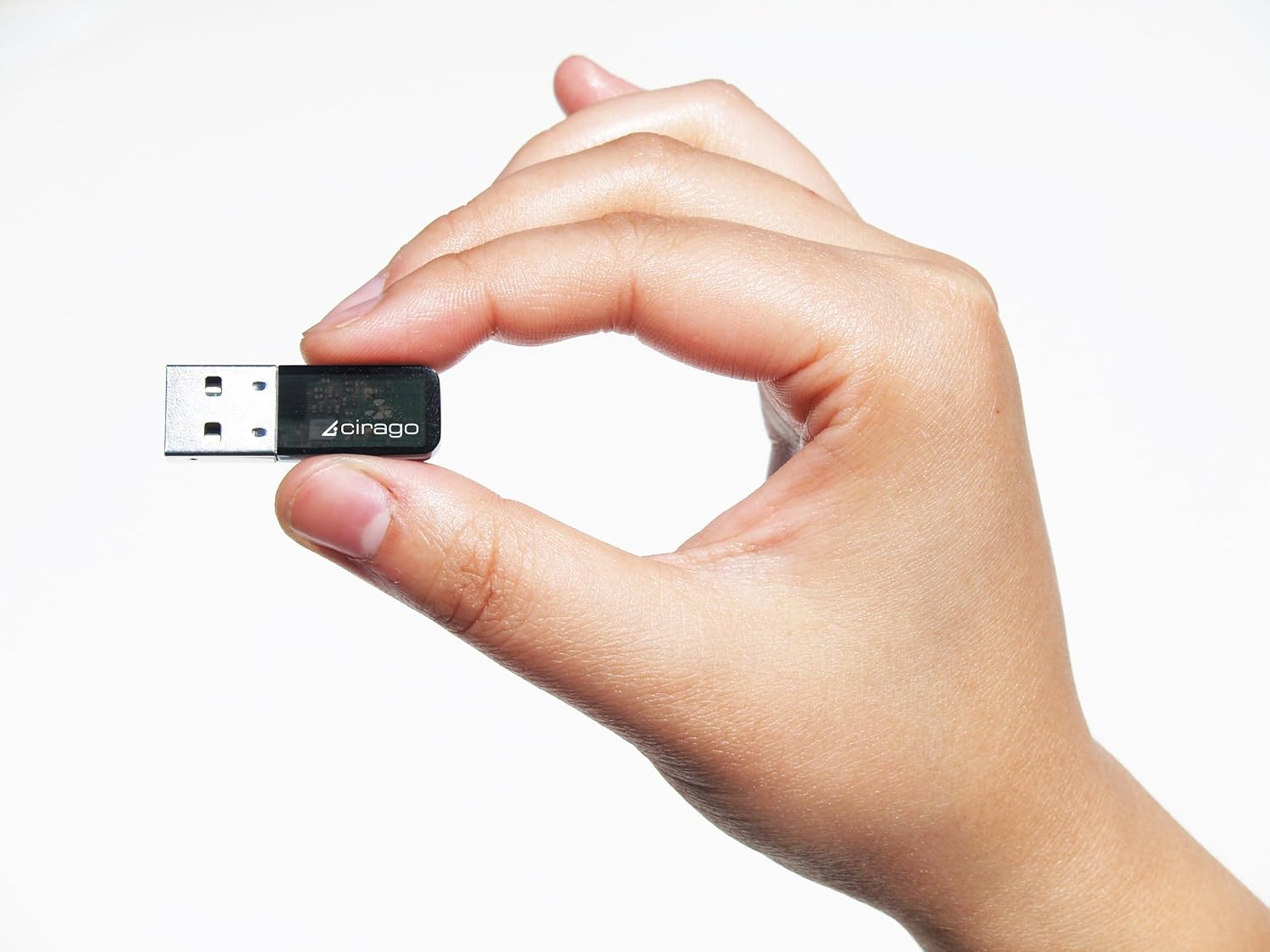
Image 2: The Cirago BTA7300 USB Mini Adapter held in a hand, illustrating its miniature design.
3. Setup and Installation
Follow these steps to install the Cirago BTA7300 adapter on your computer.
System Requirements:
- Available USB 2.0 or 3.0 port.
- Operating System: Windows XP, Vista, 7, or 8.
- CD-ROM drive (if installing drivers from disc) or internet access for driver download.
Installation Steps:
- Do not insert the adapter yet. It is recommended to install the drivers first.
- Insert the driver CD into your computer's CD-ROM drive. If you do not have a CD-ROM drive, download the latest drivers from the official Cirago support website.
- Run the setup program (e.g., "setup.exe") from the CD or downloaded files. Follow the on-screen instructions to install both the Bluetooth and Wi-Fi drivers.
- Note for Windows 8 users: Some users report that Windows 8 may automatically install Bluetooth drivers. If you encounter issues, try installing only the Wi-Fi drivers and allow Windows to manage the Bluetooth component.
- Once the driver installation is complete, restart your computer if prompted.
- After your computer has restarted, insert the Cirago BTA7300 USB Mini Adapter into an available USB port.
- The operating system should detect the new hardware and complete the installation. You may see a notification indicating that the device is ready for use.
4. Operating Instructions
Once installed, the BTA7300 adapter provides both Bluetooth and Wi-Fi functionalities.
4.1. Using Bluetooth
- Enable Bluetooth: Ensure Bluetooth is enabled on your computer. This can usually be done through the system tray icon or Windows Settings/Control Panel.
- Pairing Devices:
- Put your Bluetooth device (e.g., headphones, mouse, keyboard) into pairing mode. Refer to your device's manual for specific instructions.
- On your computer, open the Bluetooth settings (e.g., "Add a Bluetooth device" or "Bluetooth & other devices").
- Scan for new devices. Your Bluetooth device should appear in the list.
- Select your device and follow any on-screen prompts to complete the pairing process, which may include entering a PIN.
- Data Transfer: Once paired, you can transfer files, stream audio, or use Bluetooth peripherals as intended.
4.2. Using Wi-Fi
- Enable Wi-Fi: Ensure Wi-Fi is enabled on your computer. This is typically managed through the network icon in the system tray.
- Connect to a Network:
- Click on the Wi-Fi network icon in your system tray.
- A list of available Wi-Fi networks will appear.
- Select your desired network and click "Connect".
- Enter the network security key (password) if prompted.
- Internet Access: Once connected, you should have internet access and be able to browse the web or use network applications.
5. Maintenance
The Cirago BTA7300 adapter requires minimal maintenance to ensure optimal performance and longevity.
- Keep Clean: Periodically clean the adapter with a soft, dry cloth. Avoid using liquid cleaners or solvents.
- Proper Storage: When not in use, store the adapter in a cool, dry place away from direct sunlight and extreme temperatures.
- Avoid Physical Damage: Handle the adapter carefully. Avoid dropping it or exposing it to excessive force, which can damage internal components or the USB connector.
- Firmware/Driver Updates: Check the official Cirago website periodically for updated drivers or firmware, which can improve performance and compatibility.
6. Troubleshooting
If you encounter issues with your Cirago BTA7300 adapter, refer to the following common troubleshooting steps.
| Problem | Possible Cause / Solution |
|---|---|
| Adapter not detected or not working. |
|
| Wi-Fi not connecting or slow speeds. |
|
| Bluetooth device not pairing or disconnecting. |
|
| Adapter becomes excessively hot. |
|
7. Specifications
| Feature | Detail |
|---|---|
| Model Number | BTA7300 |
| Brand | CIRAGO |
| Product Dimensions | 6 x 1 x 7 inches (packaging/overall) |
| Item Weight | 0.48 ounces (0.03 Pounds) |
| Hardware Interface | Bluetooth, USB |
| Compatible Devices | Desktop, Laptop |
| Data Link Protocol | USB |
| Data Transfer Rate (Wi-Fi) | Up to 150 Megabits Per Second (802.11n) |
| Data Transfer Rate (Bluetooth) | Up to 24 Megabits Per Second (Bluetooth 3.0 + HS) |
| Operating Range | Up to 10 Meters (33 feet) |
| Power Consumption | 5V, <300mA (USB powered) |
| Supported Operating Systems | Windows 8, 7, Vista, XP |
| UPC | 796327848899, 858796051542 |
8. Warranty and Support
Cirago products are covered by a limited manufacturer's warranty. Please refer to the warranty card included with your product or visit the official Cirago website for detailed warranty terms and conditions.
For technical support, driver downloads, or further assistance, please visit the Cirago support website or contact their customer service department. Contact information can typically be found on the product packaging or the official website.
Please retain your proof of purchase for warranty claims.