
1. Introduction
The Yale Security Electronic Push Button Deadbolt offers convenient and secure access to your home. Featuring a backlit touchscreen keypad and Z-Wave technology, this deadbolt seamlessly integrates with over 50 home automation and security systems, including SmartThings, Alarm.com, Honeywell, ADT, and Wink. Manage access, create unique entry codes, and receive notifications from anywhere when connected to a compatible Z-Wave system.
This manual provides detailed instructions for the installation, setup, operation, and maintenance of your Yale Security Electronic Push Button Deadbolt.
2. Product Features
- Keypad Access: Backlit touchscreen keypad for easy code entry.
- Z-Wave Technology: Seamless integration with compatible smart home systems for remote control and monitoring.
- Customizable Codes: Create unique entry codes for family and guests, and easily remove them as needed.
- Privacy Mode: Enhanced security feature to lock out all codes for privacy.
- Auto Re-lock: Configurable automatic re-locking function for added peace of mind.
- Voice Control: Works with Alexa for voice control (requires compatible hub and Alexa device, sold separately).
- Durable Design: Transitional design in polished brass to complement various door styles.
3. Package Contents
Verify that all components are present before beginning installation:
- Yale Assure Lock Touchscreen
- Z-Wave Smart Module
- Deadbolt Strike and Mounting Hardware
- 4 AA Batteries
- Installation Manual and Door Template
- 2 Keys
4. Installation
Follow these steps to install your Yale Security Electronic Push Button Deadbolt. Ensure your door meets the required measurements (2-49/64 W by 5-13/64 T by 1-3/16 D) for proper fit.
- Prepare the Door: Use the provided door template to mark and drill holes if necessary. Ensure the existing bore hole is correctly sized.
- Install the Deadbolt Latch: Insert the deadbolt latch into the door edge. Ensure it is oriented correctly for your door's handing.
- Install the Exterior Keypad: Feed the cable from the exterior keypad through the door hole and align the keypad with the latch.
- Install the Interior Mounting Plate: Secure the interior mounting plate to the door, ensuring the cable passes through the plate.
- Connect the Cable: Connect the exterior keypad cable to the interior assembly.
- Install the Interior Assembly: Attach the interior assembly to the mounting plate.
- Insert Batteries: Install the 4 AA batteries into the battery compartment.
- Install Z-Wave Module: Insert the Z-Wave smart module into its designated slot (if applicable).
- Test Operation: Manually test the deadbolt with the key and keypad to ensure smooth operation.

Figure 1: Yale Electronic Deadbolt installed on a wooden door, showcasing the polished brass finish and keypad.

Figure 2: Close-up view of the exterior keypad, highlighting the numerical buttons and keyhole.
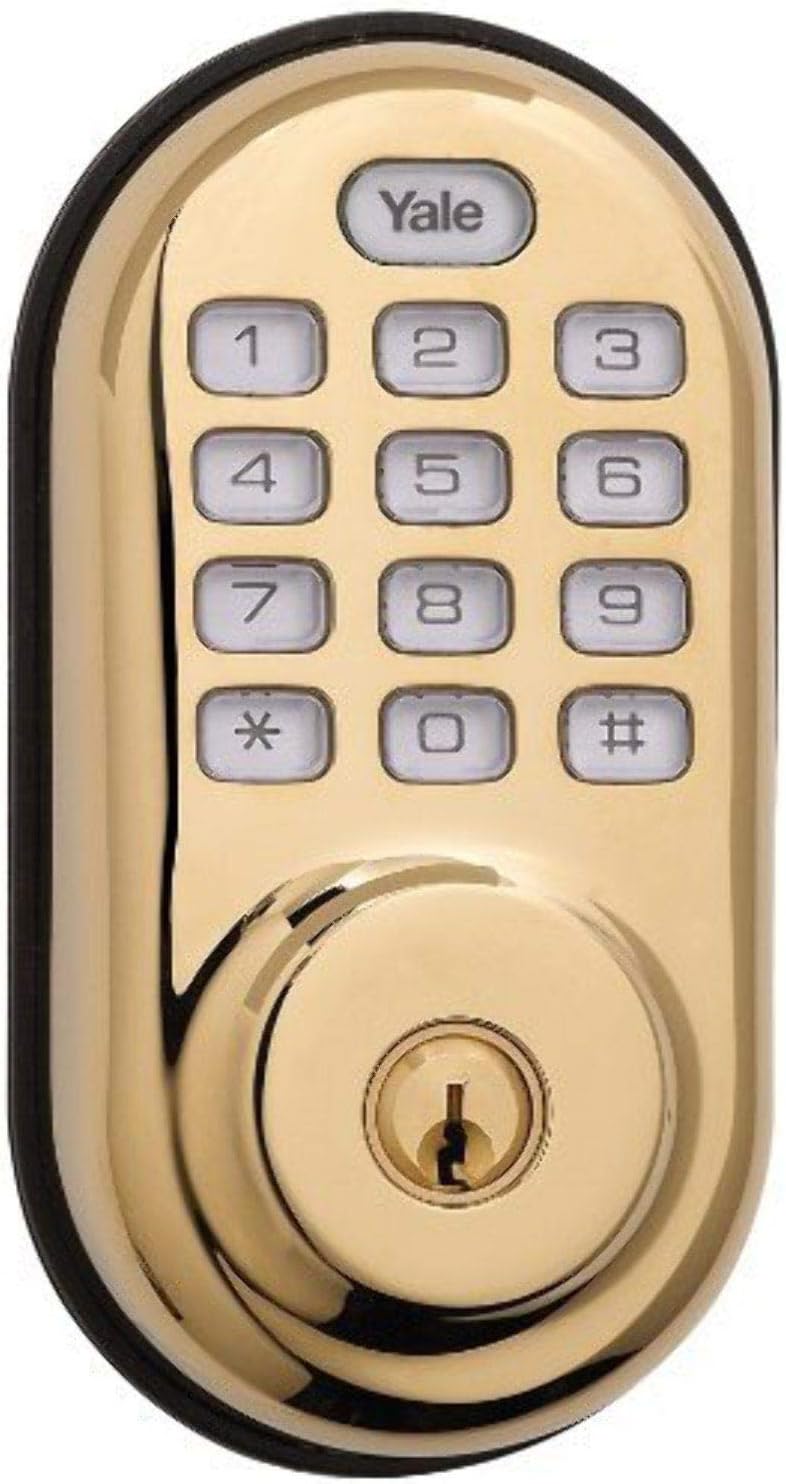
Figure 3: Detailed view of the Yale keypad, illustrating features like acrylic wear-resistant buttons, keyless entry, auto relock, and tamper/low battery alarms.

Figure 4: Diagram explaining the benefits of Yale Real Living, including keyless entry, 500 user event history, motorized tapered deadbolt, and privacy lockout.
5. Setup (Programming Codes)
Your Yale deadbolt comes with a unique 6-digit Programming Code and two preset 4-digit User Codes. The Programming Code is used only for programming the lock, not for daily access. User Codes are used to operate the lock.
5.1 Locating Your Codes
Your unique 6-digit Programming Code and preset 4-digit User Codes are located on a label on the front of your operating/programming guide and also on the inside of the lock's keypad assembly. Keep these codes secure.
5.2 Adding a New User Code
- Enter your 6-digit Programming Code.
- After the Yale button turns orange, press it, followed immediately by the "1" key.
- Enter your new 4-digit User Code.
- Pause until the Yale button blinks three times and you hear three beeps.
- Enter the same 4-digit User Code again to confirm.
- When the Yale button turns green and you hear a long beep, the user code has been successfully added. The lock will automatically exit programming mode.
5.3 Deleting a User Code
- Enter your 6-digit Programming Code.
- After the Yale button turns orange, press it, followed immediately by the "2" key.
- Enter the 4-digit User Code you wish to delete.
- Pause until the Yale button blinks three times and you hear three beeps.
- Enter the same 4-digit User Code again to confirm.
- When the Yale button turns green and you hear a long beep, the user code has been successfully deleted.
Video 1: Official Yale Security Amazon Video demonstrating product features and basic operation.
6. Operating Instructions
6.1 Locking the Door
- From Exterior: Press any key on the keypad or press the Yale button. The deadbolt will extend.
- From Interior: Turn the thumbturn to the locked position.
6.2 Unlocking the Door
- Using a User Code: Enter your 4-digit User Code on the keypad. The deadbolt will retract.
- Using a Key: Insert the physical key into the keyhole and turn to unlock.
- From Interior: Turn the thumbturn to the unlocked position.
6.3 Auto Re-lock Function
If enabled, the lock will automatically re-lock after a set period (default is 30 seconds) once it has been unlocked. This feature can be enabled or disabled via the programming menu (refer to the full installation manual for detailed steps).
6.4 Privacy Mode
To activate Privacy Mode, press and hold the interior privacy button for 3 seconds. This will disable all keypad access from the exterior. To deactivate, turn the interior thumbturn or unlock with a physical key.
7. Maintenance
7.1 Battery Replacement
The lock uses 4 AA batteries. When the batteries are low, the lock will provide an audible and visual alert. To replace:
- Remove the battery cover on the interior assembly.
- Remove the old batteries and insert 4 new AA alkaline batteries, ensuring correct polarity.
- Replace the battery cover.
7.2 Cleaning
Clean the keypad and lock body with a soft, damp cloth. Avoid abrasive cleaners or solvents that could damage the finish or electronic components.
8. Troubleshooting
- Lock not responding: Check battery levels. Replace batteries if necessary.
- Keypad not lighting up: Ensure batteries are correctly installed and charged.
- Deadbolt not extending/retracting fully: Check for obstructions in the door frame or strike plate. Ensure the lock is properly aligned and not overtightened during installation.
- Forgotten Programming Code: Refer to the original installation manual or contact Yale Security support.
- Z-Wave connectivity issues: Ensure your Z-Wave hub is within range and properly configured. Refer to your Z-Wave hub's manual for pairing instructions.
9. Specifications
| Attribute | Detail |
|---|---|
| Brand | Yale Security |
| Model Name | YRD210-ZW-605 |
| Lock Type | Keypad Deadbolt |
| Material | Brass |
| Finish Type | Polished Brass |
| Special Feature | Z-Wave Certification #ZC08-12060010 |
| Connectivity Protocol | Z-Wave |
| Controller Type | Amazon Alexa, SmartThings, Vera |
| Power Source | 4 AA Batteries (included) |
| Item Weight | 4.2 pounds |
| Package Dimensions | 9.88 x 9.06 x 3.66 inches |
| Door Thickness Compatibility | 2-49/64 W by 5-13/64 T by 1-3/16 D |
10. Warranty and Support
Your Yale Security Electronic Push Button Deadbolt is covered by a 1-year warranty for electronic components and a lifetime limited warranty for finish and mechanical operation. For warranty claims, technical support, or additional assistance, please refer to the contact information provided in your original product packaging or visit the official Yale Security website.
Always ensure you have your product model number (YRD210-ZW-605) and proof of purchase available when contacting support.


