
Introduction
This manual provides instructions for the AmScope MU500-CK 5.0 MP USB Microscope Camera. This digital camera is designed to capture still images and stream live video from your microscope to a computer. It is compatible with various operating systems and offers advanced imaging features.
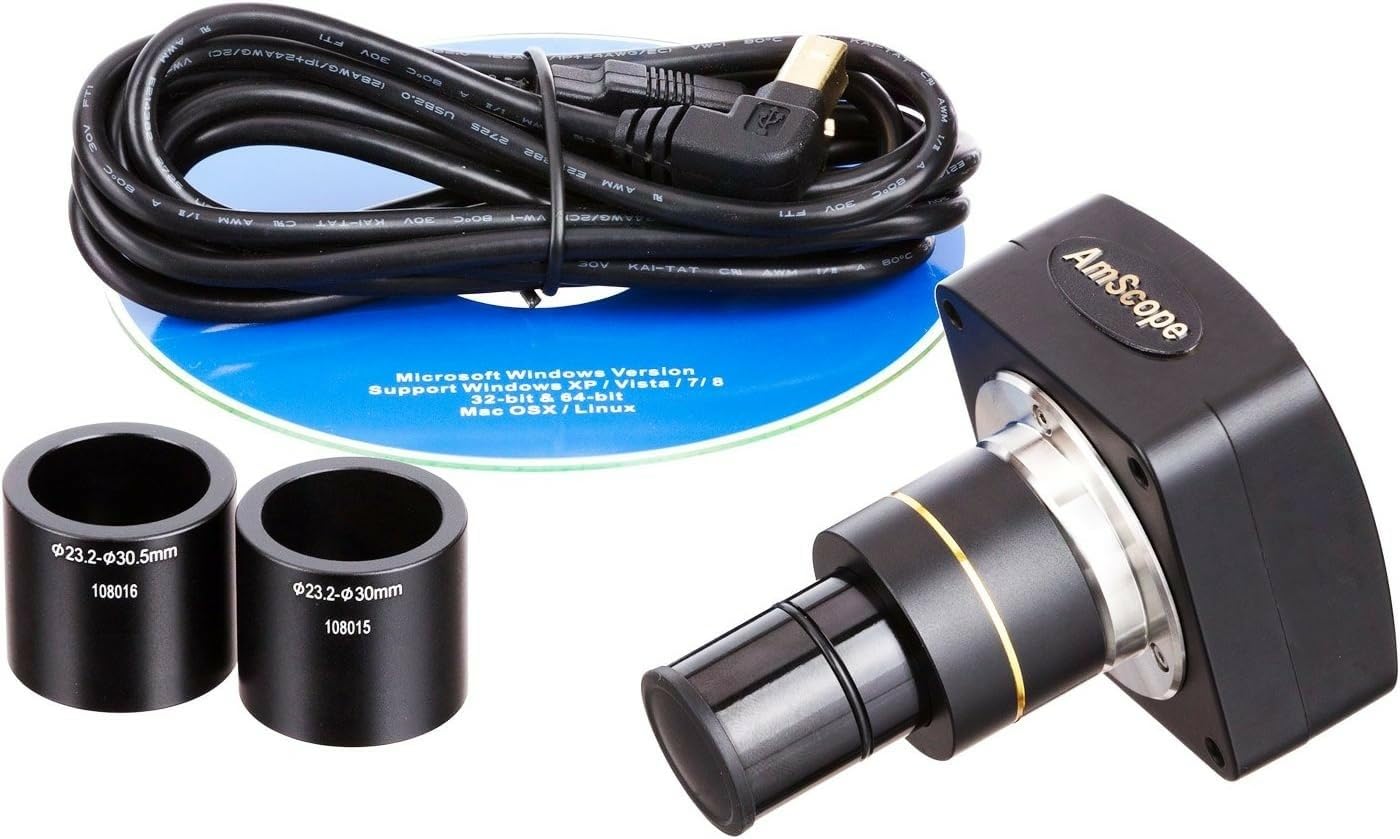
Image: The AmScope MU500-CK 5.0 MP USB Microscope Camera, a compact black unit with a gold ring accent on the lens barrel.
Package Contents
The AmScope MU500-CK package includes the following components:
- 5.0 MP USB Microscope Camera
- 0.5X Reduction Lens
- USB Cable
- Two Adapters (for 30mm and 30.5mm photo ports)
- Calibration Kit
- Software CD

Image: The complete package contents, including the camera, USB cable, software disk, two adapters, and an open cardboard box.
System Requirements
To ensure proper functionality of the AmScope MU500-CK camera, your computer system should meet the following requirements:
- Operating Systems: Windows XP/Vista/7/8/10, Mac OS X, or Linux.
- USB Port: A USB 2.0 port or higher is recommended for optimal data transfer speed and live video performance.
Setup
1. Software Installation
- Insert the provided software CD into your computer's optical drive.
- Follow the on-screen instructions to install the AmScope user-friendly software.
- If your computer lacks an optical drive or for Mac OS X/Linux compatibility, download the latest software version from the official AmScope website.
2. Camera Installation on Microscope
The camera is designed for versatile mounting on various microscopes. It features built-in C-mount compatibility and includes a 0.5X reduction lens adapter, along with additional adapters for 30mm and 30.5mm photo ports.
- For C-mount microscopes: Directly attach the camera to the C-mount port on your microscope.
- For eyepiece tube or trinocular port: Select the appropriate adapter (23mm, 30mm, or 30.5mm) that fits your microscope's eye-tube or trinocular port. Insert the camera into the chosen port.

Image: The AmScope MU500-CK camera mounted on a stereo microscope, connected via USB to a laptop displaying a live image.
3. Connecting to Computer
Connect one end of the provided USB cable to the camera and the other end to an available USB 2.0 port on your computer.
Operating Instructions
1. Launching the Software
After successful installation, launch the AmScope software from your desktop shortcut or applications folder.
2. Live View and Image Capture
- The software will display a live video feed from the microscope camera. Adjust the microscope's focus and illumination settings to achieve a clear and sharp image.
- To capture a still image, locate and click the "Capture" or "Snapshot" button within the software interface.
- To record video, locate and click the "Record" button. The software allows for simultaneous live video streaming and still image capture at different resolutions.
3. Advanced Features
The AmScope software provides several advanced features to enhance your microscopy experience:
- Stitching: Combine multiple images to create a wider field of view.
- EDF (Extended Depth of Focus): Merge images taken at different focal planes to create a single image with greater depth of field.
- Measurement Functions: Perform precise measurements of your samples using the integrated tools.
- Image Editing: Utilize the editing tools to process images, add notes, shapes, and watermarks.
4. Calibration
Use the included calibration kit in conjunction with the software's measurement functions to ensure accurate and precise measurements of your microscopic samples.

Image: The AmScope MU500-CK camera attached to a compound microscope, with a laptop displaying a magnified view of a biological sample.
Maintenance
Cleaning the Camera Lens
To maintain optimal image quality, gently clean the camera lens using a soft, lint-free cloth and a specialized lens cleaning solution. Avoid using abrasive materials or harsh chemicals that could damage the lens coating.
Storage
When the camera is not in use, store it in a dry, dust-free environment. Utilizing the original packaging or a dedicated protective case can help prevent damage and dust accumulation.
Software Updates
Periodically check the official AmScope website for available software updates. Installing the latest software ensures access to new features, performance improvements, and bug fixes.
Troubleshooting
- No Image Displayed:
- Ensure the USB cable is securely connected to both the camera and the computer.
- Verify that the camera is correctly installed on the microscope and the AmScope software is launched.
- Check if the correct camera device is selected within the software settings.
- Lagging Video Feed:
- Confirm that you are using a USB 2.0 port or higher on your computer. Older USB 1.1 ports may result in slower performance.
- Close any other demanding applications running on your computer that might be consuming system resources.
- Software Not Recognizing Camera:
- Try restarting your computer and reconnecting the camera.
- Reinstall the software from the provided CD or download the latest version from the AmScope website.
- Check your operating system's device manager to confirm that the camera is detected and drivers are installed correctly.
- Inaccurate Measurements:
- Perform a calibration using the included calibration kit and the software's measurement tools as described in the Operating Instructions section.
Specifications
| Feature | Detail |
|---|---|
| Model | MU500-CK |
| Sensor | 5.0 MP CMOS Color Sensor |
| Connectivity | USB 2.0 |
| Compatibility | Windows XP/Vista/7/8/10, Mac OS X, Linux |
| Mounting Sizes | C-mount, 23mm, 30mm, 30.5mm |
| Reduction Lens | 0.5X |
| Material | Metal, Glass |
| Color | Black |
| Item Weight | 1 Pound |
| Voltage | 5 Volts |
Warranty and Support
The AmScope MU500-CK camera is backed by a 5-year manufacturer warranty, ensuring coverage against defects in materials and workmanship.
For technical support, software updates, or to inquire about warranty claims, please visit the official AmScope website or contact their customer service department directly.
You can find more information and support resources at the Official AmScope Store.