
1. Introduction
The HTC Radar is a smartphone designed for communication and multimedia. It features a unibody metal design and operates on Windows Phone OS 7.5. This manual provides essential information for setting up, operating, maintaining, and troubleshooting your device.
Key features include a 5-megapixel camera, a 3.8-inch touchscreen display, Wi-Fi, and GPS capabilities.
2. Device Overview

Figure 2.1: Front, back, and side views of the HTC C110E Radar smartphone. This image illustrates the phone's overall design, including the display, camera, and various ports.

Figure 2.2: Front view of the HTC C110E Radar with the Windows Phone interface displayed. This shows the home screen layout with various application tiles.
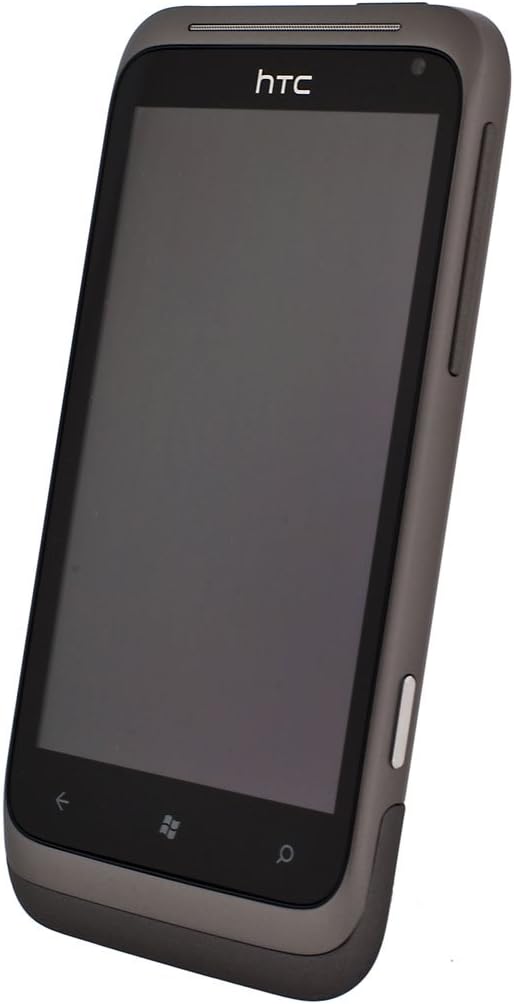
Figure 2.3: Angled view of the HTC C110E Radar with the screen off, highlighting the device's form factor and button placement.
3. Setup
3.1. Inserting the SIM Card
The HTC C110E Radar uses a single SIM card. Locate the SIM card slot, typically on the side or top edge of the device. Carefully insert your SIM card into the designated tray or slot until it clicks into place. Ensure the phone is powered off before inserting or removing the SIM card.
3.2. Charging the Battery
The device is powered by a 1520 mAh rechargeable Lithium-ion battery. To charge, connect the provided USB cable to the micro-USB 2.0 port on the phone and then to a compatible USB power adapter or computer. A full charge is recommended before first use.
Note: Some users have reported issues with non-standard or ill-fitting USB cables and European chargers. Ensure you are using a compatible USB cable and a North American power adapter if applicable.
3.3. Powering On/Off
To power on the device, press and hold the Power button (usually located on the side) until the screen illuminates. To power off, press and hold the Power button, then follow the on-screen prompts to shut down.
4. Operating Instructions
4.1. Windows Phone OS 7.5 Interface
The HTC C110E Radar runs on Windows Phone OS 7.5. The home screen features Live Tiles that display real-time information and provide quick access to applications. Swipe left to access the application list.
4.2. Basic Navigation
- Touchscreen: Interact with the device using touch gestures such as tap, swipe, pinch-to-zoom. The display is a 3.8-inch touchscreen with 480 x 800 resolution.
- Back Button: Returns to the previous screen.
- Start Button: Returns to the Home screen.
- Search Button: Opens the search function.
4.3. Camera Functions
The device features a 5-megapixel rear camera with an F2.2 lens, LED flash, and BSI sensor for improved low-light performance. It also includes a VGA front camera. The rear camera supports 720p HD video recording.
- Taking Photos: Open the Camera application, frame your shot, and tap the on-screen shutter button or use the dedicated camera button (if available).
- Recording Videos: Switch to video mode within the Camera application and tap the record button.
4.4. Connectivity
- Wi-Fi: Connect to wireless networks for internet access. Go to Settings > Wi-Fi to enable and connect.
- Bluetooth: Pair with other Bluetooth-enabled devices such as headsets or car kits. Supports Bluetooth 2.1 with A2DP, PBAP, HFP, and HSP profiles. Go to Settings > Bluetooth to enable and pair.
- GPS: Utilize location services for navigation and location-based applications. The device has an internal GPS antenna.
- USB: Connect to a computer using the micro-USB 2.0 port for data transfer and charging.
- Audio Jack: A 3.5 mm stereo audio jack is available for headphones or external audio devices.
5. Maintenance
5.1. Device Care
- Keep the device dry. Moisture can damage electronic components.
- Avoid extreme temperatures. High or low temperatures can shorten the life of electronic devices and damage batteries.
- Do not drop, knock, or shake the device. Rough handling can break internal circuit boards and fine mechanics.
- Clean the screen and body with a soft, lint-free cloth. Avoid using harsh chemicals or abrasive cleaners.
5.2. Software Updates
Periodically check for software updates to ensure optimal performance and security. Updates can typically be found in the device's settings menu under "Phone update."
6. Troubleshooting
6.1. Common Issues and Solutions
- Device not powering on:
Ensure the battery is charged. Connect the device to a charger for at least 15 minutes before attempting to power on again. If the issue persists, try a different charging cable and adapter.
- Charging issues:
If the device is not charging, verify that the USB cable is securely connected to both the phone and the power source. Ensure the USB cable is compatible and not damaged. Some users have reported issues with the fit of certain USB cables.
- SIM card not detected:
Power off the device, remove the SIM card, and reinsert it carefully to ensure proper seating. Verify that the SIM card is not damaged. If the issue persists, test with another known-good SIM card if available.
- Device unresponsive or frozen:
Perform a soft reset by pressing and holding the Power button for approximately 10-15 seconds until the device restarts.
- Poor network connectivity:
Check your location for network coverage. Restart the device. Ensure airplane mode is not enabled. Verify SIM card is properly inserted.
7. Specifications
| Feature | Detail |
|---|---|
| Model Number | C110E |
| Operating System | Windows Phone OS 7.5 |
| CPU Speed | 1 GHz |
| RAM | 512 MB |
| Internal Storage | 8 GB (up to 6.54 GB available) |
| Display | 3.8-inch Touchscreen, 480 x 800 resolution |
| Rear Camera | 5 MP with F2.2 lens, LED flash, BSI sensor, 720p HD video recording |
| Front Camera | VGA |
| Network | Quad-band GSM/GPRS/EDGE (850/900/1800/1900 MHz), HSPA/WCDMA (Europe/Asia: 900/2100 MHz) |
| Connectivity | Wi-Fi, Bluetooth 2.1 (A2DP, PBAP, HFP, HSP), GPS, micro-USB 2.0, 3.5 mm audio jack |
| Battery | 1520 mAh Lithium-ion |
| Talk Time | Up to 485 minutes (WCDMA), Up to 600 minutes (GSM) |
| Standby Time | Up to 535 hours |
| Dimensions | 4.74 x 0.42 x 2.42 inches |
| Weight | 4.8 ounces |
8. Warranty and Support
This product is sold without a manufacturer's warranty, as indicated in the product description. For technical support or further assistance, please refer to the official HTC support resources available online or contact your retailer.
Manufacturer: HTC


