
1. Introduction and Overview
The EPOS PC 7 USB is a lightweight, single-sided wired headset designed for clear communication and audio. It connects via USB, offering plug-and-play functionality for various computer systems. Its noise-cancelling microphone ensures clear conversations, making it suitable for online calls, gaming, and listening to audio while remaining aware of your surroundings.

Figure 1: EPOS PC 7 USB Wired Headset
2. Product Features
- Noise-Cancelling Microphone: Provides clear audio transmission by filtering out background noise.
- USB Plug-and-Play: Simple connection to your computer's USB port for immediate use without additional software installation.
- Single-Sided Wearing Style: Allows you to keep one ear free to stay aware of your environment.
- Lightweight and Comfortable Design: Engineered for extended periods of use without discomfort.
- Wideband Audio: Delivers high-quality sound for both listening and speaking.

Figure 2: Key features of the EPOS PC 7 USB Headset including noise-cancelling microphone, lightweight design, and plug-and-play simplicity.
3. Setup
- Connect to USB Port: Locate an available USB-A port on your computer (Windows, macOS, or Chromebook). Insert the headset's USB connector firmly into the port.
- Automatic Recognition: Your operating system should automatically detect and install the necessary drivers for the headset. This process typically takes a few moments.
- Verify Audio Settings: After connection, check your computer's sound settings to ensure the EPOS PC 7 USB is selected as the default input (microphone) and output (speaker) device.
The headset is designed for immediate plug-and-play functionality, requiring no complex installation steps.

Figure 3: Close-up of the single-sided USB headset, highlighting the plug-and-play USB connection and noise-cancelling microphone.
4. Operating Instructions
4.1 Microphone Adjustment
- Positioning: Gently adjust the flexible boom arm to position the microphone approximately 1-2 inches from your mouth for optimal voice pickup.
- Noise Cancellation: The microphone features noise-cancelling technology to reduce ambient sounds, ensuring your voice is heard clearly.
4.2 Inline Controls
The headset features an inline control unit for convenient management of calls and audio.
- Volume Control: Use the '+' and '-' buttons to increase or decrease the listening volume.
- Microphone Mute: Press the microphone icon button to mute or unmute your microphone.
- Call Management: Use the call button (phone icon) to answer or end calls in compatible applications (e.g., Skype, Zoom, Teams).

Figure 4: Detail of the earcup and microphone, designed for clear audio and comfortable fit.
5. Comfort and Design
The EPOS PC 7 USB is engineered for user comfort during prolonged use.
- Lightweight Construction: The headset's minimal weight reduces pressure on the head and ears.
- On-Ear Earpad: The single earpad rests comfortably on one ear, allowing for situational awareness.
- Adjustable Headband: The headband can be adjusted to fit various head sizes securely.

Figure 5: User demonstrating the comfortable fit of the EPOS PC 7 USB Headset during a call.
6. Specifications
| Feature | Detail |
|---|---|
| Model Name | PC 7 USB |
| Brand | EPOS |
| Connectivity Technology | Wired (USB-A) |
| Ear Placement | On Ear (Mono) |
| Form Factor | On Ear |
| Noise Control | Active Noise Cancellation (Microphone) |
| Frequency Response | 42 - 17000 Hz |
| Impedance | 32 Ohms |
| Item Weight | 2.19 Ounces |
| Material | Plastic |
| Color | Black |
| Compatible Devices | Computers (Windows, macOS, Chromebook) |
7. Maintenance
- Cleaning: Use a soft, dry cloth to clean the headset. Avoid using harsh chemicals or abrasive materials.
- Storage: Store the headset in a cool, dry place when not in use. Avoid extreme temperatures and direct sunlight.
- Cable Care: Do not excessively bend or pull the cable to prevent damage.
8. Troubleshooting
- No Sound/Microphone Not Working:
- Ensure the USB connector is fully inserted into the port.
- Check your computer's audio settings to confirm the EPOS PC 7 USB is selected as the default input/output device.
- Verify that the microphone is not muted via the inline control unit or your computer's software.
- Try connecting the headset to a different USB port or another computer to rule out port or system issues.
- Poor Audio Quality:
- Adjust the microphone boom arm closer to your mouth.
- Ensure the earpad is properly positioned on your ear.
- Check for any software conflicts or outdated audio drivers on your computer.
9. Official Product Video
Video 1: EPOS PC7 USB Mono Headset for Clear Office Calls. This video provides a visual overview of the headset's features and benefits for office communication.
10. Warranty and Support
The EPOS PC 7 USB Headset comes with a 2-year warranty, as indicated on the product packaging. For further support, product registration, or warranty claims, please visit the official EPOS website or contact their customer service.
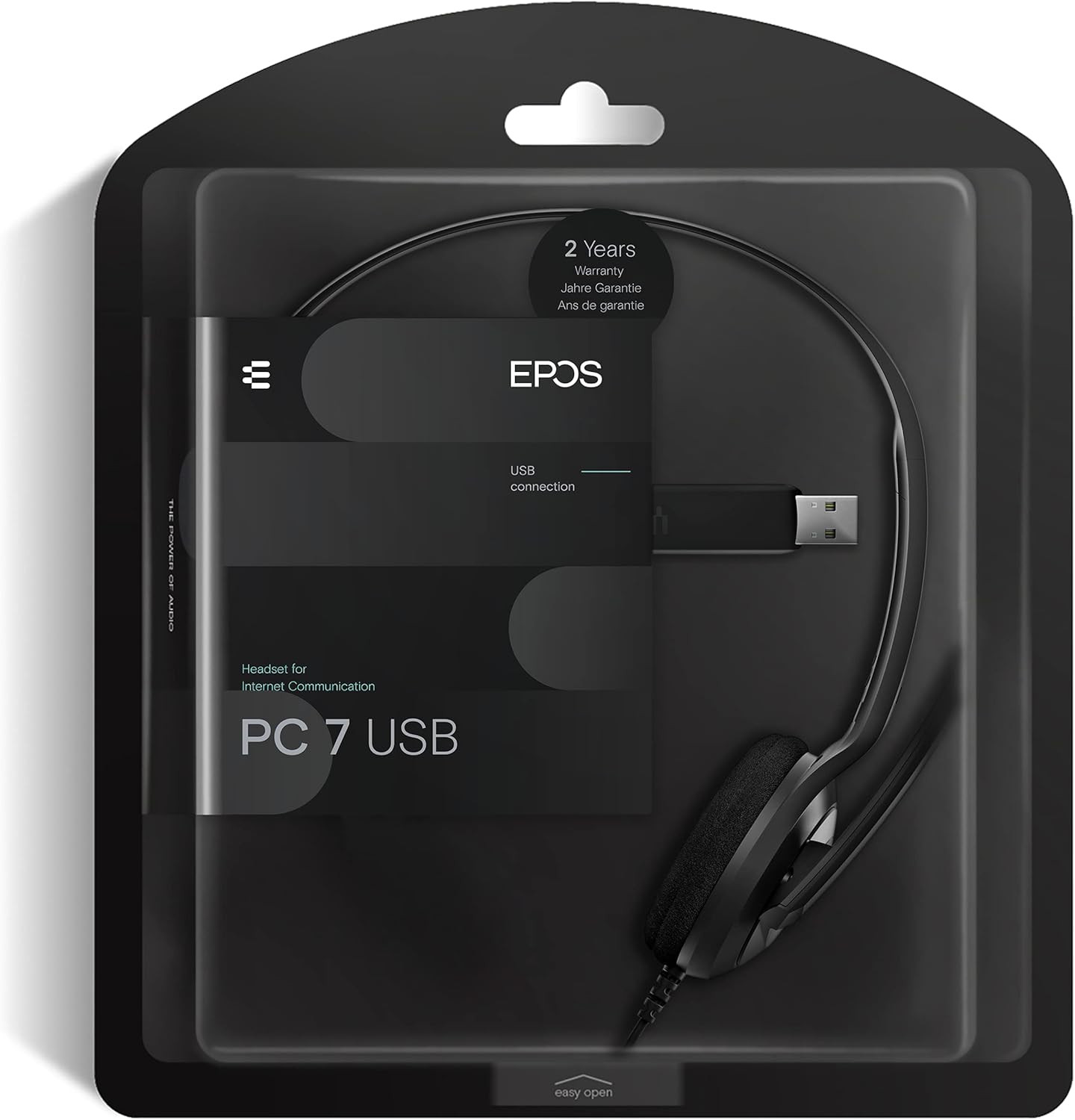
Figure 6: Product packaging highlighting the 2-year warranty information.


