
1. Product Overview
The POLY Plantronics CS540/A is a wireless DECT monaural headset designed for clear communication in professional environments. This convertible headset offers multiple wearing styles to suit individual preferences, providing comfort and flexibility for extended use. It features a lightweight design and intuitive call controls.
Key Features:
- Wireless DECT connectivity for extended range and security.
- Convertible design for multiple wearing styles (ear hook, headband).
- Lightweight construction for all-day comfort.
- Intuitive call control buttons on the headset.
- Noise-canceling microphone for clear voice transmission.
What's in the Box:
- CS540/A Wireless Headset
- Base Station
- Ear hook and Headband wearing styles
- Power Adapter
- Telephone Interface Cable
- Lithium Polymer Battery (pre-installed or separate)

Image 1.1: The Plantronics CS540/A wireless headset docked in its base station.
2. Setup Guide
2.1 Charging the Headset
- Connect the power adapter to the base station and plug it into a power outlet.
- Place the headset into the charging cradle of the base station. The charge indicator light on the headset will illuminate to confirm charging.
- Allow approximately 3 hours for a full charge. A fully charged headset provides up to 6 hours of talk time.
2.2 Connecting to a Desk Phone
The CS540/A connects to most standard desk phones. Refer to your phone's user manual for specific port locations.
- Disconnect the handset coil cord from the base of the desk phone.
- Connect the telephone interface cable from the CS540/A base station to the handset port on the desk phone.
- Connect the desk phone's handset coil cord to the handset port on the CS540/A base station.
- Ensure the compatibility switch on the CS540/A base station is set to the correct position for your desk phone. Test by making a call and adjusting if necessary.
2.3 Wearing the Headset
The CS540/A offers convertible wearing styles. Choose the one that provides the most comfort and stability.
- Ear Hook: Attach the ear hook to the headset. Gently place the ear hook over your ear, positioning the speaker comfortably against your ear and the microphone near your mouth.
- Headband: Attach the headband to the headset. Adjust the headband for a secure yet comfortable fit, ensuring the speaker rests on your ear and the microphone is positioned for optimal voice pickup.
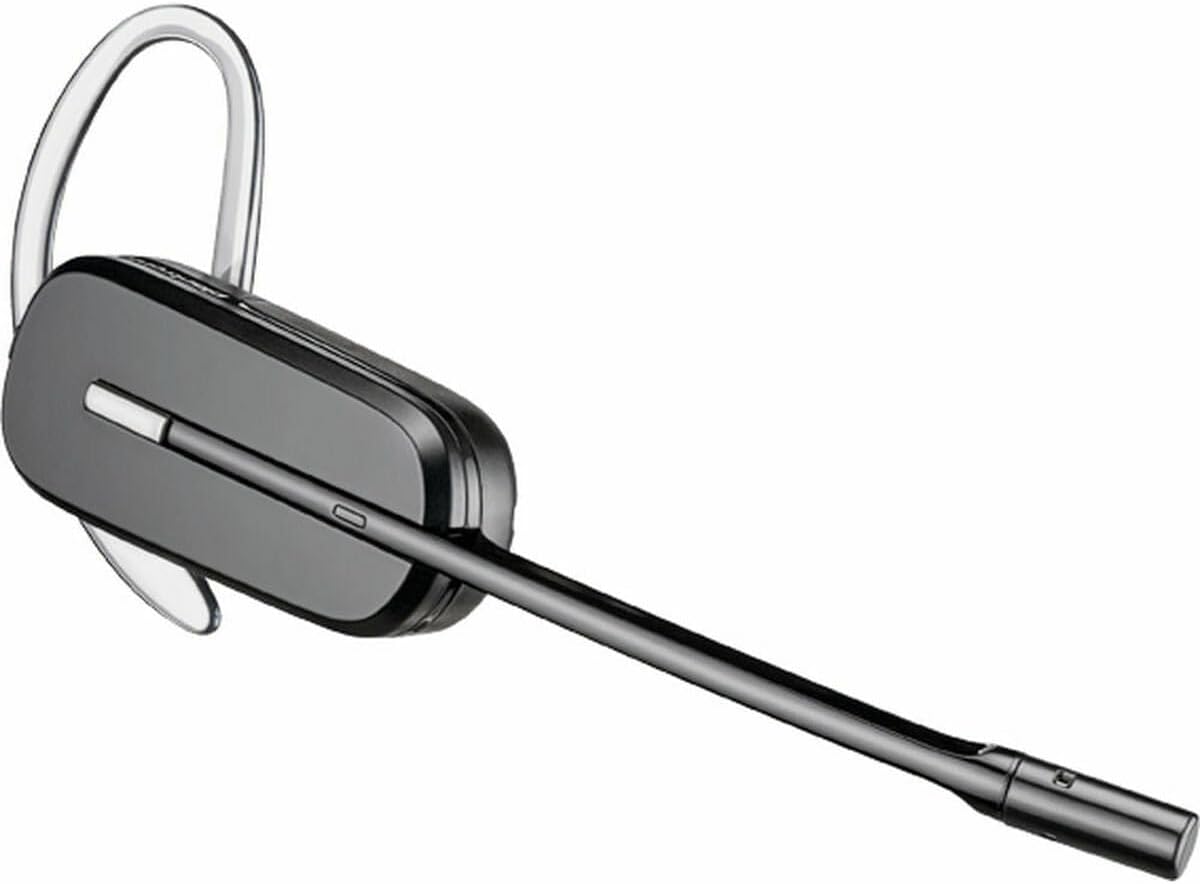
Image 2.1: The CS540/A headset configured with an ear hook.

Image 2.2: The CS540/A headset configured with a headband.
3. Operating Instructions
3.1 Making and Answering Calls
- To Answer a Call: Press the Call Control button on the headset.
- To End a Call: Press the Call Control button again.
- To Make a Call:
- Ensure the headset is powered on and connected to the base.
- Press the Call Control button on the headset.
- Dial the number on your desk phone.
3.2 Volume Control
Use the volume rocker switch on the headset to adjust the listening volume.
- Press the + side to increase volume.
- Press the - side to decrease volume.
3.3 Mute Function
To mute the microphone during a call, press the Mute button on the headset. Press it again to unmute.

Image 3.1: A user wearing the Plantronics CS540/A headset during a call.
4. Maintenance
4.1 Cleaning the Headset
Regular cleaning helps maintain the headset's performance and hygiene.
- Wipe the headset and base station with a soft, dry, anti-static cloth.
- Do not use harsh chemicals or abrasive cleaners.
- Avoid moisture in openings.
4.2 Battery Care
The headset uses a Lithium Polymer battery. To maximize battery life:
- Charge the headset fully before first use.
- Avoid extreme temperatures.
- If the headset will not be used for an extended period, charge it periodically.
- The battery is replaceable; contact support for replacement options if needed.
5. Troubleshooting
If you encounter issues with your CS540/A headset, try the following solutions:
5.1 No Dial Tone or Audio
- Ensure the headset is fully charged and powered on.
- Verify all cables are securely connected between the base station and the desk phone.
- Check the compatibility switch on the base station. Adjust it to different positions until a dial tone is heard.
- Confirm the desk phone's handset is properly seated or lifted (if not using an electronic hookswitch).
5.2 Poor Audio Quality
- Adjust the listening volume on the headset.
- Ensure the microphone is positioned correctly, approximately two finger-widths from your mouth.
- Check for interference from other wireless devices. Move the base station away from other electronics.
- If using a desk phone, adjust the transmit and receive volume controls on the base station (if available).
5.3 Headset Not Pairing with Base
- Ensure both the headset and base are powered on.
- Place the headset in the charging cradle. The charge indicator should light up.
- If pairing is lost, refer to the full Plantronics CS540/A user guide for re-pairing instructions, which typically involves pressing a pairing button on the base and headset.
6. Specifications
| Feature | Detail |
|---|---|
| Model Name | CS540A |
| Item Model Number | 84693-02 |
| Brand | POLY (formerly Plantronics) |
| Connectivity Technology | Wireless (DECT) |
| Wireless Communication Technology | DECT 6.0 (1920-1930 MHz) |
| Wearing Style | Convertible (Ear Hook, Headband) |
| Battery Life (Talk Time) | Up to 6 Hours |
| Charging Time | Approximately 3 Hours |
| Microphone | Noise-Canceling |
| Control Type | Call Control, Volume, Mute |
| Item Weight | 0.7 Ounces (headset only) |
| Product Dimensions | 8.07 x 5.51 x 4.53 inches (packaging/base) |
| Material | Plastic |
| Power Source | AC Adapter (for base station) |
7. Warranty and Support
7.1 Limited Warranty
This product is covered by a limited warranty provided by POLY. The warranty typically covers manufacturing defects for a specified period from the date of purchase. Please retain your proof of purchase for warranty claims. For specific warranty terms and conditions, refer to the official POLY website or the warranty card included with your product.
7.2 Customer Support
For further assistance, technical support, or to inquire about replacement parts, please visit the official POLY support website or contact their customer service. You can often find detailed FAQs, troubleshooting guides, and contact information on their website.
Official POLY Website: www.poly.com


