
1. Introduction
The Epson Stylus NX430 is a compact and versatile Small-in-One printer designed for home and office use. It combines printing, copying, scanning, and photo capabilities with convenient wireless connectivity. Its space-saving design allows it to fit seamlessly into various environments, while its advanced features ensure high-quality output for both documents and photos.
Key features include:
- Small-in-One Design: Efficiently combines multiple functions in a compact footprint.
- Epson Connect: Enables instant wireless printing from popular mobile devices.
- PC-Free Photo Printing: Utilize built-in card slots and a 2.5-inch LCD with smart touch panel.
- Easy Epson Wireless: Simple setup for connecting to your wireless network.
- DURABrite Ultra Ink: Produces smudge, fade, and water-resistant prints with instant-dry ink.

Figure 1.1: The Epson Stylus NX430 Wireless All-in-One Printer.
2. Setup
2.1 Physical Setup
- Unpack the Printer: Carefully remove the printer from its packaging and remove all protective materials.
- Connect Power: Plug the power cord into the printer and then into a wall outlet.
- Install Ink Cartridges: Open the printer cover and install the four DURABrite Ultra Ink Cartridges (Black, Cyan, Magenta, Yellow) into their respective slots. Ensure they click into place.

Figure 2.1: Internal view of the printer with ink cartridge compartments.
2.2 Wireless Setup
The Epson Stylus NX430 features Easy Epson Wireless setup, allowing you to connect to your network quickly.
- Turn On Printer: Press the power button to turn on the printer.
- Access Wireless Setup: Navigate through the 2.5-inch LCD screen using the control panel buttons to find the wireless setup option.
- Select Network: Choose your Wi-Fi network from the list and enter the password if prompted.
- Confirm Connection: The Wi-Fi indicator light should turn solid green once connected.
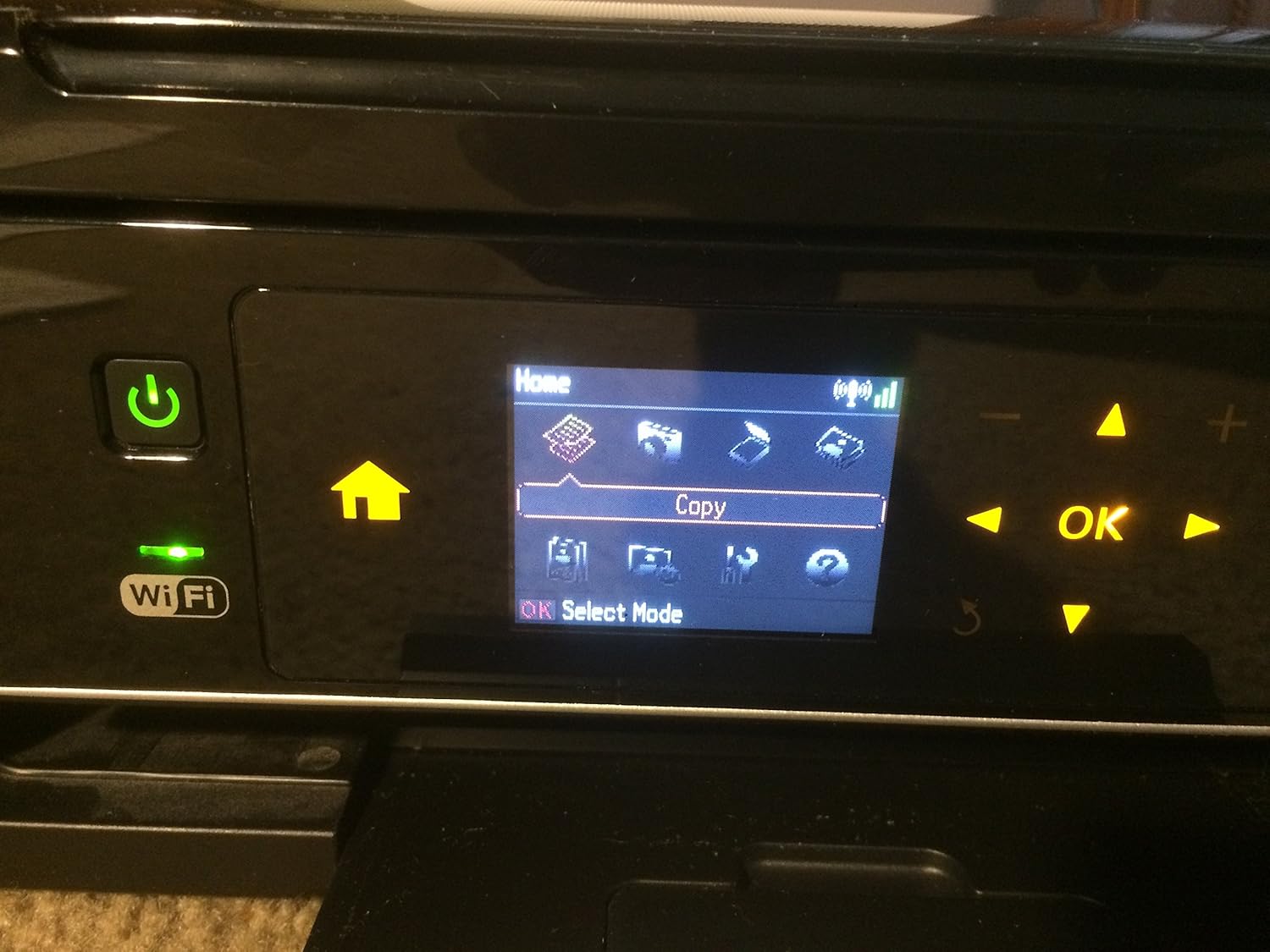
Figure 2.2: The printer's control panel, showing the LCD screen and navigation buttons.
2.3 Software Installation
For full functionality, install the printer drivers and software on your computer. You can typically find the latest software on the Epson support website or use the provided CD-ROM.
For software installation, visit: Epson Support Page

Figure 2.3: Software installation instructions with a direct URL.
3. Operating the Printer
3.1 Control Panel Overview
The printer's control panel features a 2.5-inch LCD and smart touch panel for easy navigation and operation. Buttons include Copy, Memory Card, Photo, Scan, Menu, Setup, Display/Crop, Stop/Clear Settings, and Start.
Video 3.1: Official product overview highlighting features like the control panel, quiet operation, and mobile printing capabilities.
This video demonstrates the printer's compact design, quiet operation, and the ease of use of its 2.5-inch screen and touch panel for various functions including photo printing and mobile connectivity.
3.2 Copying Documents
To make copies, place your document face-down on the scanner glass. Use the control panel to select the 'Copy' function. You can adjust the number of copies using the '+' and '-' buttons. Press 'Start' to begin copying.
Figure 3.1: The control panel allows for easy selection of copy functions.
3.3 Scanning Documents and Photos
Place the item you wish to scan on the scanner glass. Select the 'Scan' function from the control panel. You can choose to save the scan to a memory card or send it to a connected computer. The printer supports high-quality scanning up to 2400 dpi.
Figure 3.2: The flatbed scanner is located under the top cover.
3.4 Photo Printing
The Stylus NX430 offers high-quality photo printing, including borderless lab-quality photos. You can print directly from built-in card slots without a PC. Utilize the image enhancement tools for red-eye removal, photo restoration, and correction of over/underexposed images.

Figure 3.3: Example of a test print page, demonstrating color output.
3.5 Mobile Printing (Epson Connect)
Epson Connect allows for instant wireless printing from popular mobile devices. This includes support for the free Epson iPrint App, Epson Email Print, Google Cloud Print, and Apple AirPrint. Print photos and attachments directly from your smartphone, iPad, or tablet.
4. Maintenance
4.1 Ink Cartridge Replacement
The Epson Stylus NX430 uses individual DURABrite Ultra Ink cartridges. This means you only need to replace the color that runs out, saving on ink costs. The ink is instant-dry, smudge, fade, and water-resistant.
To check ink levels, use the Epson Status Monitor software on your computer.

Figure 4.1: Epson Status Monitor displaying current ink levels.
For details on ink yields and usage, refer to www.epson.com/cartridgeinfo.
4.2 Cleaning
Regularly clean the exterior of the printer with a soft, damp cloth. For print quality issues, refer to the troubleshooting section or the printer's internal cleaning cycles accessible via the setup menu.
5. Troubleshooting
This section addresses common issues you might encounter with your Epson Stylus NX430 printer.
5.1 Wi-Fi Disconnection
If your printer frequently disconnects from Wi-Fi, ensure the printer is within range of your router and there are no significant obstructions. Restarting both the printer and the router can often resolve connectivity issues. Verify your network settings through the printer's setup menu.
5.2 Paper Jams
If paper jams occur, first turn off the printer. Carefully open all access covers and gently pull out any jammed paper. Ensure paper is loaded correctly and not creased or torn. If a small object is suspected, a thin piece of cardboard can sometimes help clear the rollers, as suggested by some users.
5.3 Poor Print Quality
If prints appear faded, streaky, or colors are inaccurate, perform a nozzle check and head cleaning through the printer's maintenance menu. Ensure genuine Epson ink cartridges are used and that ink levels are sufficient. Misaligned print heads can also cause issues; run the print head alignment utility.
5.4 Printer Not Printing Due to Low Ink
The printer may prevent printing if an ink cartridge is reported as low or empty, even if some ink remains. Replace the indicated cartridge to resume printing. Individual ink cartridges allow you to replace only the specific color needed.
6. Specifications
| Feature | Detail |
|---|---|
| Model Number | C11CB22201 |
| Functions | Print, Copy, Scan, Photo, Wi-Fi |
| Connectivity Technology | Wireless (Wi-Fi 802.11 b/g/n), USB |
| Printer Ink Type | 4-color DURABrite® Ultra pigment ink |
| Maximum Print Resolution (Color) | 600 dpi |
| Maximum Print Resolution (Black & White) | 600 dpi |
| Max Copy Speed (Black & White) | 6.2 ppm |
| Max Input Sheet Capacity | 100 sheets |
| Scanner Type | Photo (Flatbed) |
| Display Type | 2.5" LCD with Smart Touch Panel |
| Product Dimensions | 15.4 x 11.8 x 5.7 inches |
| Item Weight | 8.8 pounds |
| Power Consumption (On-mode) | 13.0 watts |
| Compatible Operating Systems | Windows 7/Vista/XP, Mac OS X 10.4.11 - 10.7.x |
7. Warranty and Support
7.1 Warranty Information
The Epson Stylus NX430 comes with a One-year limited warranty and offers quick product exchange for eligible issues. Please retain your proof of purchase for warranty claims.
7.2 Additional Support Resources
For further assistance, detailed guides, and driver downloads, please visit the official Epson support website:
- Epson Connect compatible devices and apps: www.epson.com/connect
- Print speed details and ISO reports: www.epson.com/printspeed
- Ink cartridge information: www.epson.com/cartridgeinfo
- Recycling options: www.epson.com/recycle