1. Product Overview
The ATEN VC180 is a VGA-to-HDMI Converter with Audio designed to display VGA source data on an HDMI output display, complete with stereo sound. This device offers a straightforward solution for integrating older VGA systems with modern HDMI displays. It supports flexible power options, drawing power either directly from the VGA port or via an external power adapter if the source device cannot provide sufficient power. The VC180 is compact, user-friendly, and requires no software installation, making it ideal for quick and convenient setup.

Figure 1.1: Front view of the ATEN VC180 VGA to HDMI Converter, showing the 'ON LINE' and 'POWER' LED indicators.
2. Features
The ATEN VC180 offers a range of features designed for efficient and high-quality signal conversion:
- No Software/Drivers Required: Simplifies installation and setup.
- VGA to HDMI Signal Conversion: Converts analog VGA video and stereo audio into a digital HDMI signal.
- High Resolution Support: Supports video resolutions up to 1080p (HDTV) and 1920x1200 (PC).
- Stereo Audio Input: Provides high-quality stereo audio output alongside the video.
- Dual Power Source: Can be powered directly from the VGA port or via an optional DC power adapter.
- LED Indicator: Features an LED to indicate input video signal detection.
- Output Screen Position Adjustment: Includes a function for adjusting the output screen position with memory retention.
- Operating System Compatibility: Supports both Windows and Mac OS environments.
3. Package Contents
The standard package for the ATEN VC180 VGA to HDMI Converter typically includes:
- 1 x ATEN VC180 VGA to HDMI Converter with Audio
- 1 x Power Adapter (if not powered solely by VGA source)
- 1 x User Manual (this document)
4. Setup
Follow these steps to set up your ATEN VC180 VGA to HDMI Converter:
- Connect VGA Source: Connect your VGA source device (e.g., computer, laptop) to the VGA IN port on the VC180 using a VGA cable.
- Connect Audio Source: Connect the audio output from your VGA source device to the AUDIO IN port on the VC180 using a 3.5mm audio cable.
- Connect HDMI Display: Connect your HDMI display device (e.g., monitor, TV, projector) to the HDMI OUT port on the VC180 using an HDMI cable.
- Power Connection: The VC180 can be powered in two ways:
- VGA Port Power: If your VGA source device can supply sufficient power through its VGA port, no external power adapter is needed.
- External Power Adapter: If the VGA source cannot provide enough power, connect the included power adapter to the DC 5.3V port on the VC180 and then plug it into a power outlet.
- Power On Devices: Power on your VGA source device and your HDMI display.
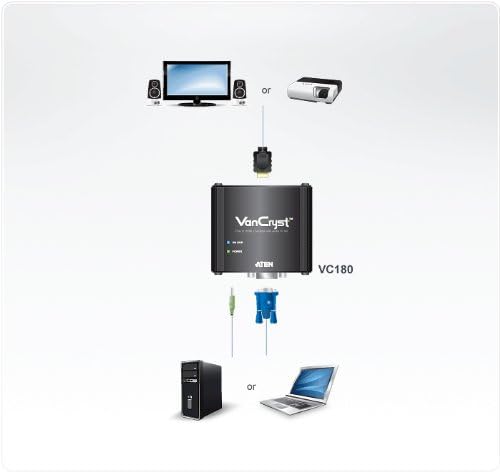
Figure 4.1: Connection diagram illustrating how to connect a VGA source (PC or laptop) and audio to the ATEN VC180, and then connect the converter's HDMI output to a display (monitor or projector).

Figure 4.2: Rear view of the VC180 showing the VGA IN and AUDIO IN ports.

Figure 4.3: Rear view of the VC180 showing the HDMI OUT and DC 5.3V power input ports.
5. Operating
Once the VC180 is properly connected and powered, operation is automatic:
- Signal Detection: The VC180 will automatically detect the incoming VGA video signal. The 'ON LINE' LED indicator on the front panel will illuminate when a valid video signal is detected.
- Display Output: The converted video and audio signal will be outputted to your HDMI display. Ensure your display is set to the correct HDMI input.
- Screen Position Adjustment: If the image on your HDMI display is not perfectly centered or sized, use the screen position adjustment function. Refer to the specific controls on the device (if any, typically buttons or a small dial) for fine-tuning. The device retains these settings in its memory.
6. Maintenance
To ensure the longevity and optimal performance of your ATEN VC180, follow these maintenance guidelines:
- Cleaning: Use a soft, dry cloth to clean the device. Avoid using liquid or aerosol cleaners, as they may damage the casing or internal components.
- Environment: Operate and store the device in a cool, dry place, away from direct sunlight, excessive heat, moisture, and dust.
- Handling: Handle the device with care. Avoid dropping it or subjecting it to strong impacts.
- Connections: Periodically check all cable connections to ensure they are secure and free from damage.
7. Troubleshooting
If you encounter issues with your ATEN VC180, refer to the following troubleshooting tips:
| Problem | Possible Cause | Solution |
|---|---|---|
| No video on HDMI display |
|
|
| No audio output |
|
|
| Distorted or flickering image |
|
|
8. Specifications
Key technical specifications for the ATEN VC180 VGA to HDMI Converter:
- Model Number: VC180
- Product Dimensions (L x W x H): 3.11 x 2.87 x 0.96 inches (7.9 x 7.3 x 2.4 cm)
- Item Weight: 5.3 ounces (150 grams)
- Input Connectors: 1 x VGA (HDB-15 Female), 1 x Audio (3.5mm Stereo Female)
- Output Connectors: 1 x HDMI (Type A Female)
- Video Resolution: Up to 1080p (HDTV) / 1920x1200 (PC)
- Power Source: VGA port power or DC 5.3V power adapter
- Compatible Devices: Television, Monitors, Projectors
- Operating System Support: Windows, Mac OS
9. Warranty and Support
ATEN products are designed for reliability and performance. For information regarding product warranty, technical support, or service, please refer to the official ATEN website or contact ATEN customer support directly. ATEN offers free technical support and various service packages to ensure customer satisfaction.


