
1. Introduction
This manual provides detailed instructions for the installation, operation, and maintenance of your Supersonic SC-66G IPTV Media Player. Please read this manual thoroughly before using the device to ensure proper functionality and to prevent damage.
The Supersonic SC-66G is an advanced IPTV media player designed to deliver high-definition content. Featuring an Android 2.2 operating system, it supports various media formats and offers flexible connectivity options including Wi-Fi and Ethernet, with HDMI 1080p output.
2. Safety Information
To ensure safe operation and prolong the life of your device, please observe the following safety precautions:
- Do not expose the device to rain, moisture, or extreme temperatures.
- Avoid placing the device near heat sources such as radiators, heat registers, stoves, or other heat-producing appliances.
- Do not block ventilation openings. Ensure adequate airflow around the device.
- Use only the power adapter supplied with the device.
- Do not attempt to open or service the device yourself. Refer all servicing to qualified personnel.
- Keep the device away from strong magnetic fields.
- Clean the device only with a dry cloth.
3. Package Contents
Please check the package contents upon unboxing. If any items are missing or damaged, contact your retailer.
- Supersonic SC-66G IPTV Media Player
- Remote Control
- Power Adapter (DC 12V)
- HDMI Cable
- User Manual
4. Product Overview
Familiarize yourself with the ports and controls of your Supersonic SC-66G media player.
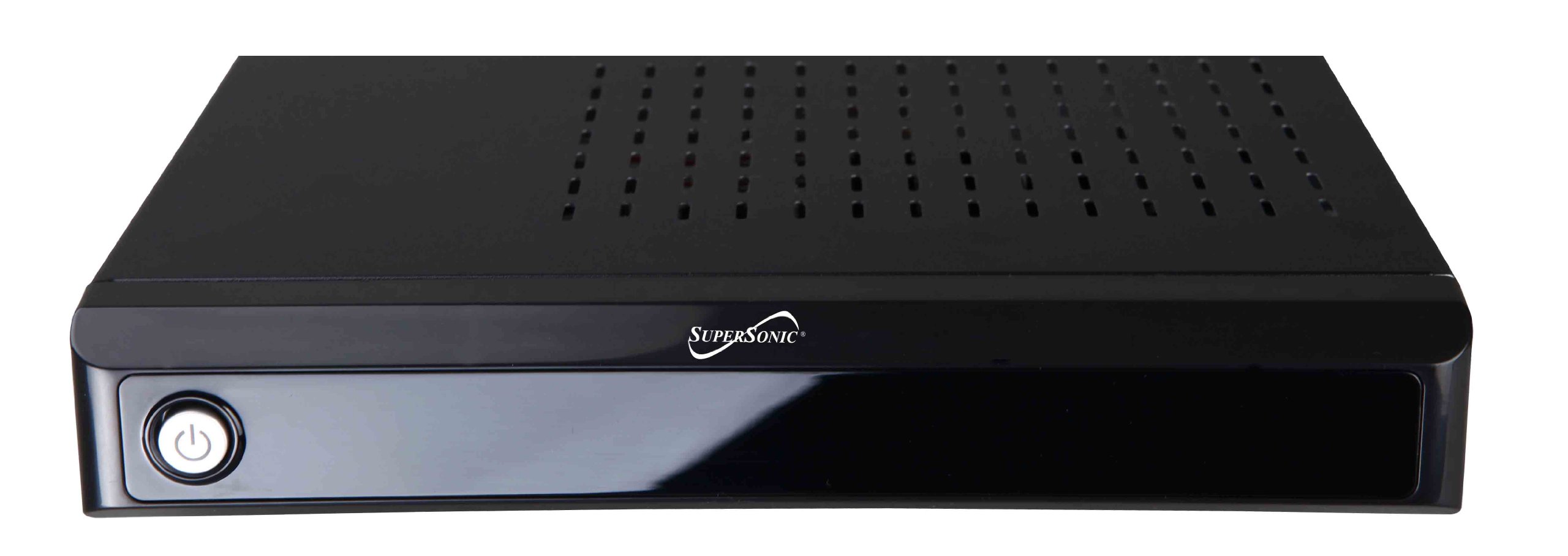
Figure 1: Front and side view of the Supersonic SC-66G IPTV Media Player, showing its compact black design.
4.1. Front Panel
- Power Indicator: LED light indicating power status.
- IR Receiver: For remote control signals.
4.2. Rear and Side Panels
- HDMI Output: Connects to your TV or display for high-definition video and audio (1080p supported).
- Ethernet (RJ-45) Port: For wired network connection.
- USB 2.0 Ports (x4): For connecting external storage devices (USB drives, external hard drives) or peripherals.
- eSATA Port (x1): For connecting external SATA storage devices.
- MicroSD (TransFlash) Card Slot: For expanding storage or playing media from a microSD card.
- Audio Output (L,R): For analog audio connection to external speakers or audio systems.
- Component Video (YPbPr/YCbCr) Output: For analog video connection to older TVs.
- DC 12V Power Input: Connect the supplied power adapter here.
5. Setup
Follow these steps to set up your Supersonic SC-66G IPTV Media Player:
5.1. Connecting to Your TV
- Ensure your TV and the media player are turned off.
- Connect one end of an HDMI cable to the HDMI Output port on the SC-66G.
- Connect the other end of the HDMI cable to an available HDMI input port on your TV. Note the HDMI input number (e.g., HDMI 1, HDMI 2).
- (Optional) If your TV does not have HDMI, use the Component Video (YPbPr/YCbCr) output and Audio (L,R) outputs with appropriate cables.
5.2. Connecting to Power
- Connect the supplied power adapter to the DC 12V Power Input on the media player.
- Plug the power adapter into a wall outlet. The power indicator LED on the front panel should illuminate.
5.3. Network Connection
The SC-66G supports both wired (Ethernet) and wireless (Wi-Fi) network connections.
5.3.1. Wired Connection (Ethernet)
- Connect an Ethernet cable from your router or modem to the Ethernet (RJ-45) Port on the media player.
- The device will typically obtain an IP address automatically.
5.3.2. Wireless Connection (Wi-Fi)
- After powering on the device, navigate to the network settings menu (see Section 6.3).
- Select "Wi-Fi" and enable it.
- Choose your desired Wi-Fi network from the list of available networks.
- Enter the network password if prompted and confirm.
5.4. Initial Power On
- Turn on your TV and select the correct HDMI input source (e.g., HDMI 1) that the media player is connected to.
- Press the power button on the remote control or the device (if available) to turn on the SC-66G.
- The Android 2.2 boot screen should appear on your TV.
6. Operating Instructions
This section covers basic operation of your SC-66G media player.
6.1. Remote Control Functions
The included remote control allows you to navigate the user interface and control media playback. Common buttons include:
- Power: Turns the device on/off or into standby mode.
- Directional Pad (Up/Down/Left/Right): Navigates through menus and options.
- OK/Enter: Confirms selections.
- Back/Return: Returns to the previous screen or menu.
- Home: Returns to the main Android home screen.
- Volume Up/Down: Adjusts audio volume.
- Play/Pause, Stop, Fast Forward, Rewind: Media playback controls.
6.2. Android 2.2 Interface Navigation
The SC-66G runs on Android 2.2. Use the remote control's directional pad and OK button to navigate the interface. Applications and settings are typically accessed from the home screen or an app drawer.
6.3. Media Playback
The device supports various media formats (H.263, H.264, M-JPEG, MPEG4, VC-1, XVID for video; BMP, GIF, JPG, PNG for images). You can play media from:
- USB Storage: Insert a USB flash drive or external hard drive into one of the USB 2.0 ports. Access content via a file manager application.
- MicroSD Card: Insert a microSD card into the dedicated slot. Access content via a file manager application.
- Network Storage/IPTV: Use pre-installed or downloaded applications to access network shares or IPTV services. Ensure a stable network connection.
6.4. System Settings
Access the Android settings menu to configure various aspects of the device, including:
- Wi-Fi Settings: To connect to or manage wireless networks.
- Ethernet Settings: To view or configure wired network details.
- Display Settings: To adjust screen resolution or aspect ratio.
- Sound Settings: To adjust audio output options.
- Date & Time: To set the correct date and time.
- Applications: To manage installed apps.
7. Maintenance
Proper maintenance ensures the longevity and optimal performance of your SC-66G media player.
- Cleaning: Use a soft, dry, lint-free cloth to clean the exterior of the device. Do not use liquid cleaners or aerosols.
- Ventilation: Ensure that the ventilation openings are not obstructed to prevent overheating.
- Software Updates: Periodically check for available software updates through the system settings (if applicable for Android 2.2 devices) to ensure the best performance and compatibility.
- Storage: When not in use for extended periods, store the device in a cool, dry place, away from direct sunlight.
8. Troubleshooting
If you encounter issues with your SC-66G, refer to the following common problems and solutions:
| Problem | Possible Cause | Solution |
|---|---|---|
| No power | Power adapter not connected; power outlet faulty. | Ensure power adapter is securely connected to the device and a working power outlet. Try a different outlet. |
| No picture on TV | Incorrect TV input selected; HDMI cable loose or faulty. | Select the correct HDMI input on your TV. Check HDMI cable connections. Try a different HDMI cable or port. |
| No sound | TV/device volume too low; audio settings incorrect. | Increase volume on both the TV and the media player. Check audio output settings on the device. |
| Remote control not working | Batteries depleted; IR sensor blocked. | Replace remote control batteries. Ensure no obstructions between the remote and the device's IR sensor. |
| Cannot connect to Wi-Fi | Incorrect password; out of range; router issue. | Verify Wi-Fi password. Move device closer to router. Restart router. Check Wi-Fi settings on the device. |
| Media playback issues | Unsupported file format; corrupted file; insufficient bandwidth. | Ensure media file format is supported. Try a different media file. Check network speed for streaming content. |
9. Specifications
Detailed technical specifications for the Supersonic SC-66G IPTV Media Player:
- Model: SC-66G
- Operating System: Android 2.2
- Video Output: HDMI (1080i, 1080p, 720p), Component Video (YPbPr/YCbCr)
- Video Formats Supported: H.263, H.264, M-JPEG, MPEG4, VC-1, XVID
- Image Formats Supported: BMP, GIF, JPG, PNG
- Connectivity:
- Ethernet (RJ-45) x1
- Wi-Fi
- USB 2.0 x4
- eSATA x1
- MicroSD (TransFlash) Card Slot
- Audio Output: L,R (Analog)
- Power Requirements: AC 100-240V, 50/60Hz input; DC 12V output
- Dimensions (W x D x H): Approximately 169.9 mm x 220 mm x 39.9 mm
- Weight: Approximately 1.35 kg (2.8 lbs)
- Color: Black
- Included Accessories: Remote Control
10. Warranty and Support
Supersonic products are designed for reliability and performance. For specific warranty terms and conditions, please refer to the warranty card included with your product or visit the official Supersonic website.
If you encounter any issues that cannot be resolved using the troubleshooting guide, or require further assistance, please contact Supersonic customer support. Contact information can typically be found on the product packaging or the official brand website.
Please have your model number (SC-66G) and purchase information ready when contacting support.