
Introduction
Thank you for purchasing the Supersonic IQ-8900 720 HD Digital Camcorder / Digital Camera. This device is designed for capturing high-definition video and still images with ease. This manual provides essential information on setting up, operating, and maintaining your new camcorder. Please read it thoroughly before use to ensure optimal performance and longevity of your device.
Product Overview
Key Features
- Dynamic Color capture
- Flip Screen Display for versatile viewing and self-recording
- Pop Up USB Connector for direct computer connection
- Built-in SD Card Expandable Memory Slot (supports up to 16GB)
- Lithium Rechargeable Battery for extended use
- Video and Camera Setting Options for customized recording
- Built-in Microphone and Speaker for audio recording and playback
- 4X Digital Zoom for closer shots
- Supports Microsoft Windows 98, 2000, XP, Vista & Windows 7
Components
The Supersonic IQ-8900 package typically includes the following items:
- Supersonic IQ-8900 Digital Camcorder / Digital Camera
- Lithium Rechargeable Battery
- USB Cable
- AV Cable
- User Manual (this document)
Note: An SD/MMC/SDHC memory card is required for recording and is sold separately.
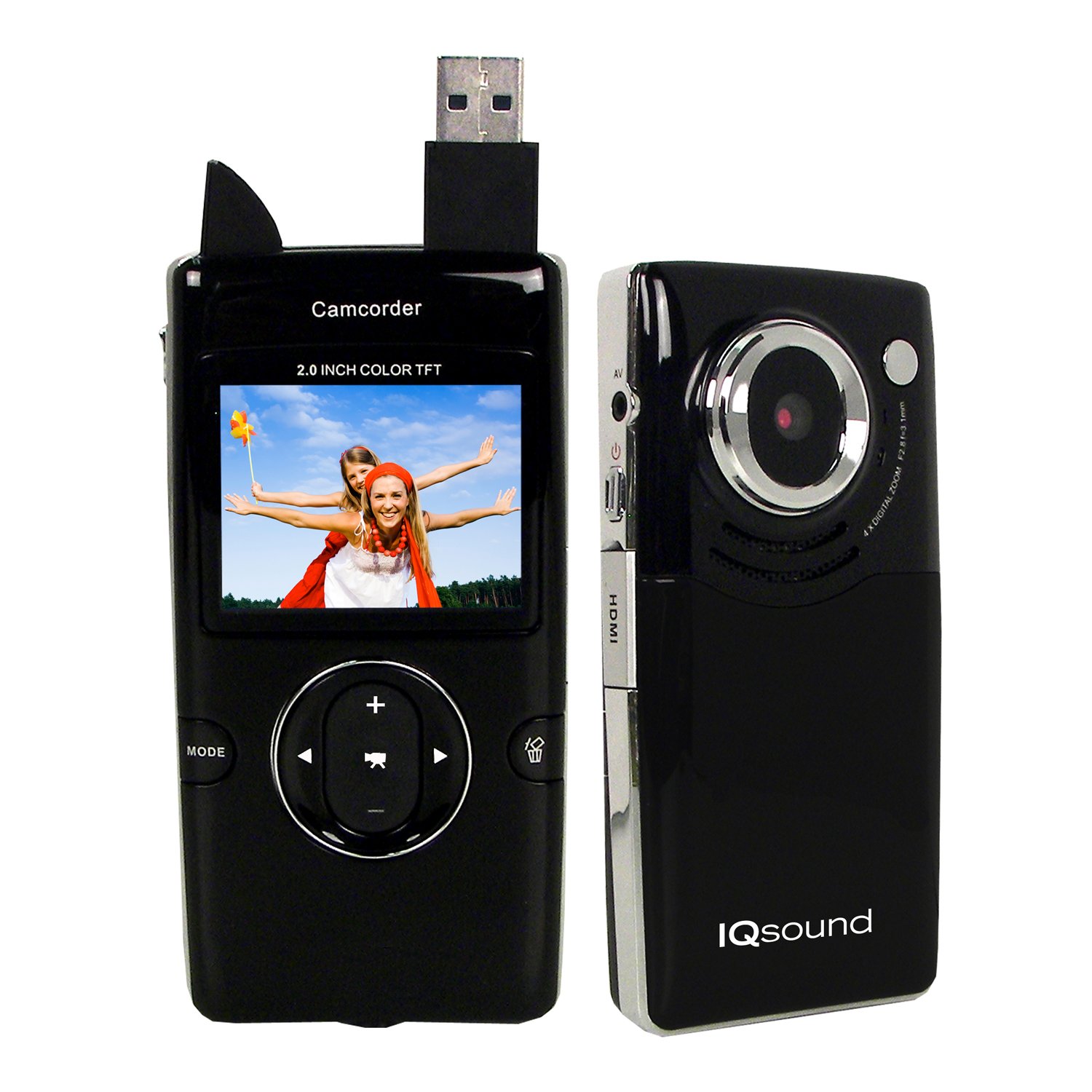
Image: The Supersonic IQ-8900 camcorder, showcasing its compact design and flip-out screen.
Setup
1. Charging the Battery
- Insert the provided Lithium Rechargeable Battery into the battery compartment located on the device. Ensure correct polarity.
- Connect the camcorder to a computer using the supplied USB cable, or to a compatible USB wall adapter (not included).
- The charging indicator light will illuminate. Allow the battery to fully charge before first use.
2. Inserting a Memory Card
- Locate the SD card slot on the side of the camcorder.
- Insert an SD/MMC/SDHC memory card (up to 16GB) into the slot with the metal contacts facing down, until it clicks into place.
- To remove, gently press the card inward until it springs out.
Operating Instructions
1. Powering On/Off
- To power on, press and hold the Power button until the screen illuminates.
- To power off, press and hold the Power button again until the screen turns off.
2. Recording Video
- Turn on the camcorder.
- Ensure the mode is set to video recording (refer to the on-screen icon).
- Press the Record button to start recording. A red indicator will typically appear on the screen.
- Press the Record button again to stop recording.
- Use the zoom controls (if available) to adjust the focal length during recording.
3. Taking Photos
- Turn on the camcorder.
- Switch the mode to still image capture (refer to the on-screen icon).
- Frame your shot using the flip screen.
- Press the Shutter button to take a photo.
4. Playback
- Enter Playback mode using the mode selection button.
- Use the navigation buttons to browse through your recorded videos and photos.
- Press the Play/OK button to view a selected item.
Connecting to Computer or TV
1. Connecting to a Computer (USB)
- Ensure the camcorder is powered on.
- Connect the camcorder to your computer using the supplied USB cable. The camcorder features a pop-up USB connector for convenience.
- Your computer should recognize the device as a removable disk. You can then access and transfer your files.
2. Connecting to a TV (AV/HDMI)
- Turn off both the camcorder and your television.
- Connect the camcorder to your TV using the supplied AV cable or a Mini HDMI cable (if your TV supports it).
- Turn on the TV and select the correct AV or HDMI input source.
- Power on the camcorder. The camcorder's display should now appear on your TV screen.
Maintenance
Cleaning the Device
- Use a soft, dry cloth to clean the exterior of the camcorder.
- For the lens and screen, use a specialized lens cleaning cloth and solution to avoid scratches.
- Do not use harsh chemicals or abrasive cleaners.
Battery Care
- Recharge the battery regularly, even if not in use, to maintain its lifespan.
- Avoid exposing the battery to extreme temperatures.
- If storing the device for an extended period, remove the battery.
Storage
- Store the camcorder in a cool, dry place away from direct sunlight and excessive dust.
- Use a protective case to prevent physical damage.
Troubleshooting
- Device not turning on: Ensure the battery is fully charged and correctly inserted. Try connecting to a power source.
- Cannot record video/take photos: Check if a memory card is inserted and has sufficient free space. Ensure the mode is correctly selected.
- Poor image/video quality: Ensure the lens is clean. Check lighting conditions.
- Computer not recognizing device: Ensure the USB cable is securely connected. Try a different USB port or restart your computer.
- No display on TV: Verify the AV/HDMI cable connection and that the correct input source is selected on your TV.
Specifications
| Feature | Specification |
|---|---|
| Screen Size | 2” TFT |
| Internal Memory | 32 MB Flash Memory |
| Card Type | SD/MMC/SDHC Cards |
| External Memory | Up to 16GB |
| Interface | USB 2.0, Mini HDMI |
| Power Supply | 3.7V/800mAh Lithium Battery |
| Power Life (HD Video) | Up to 2 Hours |
| Digital Zoom | 4X Digital Zoom |
| Image Resolution | 1280 x 1024 pixels |
| Image Format | JPEG |
| Video Format | AVI |
| Video Resolution | HD (1280 x 720), D1 (720 x 480), VGA (640 x 480) Pixels |
| Frame Rate | Up to 30fps |
| Dimensions (L x W x H) | 2.22” x 0.76” x 4.38” |
| Compatible OS | Windows 98, 2000, XP, Vista, 7 |
Warranty and Support
For warranty information and customer support, please refer to the documentation included with your purchase or contact your retailer. Specific warranty terms and conditions may vary by region and retailer. Keep your proof of purchase for any warranty claims.


