
Voyager AOM713
Voyager AOM713 7" Rear View Wide Format LCD Monitor
Instruction Manual
1. Introduction
This manual provides detailed instructions for the installation, operation, and maintenance of your Voyager AOM713 7" Rear View Wide Format LCD Monitor. Designed to enhance vehicle safety, this monitor eliminates blind spots when paired with up to three Voyager observation cameras, assisting drivers with backing up, changing lanes, and navigating traffic. Please read this manual thoroughly before use to ensure proper functionality and longevity of your device.
The AOM713 monitor features a heavy-duty color LCD panel, compatible with both 12 and 24 Volt power systems, and supports NTSC and PAL video signals. Its auto Day/Night brightness mode and multiple camera inputs make it a versatile solution for various vehicle applications.
2. Product Features
The Voyager AOM713 monitor is equipped with a range of features designed for optimal performance and user convenience:
- 7-inch Rear View Monitor: Provides a clear, wide-format display for enhanced visibility.
- 3 Camera Inputs: Allows connection of up to three observation cameras for comprehensive coverage.
- NTSC and PAL Video Signal Compatible: Supports various video standards for broad compatibility.
- 12 Volt and 24 Volt Power System: Versatile power input for different vehicle types.
- Manual (Pushbutton) or Automatic (Trigger) Source Selection: Easily switch between camera views.
- Turn-Signal (Pulsed DC) Compatible Trigger Inputs (AV2, AV3): Enables automatic camera activation with turn signals.
- Auto Power On (Standby): Convenient power management.
- Auto Day/Night Brightness Mode: Automatically adjusts screen brightness for optimal viewing conditions.
- On Screen Display (OSD): For AV source, picture adjustment, and volume level control.
- Non-Volatile Memory: Retains picture and volume adjustment settings after power off.
- Integrated Audio Speaker: For audio feedback from connected cameras (if applicable).
- Energy Efficient White LED Backlight: Provides bright and clear display with low power consumption.
- Removable Sun-Visor Included: Reduces glare for better visibility in bright conditions.
- Multiple Mounting Options: For flexible installation in various vehicle environments.
3. Setup and Installation
Proper installation is crucial for the optimal performance of your Voyager AOM713 monitor. It is recommended to have this unit installed by a qualified technician.
3.1 Unpacking and Inspection
Carefully remove all components from the packaging. Inspect the monitor and accessories for any signs of damage. If any damage is found, do not proceed with installation and contact your dealer immediately.
3.2 Mounting the Monitor
Choose a mounting location that provides a clear view for the driver without obstructing the windshield or airbags. Ensure the location is stable and can support the monitor's weight. Use the provided mounting hardware to secure the monitor firmly.
3.3 Wiring Connections
The AOM713 monitor requires a 12V or 24V DC power source. Connect the power wires according to the wiring diagram provided with your product. Ensure proper polarity (positive to positive, negative to negative) to prevent damage. Connect your observation cameras to the AV1, AV2, and AV3 inputs. The AV2 and AV3 inputs support trigger wires for automatic switching (e.g., with turn signals or reverse gear).

Image: Voyager AOM713 monitor with key features labeled, including 3 Camera Inputs, 7" Color LCD Monitor with built-in speaker, Back-lit Control Buttons, and 12 Volt Triggers.
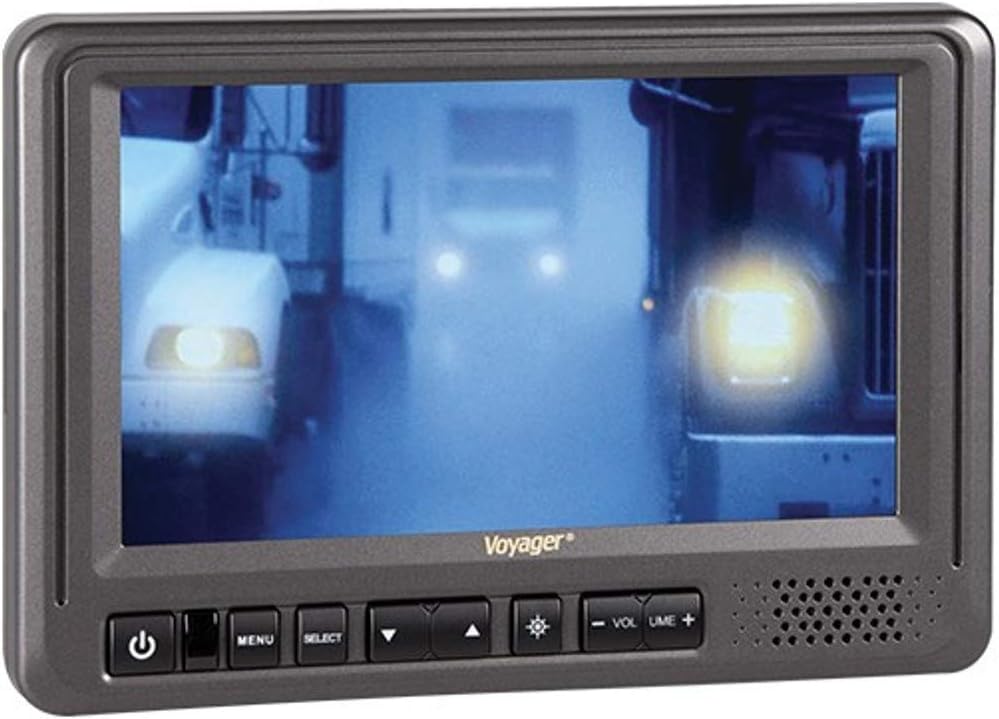
Image: Front view of the Voyager AOM713 monitor, showing the screen displaying a camera feed and the control buttons below the screen.
4. Operating Instructions
Once installed and powered, the AOM713 monitor is ready for operation.
4.1 Power On/Off
- Press the Power button (symbol: circle with vertical line) on the front panel to turn the monitor on or off.
- The monitor also supports auto power on from standby mode.
4.2 Source Selection
- Press the SELECT button to cycle through the connected camera inputs (AV1, AV2, AV3).
- Alternatively, the monitor will automatically switch to a triggered input (AV2 or AV3) when the corresponding trigger wire receives a 12V signal (e.g., when reverse gear is engaged or a turn signal is activated).
4.3 Adjusting Settings (OSD)
- Press the MENU button to access the On Screen Display (OSD).
- Use the Up arrow button (symbol: triangle pointing up) and Down arrow button (symbol: triangle pointing down) to navigate through menu options such as brightness, contrast, color, and volume.
- Use the SELECT button to confirm selections or enter sub-menus.
- The monitor features an Auto Day/Night brightness mode, which automatically adjusts the screen's illumination based on ambient light conditions.
- Adjust volume using the Volume + and Volume - buttons.
4.4 Sun-Visor Usage
Attach the removable sun-visor to the monitor to reduce glare and improve screen visibility in bright sunlight conditions.
5. Maintenance
To ensure the longevity and optimal performance of your Voyager AOM713 monitor, follow these maintenance guidelines:
- Cleaning: Use a soft, dry cloth to clean the monitor screen and casing. For stubborn smudges, lightly dampen the cloth with water or a mild, non-abrasive screen cleaner. Do not use harsh chemicals, solvents, or abrasive cleaners, as they can damage the screen or finish.
- Avoid Liquids: Do not spray liquids directly onto the monitor. Ensure no liquids enter the unit's openings.
- Temperature: Avoid exposing the monitor to extreme temperatures, direct sunlight for prolonged periods, or high humidity.
- Connections: Periodically check all cable connections to ensure they are secure and free from corrosion or damage.
6. Troubleshooting
If you encounter issues with your Voyager AOM713 monitor, refer to the following troubleshooting steps:
| Problem | Possible Cause | Solution |
|---|---|---|
| Monitor does not power on. | No power supply; incorrect wiring; blown fuse. | Check power connections (12V/24V). Verify fuse in the power line. Ensure vehicle ignition is on if wired to accessory power. |
| No image displayed. | Camera not connected; incorrect input selected; faulty camera or cable. | Ensure camera is properly connected to an AV input. Press SELECT to cycle through inputs. Check camera and cable for damage. |
| Image is distorted or flickering. | Loose video connection; signal interference; incompatible video signal. | Secure all video cable connections. Ensure cables are routed away from strong electrical interference sources. Verify camera output is NTSC/PAL compatible. |
| Automatic switching (trigger) not working. | Trigger wire not connected; insufficient trigger voltage; incorrect trigger setting. | Check trigger wire connection to the correct AV input (AV2/AV3). Ensure the trigger source provides a stable 12V signal. |
| No audio. | Camera does not have audio; volume too low; faulty speaker. | Confirm connected camera provides audio output. Increase volume using the Volume + button. |
If the problem persists after attempting these solutions, please contact customer support for further assistance.
7. Specifications
Detailed technical specifications for the Voyager AOM713 monitor:
| Feature | Specification |
|---|---|
| Diagonal Screen Size | 7 Inches |
| Aspect Ratio | 16:9 |
| Resolution | 480 x 324 |
| Brightness | 500 nit |
| Contrast Ratio | 300:1 |
| Viewing Angles | 100/120 |
| Power System | 12 VDC / 24 VDC Compatible |
| Camera Inputs | 3 |
| Screen Capabilities | Single |
| Triggers | Three 12V |
| Built-In Speakers | Yes |
| Video Output Signal Format | NTSC/PAL |
| Removable Sunvisor Included | Yes |
| Product Dimensions (W x H x D) | 7-3/4"W x 5-1/4"H x 1-1/4"D (approx. 9.3 x 6.5 x 4.8 inches packaged) |
| Item Weight | 2.05 pounds (packaged) |
8. Warranty and Support
For warranty information, please refer to the warranty card included with your product or visit the official Voyager (ASA Electronics) website. Keep your proof of purchase for warranty claims.
If you require technical assistance, have questions about installation, or need to troubleshoot an issue not covered in this manual, please contact Voyager customer support. Contact details can typically be found on the manufacturer's website or on the product packaging.
Manufacturer: ASA Electronics
Related documentsAOM713


Ask a question about this manual
Ask about setup, troubleshooting, compatibility, parts, safety, or missing instructions. Manuals+ will review the question and use this page’s manual context to help answer it.