
1. Introduction
This manual provides detailed instructions for the setup, operation, and maintenance of your Targus AKB32ES Wireless Keyboard. This device is designed to enhance your typing experience with compatible devices, such as iPads and smartphones, through Bluetooth connectivity. Please read this manual thoroughly before using the product.
2. Package Contents
- Targus AKB32ES Wireless Keyboard (Spanish QWERTY Layout)
- User Manual (this document)
Note: Batteries are not included and must be purchased separately. The iPad or other compatible device shown in product images is not included.
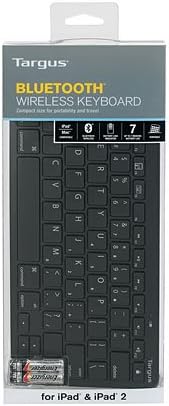
Image: The Targus AKB32ES Wireless Keyboard shown in its retail packaging. The packaging displays the Targus brand and indicates Bluetooth connectivity.
3. Setup
3.1 Battery Installation
The Targus AKB32ES keyboard requires Alkaline batteries for operation. Follow these steps to install them:
- Locate the battery compartment cover on the underside of the keyboard.
- Gently slide or lift the cover to open the compartment.
- Insert the required Alkaline batteries, ensuring correct polarity (+/-) as indicated inside the compartment.
- Replace the battery compartment cover until it clicks securely into place.
3.2 Bluetooth Pairing
To connect your keyboard to an iPad or other compatible device via Bluetooth:
- Ensure the keyboard has fresh batteries and is powered on. Look for a power switch or indicator light.
- Activate the Bluetooth pairing mode on the keyboard. This usually involves pressing a dedicated Bluetooth button or a combination of keys (refer to specific keyboard markings if available). An indicator light on the keyboard may flash to show it is in pairing mode.
- On your iPad or compatible device, navigate to Settings > Bluetooth.
- Ensure Bluetooth is turned On.
- Your device will scan for available Bluetooth devices. Locate "Targus AKB32ES" or a similar name in the list of devices.
- Tap on the keyboard's name to initiate the pairing process.
- If prompted, enter the displayed pairing code on your Targus keyboard and press Enter.
- Once successfully paired, the keyboard's indicator light may change or turn off, and your device will show the keyboard as "Connected."

Image: The Targus AKB32ES Wireless Keyboard positioned next to an iPad, which is held upright in a separate stand. This illustrates a typical setup for use.
4. Operating the Keyboard
4.1 Basic Typing
The Targus AKB32ES features a standard Spanish QWERTY layout. Simply open any text input application on your paired device and begin typing. The input will appear on your screen.
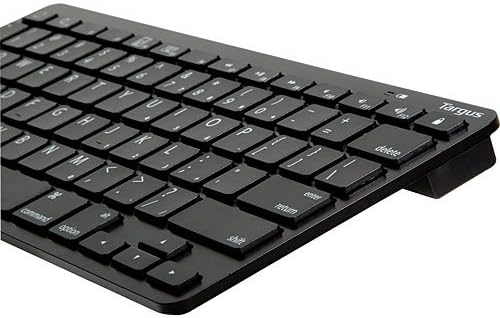
Image: A close-up view of the Targus AKB32ES keyboard, highlighting the Spanish QWERTY key layout, including special characters and function keys.
4.2 Special Function Keys
The keyboard includes dedicated function keys for enhanced control over your device. These keys may vary slightly in functionality depending on your operating system (e.g., iOS, Android). Common functions include:
- Home/Lock Screen: A key often depicted with a house icon or lock symbol, used to return to the home screen or lock/unlock the device.
- Volume Control: Keys for increasing, decreasing, or muting audio volume.
- Media Playback: Keys for play/pause, skip track, or previous track.
- Brightness Control: Keys to adjust screen brightness.
Refer to the keycap legends for specific icons and their corresponding functions.
5. Maintenance
5.1 Cleaning
To maintain the keyboard's appearance and functionality:
- Ensure the keyboard is powered off before cleaning.
- Use a soft, lint-free cloth slightly dampened with water or a mild, non-abrasive cleaning solution.
- Wipe the keycaps and surface gently. Avoid excessive moisture.
- Do not spray cleaners directly onto the keyboard.
- For debris between keys, use compressed air.
5.2 Battery Replacement
When the keyboard's performance degrades or the indicator light signals low battery, replace the batteries following the steps in Section 3.1. Always use new Alkaline batteries of the specified type.
6. Troubleshooting
If you encounter issues with your Targus AKB32ES keyboard, try the following solutions:
- Keyboard not powering on: Check if batteries are correctly installed and have sufficient charge. Replace batteries if necessary.
- Unable to pair via Bluetooth:
- Ensure the keyboard is in pairing mode (indicator light flashing).
- Verify Bluetooth is enabled on your device.
- Move the keyboard closer to your device.
- Forget the device from your device's Bluetooth settings and attempt to re-pair.
- Restart both the keyboard (by turning off and on) and your device.
- Keys not responding:
- Check battery level.
- Ensure the keyboard is still connected via Bluetooth.
- Try re-pairing the keyboard.
- Clean any debris from around the affected keys.
- Unexpected characters or layout issues: Ensure your device's language and keyboard settings are configured for a Spanish QWERTY layout.
7. Specifications
| Brand | Targus |
| Model Number | AKB32ES |
| Connectivity Technology | Bluetooth |
| Keyboard Layout | Spanish (QWERTY) |
| Color | Black |
| Compatible Devices | iPad, Smartphone (Bluetooth-enabled devices) |
| Battery Type | Alkaline (not included) |
| Product Dimensions | Approximately 34.2 x 13.2 x 3.4 cm |
| Product Weight | Approximately 381 g |
| Special Feature | Ergonomic design |

Image: An angled view of the Targus AKB32ES Wireless Keyboard, showcasing its compact and ergonomic design.
8. Warranty and Support
For information regarding warranty coverage, technical support, or to access additional resources, please visit the official Targus website. You can typically find contact information and support sections on their main page.
Targus Official Website: www.targus.com