
A4tech N-500F
A4Tech V-Track N-500F-1 Glossy Grey USB Mouse User Manual
Model: N-500F
Introduction
Thank you for choosing the A4Tech V-Track N-500F-1 Glossy Grey USB Mouse. This manual provides essential information for setting up, operating, and maintaining your new mouse. The contoured design ensures maximum comfort and support during extended use, and the sturdy scroll wheel with a rubberized surface prevents slippage for precise control.
Setup
Follow these steps to set up your A4Tech V-Track N-500F-1 mouse:
- Connect the Mouse: Locate an available USB port on your computer. Insert the USB connector of the mouse firmly into the USB port.
- Driver Installation: Your operating system (Windows XP, Windows 7, Linux, etc.) should automatically detect and install the necessary drivers for the mouse. No additional software installation is typically required for basic functionality.
- Verify Functionality: Once connected, move the mouse to check if the cursor responds on your screen. Test the left and right click buttons, and the scroll wheel.
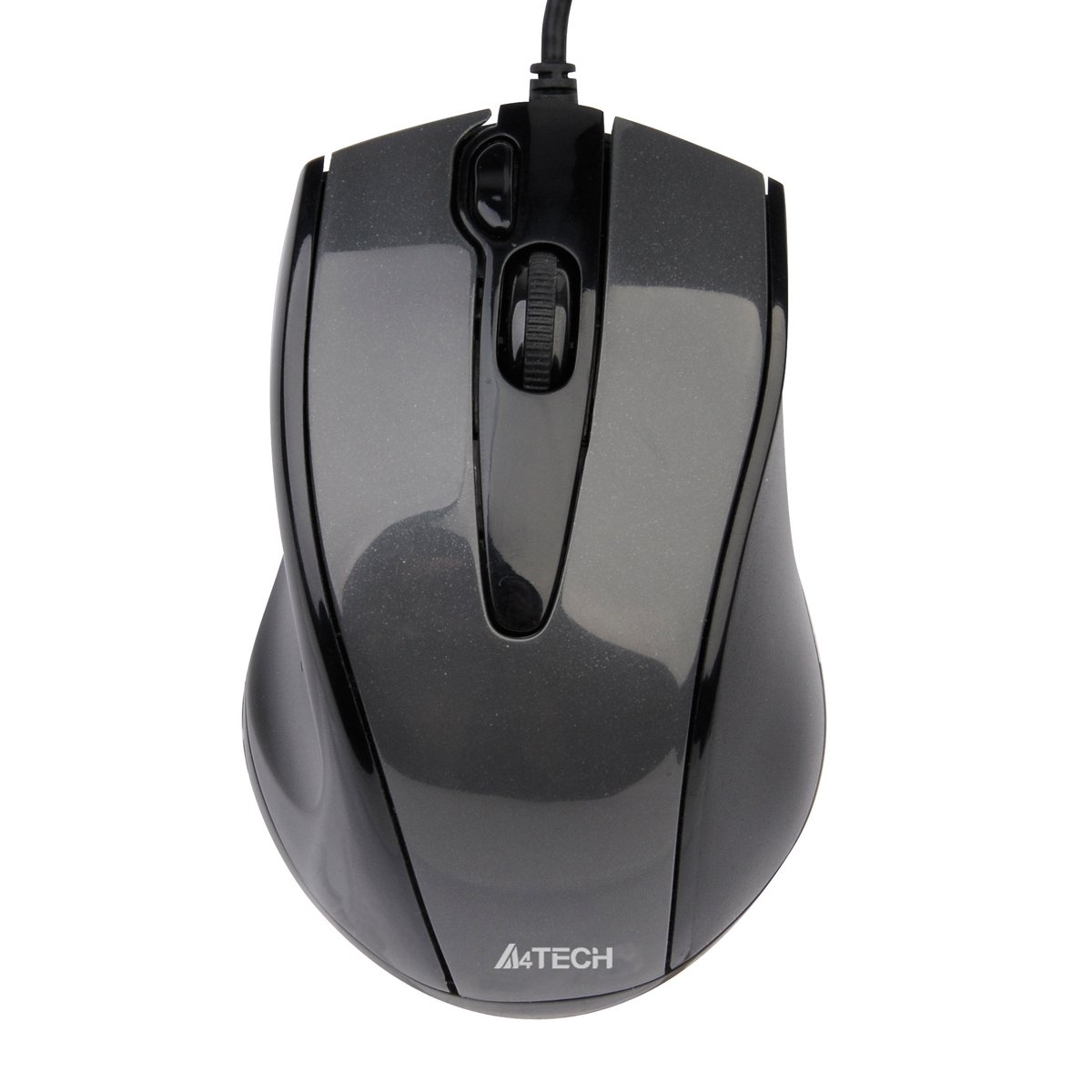
This image displays the A4Tech V-Track N-500F-1 mouse from a top-down perspective. It features a glossy grey finish, a central scroll wheel, and standard left and right click buttons. A USB cable extends from the front of the mouse.
Operating Your Mouse
The A4Tech V-Track N-500F-1 mouse is designed for intuitive use with standard computer functions.
- Left Click: Use the left button for selecting items, opening files, and activating links.
- Right Click: Use the right button to access context menus, offering additional options for selected items.
- Scroll Wheel: Roll the wheel up or down to navigate through documents and web pages. The scroll wheel can also be pressed down for a middle-click function, often used for opening links in new tabs or auto-scrolling.
- Additional Button: This mouse features an additional button, typically located near the scroll wheel or on the side. This button can often be customized through your operating system's mouse settings or A4Tech's proprietary software (if available) to perform various functions, such as screen capture, quick access to applications, or specific commands. Refer to your computer's settings for customization options.
Maintenance and Care
To ensure the longevity and optimal performance of your mouse, follow these maintenance guidelines:
- Cleaning: Use a soft, dry cloth to wipe the surface of the mouse. For stubborn dirt, slightly dampen the cloth with water or a mild, non-abrasive cleaner. Avoid using harsh chemicals or abrasive materials.
- Sensor Cleaning: Occasionally, dust or debris may accumulate around the optical sensor on the underside of the mouse. Use a cotton swab or compressed air to gently clean the sensor area.
- Avoid Liquids: Do not immerse the mouse in water or expose it to excessive moisture.
- Storage: When not in use, store the mouse in a clean, dry environment away from extreme temperatures.
Troubleshooting
If you encounter issues with your A4Tech V-Track N-500F-1 mouse, refer to the table below for common problems and solutions:
| Problem | Possible Cause | Solution |
|---|---|---|
| Mouse cursor does not move. | Loose USB connection, faulty USB port, dirty sensor. | Ensure USB cable is securely plugged in. Try a different USB port. Clean the optical sensor. Restart your computer. |
| Buttons or scroll wheel are unresponsive. | Software conflict, debris under buttons. | Restart your computer. Check for any conflicting software. Gently clean around the buttons. |
| Cursor movement is erratic or jumpy. | Dirty sensor, unsuitable mouse pad surface. | Clean the optical sensor. Use a clean, uniform mouse pad or surface. |
| Mouse is not detected by the computer. | Driver issue, hardware malfunction. | Try connecting to another computer to rule out mouse malfunction. Check Device Manager for driver status. |
Technical Specifications
Below are the technical specifications for the A4Tech V-Track N-500F-1 mouse:
| Feature | Detail |
|---|---|
| Brand | A4tech |
| Model | N-500F |
| Connectivity Technology | USB |
| Hardware Interface | USB 2.0 |
| Number of Buttons | 4 |
| Hand Orientation | Right |
| Color | Grey |
| Compatible OS | Linux, Windows XP, Windows 7 |
| Product Dimensions | 23.01 x 5.99 x 8.99 cm |
| Item Weight | 158.76 g |
| Power Source Type | Corded Electric |
Warranty and Support
A4Tech products are manufactured to high-quality standards. For information regarding warranty coverage, technical support, or service, please refer to the warranty card included with your product or visit the official A4Tech website. Keep your purchase receipt as proof of purchase for warranty claims.
Related documentsN-500F


Ask a question about this manual
Ask about setup, troubleshooting, compatibility, parts, safety, or missing instructions. Manuals+ will review the question and use this page’s manual context to help answer it.