
Introduction
This manual provides instructions for setting up and operating your RCA 2-Device Universal Remote Control, model RCRH02BR. This remote is designed to control up to two different audio/video devices, such as a television and a cable box or DVD player, simplifying your home entertainment experience.
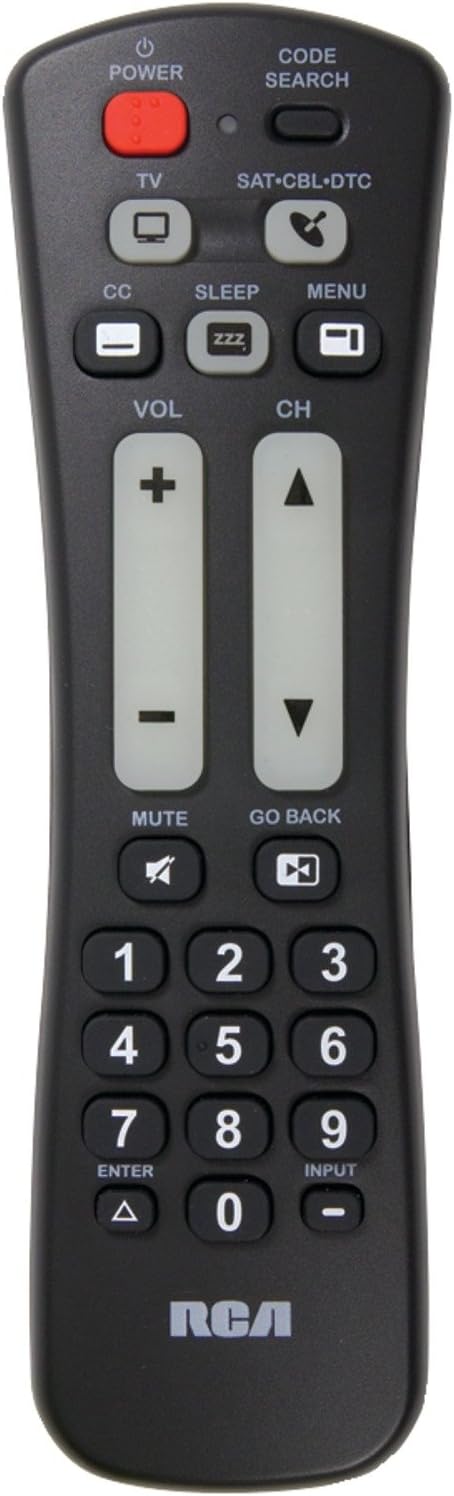
Front view of the RCA 2-Device Universal Remote Control, showing its ergonomic design and large, clearly labeled buttons for power, volume, and channel.
Package Contents
Verify that all items are present in your package:
- RCA 2-Device Universal Remote Control (RCRH02BR)
- User Manual (this document)
Features
The RCA RCRH02BR remote control offers the following key features:
- Controls up to 2 different audio/video devices.
- Oversized buttons for frequently used functions, enhancing ease of use.
- Volume and channel buttons feature a glow-in-the-dark design for visibility in low light conditions.
Battery Installation
The remote requires two AAA batteries (not included).
- Locate the battery compartment on the back of the remote control.
- Press down on the latch and slide the battery cover off.
- Insert two new AAA batteries, ensuring the positive (+) and negative (-) terminals align with the markings inside the compartment.
- Slide the battery cover back into place until it clicks securely.
Note: If the remote does not function after battery installation, ensure the batteries are correctly oriented and make firm contact with the terminals. Sometimes, gently pressing the batteries against the positive connector can resolve connection issues.
Setup: Programming the Remote
To control your devices, the remote must be programmed with the correct codes. You can program the remote using either Manual Code Entry or Auto Code Search.
Method 1: Manual Code Entry
This method requires you to find the specific code for your device's brand from a code list (typically provided with the physical manual or available online).
- Turn on the device you wish to control (e.g., TV, DVD player).
- Press and hold the CODE SEARCH button until the indicator light turns on.
- Press and release the device button you want to program (e.g., TV, DVD). The indicator light will blink once and then remain on.
- Enter the 4-digit code for your device's brand using the number buttons. After entering the last digit, the indicator light should turn off.
- Point the remote at your device and press the POWER button. If the device turns off, the remote is successfully programmed.
- If the device does not turn off, repeat steps 2-5 with the next code listed for your brand.
Method 2: Auto Code Search
This method automatically searches for the correct code for your device.
- Turn on the device you wish to control.
- Press and hold the CODE SEARCH button until the indicator light turns on.
- Press and release the device button you want to program (e.g., TV, DVD). The indicator light will blink once and then remain on.
- Point the remote at your device and repeatedly press the POWER button (approximately once per second) until your device turns off.
- Once the device turns off, immediately press the ENTER button to save the code. The indicator light will turn off.
- Test other functions (e.g., volume, channel) to ensure the remote controls your device correctly. If not, repeat the auto code search process.
Operating Instructions
Once programmed, use the following buttons to control your devices:
- DEVICE BUTTONS (TV, DVD, etc.): Press the corresponding device button to select which device the remote will control. The indicator light will briefly illuminate.
- POWER: Turns the selected device on or off.
- VOL (+/-): Adjusts the volume of the selected device. These buttons glow in the dark.
- CH (+/-): Changes the channel on the selected device. These buttons glow in the dark.
- NUMBER BUTTONS (0-9): Used to enter channel numbers or codes during programming.
- INPUT: Cycles through the input sources on your television.
- MUTE: Mutes the audio on the selected device.
Troubleshooting
| Problem | Possible Solution |
|---|---|
| Remote does not operate your device. |
|
| Some functions (e.g., MENU) do not work. |
|
| Indicator light does not turn on. |
|
Specifications
- Model: RCRH02BR
- Brand: RCA
- Maximum Number of Supported Devices: 2
- Compatible Devices: Television, DVD Player, VCR, Cable Box, Satellite Receiver (depending on programming)
- Connectivity Technology: Infrared (IR)
- Controller Type: Button Control
- Maximum Range: Approximately 10 meters (33 feet)
- Batteries Required: 2 x AAA (not included)
- Item Weight: Approximately 4 ounces (without batteries)
Warranty and Support
Warranty Information
This RCA RCRH02BR Universal Remote Control is covered by a 90-day warranty from the date of purchase. This warranty covers defects in materials and workmanship under normal use. Please retain your proof of purchase for warranty claims.
Customer Support
For further assistance, troubleshooting, or to access the latest code lists, please visit the official RCA support website or contact their customer service. You can often find support resources by searching for "RCA RCRH02BR support" online.
For more information about RCA products, visit the RCA Store.


