
Product Overview
The TC Electronic VoiceTone H1 is a compact and robust vocal effects processor designed to add natural-sounding harmonies to your voice. It is engineered for ease of use, making professional vocal harmonies accessible to both seasoned professionals and hobbyists. This pedal enhances vocal performances by providing one or two additional voices, creating a fuller and richer sound.
Key Features
- Adds one or two voices of realistic harmony to your voice.
- Mic-Control offers remote on/off via TC-Helicon MP-75 microphone (sold separately).
- Connects seamlessly between your microphone and mixer.
What's in the Box
- VoiceTone H1 Vocal Harmonizer
- Power Supply

Image: The TC Electronic VoiceTone H1 pedal, showcasing its compact design and primary controls.
Setup Guide
Connecting Your VoiceTone H1
The VoiceTone H1 is designed for straightforward integration into your audio setup. Follow these steps for proper connection:
- Microphone Input: Connect your dynamic microphone to the 'MIC' XLR input on the rear of the VoiceTone H1. Note that this unit does not provide phantom power, so condenser microphones requiring phantom power are not compatible without an external power source.
- Instrument Input: Connect your guitar or other instrument to the 'INST IN' 1/4-inch jack. This input is crucial for the H1's intelligent harmony generation, as it uses the instrument's chords to determine the correct harmony notes.
- Audio Output: Connect the 'OUT' XLR output to your mixer or audio interface. This sends your processed vocal signal, including harmonies, to your sound system.
- Thru Output (Optional): The 'THRU' 1/4-inch jack allows you to send an unprocessed signal of your instrument directly to an amplifier or another effects pedal, bypassing the H1's internal processing for the instrument signal.
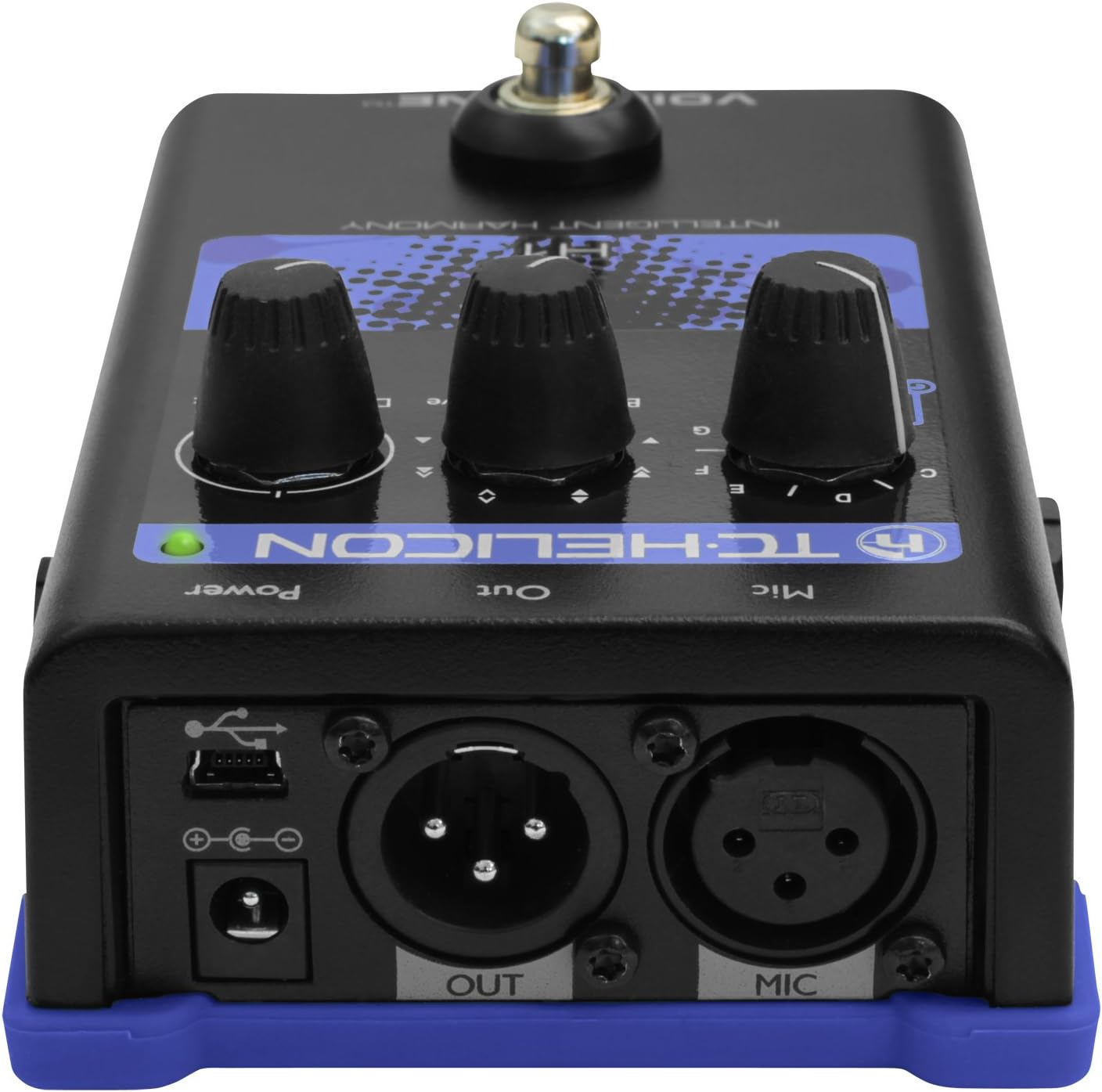
Image: Rear view of the VoiceTone H1, highlighting the microphone input, instrument input, and audio output connections.
Powering On
Connect the included power supply to the '9V DC' input on the rear of the unit. Once connected, the unit will power on. Ensure all connections are secure before activating your sound system.
Operating Your VoiceTone H1
The VoiceTone H1 features intuitive controls for shaping your vocal harmonies.
Harmony Control
The primary controls are located on the top panel:
- Guitar Knob: This knob selects the key for the harmonies. When connected to a guitar, the H1 intelligently detects the chords being played and generates harmonies in the correct key. You can also manually set the key (A, B, C, D, E, F, G) if not using a guitar input.
- Voices Knob: This knob allows you to select the type of harmony. Options typically include harmonies 'Below' your voice, 'Above' your voice, or a combination.
- Dry/Wet Mix Knob: This controls the balance between your original (dry) vocal signal and the added harmony (wet) signal. Adjust to achieve the desired blend.
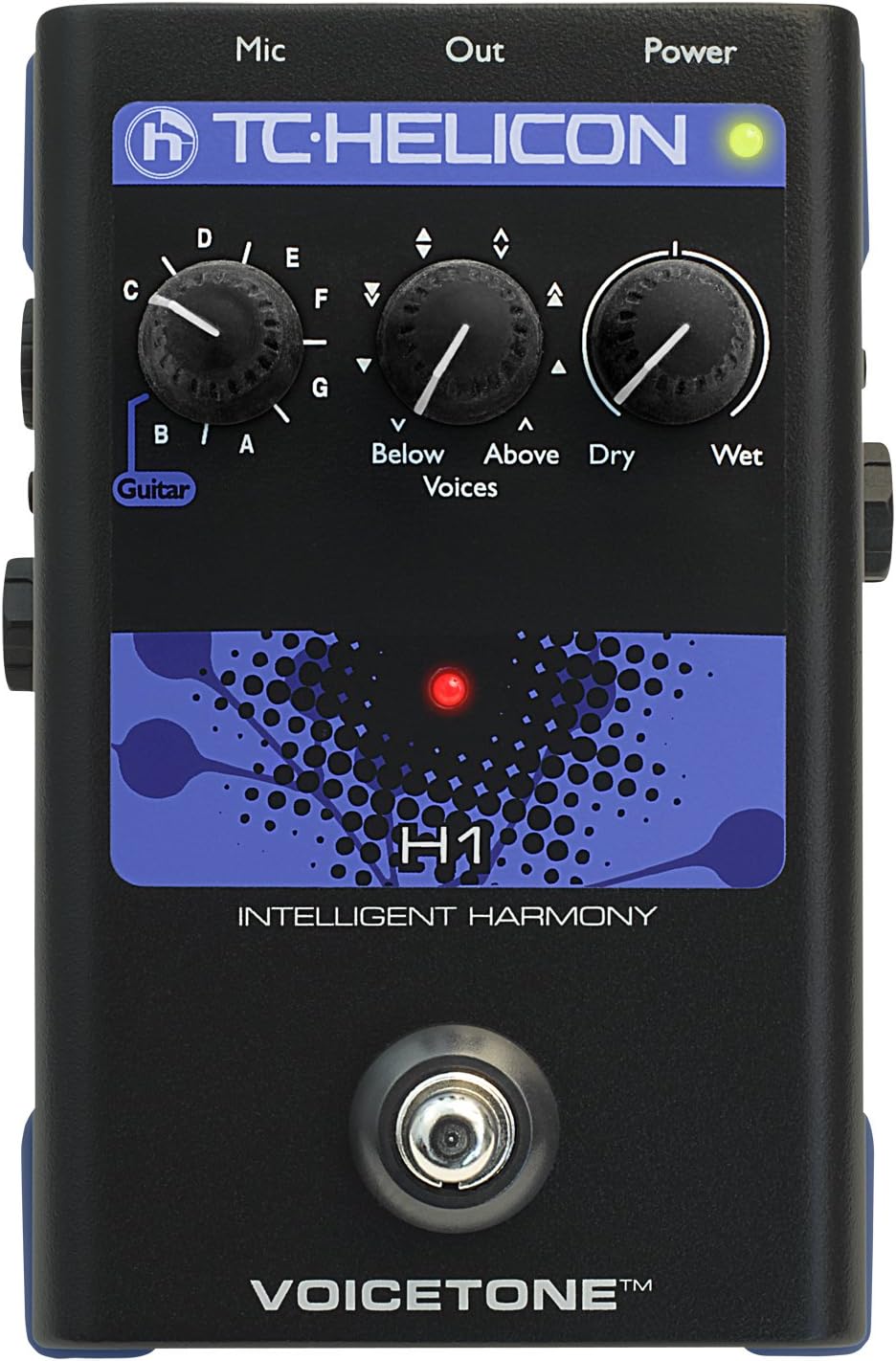
Image: Top view of the VoiceTone H1, illustrating the Guitar, Voices, and Dry/Wet control knobs.
Mic-Control Feature
The VoiceTone H1 supports TC-Helicon's Mic-Control feature. If you are using a compatible TC-Helicon MP-75 microphone, you can remotely toggle the harmony effect on and off directly from the microphone, providing convenient control during live performances.
Maintenance
To ensure the longevity and optimal performance of your VoiceTone H1, follow these maintenance guidelines:
- Cleaning: Use a soft, dry cloth to clean the exterior of the unit. Avoid abrasive cleaners, solvents, or waxes.
- Storage: Store the unit in a cool, dry place away from direct sunlight and extreme temperatures.
- Handling: While the VoiceTone H1 is built to be sturdy, avoid dropping or subjecting it to excessive force.
- Connections: Periodically check all cable connections for wear and tear. Ensure they are securely plugged in during use.
Troubleshooting
If you encounter issues with your VoiceTone H1, refer to the following common problems and solutions:
| Problem | Possible Cause / Solution |
|---|---|
| No Sound or Low Volume |
|
| Incorrect or Unstable Harmonies |
|
| Unwanted Noise or Hum |
|
Technical Specifications
| Feature | Specification |
|---|---|
| Brand | TC Electronic |
| Model Number | 996012005 |
| Item Weight | 1.63 pounds |
| Product Dimensions | 6 x 7 x 3.5 inches |
| Connector Type | 3.5mm audio jack, USB |
| Hardware Interface | 3.5mm Audio, USB |
| Signal Format | Analog |
| Power Source | Battery Powered |
| Voltage | 9 Volts |
| Audio Output Effects | Harmony |
Warranty and Support
TC Electronic products are manufactured to high standards and come with a limited warranty. For detailed warranty information, product registration, and technical support, please visit the official TC Electronic website or their authorized support channels.
You can find more information and support resources by visiting the TC Electronic Store on Amazon.