
1. Introduction and Overview
The OSD Audio ATM-7 is a sophisticated 7-zone automatic speaker selector designed to distribute amplified audio signals to various zones within a home or commercial space. It allows users to select between two distinct music sources for each designated zone, providing flexible audio management. This passive device is engineered for seamless integration into existing audio systems, offering remote control capabilities for enhanced convenience.
For optimal performance and to prevent potential damage to your amplifier, it is highly recommended to use impedance matching in-wall volume controls in conjunction with the ATM-7, as this unit does not include built-in impedance protection.

Figure 1.1: OSD Audio ATM-7 Speaker Selector and its accompanying remote control, showcasing the front panel and rear connections.
2. Key Features
- 7-Zone Audio Distribution: Distributes amplified audio signals to up to seven independent zones.
- Dual Source Selection: Allows selection between two distinct music sources (A or B) in each zone when operating in 2-input mode.
- Remote Control: Includes an IR remote control for convenient operation from a distance of up to 10 meters.
- Front Panel Controls & LEDs: Features status LEDs for Power, Multi-zone, Master/Slave, Zone In/Out Select, In/Out Mode, and Zone Out/In Selector.
- Master-Slave Functionality: A Master-Slave switch on the rear panel enables parallel connection of two ATM-7 units for expanded zone control.
- Memory Function: The remote control includes a backup memory function to retain settings.
- Passive Design: A passive device, requiring external impedance matching for amplifier protection.
3. Package Contents
Please verify that all items are present and in good condition upon unpacking.
- OSD Audio ATM-7 Speaker Selector Unit
- IR Remote Control
- Power Adapter (DC 12V 1.5A)
- External IR Receiver (for remote placement)
- User Manual (this document)
4. Safety Information
To ensure safe operation and prevent damage, please observe the following precautions:
- Power Source: Use only the provided power adapter. Ensure the voltage matches your local power supply.
- Ventilation: Do not block ventilation openings. Ensure adequate airflow around the unit to prevent overheating.
- Moisture: Do not expose the unit to water, moisture, or excessive humidity. Avoid placing liquids near the device.
- Placement: Place the unit on a stable, flat surface. Avoid placing it near heat sources or in direct sunlight.
- Servicing: Do not attempt to service the unit yourself. Refer all servicing to qualified personnel.
- Impedance Matching: As a passive device, the ATM-7 does not provide impedance protection. Always use impedance matching volume controls or ensure your amplifier can handle the combined speaker load to prevent damage to your amplifier.
5. Setup and Installation
Follow these steps to connect your OSD Audio ATM-7 speaker selector:
- Power Off All Equipment: Before making any connections, ensure your amplifier and all audio sources are powered off and unplugged from the wall outlet.
- Connect Amplifier Output: Connect the speaker output terminals from your amplifier to the "ZONE IN/OUT" terminals on the rear of the ATM-7. The ATM-7 supports two input modes: 2-input (for dual source selection) or 7-input (for individual zone control). Refer to the rear panel diagram for correct wiring.
- Connect Speakers: Connect your speakers to the corresponding "ZONE OUT" terminals on the rear of the ATM-7. Ensure correct polarity (+ to + and - to -) for all connections.
- Install Impedance Matching Volume Controls (Recommended): For optimal performance and amplifier protection, install impedance matching in-wall volume controls between the ATM-7 and your speakers. This is crucial to maintain a safe impedance load for your amplifier, especially when multiple zones are active.
- Connect IR Receiver: If the ATM-7 unit will be placed out of direct line of sight for the remote control, connect the external IR receiver to the "EXT IR Receiver" port on the rear panel. Position the IR receiver in a location where it can receive signals from the remote.
- Connect Power: Plug the provided DC 12V 1.5A power adapter into the "DC 12V 1.5A" input on the rear of the ATM-7, then plug the adapter into a wall outlet.

Figure 5.1: Rear panel connections of the ATM-7, including speaker terminals, IR receiver port, and power input.

Figure 5.2: Detailed view of the speaker wire terminals on the rear of the ATM-7, showing positive and negative connections for a zone.
6. Operating Instructions
The ATM-7 can be operated using the front panel controls or the included IR remote control.
6.1 Front Panel Controls

Figure 6.1: Front panel of the ATM-7, displaying power button, status LEDs, and zone selectors.
- POWER Button: Press to turn the unit On or Off. The "ON" LED indicates power status.
- Multi Zone Enable: Activates or deactivates multi-zone operation.
- MUTE Button: Mutes all active audio outputs.
- Master/Slave Control Select (M/S): Toggles between Master and Slave mode when chaining two ATM-7 units.
- Zone In/Out Select: Toggles individual zones between input and output modes.
- IN/OUT Mode (2 IN / 7 IN): Selects between 2-input mode (allowing selection of Source A or B for each zone) or 7-input mode (where each zone acts as an independent input/output).
- ZONE OUT/IN SELECTOR (ZONE1-ZONE7): Buttons to individually activate or deactivate each of the seven zones. Corresponding LEDs indicate active zones.
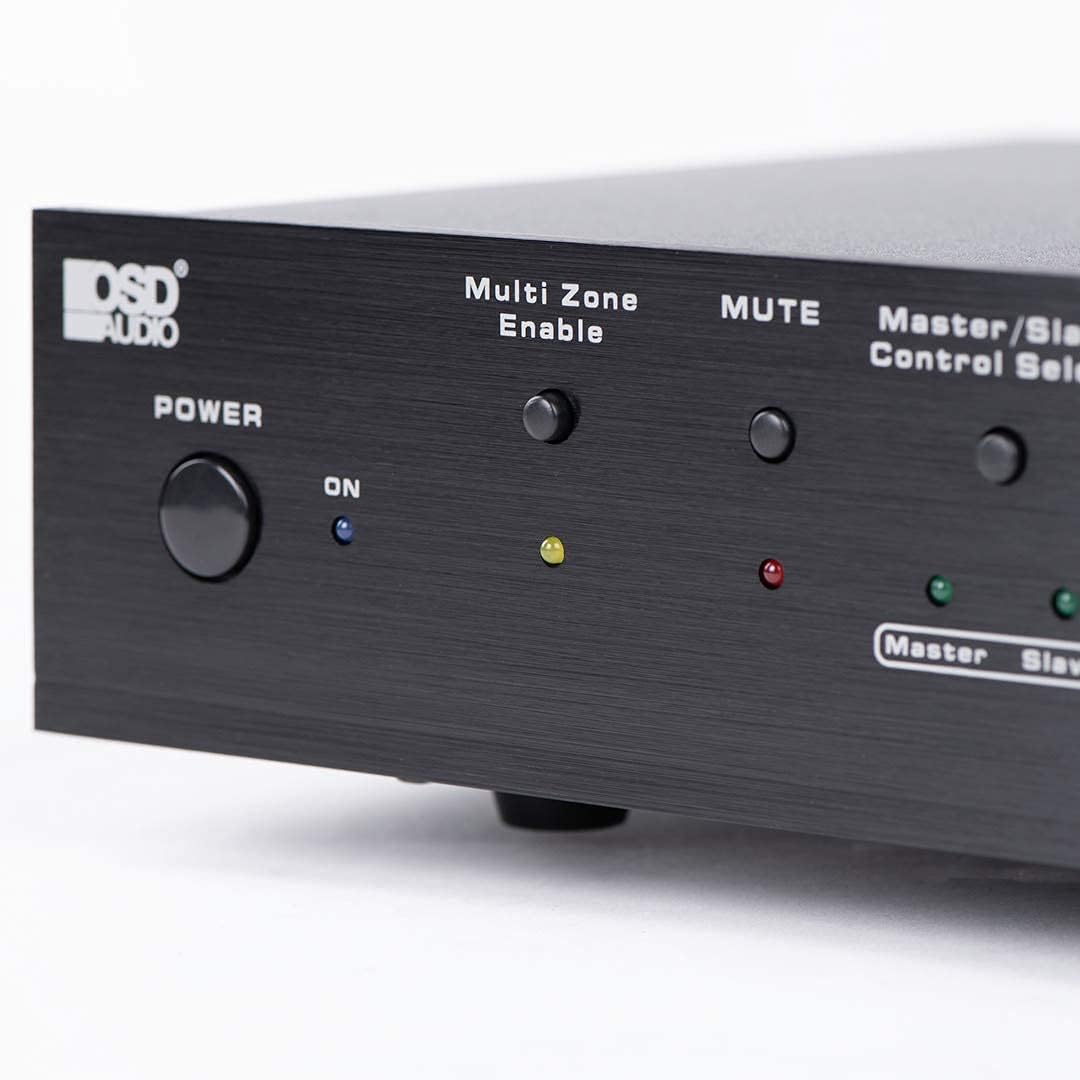
Figure 6.2: Detail of the Power and Multi Zone Enable buttons on the ATM-7 front panel.

Figure 6.3: Detail of the IN/OUT Mode (2 IN / 7 IN) and individual Zone Selector buttons on the ATM-7 front panel.
6.2 IR Remote Control
The included IR remote control provides full functionality for the ATM-7. Point the remote towards the unit's IR sensor or the external IR receiver.
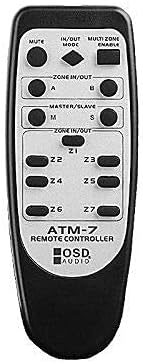
Figure 6.4: The ATM-7 remote control, featuring buttons for mute, input/output mode, master/slave, and individual zone selection.
- MUTE: Mutes all audio output.
- IN/OUT MODE: Toggles between 2-input and 7-input modes.
- MULTI ZONE ENABLE: Activates or deactivates multi-zone operation.
- ZONE IN/OUT (A/B): In 2-input mode, selects between Source A and Source B for the active zones.
- MASTER/SLAVE (M/S): Selects Master or Slave mode for multi-unit configurations.
- Z1-Z7 Buttons: Individually activate or deactivate each of the seven zones.
The remote control has a backup memory function, retaining the last settings even after power cycling the unit. This allows for integration with smart plugs or switched outlets.
7. Maintenance
The OSD Audio ATM-7 requires minimal maintenance. Follow these guidelines to ensure longevity:
- Cleaning: Use a soft, dry cloth to clean the exterior of the unit. Do not use liquid cleaners or abrasive chemicals.
- Ventilation: Periodically check that the ventilation openings are clear of dust and debris.
- Connections: Ensure all speaker wire connections remain secure and free from corrosion.
8. Troubleshooting
| Problem | Possible Cause | Solution |
|---|---|---|
| No audio output from speakers. |
|
|
| Remote control not working. |
|
|
| Sound distortion or low volume. |
|
|
9. Specifications
| Feature | Specification |
|---|---|
| Model Number | ATM-7 |
| Product Dimensions | 21.5 x 12 x 5.5 inches |
| Item Weight | 7 pounds |
| Color | Black |
| Connector Type | Speaker Wire (Banana Plugs compatible) |
| Cable Type | Speaker Wire |
| Manufacturer | OSD Audio |
| Power Input | DC 12V 1.5A |
| Remote Operating Distance | Up to 10 meters |
10. Warranty Information
Warranty information for the OSD Audio ATM-7 Speaker Selector is typically provided with the product at the time of purchase or can be found on the official OSD Audio website. Please retain your proof of purchase for warranty claims. For detailed terms and conditions, please visit the OSD Audio official website or contact their customer support.
11. Customer Support
For technical assistance, troubleshooting, or general inquiries regarding your OSD Audio ATM-7, please contact OSD Audio customer support. You can find contact information, FAQs, and additional resources on the official OSD Audio website:

