
1. Introduction
The X-MEDIA XM-UB2235S USB 2.0 to IDE SATA Adapter Converter provides a convenient solution for connecting 2.5-inch and 3.5-inch IDE or SATA hard disk drives (HDD/SSD), as well as 5.25-inch optical drives, to your computer via a USB port. This adapter enables data transfer at speeds up to 480 Mbps, offering plug-and-play functionality and hot-swappable support for various operating systems.
2. Package Contents
Verify that all items are present in the package:
- X-MEDIA XM-UB2235S USB 2.0 to IDE/SATA Adapter
- AC Power Supply (100-240V, 50/60 Hz, 1.0A input; DC 12V/5V, 2000mA output)
- SATA Data Cable
- 4-pin IDE and SATA HDD Power Adapter Cable
- Software and Driver CD (3-inch type) - for One Touch Backup functionality

Figure 2.1: X-MEDIA USB 2.0 to IDE/SATA Adapter with included cables, including the power adapter and data cables.
3. Product Features
- Supports 2.5-inch IDE or 3.5-inch IDE/SATA hard drives.
- Supports 5.25-inch Optical CD/DVD/Blu-Ray drives.
- USB 2.0 connection for data transfer speeds up to 480Mbps.
- PC and Mac Compatible.
- Plug & Play installation.
- Hot-Swappable functionality.
- LED Indicator for power and activity.
- One Touch Backup (OTB) button (requires software installation).
- Compliant with USB 2.0, USB 1.1, SATA Revision 1.0, and ATA/ATAPI specifications.
- Compatible with Microsoft Windows 98SE, Me, 2000, XP, Vista, 7, 8, 8.1, 10, 11 and Mac OS 9.2 and above.
4. Setup Instructions
Follow these steps to connect your drive using the X-MEDIA XM-UB2235S adapter.
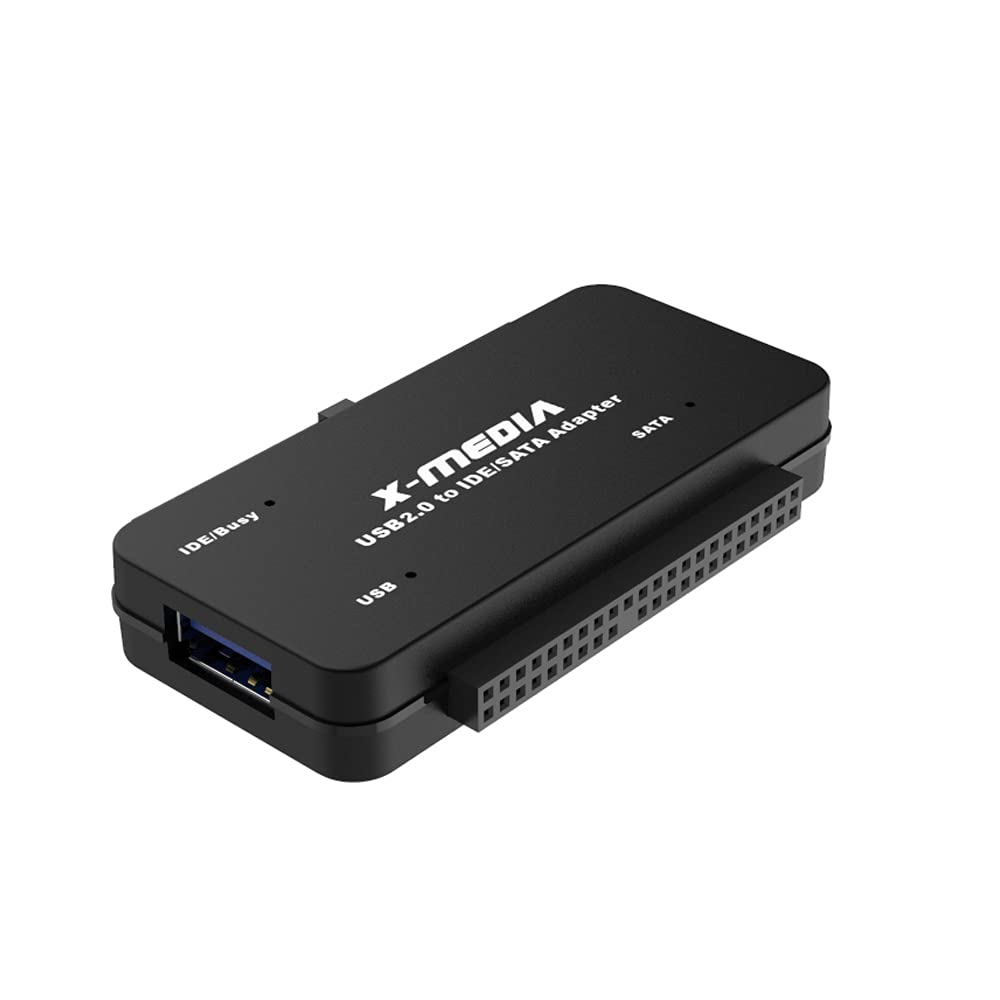
Figure 4.1: The X-MEDIA XM-UB2235S USB 2.0 to IDE SATA Adapter Converter.
4.1 General Connection Steps
- Connect the Drive: Attach your IDE or SATA drive to the appropriate connector on the adapter. Ensure a firm connection.
- Connect Power: Use the provided AC power supply and 4-pin power adapter cable to power the drive. Connect the power adapter to the drive and then plug the AC power supply into a power outlet.
- Connect to Computer: Plug the USB cable from the adapter into an available USB 2.0 port on your computer.
- Power On: Turn on the power switch on the adapter (if present) or ensure the drive receives power. The LED indicator on the adapter will illuminate.
- Driver Installation: For basic drive access, the adapter is typically plug-and-play. Your operating system should automatically detect and install the necessary drivers. For One Touch Backup functionality, install the software from the included CD.
4.2 Connecting a 2.5-inch IDE Hard Drive
- Connect the 2.5-inch IDE drive directly to the 44-pin IDE connector on the adapter.
- Connect the USB cable to your computer.
- No external power supply is typically needed for 2.5-inch IDE drives as they draw power from the USB connection.
4.3 Connecting a 3.5-inch IDE Hard Drive or 5.25-inch Optical Drive
- Connect the 3.5-inch IDE drive or 5.25-inch optical drive to the 40-pin IDE connector on the adapter.
- Connect the 4-pin power adapter cable to the drive's power input.
- Connect the AC power supply to the 4-pin power adapter cable and plug it into a power outlet.
- Connect the USB cable from the adapter to your computer.
4.4 Connecting a SATA Hard Drive or Optical Drive
- Connect the SATA data cable to the SATA data port on the adapter and to the SATA data port on your drive.
- Connect the 4-pin power adapter cable to the SATA power input on your drive.
- Connect the AC power supply to the 4-pin power adapter cable and plug it into a power outlet.
- Connect the USB cable from the adapter to your computer.

Figure 4.2: Front view of the X-MEDIA USB 2.0 to IDE/SATA Adapter, showing the USB port and indicator lights.
5. Operating Instructions
Once connected, your operating system should recognize the drive as a mass storage device. You can then access files, transfer data, or perform other disk operations as you would with any internal or external drive.
5.1 One Touch Backup (OTB) Functionality
The adapter features a One Touch Backup button for quick data backup. To utilize this feature:
- Install the provided software from the 3-inch driver CD onto your computer.
- Follow the software's instructions to configure backup settings, including source and destination folders.
- Once configured, pressing the OTB button on the adapter will initiate the backup process as defined in the software.
Note: Software installation is required for the One Touch Backup feature to function.
6. Maintenance
To ensure the longevity and optimal performance of your X-MEDIA XM-UB2235S adapter:
- Keep the adapter and cables clean and free from dust. Use a soft, dry cloth for cleaning.
- Store the adapter in a cool, dry place when not in use.
- Avoid exposing the device to extreme temperatures or humidity.
- Do not attempt to open or modify the adapter, as this will void the warranty.
7. Troubleshooting
If you encounter issues with your adapter, refer to the following common solutions:
- Drive Not Detected:
- Ensure all cables (data and power) are securely connected to both the drive and the adapter.
- Verify that the AC power supply is plugged into a working outlet and the drive is receiving power (check for drive spin-up or indicator lights).
- Try connecting the adapter to a different USB port on your computer.
- Restart your computer.
- Check Disk Management (Windows) or Disk Utility (Mac) to see if the drive is recognized but unformatted or unallocated.
- Slow Transfer Speeds:
- Ensure you are connected to a USB 2.0 port for optimal performance (up to 480 Mbps). Connecting to a USB 1.1 port will result in slower speeds.
- Verify the drive itself is functioning correctly.
- One Touch Backup Not Working:
- Confirm that the OTB software has been correctly installed from the provided CD.
- Ensure the software is running and configured properly.
- Adapter Appears Used:
- If the product appears used or damaged upon arrival, contact your retailer or X-MEDIA customer support immediately.
8. Specifications
| Feature | Description |
|---|---|
| Model Number | XM-UB2235S |
| Compatible Devices | PC & Mac |
| Specific Uses | Business / Personal data transfer and backup |
| Connector Type | Drive: IDE/SATA, Computer: USB Type A |
| Color | Black |
| Item Dimensions (L x W x H) | 1.62 x 2.65 x 0.46 inches |
| Number of Ports | 1 (USB) |
| Power Plug Type | Type A - 2 pin (North American) |
| Nominal Power | 18 Watts |
| Item Weight | 0.8 Ounces |
| Supported OS | Windows 98SE/Me/2000/XP/Vista/7/8/8.1/10/11, Mac OS 9.2 and above |
9. Warranty Information
The X-MEDIA XM-UB2235S USB 2.0 to IDE SATA Adapter Converter comes with a standard 1-year warranty. Please retain your proof of purchase for warranty claims. For detailed warranty terms and conditions, refer to the documentation provided with your product or contact X-MEDIA customer support.
10. Support
For further assistance, technical support, or inquiries regarding your X-MEDIA product, please visit the official X-MEDIA website or contact their customer service department. Contact information can typically be found on the product packaging or the manufacturer's website.