
Introduction
The Extech DL150 is a True RMS AC voltage and current data logger designed for precise measurement and recording of electrical parameters. It is capable of logging up to 100,000 readings of TRMS AC Voltage (up to 600V) or Current (up to 200 Amp). This device features a user-programmable sample rate ranging from 1 second to 24 hours, providing flexibility for various monitoring needs. The integrated LCD displays real-time data including time/date, current readings, and minimum/maximum values. It also indicates if user-settable high/low alarms have been exceeded. Data can be easily downloaded to a PC via the USB interface for analysis using the included software or for export to a spreadsheet. The DL150 supports Normal, Peak, and Capture (user-specified trigger level) recording modes, making it a versatile tool for electrical diagnostics and monitoring.
What's in the Box
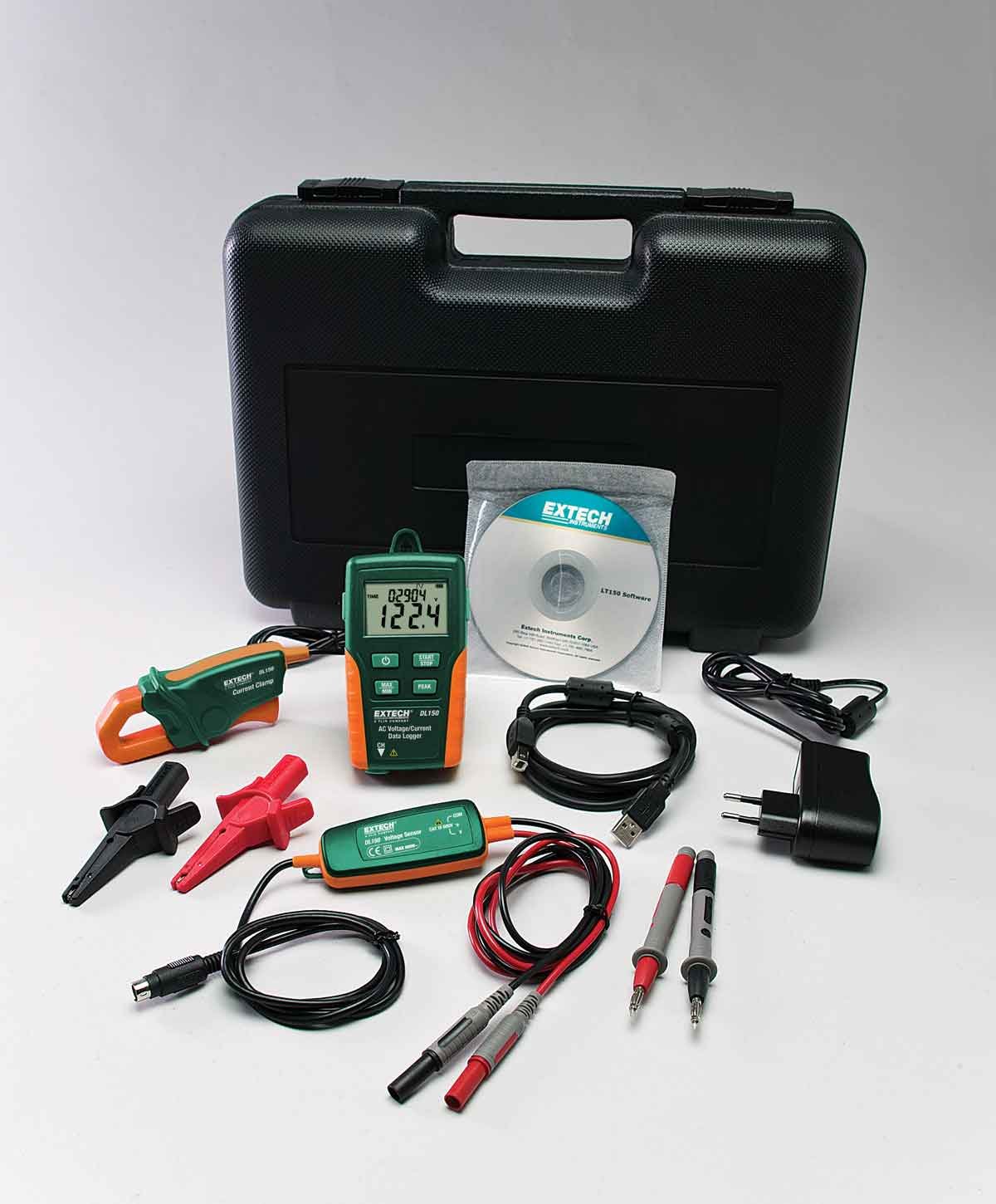
Image: The Extech DL150 Datalogger shown with all its included accessories, neatly laid out. This includes the main unit, current clamp, test leads, alligator clips, software CD, USB cable, 110-Volt AC Adapter, and a 3.6V Lithium Battery.
Upon opening the package, please verify that all the following components are present:
- Extech DL150 True RMS AC Voltage/Current Datalogger Unit
- Current Clamp
- Test Leads
- Alligator Clips
- Software (on CD or available for download)
- USB Cable
- 110-Volt AC Adapter
- 3.6V Lithium Battery
If any items are missing or damaged, please contact Extech customer support immediately.
Setup
1. Battery Installation
The DL150 requires 4 AAA batteries (included). To install, locate the battery compartment on the rear of the unit. Open the compartment cover, insert the batteries observing the correct polarity (+/-), and then securely close the cover. Ensure the battery is properly seated for continuous operation.
2. Software Installation
Before connecting the datalogger to your computer, install the provided software. Insert the software CD into your computer's drive and follow the on-screen instructions. If a CD drive is not available, the software can typically be downloaded from the official Extech website. This software is essential for configuring the datalogger, downloading recorded data, and analyzing measurements.
3. Connecting the Datalogger
Connect the DL150 to your computer using the supplied USB cable. The USB port is located on the side of the datalogger. Once connected, the computer should recognize the device, and you can launch the Extech software to begin configuration.
4. Attaching Test Leads and Current Clamp
For voltage measurements, connect the test leads to the appropriate input jacks on the DL150. For current measurements, connect the current clamp to its designated input. Ensure all connections are secure before proceeding with any measurements.
Operation

Image: The Extech DL150 Datalogger showing its LCD screen with a clear voltage reading and time/date information. The device's buttons for power, Min/Max, Start/Stop, and Peak are visible.
1. Powering On/Off
Press the Power button to turn the DL150 on or off. The LCD will illuminate, displaying the current time and date, along with measurement readings.
2. Configuring Datalogging Parameters
Use the Extech software on your PC to configure the datalogging parameters. This includes setting the sample rate (from 1 second to 24 hours), selecting the measurement type (AC Voltage or AC Current), and defining high/low alarm thresholds. You can also choose between Normal, Peak, and Capture recording modes.
3. Starting and Stopping Data Logging
Once configured, press the START/STOP button on the device to begin data logging. The LCD will indicate that logging is active. Press the same button again to stop logging. The device can store up to 100,000 readings.
4. Viewing Min/Max and Peak Readings
During or after logging, press the MAX/MIN button to cycle through the minimum and maximum recorded values. Press the PEAK button to view the peak reading captured during the logging session.
5. Downloading Data
Connect the DL150 to your PC via the USB cable. Open the Extech software and follow the instructions to download the logged data. The software allows you to view the data graphically, export it to various formats (e.g., CSV for spreadsheets), and generate reports.
Maintenance
1. Cleaning the Unit
Wipe the exterior of the DL150 with a soft, damp cloth. Do not use abrasive cleaners or solvents. Ensure the unit is dry before storage or further use.
2. Battery Replacement
When the battery indicator on the LCD shows low power, replace the 4 AAA batteries promptly to ensure accurate readings and continuous operation. Refer to the "Battery Installation" section under Setup for detailed steps.
3. Storage
When not in use for extended periods, store the DL150 in a cool, dry place, away from direct sunlight and extreme temperatures. It is recommended to remove the batteries if storing for more than one month to prevent leakage.
Troubleshooting
This section provides solutions to common issues you might encounter with your Extech DL150.
- Device does not power on:
- Check if the batteries are correctly installed with proper polarity.
- Replace the batteries with new ones.
- Ensure the power button is pressed firmly.
- No data logging:
- Verify that the START/STOP button was pressed to initiate logging.
- Check if the memory is full (the device can log up to 100,000 readings). Download data to clear memory.
- Ensure the sample rate is correctly configured in the software.
- Cannot connect to PC / Software issues:
- Ensure the USB cable is securely connected to both the DL150 and the PC.
- Verify that the Extech software drivers are correctly installed. You may need to reinstall the software or download the latest drivers from the Extech website.
- Try a different USB port on your computer.
- Inaccurate readings:
- Ensure test leads and current clamp are properly connected and making good contact with the circuit.
- Verify that the correct measurement type (AC Voltage or AC Current) is selected.
- Check battery level; low batteries can affect accuracy.
For more detailed troubleshooting or issues not covered here, please refer to the full user manual PDF or contact Extech customer support.
Specifications
| Feature | Specification |
|---|---|
| Model Number | DL150 |
| Measurement Type | True RMS AC Voltage / Current |
| Voltage Range | Up to 600V AC |
| Current Range | Up to 200A AC |
| Datalogging Capacity | 100,000 readings |
| Sample Rate | Programmable from 1 second to 24 hours |
| Display | LCD with time/date, current reading, Min/Max, alarm indicators |
| Interface | USB |
| Recording Modes | Normal, Peak, Capture (user-specified trigger level) |
| Power Source | Battery Powered (4 AAA batteries included) |
| Product Dimensions | 2.5 x 1.3 x 4.5 inches |
| Item Weight | 8.82 ounces (0.25 Kilograms) |
| Manufacturer | Extech |
Warranty and Support
Extech products are designed for reliability and performance. For detailed warranty information, including terms, conditions, and duration, please refer to the official user manual PDF provided with your product or available for download from the Extech website. The warranty typically covers defects in materials and workmanship under normal use.
For technical support, service, or to purchase accessories, please visit the official Extech website or contact their customer service department. You can find contact information and additional resources on the Extech Brand Store on Amazon or directly through the Extech corporate website.
Additional resources:


