
1. Introduction
The Vinpower Digital RipBox is an automated optical disc (CD, DVD) ripping station designed for efficient data extraction and archival. This unit features a robotic transport arm that connects to a computer via USB, enabling automated operation with compatible software. It is suitable for various applications, including archiving important documents, ripping content from discs to a server or hard drive, and managing data from sources like surveillance cameras.
2. Safety Information
- Always connect the device to a grounded power outlet.
- Do not expose the unit to moisture or extreme temperatures.
- Ensure proper ventilation around the unit to prevent overheating.
- Avoid placing heavy objects on top of the RipBox.
- Keep hands clear of the robotic arm during operation to prevent injury.
- Unplug the power cord before cleaning or performing any maintenance.
3. Product Overview
The Vinpower Digital RipBox is a compact, automated system designed for reliable optical disc handling. It integrates a disc drive with a robotic arm for hands-free operation.
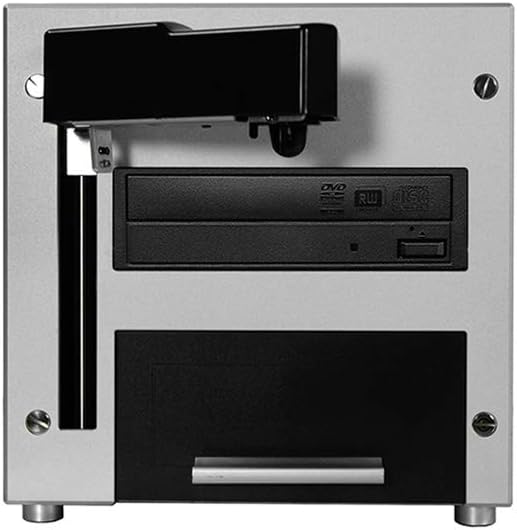
Figure 3.1: Front View. This image displays the front of the Vinpower Digital RipBox, showing the disc loading tray and the robotic arm mechanism positioned above the optical drive.

Figure 3.2: Angled Front View. An angled perspective of the RipBox, highlighting its compact design and the integration of the robotic arm with the disc drive.

Figure 3.3: Second Angled Front View. Another angled view providing a slightly different perspective of the unit's front and side, emphasizing its form factor.
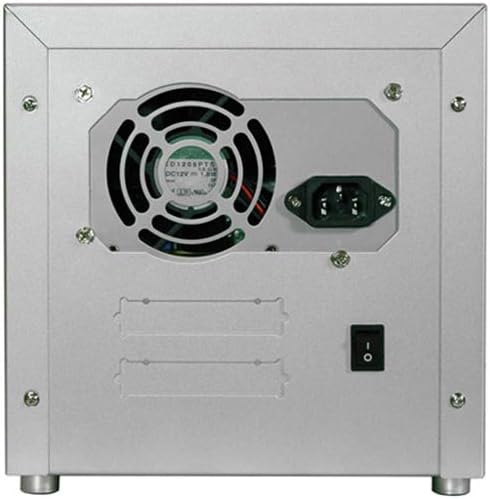
Figure 3.4: Rear View. This image shows the back panel of the RipBox, featuring the power input, cooling fan, and the main power switch.
4. Setup
- Unpacking: Carefully remove the RipBox from its packaging. Retain all packaging materials for future transport or storage.
- Placement: Place the unit on a stable, level surface with adequate ventilation. Ensure there is enough space for the robotic arm to operate freely and for discs to be loaded and unloaded.
- Power Connection: Connect the provided power cable to the power input on the rear of the RipBox and then to a standard electrical outlet.
- USB Connection: Connect the RipBox to your computer using a USB cable. The unit is designed to interface with a computer for control and data transfer.
- Software Installation: The RipBox requires compatible software for operation. This may include Vinpower's BPR 2000 Lite, third-party freeware like ImgBurn, or custom proprietary software developed using Vinpower's SDK. Install the chosen software on your computer according to its specific instructions.
- Power On: Flip the power switch on the rear of the RipBox to the 'On' position. The unit will perform a self-test.
5. Operation
5.1 Loading Discs
- Place the optical discs (CDs or DVDs) into the input spindle or tray as directed by your specific RipBox model and software interface.
- Ensure discs are clean and free from scratches or debris to prevent ripping errors.
5.2 Initiating Ripping Process
- Launch the ripping software on your connected computer.
- Configure the desired ripping settings within the software (e.g., output format, destination folder, error handling).
- Start the ripping job from the software interface. The RipBox's robotic arm will automatically pick up discs, load them into the optical drive, and unload them after the ripping process is complete.
- The system supports job queuing, allowing multiple ripping tasks to be set up for unattended operation.
5.3 Archival and Data Management
The RipBox is an effective tool for archival backup, enabling the transfer of content from optical discs onto a server or hard disk drive. This helps in preserving important data and managing information flow, such as backing up surveillance video content before storage limits are reached.
6. Maintenance
- Cleaning: Periodically clean the exterior of the unit with a soft, dry cloth. Do not use liquid cleaners or abrasive materials.
- Disc Handling: Always handle discs by their edges to avoid fingerprints and scratches, which can affect ripping quality.
- Robotic Arm: Ensure the robotic arm mechanism is free from obstructions. Do not attempt to lubricate or adjust the arm manually unless specifically instructed by Vinpower Digital support.
- Software Updates: Keep your ripping software updated to the latest version for optimal performance and compatibility.
7. Troubleshooting
Common Issues and Solutions:
- Unit Not Powering On:
Solution: Check the power cable connection to both the unit and the electrical outlet. Ensure the power switch on the rear is in the 'On' position. Test the outlet with another device. - Computer Not Recognizing RipBox:
Solution: Verify the USB cable is securely connected to both the RipBox and the computer. Try a different USB port or cable. Ensure the necessary drivers for the RipBox (if any) are installed. - Discs Not Loading/Unloading Correctly:
Solution: Check for any physical obstructions in the disc loading area or around the robotic arm. Ensure discs are placed correctly in the input spindle/tray. Clean any dust or debris from the disc path. - Ripping Errors:
Solution: Inspect the optical disc for scratches, smudges, or damage. Try cleaning the disc. Ensure your ripping software settings are correct. Update your ripping software. - Robotic Arm Malfunction:
Solution: Power cycle the unit (turn off, wait 30 seconds, then turn on). Ensure no foreign objects are interfering with the arm's movement. If the issue persists, contact Vinpower Digital support.
8. Specifications
| Feature | Detail |
|---|---|
| Brand | Vinpower Digital |
| Model Number | RipBox25-S1T |
| Hardware Interface | USB |
| Total USB Ports | 1 |
| Color | Black |
| Item Weight | 25 pounds |
| Package Dimensions | 23 x 15 x 14 inches |
| UPC | 842378004620 |
9. Warranty and Support
For information regarding warranty coverage, technical support, or service inquiries, please contact Vinpower Digital directly through their official website or customer service channels. Keep your purchase receipt and model number (RipBox25-S1T) available when contacting support.
For the most up-to-date support information, please visit the Vinpower Digital Store on Amazon or their official company website.