
1. Introduction
This manual provides detailed instructions for the installation, operation, and maintenance of your JVC KDR820BT Wireless Bluetooth Dual USB-CD Receiver. Please read this manual thoroughly before using the unit to ensure proper operation and to prevent damage.
The JVC KDR820BT is designed to provide versatile audio playback and communication features in your vehicle. It includes built-in Bluetooth for hands-free calling and audio streaming, dual USB ports for device connectivity, and CD playback capabilities. The unit also features a customizable display with variable color options.
2. Package Contents
Verify that all items are present in the package before beginning installation:
- JVC KDR820BT Head Unit
- Wireless Remote Control (RM-RK52)
- USB Bluetooth Adapter
- Wired Microphone
- Wiring Harness
- Mounting Hardware
- Owner's Manual (this document)
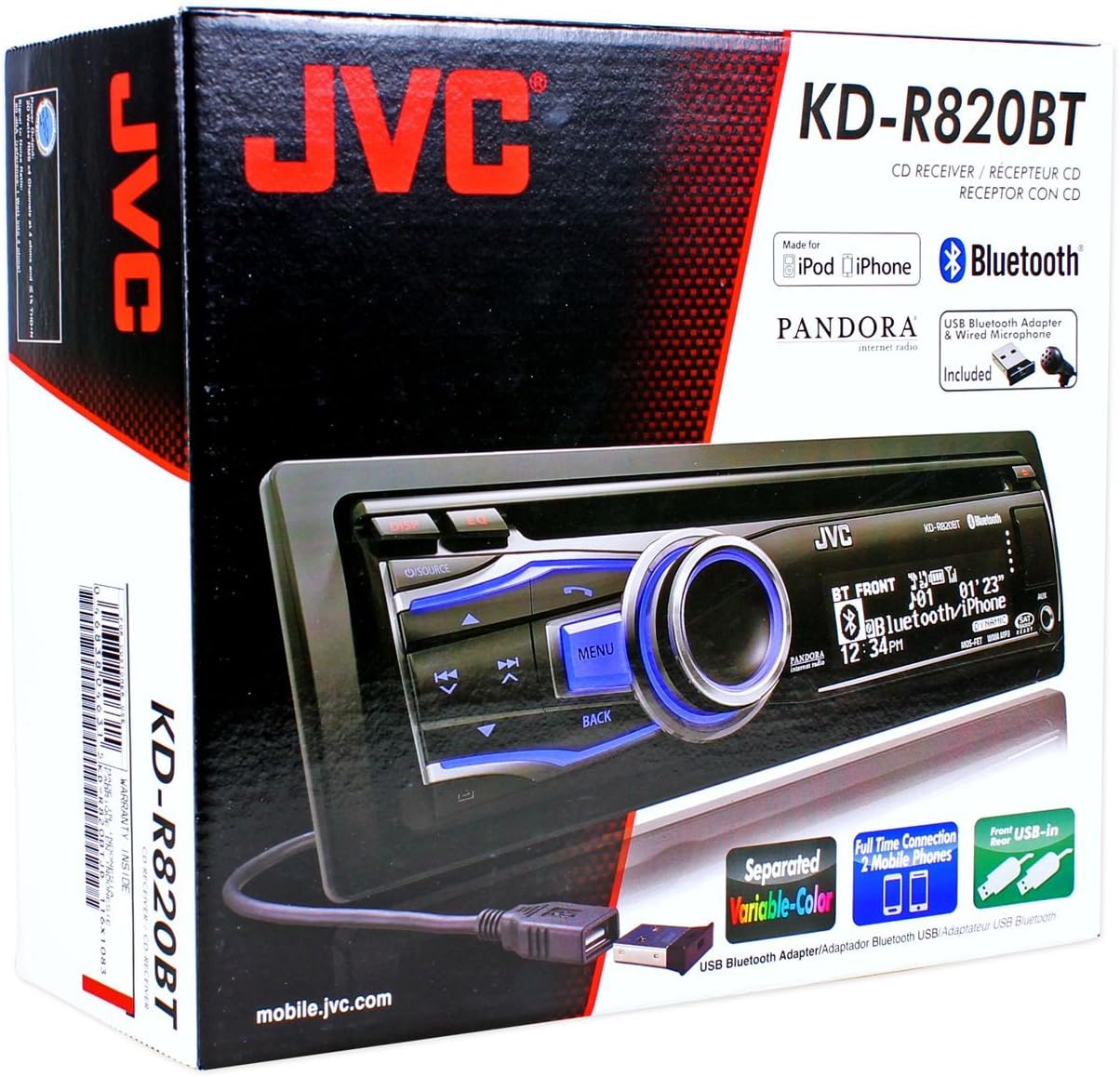
Figure 2.1: JVC KDR820BT Product Packaging. The box illustrates the main unit, remote, USB Bluetooth adapter, and wired microphone.
3. Installation
Professional installation is recommended. Ensure the vehicle's battery is disconnected before starting installation to prevent electrical damage.
3.1 Wiring Connections
Connect the wiring harness to the vehicle's electrical system and speakers. Refer to your vehicle's wiring diagram for specific connections.
- Yellow Wire: Connect to constant 12V power.
- Red Wire: Connect to switched 12V accessory power.
- Black Wire: Connect to vehicle chassis ground.
- Blue/White Wire: Connect to power antenna or amplifier remote turn-on lead.
- Speaker Wires: Connect to vehicle speakers (ensure correct polarity).
- RCA Pre-out Jacks: For connecting external amplifiers (Front, Rear, Subwoofer).
- Microphone Input: Connect the supplied wired microphone for hands-free calling.
- USB Ports: Front USB for general connectivity, Rear USB for additional devices or the Bluetooth adapter.

Figure 3.1: Rear Panel Connections. This image displays the rear of the receiver with its wiring harness, RCA pre-outs, and antenna input.
3.2 Mounting the Unit
Install the mounting sleeve into the vehicle's dashboard opening. Secure the unit by sliding it into the sleeve until it locks into place. Attach the trim ring.
3.3 Connecting the Bluetooth Adapter
The supplied USB Bluetooth adapter must be connected to one of the USB ports (front or rear) for Bluetooth functionality. For a cleaner installation, the rear USB port is often preferred.
4. Initial Setup
After installation, reconnect the vehicle battery. The unit will power on. Follow these steps for initial configuration:
- Initial Power On: Press the SOURCE button to turn on the unit.
- Clock Setting: Access the system menu to set the current time.
- Audio Settings: Adjust basic audio settings such as bass, treble, balance, and fader.
- Display Color: Customize the display and button illumination colors using the variable color settings.
5. Operating Instructions

Figure 5.1: Front Panel Overview. This image shows the main controls and display of the JVC KDR820BT.

Figure 5.2: Receiver with Remote Control. The image displays the head unit and the included wireless remote control (RM-RK52).
5.1 Basic Controls
- Power/Source Button: Press to turn on/off or change audio source (FM/AM, CD, USB, Bluetooth Audio, AUX).
- Volume Knob: Rotate to adjust volume. Press to mute/pause audio.
- Menu Button: Access system settings and advanced options.
- Back Button: Return to the previous menu or display.
- Skip/Seek Buttons: Navigate tracks, radio stations, or menu options.
5.2 Radio Operation (AM/FM)
- Press SOURCE to select FM or AM.
- Use the Seek buttons to find stations automatically.
- To manually tune, press and hold the Seek buttons.
- To store a preset, tune to the desired station, then press and hold a preset number button (1-6).
5.3 CD Playback
- Insert a CD into the disc slot. The unit will automatically switch to CD source and begin playback.
- Use the Skip buttons to change tracks.
- Press the Volume Knob to pause/play.
- Press the Eject button to remove the CD.
5.4 USB Device Playback
- Connect a USB device (flash drive, iPod/iPhone, digital audio player) to either the front or rear USB port.
- Press SOURCE to select USB.
- Use the Skip buttons to navigate tracks.
- Press the Menu button to browse folders and files.
5.5 Bluetooth Functions
Ensure the USB Bluetooth adapter is connected to the unit.
5.5.1 Pairing a Bluetooth Device
- Turn on Bluetooth on your mobile device.
- On the JVC KDR820BT, select the Bluetooth source.
- Search for available devices on your mobile phone. Select "JVC unit" (or similar) from the list.
- Enter the PIN code (usually "0000") if prompted.
- Once paired, the Bluetooth indicator on the receiver will illuminate. The unit supports connecting two phones simultaneously.
5.5.2 Hands-Free Calling
- Making a Call: Use your phone's voice dial feature (if supported) or dial directly from your phone. The audio will transfer to the receiver.
- Answering a Call: Press the Phone button on the receiver when an incoming call is detected.
- Ending a Call: Press the Phone button again to end the call.
- Phone Book Access: The unit supports Phone Book Access Profile (PBAP) for transferring contacts.
5.5.3 Bluetooth Audio Streaming
- Select Bluetooth Audio as the source.
- Play audio from your paired mobile device. The receiver will stream the audio wirelessly.
- Use the Skip buttons on the receiver to control playback (play/pause, skip track).
- The unit supports Pandora Internet Radio control from an iPhone.
5.6 Sound Settings
- 3-Band Parametric iEQ: Access the sound menu to adjust the equalizer settings for customized audio output.
- MOS-FET 50W x 4 Amplifier: Provides powerful audio output.
- TI/Burr-Brown 24-bit DAC: Ensures high-quality digital-to-analog audio conversion.
5.7 Display Settings
- Separated Variable Color: Customize the illumination color of the keys and LCD panel from over 30,000 choices. Access this setting through the system menu.
- Brightness Control: Adjust display brightness for day and night viewing.
6. Maintenance
- Cleaning the Unit: Use a soft, dry cloth to wipe the front panel. For stubborn dirt, dampen the cloth with water. Avoid abrasive cleaners or solvents.
- CD Player Care: Keep the disc slot free of dust and debris. Use only clean, scratch-free CDs.
- Faceplate Removal: The detachable faceplate can be removed for security. Store it in a protective case.
7. Troubleshooting
Review the following common issues and solutions before seeking service.
| Problem | Possible Cause / Solution |
|---|---|
| No power | Check power and ground wiring connections. Ensure the vehicle's ignition is on. Check vehicle fuses. |
| No sound | Check speaker wiring. Ensure volume is not muted or too low. Verify the power antenna/remote wire is connected if using an external amplifier. |
| Bluetooth echo during calls | Adjust microphone gain settings. Reposition the microphone away from reflective surfaces (e.g., windshield). Reduce the receiver's volume during calls. |
| Cannot pair Bluetooth device | Ensure the USB Bluetooth adapter is securely connected. Make sure Bluetooth is enabled on your mobile device and the receiver is in pairing mode. Delete previous pairings from your phone and try again. |
| Unit loses settings after power off | The yellow constant 12V power wire may not be connected correctly or is losing power. This can also occur if the vehicle battery is disconnected. |
| Display text is truncated or difficult to read | The display has limited character space. Some long names may be truncated. There is no option to increase scroll speed for folder/file names. |
| Buttons or rotary knob are unresponsive | Ensure the faceplate is securely attached. Clean around the buttons to remove any debris. If the issue persists, it may indicate a hardware malfunction. |
8. Specifications
| Feature | Specification |
|---|---|
| Model Number | KDR820BT |
| Output Power | MOS-FET 50W x 4 (20W RMS x 4) |
| DAC | TI/Burr-Brown 24-bit |
| Equalizer | 3-Band Parametric iEQ |
| Connectivity | Bluetooth, Dual USB (Front & Rear), AUX Input |
| Bluetooth Features | Hands-Free Call, Audio Streaming, Phone Book Access Profile, Text Message Receipt Notification, Connects 2 Phones |
| Media Playback | CD, MP3, WMA, WAV |
| Display Type | LCD with Separated Variable Color |
| Preamp Voltage | 2 Volts |
| Chassis Size | Full-DIN |
| Dimensions (W x H x D) | 7.19 x 2.06 x 6.25 inches (approximate) |
| Weight | 4 pounds (approximate) |
| Supported Internet Services | Pandora Internet Radio |
| Control Method | Remote Control, Android (via USB) |
9. Warranty and Support
JVC products are manufactured to high-quality standards. For specific warranty information, please refer to the warranty card included with your product or visit the official JVC website. Keep your purchase receipt as proof of purchase for warranty claims.
For technical support, service, or inquiries regarding your JVC KDR820BT receiver, please contact JVC customer service or visit their official support channels. Contact information can typically be found on the JVC website or in the product packaging.


