
1. Introduction
The URC R40 "My Favorite Remote" is an advanced universal remote control designed to manage up to 18 audio/video components. It features an on-screen wizard for simplified programming, eliminating the need for internet or a personal computer. This remote is equipped with a 1.5-inch color OLED screen, custom URC technologies like MacroPower and SimpleSound, and supports virtually all brands of Audio, TV, DVD, VCR, Cable, and Satellite devices.
Key features include:
- Organization of favorite channels into four groups: News, Sports, Movies, and Music.
- On-screen wizard for easy setup.
- Learning capability for commands not in the database.
- OLED screen for brighter display and extended battery life.
- MacroPower for executing multiple commands with a single button press.
- SimpleSound for consistent volume control across devices.
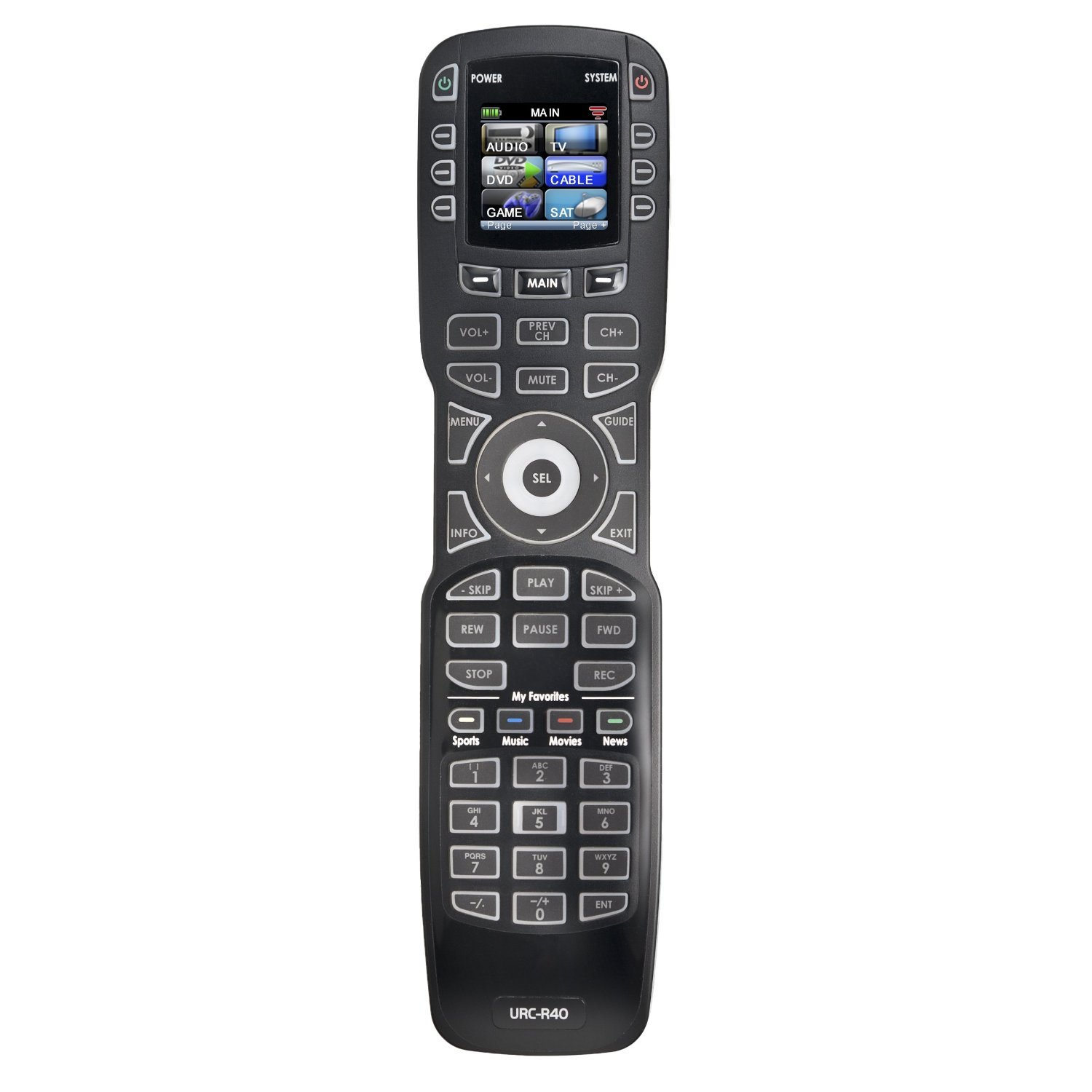
Image 1.1: The URC R40 Advanced Universal Remote Control. This image displays the remote's ergonomic design, button layout, and the central OLED screen, providing a visual overview of the product.
2. Setup
2.1. Battery Installation
The URC R40 remote control requires four AA alkaline batteries for operation. These batteries are typically included with the product.
- Locate the battery compartment cover on the back of the remote.
- Slide or unclip the cover to open the compartment.
- Insert four AA batteries, ensuring the positive (+) and negative (-) terminals align correctly with the markings inside the compartment.
- Replace the battery compartment cover until it clicks securely into place.
2.2. Initial Programming with On-Screen Wizard
The URC R40 features an intuitive on-screen wizard for quick and easy device setup without requiring a computer or internet connection.
- Upon first power-up or after a factory reset, the remote will guide you through the initial setup process on its 1.5-inch OLED screen.
- Follow the on-screen prompts to select the type of device you wish to control (e.g., TV, DVD, Cable Box).
- The wizard will present options for brand selection and code entry. Use the remote's navigation buttons to make your selections.
- Test the remote's functionality with your device. If the device does not respond, the wizard will guide you through trying alternative codes or using the learning function.
2.3. Setup Options
From the remote's screen, you can access three main setup options:
- Quick Setup: Used for simply adding a new device to your remote's control.
- Advanced Setup: Provides comprehensive options including adding devices using specific codes, reviewing current device codes, learning commands from another remote, copying functions between devices, creating macros, setting up favorite channels, editing and relocating buttons, and erasing functions.
- System Setup: Allows adjustment of settings for the OLED screen (brightness, contrast), button backlighting, and the low battery warning feature. You can also view memory usage in this menu.
3. Operating Instructions
3.1. Device Selection and Navigation
To operate a specific device, you must first select it on the remote.
- Press the MAIN button to view the most frequently used devices in your home theater on the OLED screen.
- Use the PAGE buttons to scroll through other available device choices.
- Press any of the corresponding Screen buttons (located next to the OLED display) to select the device displayed on the screen.
- Once a device is selected, the title bar on the OLED screen will display the custom title you created for that device.
- Use the PAGE buttons again to view other Screen buttons specific to the selected device, which can be custom labeled for convenience.
3.2. Favorites Feature
The Favorites feature allows you to organize your most-watched channels for quick access.
- Channels can be grouped into four categories: Sports, Movies, News, and Music.
- Over 150 icons, color blocks, and text options are available for customization.
- Access your favorite channels with a single click by navigating to the Favorites menu and selecting the desired channel.
3.3. Learning Function
The learning function enables the URC R40 to acquire commands from other remote controls, ensuring compatibility with devices not pre-programmed in its database.
- Access the learning function through the Advanced Setup menu on the remote's screen.
- Position the URC R40 and the original remote control approximately one inch apart, pointing their IR emitters directly at each other (head-to-head).
- When the URC R40 screen displays "READY," press and hold the button on the original remote that corresponds to the command you wish to teach.
- Release the button on the original remote when the URC R40 screen indicates "GOOD." The command has now been learned.
3.4. MacroPower
MacroPower allows you to program a sequence of commands to a single button, simplifying complex operations.
- A macro can record up to 255 steps.
- Example: Program a macro to turn on your TV, AV receiver, and cable box, then switch to the correct input, all with one button press.
- Macros are created and edited within the Advanced Setup menu.
3.5. SimpleSound
SimpleSound technology ensures that the Volume and Mute buttons consistently control the sound output, regardless of the currently selected device or screen displayed.
- The remote uses a copy and paste function to apply the volume and mute commands from your primary TV or audio system to these buttons across all other configured devices.
- This eliminates the need to switch devices just to adjust the volume.
4. Maintenance
4.1. Battery Replacement
When the low battery warning feature activates on the OLED screen, it is time to replace the batteries. Refer to Section 2.1 for battery installation instructions.
4.2. Cleaning
To maintain the remote's appearance and functionality:
- Use a soft, dry cloth to wipe the remote's surface.
- For stubborn dirt, slightly dampen the cloth with water or a mild, non-abrasive cleaner.
- Avoid using harsh chemicals, solvents, or abrasive materials, as these can damage the remote's finish or screen.
5. Troubleshooting
If you encounter issues with your URC R40 remote control, consider the following troubleshooting steps:
- Remote Not Responding: Check if the batteries are correctly installed and have sufficient charge. Replace batteries if necessary.
- Device Not Responding: Ensure the correct device is selected on the remote's screen. Verify that the remote is pointed directly at the device's IR receiver. Re-attempt the device setup process using the on-screen wizard or the learning function.
- Intermittent Button Presses: Ensure the remote's IR emitter is not obstructed. Clean the remote's buttons and surface if there is any debris.
- Learned Commands Not Working: Re-perform the learning process for the specific command. Ensure the original remote has fresh batteries during the learning process.
- Factory Reset: If persistent issues occur, a factory reset can restore the remote to its original settings. Consult the System Setup menu for this option. Note: A factory reset will erase all programmed devices, macros, and favorite channels.
6. Specifications
| Microprocessor | ARM 7 |
| OLED Screen | 1.5" PMOLED (128 x 128 Pixels) |
| Memory | 32 Megabits of Flash Memory |
| Component Support | Up to 18 devices |
| Learning Capability | Standard frequencies (15kHz to 460kHz) |
| Macro Capability | Up to 255 steps each |
| IR Range (Line of Sight) | 30-50 feet (environment dependent) |
| Weight | 6.9 ounces (with battery loaded) / 4.8 ounces (item weight) |
| Size (Dimensions) | 8" H x 2.25" W x 1.25" D (2.1 x 1.1 x 8.6 inches) |
| Batteries | Four AA Alkaline Batteries (included) |
| Battery Life | 18 hours of continuous button pressing with backlighting and LCD ON (months for most users) |
7. Warranty and Support
7.1. Warranty Information
The URC R40 Advanced Universal Remote Control comes with a one-year USA limited warranty. Please retain your proof of purchase for warranty claims.
7.2. Technical Support
For technical assistance, troubleshooting, or warranty inquiries, please contact URC's USA-based technical support. Refer to the official URC website or product packaging for current contact information.


