1. Introduction
Thank you for purchasing the Supersonic SC31 5.1 Channel DVD Player with Karaoke. This manual provides essential information for the safe and efficient operation of your device. Please read it thoroughly before use and retain it for future reference.
Safety Information
- Do not expose the unit to rain or moisture to prevent fire or electric shock.
- Do not open the cabinet. Refer servicing to qualified personnel only.
- Ensure proper ventilation around the unit.
- Disconnect the power cord from the wall outlet if the unit is not to be used for a long period.
- Avoid placing the unit on unstable surfaces.
2. Package Contents
Verify that all items listed below are included in your package:
- Supersonic SC31 5.1 Channel DVD Player
- Remote Control
- AV Cables
- Karaoke Microphone (1 included)
- User Manual (this document)
3. Product Overview
The Supersonic SC31 is a versatile 5.1 channel DVD player featuring karaoke functionality and multiple media inputs. Familiarize yourself with the front panel controls and connections.
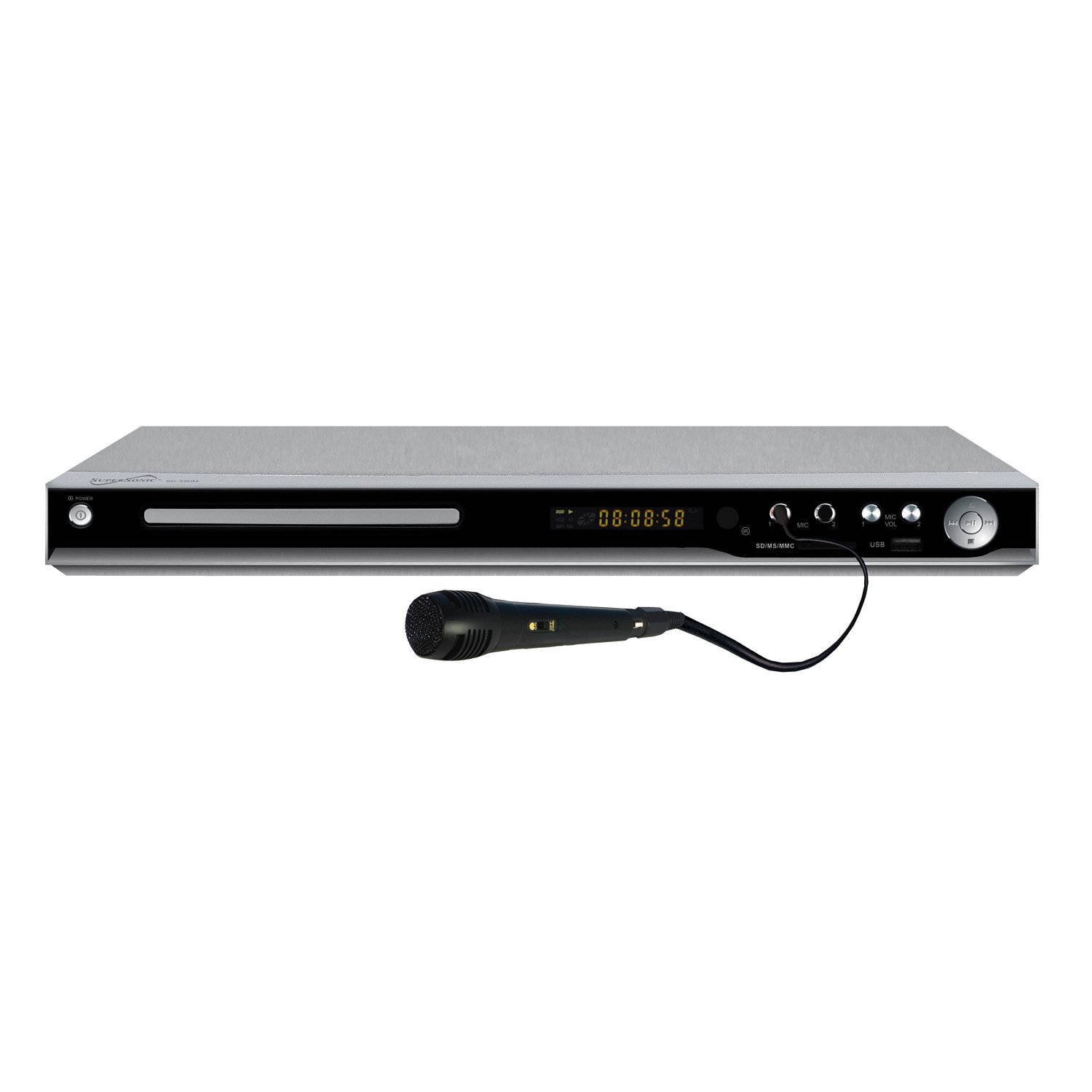
Figure 1: Front Panel of Supersonic SC31 DVD Player with Microphone. This image displays the front of the Supersonic SC31 DVD player, showing the power button, disc tray, digital display, SD/MS/MMC card slot, two microphone inputs (MIC 1 and MIC 2), microphone volume controls, USB port, and playback control buttons. A black wired microphone is plugged into the MIC 1 input.
Front Panel Features:
- POWER Button: Turns the unit on or off.
- Disc Tray: For inserting DVDs or CDs.
- Display Screen: Shows playback information, track number, time, etc.
- SD/MS/MMC Card Slot: For playing media from memory cards.
- MIC 1 / MIC 2 Inputs: 3.5mm jacks for connecting microphones.
- MIC VOL 1 / MIC VOL 2: Rotary knobs to adjust microphone volume.
- USB Port: For connecting USB storage devices.
- Playback Controls: Play/Pause, Stop, Skip Forward/Backward buttons.
Rear Panel Features:
(Note: A detailed image of the rear panel is not available.) The rear panel typically includes:
- Audio Output (5.1 Channel): RCA jacks for connecting to a 5.1 surround sound system.
- Stereo Audio Output: Left and Right RCA jacks for standard stereo connection.
- Video Output: RCA (Composite Video) output for connecting to a TV.
- S-Video Output: For improved video quality connection.
- Component Video Output (YPbPr): For high-quality video connection.
- Coaxial/Optical Digital Audio Output: For digital audio connection to compatible receivers.
- AC Power Input: For connecting the power cord.
4. Setup
4.1 Connecting to a Television
Use the supplied AV cables to connect the DVD player to your television.
- Connect the yellow video cable from the DVD player's "VIDEO OUT" port to the yellow "VIDEO IN" port on your TV.
- Connect the red and white audio cables from the DVD player's "AUDIO OUT (L/R)" ports to the corresponding red and white "AUDIO IN (L/R)" ports on your TV.
- Alternatively, for better video quality, use an S-Video or Component Video (YPbPr) connection if your TV supports it.
4.2 Connecting to an Audio System (5.1 Channel)
For a full surround sound experience, connect the DVD player to a 5.1 channel audio receiver.
- Connect the 5.1 channel audio output jacks (Front Left, Front Right, Center, Subwoofer, Surround Left, Surround Right) from the DVD player to the corresponding 5.1 channel input jacks on your audio receiver.
- Ensure all connections are secure and correctly matched (color-coded).
- Alternatively, use the Coaxial or Optical Digital Audio Output for a digital connection to a compatible receiver.
4.3 Power Connection
- Plug the AC power cord into the AC power input on the rear of the DVD player.
- Plug the other end of the power cord into a standard wall outlet.
4.4 Microphone Connection for Karaoke
- Connect the supplied microphone to either the "MIC 1" or "MIC 2" input jack on the front panel of the DVD player.
- If using a second microphone (sold separately), connect it to the remaining microphone input.
5. Operating Instructions
5.1 Basic DVD/CD Playback
- Press the POWER button to turn on the DVD player.
- Press the OPEN/CLOSE button (usually on the remote or front panel) to open the disc tray.
- Place a DVD or CD disc gently into the tray with the label side facing up.
- Press the OPEN/CLOSE button again to close the tray.
- The player will automatically begin playback or display the disc menu.
- Use the remote control's navigation buttons (UP, DOWN, LEFT, RIGHT, ENTER) to select menu options.
- Use the PLAY/PAUSE, STOP, SKIP buttons on the remote or front panel to control playback.
5.2 USB/SD/MMC/MS Input Playback
The player supports media playback from USB drives and various memory cards (SD, MS, MMC).
- Insert your USB drive into the USB port or your memory card into the SD/MS/MMC slot on the front panel.
- The player should automatically detect the device and display a media browser. If not, use the SOURCE or USB/CARD button on the remote to switch input.
- Navigate through your files (MP3, JPEG, etc.) using the remote control and press ENTER to play or view.
5.3 Karaoke Function
Enjoy karaoke with compatible discs or media files.
- Ensure microphones are connected to the front panel MIC inputs.
- Play a karaoke-compatible DVD or CD.
- Adjust the microphone volume using the MIC VOL 1 and MIC VOL 2 knobs on the front panel.
- Some karaoke discs may have options to turn vocal tracks on/off or adjust key/echo via the disc menu or remote control functions (refer to disc instructions).
5.4 Remote Control Usage
The remote control provides full functionality for the DVD player. Insert two AAA batteries (not included) into the remote control, observing correct polarity.
- POWER: On/Off.
- OPEN/CLOSE: Opens/closes disc tray.
- SETUP: Accesses system settings menu.
- MENU/TITLE: Accesses disc menu or title menu.
- NAVIGATIONAL BUTTONS (UP/DOWN/LEFT/RIGHT/ENTER): For menu navigation.
- PLAY/PAUSE, STOP, FAST FORWARD/REWIND, SKIP: Playback controls.
- VOLUME +/-: Adjusts main audio volume.
- MUTE: Mutes audio output.
- AUDIO: Selects audio track/language.
- SUBTITLE: Selects subtitle language.
- ANGLE: Changes camera angle on compatible DVDs.
- ZOOM: Zooms in on the picture.
- REPEAT: Repeats current track/chapter/disc.
6. Maintenance
6.1 Cleaning the Unit
- Wipe the exterior of the unit with a soft, dry cloth.
- Do not use abrasive cleaners, waxes, or solvents.
- Ensure the unit is unplugged before cleaning.
6.2 Cleaning Discs
- Handle discs by their edges to avoid fingerprints.
- Wipe discs with a soft, lint-free cloth from the center outwards.
- Do not use harsh chemicals or abrasive materials on discs.
7. Troubleshooting
If you encounter problems with your DVD player, refer to the following common issues and solutions:
| Problem | Possible Cause | Solution |
|---|---|---|
| No power | Power cord not connected; power outlet faulty. | Check power cord connection; try a different outlet. |
| No picture | Video cables incorrectly connected; incorrect TV input selected. | Ensure video cables are securely connected; select the correct AV input on your TV. |
| No sound | Audio cables incorrectly connected; TV/receiver volume too low or muted. | Check audio cable connections; increase volume on TV/receiver; check mute status. |
| Disc not playing | Disc inserted incorrectly; disc is dirty or scratched; unsupported disc format. | Reinsert disc correctly; clean disc; ensure disc format (DVD/CD/SVCD/VCD/MP3/JPEG/CD-R/CD-RW) is supported. |
| Microphone not working | Microphone not connected; MIC VOL knob too low. | Ensure microphone is securely plugged into MIC 1 or MIC 2; increase the corresponding MIC VOL knob. |
| Remote control not working | Batteries are dead or inserted incorrectly; obstruction between remote and player. | Replace batteries; ensure correct polarity; remove any obstructions; point remote directly at the player's sensor. |
8. Specifications
Technical specifications for the Supersonic SC31 DVD Player:
- Model: SC31
- Brand: Supersonic
- Media Type: CD, DVD
- Compatible Formats: DVD/CD/SVCD/VCD/MP3/JPEG/CD-R/CD-RW
- Audio Output Mode: 5.1 Channel Surround Sound
- Connectivity Technology: USB
- Input Video Compatibility: NTSC
- Number of Channels: 5.1
- Inputs: USB, SD/MS/MMC, 2x Microphone Jack
- Outputs: 5.1 Channel Audio, Stereo Audio (L/R), Composite Video, S-Video, Component Video (YPbPr), Coaxial/Optical Digital Audio
- Product Dimensions: Approximately 10 x 8.7 x 1.5 inches
- Item Weight: Approximately 1.5 pounds
- UPC: 639131000339, 710069209817
9. Warranty and Support
For warranty information or technical support, please refer to the warranty card included with your product or contact Supersonic customer service directly. Contact details are typically available on the manufacturer's official website.
Please note: Warranty terms and conditions may vary and are subject to change without prior notice.


