
1. Introduction
Thank you for purchasing the Gear Head CR7500H 58-in-1 Card Reader and 3-Port USB 2.0 Hub. This device is designed to provide convenient access to various digital media cards and expand your computer's USB connectivity. It allows for quick and efficient transfer of photos, music, videos, and other data between your digital devices and computer.
2. Important Safety Information
- Do not expose the device to moisture, extreme temperatures, or direct sunlight.
- Avoid dropping or subjecting the device to strong impacts.
- Do not attempt to disassemble or repair the device yourself. Refer all servicing to qualified personnel.
- Keep the device away from children.
- Use only the provided or recommended USB cable for connection.
3. Package Contents
Please check the package for the following items:
- Gear Head CR7500H 58-in-1 Card Reader and 3-Port USB 2.0 Hub unit
- USB connection cable
If any items are missing or damaged, please contact your retailer.
4. Product Overview
The Gear Head CR7500H combines a versatile memory card reader with a 3-port USB 2.0 hub, offering a compact solution for your connectivity needs. It supports a wide array of memory card formats and provides additional USB ports for peripherals.
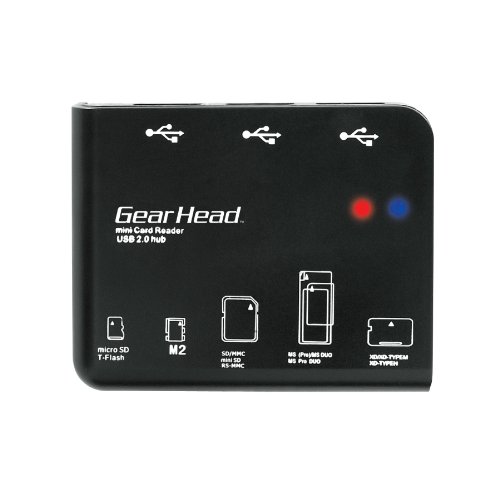
Image 1: Front view of the Gear Head CR7500H 58-in-1 Card Reader and 3-Port USB 2.0 Hub. The device features multiple slots for various memory card types and three USB ports on its front panel.
Key Features:
- 58-in-1 Card Reader: Reads and writes to most major media types.
- 3-Port USB 2.0 Hub: Expands your computer's USB connectivity.
- High-Speed Data Transfer: USB 2.0 connectivity for fast file transfers.
- Plug and Play: No drivers required for most operating systems.
- PC & Mac Compatible: Supports Windows and Mac OS 10.3 and above.
5. Setup Instructions
5.1 Connecting the Device
- Locate an available USB port on your computer.
- Connect one end of the provided USB cable to the Gear Head CR7500H unit.
- Connect the other end of the USB cable to your computer's USB port.
- The device is Plug and Play, meaning your operating system should automatically detect and install the necessary drivers. No additional software installation is typically required.
5.2 System Compatibility
The Gear Head CR7500H is compatible with:
- Windows operating systems
- Mac OS 10.3 and above
6. Operating Instructions
6.1 Using the Card Reader
- Identify the correct slot for your memory card type on the CR7500H. The device supports various formats, including SD, microSD, Memory Stick, and more.
- Gently insert your memory card into the appropriate slot until it is fully seated. Do not force the card.
- Your computer's operating system should recognize the card as a removable drive.
- Access the card's contents through 'My Computer' (Windows) or 'Finder' (Mac).
- To safely remove the card, always eject the removable drive through your operating system before physically pulling the card out of the reader.
6.2 Using the USB Hub
- The CR7500H features three USB 2.0 ports.
- Connect your USB devices (e.g., mouse, keyboard, USB flash drive, external hard drive) to any of the available USB ports on the CR7500H.
- Your computer will detect the connected USB devices as if they were directly connected to the computer's ports.
7. Maintenance
- Cleaning: Use a soft, dry cloth to clean the exterior of the device. Do not use liquid cleaners or solvents.
- Storage: When not in use, store the device in a cool, dry place, away from dust and direct sunlight.
- Handling: Avoid bending or twisting the USB cable excessively to prevent internal damage.
8. Troubleshooting
8.1 Device Not Recognized by Computer
- Ensure the USB cable is securely connected to both the CR7500H and your computer.
- Try connecting the CR7500H to a different USB port on your computer.
- Test the device on another computer to rule out a computer-specific issue.
- Restart your computer.
8.2 Memory Card Not Reading
- Ensure the memory card is inserted correctly into the appropriate slot. Do not force it.
- Verify that the memory card is not locked (some SD cards have a small lock switch).
- Check if the memory card is damaged or corrupted by testing it in another device.
- Confirm that the card type is supported by a 58-in-1 reader.
8.3 USB Devices Connected to Hub Are Not Working
- Ensure the CR7500H itself is properly connected and recognized by the computer.
- Try connecting the USB device directly to your computer's USB port to confirm it is functional.
- Some high-power USB devices may require a powered USB hub. The CR7500H is a passive hub and may not provide sufficient power for all devices.
9. Specifications
| Brand | Gear Head |
| Model | CR7500H |
| Hardware Interface | USB 2.0 |
| Data Transfer Rate | Up to 480 Megabits Per Second |
| Card Reader Support | 58-in-1 Format Support (Reads and Writes to Most Major Media Types) |
| Total USB Ports | 3 (USB 2.0) |
| Operating System Compatibility | PC (Windows), Mac OS 10.3 and above |
| Material | Plastic |
| Item Weight | 0.25 Pounds (approximately 113 grams) |
10. Warranty and Support
10.1 Warranty Information
This product is covered by a limited manufacturer's warranty. Please refer to the warranty card included with your purchase or visit the official Gear Head website for detailed warranty terms and conditions. Keep your proof of purchase for warranty claims.
10.2 Technical Support
For technical assistance, troubleshooting, or further inquiries, please visit the official Gear Head support website or contact their customer service department. Contact information can typically be found on the manufacturer's website or in the product packaging.