
1. Introduction
This manual provides essential instructions for the safe and efficient use of your Epson PowerLite 95 3LCD XGA Projector. Please read this manual thoroughly before operating the projector and retain it for future reference. The Epson PowerLite 95 is designed for business and educational environments, offering clear XGA resolution and versatile connectivity.
2. Product Overview
2.1 Projector Components
Familiarize yourself with the various parts of your projector.

Figure 2.1: Angled front view of the Epson PowerLite 95 Projector, showing the lens, ventilation, and top panel controls.
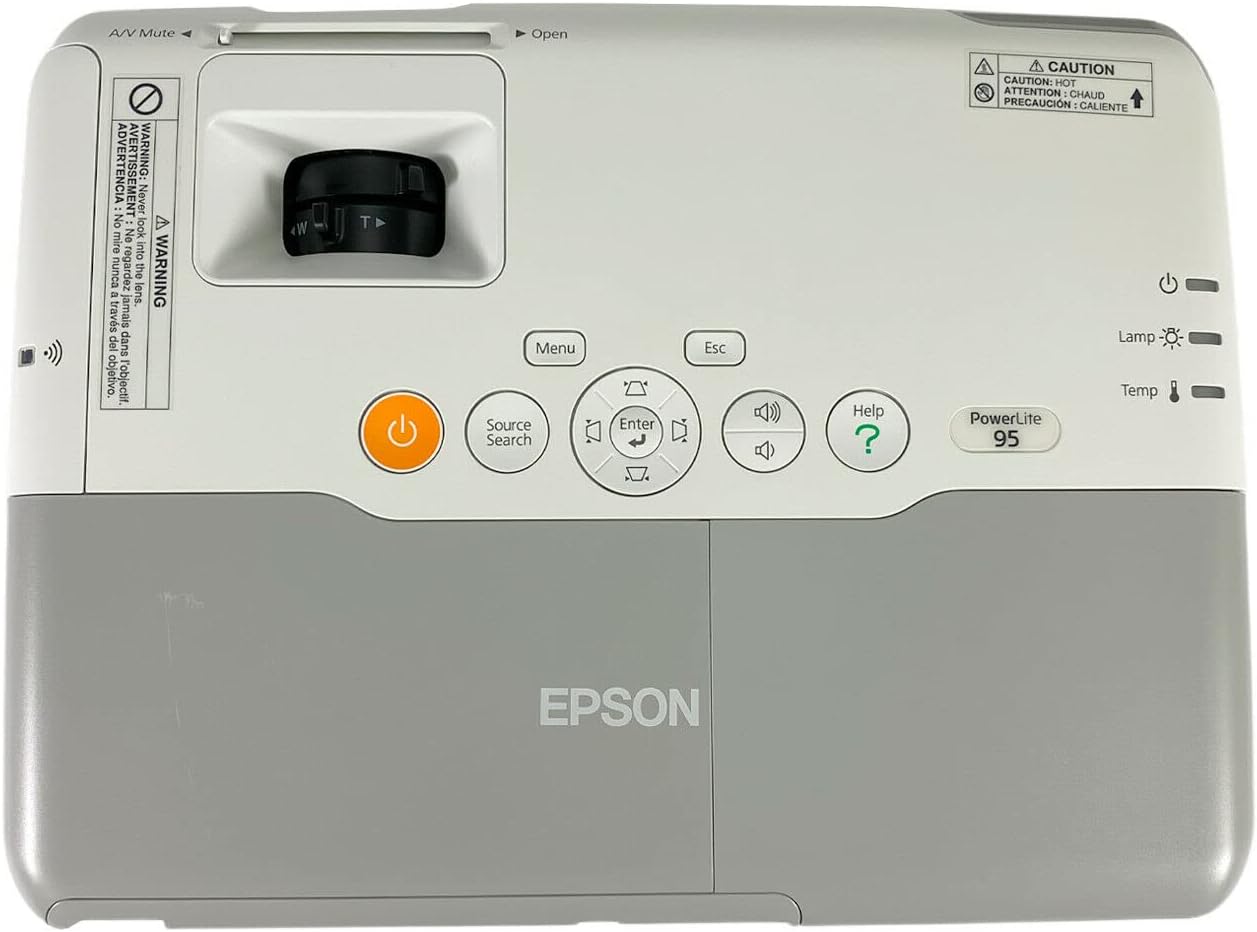
Figure 2.2: Top panel of the Epson PowerLite 95 Projector, displaying power button, menu, source search, and navigation controls.
2.2 Rear Panel Connections
The rear panel provides various input and output ports for connecting external devices.

Figure 2.3: Rear panel of the Epson PowerLite 95 Projector, showing HDMI, Video, S-Video, Audio, Computer (VGA), Monitor Out, LAN, USB (Type A and B), and RS-232C ports.
- HDMI Input: For digital video and audio connections.
- Computer 1/2 (VGA) Inputs: For analog computer connections.
- Video/S-Video Inputs: For standard definition video sources.
- Audio 1/2 (L-Audio-R) Inputs: For analog audio input.
- Audio Out: For connecting external speakers.
- Monitor Out: For connecting an external monitor.
- LAN Port: For network connectivity and control.
- USB Type A: For connecting USB devices (e.g., USB memory stick).
- USB Type B: For connecting to a computer for display or control.
- RS-232C: For serial control.
2.3 Included Accessories
The projector typically comes with the following accessories:
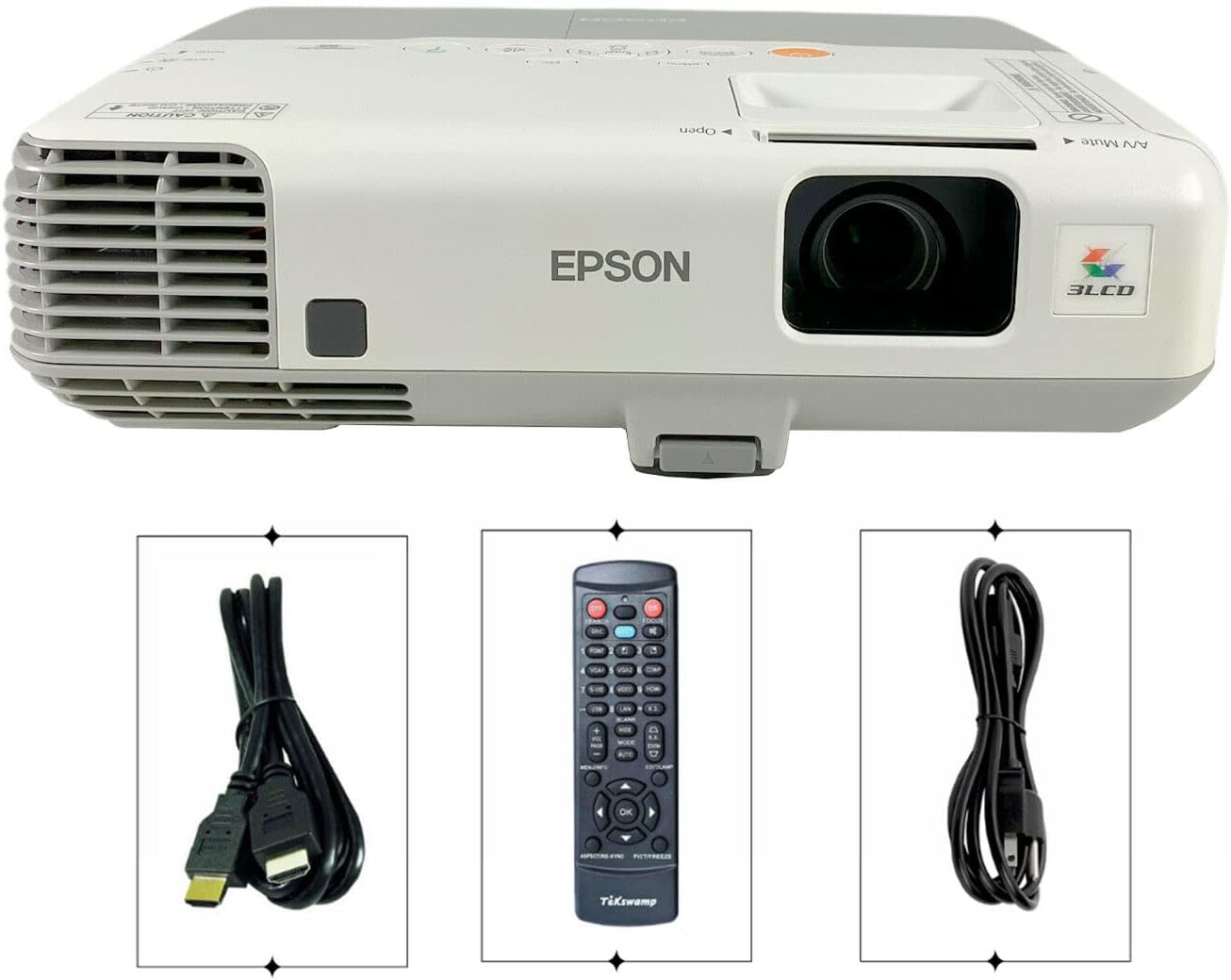
Figure 2.4: Included accessories: HDMI cable, remote control, and USB cable.
- Power Cable
- Remote Control
- Computer Cable (VGA)
- USB Cable
- HDMI Cable
3. Setup
3.1 Placement
Place the projector on a stable, flat surface. Ensure adequate ventilation around the projector to prevent overheating. The projector can be placed on a table, mounted on the ceiling, or used for rear projection.
3.2 Connecting Devices
- Power Connection: Connect the power cable to the projector's AC inlet and then to a power outlet.
- Video Source:
- For digital sources (e.g., Blu-ray player, laptop): Connect an HDMI cable from the device to the projector's HDMI input.
- For analog computer sources: Connect a VGA cable from your computer to either Computer 1 or Computer 2 input.
- For older video sources: Use the Video or S-Video inputs.
- Audio Connection: If using analog video inputs, connect audio cables to the corresponding Audio 1 or Audio 2 inputs. For HDMI, audio is typically carried over the HDMI cable.
- Network Connection (Optional): Connect an Ethernet cable to the LAN port for network control or presentation over the network.
- USB Devices (Optional): Connect a USB memory device to the USB Type A port for PC-free presentations, or connect your computer to the USB Type B port.
3.3 Powering On/Off
- To Power On: Press the power button on the projector's control panel or the remote control. The power light will illuminate.
- To Power Off: Press the power button again. A confirmation message may appear. Press the power button a second time to confirm shutdown. Allow the projector to cool down completely before unplugging or moving it.
4. Operating the Projector
4.1 Basic Operation
- Source Selection: Press the Source Search button on the control panel or remote to cycle through available input sources (HDMI, Computer 1, Computer 2, Video, S-Video, USB).
- Menu Navigation: Use the Menu button to access the on-screen display (OSD) menu. Use the arrow buttons to navigate and the Enter button to select options. Press Esc to exit a menu.
- Volume Control: Use the volume buttons on the control panel or remote to adjust the audio output.
4.2 Image Adjustment
- Focus: Rotate the focus ring on the projector lens until the image is sharp.
- Zoom: Adjust the zoom ring on the projector lens to change the image size.
- Keystone Correction: If the image appears trapezoidal, use the keystone correction feature in the OSD menu to square the image.
- Picture Mode: In the OSD menu, select a suitable picture mode (e.g., Presentation, Theater, sRGB) to optimize image quality for your content.
4.3 Network and Wireless Features
The PowerLite 95 supports network connectivity via LAN and optional wireless connectivity. This allows for presenting over the network, transmitting both audio and video, and virtual remote control from a computer.
- Network Setup: Access the Network menu in the OSD to configure IP settings (DHCP or manual).
- Wireless Connectivity: An optional wireless adapter is required for wireless projection. Refer to the adapter's specific instructions for installation and setup.
5. Maintenance
Regular maintenance ensures optimal performance and extends the life of your projector.
5.1 Lamp Replacement
The projector lamp has a finite lifespan. When the lamp life is nearing its end, a warning message may appear, or the lamp indicator light may illuminate. Always use a genuine Epson replacement lamp (ELPLP60).

Figure 5.1: Side view of the projector showing a warning label regarding lamp replacement. Always turn off and wait for the lamp to cool down before replacing.
- Turn off the projector and unplug the power cord.
- Allow the projector to cool for at least one hour. The lamp operates at high temperatures.
- Locate the lamp cover (refer to the diagram in the full service manual).
- Loosen the screw(s) securing the lamp cover and remove it.
- Loosen the screw(s) securing the lamp module and carefully pull out the old lamp.
- Insert the new lamp module, ensuring it is seated correctly.
- Secure the new lamp with its screw(s), then replace the lamp cover and secure its screw(s).
- Reset the lamp timer in the projector's OSD menu.
WARNING: High-pressure lamp may explode if improperly handled. Refer to lamp replacement instructions. Replace with the same EPSON lamp unit.
5.2 Air Filter Cleaning
The air filter prevents dust from entering the projector. Clean the filter regularly to maintain proper cooling and image quality.
- Turn off the projector and unplug the power cord.
- Locate the air filter cover (usually on the side or front).
- Remove the filter cover and carefully pull out the air filter.
- Use a small vacuum cleaner or soft brush to remove dust from the filter. Do not wash the filter with water.
- Reinsert the clean filter and replace the filter cover.
6. Troubleshooting
If you encounter issues with your projector, refer to the following common problems and solutions.
- No Image Displayed:
- Ensure the projector is powered on and the power cable is securely connected.
- Verify the input source is correctly selected (press Source Search).
- Check that the video cable (HDMI, VGA) is securely connected to both the projector and the source device.
- Confirm the source device is outputting a signal.
- Image is Blurry:
- Adjust the focus ring on the projector lens.
- Ensure the projection surface is flat and the projector is at an appropriate distance.
- Image is Trapezoidal:
- Use the keystone correction feature in the OSD menu to adjust the image shape.
- Position the projector perpendicular to the screen if possible.
- No Audio:
- Increase the projector's volume.
- Check audio cable connections if not using HDMI.
- Ensure the audio output from the source device is enabled.
- Projector Overheats or Shuts Down:
- Clean the air filter.
- Ensure ventilation vents are not blocked.
- Operate the projector in a well-ventilated area.
For further assistance, please contact Epson support.
7. Specifications
| Feature | Specification |
|---|---|
| Model Number | V11H383020 |
| Display Technology | 3LCD, 3-chip optical engine, Poly-silicon TFT Active Matrix |
| Native Resolution | 1024 x 768 (XGA) |
| Aspect Ratio | 4:3 |
| Brightness | 2600 Lumens (White Light Output and Color Light Output) |
| Lamp Life | ECO mode: Up to 6000 hours, Normal mode: Up to 5000 hours |
| Throw Ratio Range | 1.48 - 1.77 |
| Projected Image Size | 30" - 300" (0.9 - 9 m) |
| Lens | Manual optical zoom / Manual focus |
| F-number | 1.58 - 1.72 |
| Focal Length | 16.9 mm - 20.28 mm |
| Zoom Ratio | Optical zoom 1.0 - 1.2 |
| Speaker | 16W |
| Connectivity | HDMI, USB (Type A, Type B), VGA (x2), Video, S-Video, Audio (x2), Audio Out, Monitor Out, LAN, RS-232C, Optional Wireless Connectivity |
| Special Features | Portable, Built-In Microphone Input, Present over Network (audio/video), Virtual projector remote control, Expanded USB functionality, Metal anchor bar, Kensington lock support |
| Product Dimensions | 10.28 x 13.58 x 4.2 inches |
| Item Weight | 7 pounds |
8. Support and Warranty
Epson provides comprehensive support for its products. For technical assistance, troubleshooting, or warranty information, please refer to the official Epson website or contact their customer service.
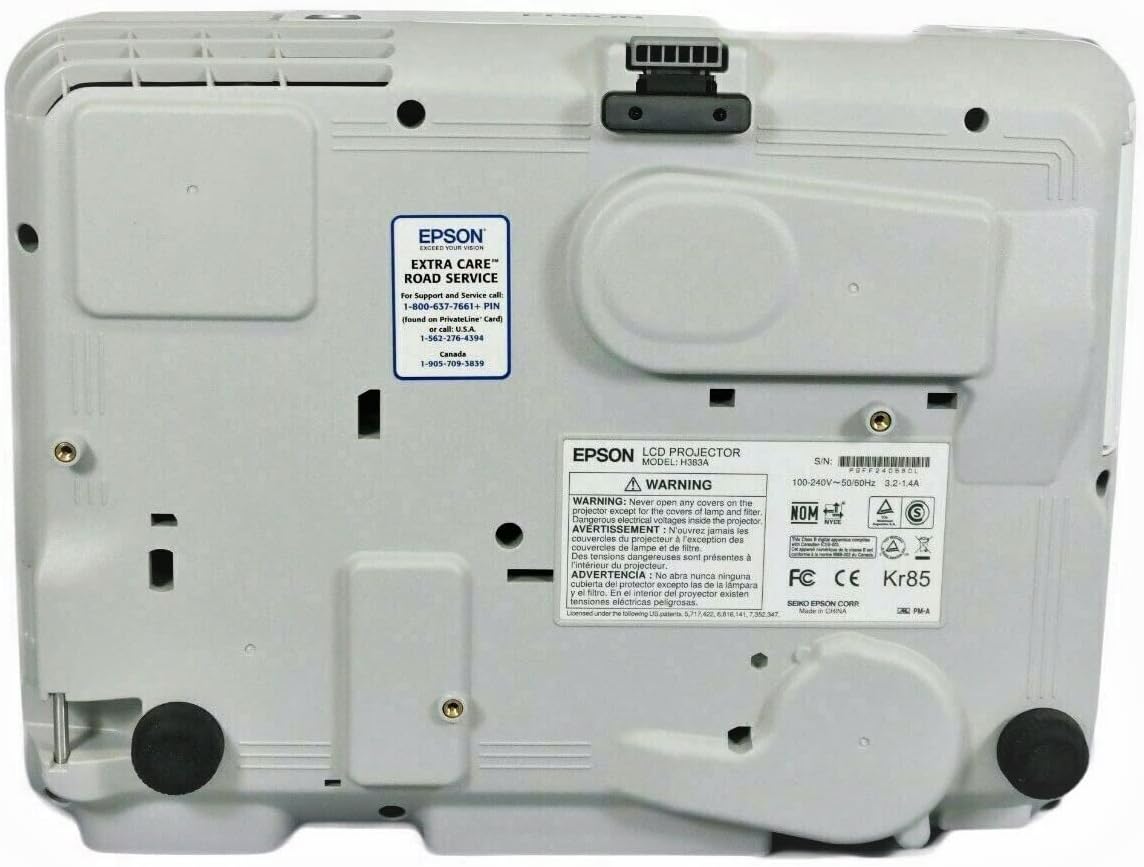
Figure 8.1: Bottom panel of the projector showing EPSON EXTRA CARE Road Service contact information.
8.1 EPSON EXTRA CARE Road Service
For support and service calls, please use the contact information provided with your product or on the bottom label of the projector:
- U.S.A.: 1-800-873-7766
- Canada: 1-905-709-3839
Please have your projector's serial number (S/N) ready when contacting support. The serial number is located on a label on the side and bottom of the projector.

Figure 8.2: Side view of the projector showing the serial number label.


