
Gear Head KB5150W
User Manual for 2.4 GHz Wireless Desktop and Optical Mouse
Model: KB5150W | Brand: Gear Head
Product Overview
The Gear Head 2.4 GHz Wireless Desktop and Optical Mouse (KB5150W) provides a convenient and efficient wireless solution for your computing needs. This combo includes a full-sized wireless keyboard and an optical mouse, designed for seamless connectivity and ease of use. The system utilizes 2.4 GHz wireless technology for a stable connection and includes a compact Nano USB receiver.
Package Contents
- 2.4 GHz Wireless Desktop (Keyboard)
- Optical Mouse
- Nano USB Receiver
- 4 AAA Batteries (included)
- User's Manual (this document)
- Warranty Information
System Requirements
- PC and Mac Compatibles
- Windows 2000, XP, Vista, and 7
- Mac OS 10.3 and above
- An Available USB Port
Key Features
- 2.4 GHz Wireless Connectivity
- Optical Sensing Technology (for mouse)
- Nano USB Receiver
- Automatic Wireless Synchronization
- Spill Resistant Design (for keyboard)
Setup Guide
Follow these steps to set up your wireless desktop and mouse:
- Install Batteries:
Locate the battery compartments on the underside of both the keyboard and the mouse. Insert the included AAA batteries, ensuring correct polarity (+/-). The keyboard requires 2 AAA batteries, and the mouse requires 2 AAA batteries.
- Connect the Nano USB Receiver:
Plug the Nano USB receiver into an available USB port on your computer. The system will automatically detect and install the necessary drivers. This process may take a few moments.
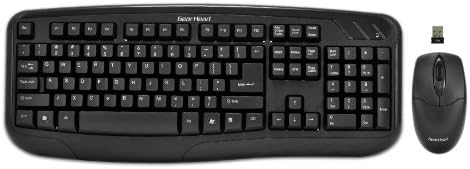
This image displays the complete Gear Head 2.4 GHz Wireless Desktop and Optical Mouse set. It features a full-sized black wireless keyboard on the left, a compact black wireless optical mouse on the right, and a small nano USB receiver positioned above the mouse. The keyboard has a standard QWERTY layout with a numeric keypad and function keys. The mouse is ergonomically shaped for comfortable use.
- Automatic Synchronization:
The keyboard and mouse are designed to automatically synchronize with the Nano USB receiver. Once the receiver is plugged in and batteries are installed, the devices should be ready for use. If they do not respond, ensure the mouse's power switch (if present) is in the 'ON' position.
Operating Instructions
Keyboard Usage
- The keyboard functions like a standard wired keyboard. Simply begin typing.
- Ensure the keyboard is within the effective wireless range of the USB receiver (typically up to 30 feet or 10 meters).
- The keyboard features a spill-resistant design, offering protection against minor liquid spills. In case of a spill, immediately disconnect the receiver and allow the keyboard to dry completely before reuse.
Mouse Usage
- Move the mouse to control the cursor on your screen.
- Use the left and right click buttons for primary and secondary functions.
- The scroll wheel allows for easy navigation through documents and web pages.
- Some optical mice may have an on/off switch on the underside to conserve battery life when not in use. Ensure it is in the 'ON' position for operation.
Maintenance
- Cleaning:
To clean the keyboard and mouse, use a soft, lint-free cloth slightly dampened with water or a mild cleaning solution. Avoid using harsh chemicals, abrasives, or excessive moisture. Do not submerge the devices in liquid.
- Battery Replacement:
When the keyboard or mouse performance degrades (e.g., delayed response, erratic cursor movement), it may be time to replace the batteries. Open the battery compartment, remove the old batteries, and insert new AAA batteries, observing correct polarity. Dispose of used batteries responsibly.
- Storage:
When not in use for extended periods, it is recommended to remove the batteries from the devices to prevent leakage. Store the keyboard and mouse in a cool, dry place away from direct sunlight and extreme temperatures.
Troubleshooting
| Problem | Possible Solution |
|---|---|
| Keyboard or mouse is unresponsive. |
|
| Erratic cursor movement or delayed typing. |
|
| Device not recognized by the computer. |
|
Specifications
| Feature | Detail |
|---|---|
| Product Dimensions | 18.85 x 9.9 x 1.9 inches |
| Item Weight | 2.49 pounds |
| Model Number | KB5150W |
| Batteries | 4 AAA batteries required (included) |
| Connectivity Technology | Wireless, USB (for receiver) |
| Compatible Devices | Personal Computer (PC and Mac) |
| Keyboard Description | Standard QWERTY, Spill Resistant |
| Mouse Type | Optical |
| Color | Black |
| Manufacturer | Gear Head |
| First Available Date | February 13, 2011 |
Warranty and Support
For warranty information and technical support, please refer to the warranty card included in your product package or visit the official Gear Head website. Keep your purchase receipt as proof of purchase for warranty claims.
Manufacturer: Gear Head
For further assistance, please contact Gear Head customer service.
Ask a question about this manual
Ask about setup, troubleshooting, compatibility, parts, safety, or missing instructions. Manuals+ will review the question and use this page’s manual context to help answer it.