
Mobo Smart Band Pulse
Mobo Smart Band Pulse Bluetooth Fitness Tracker User Manual
Model: Smart Band Pulse
1. Introduction
This manual provides detailed instructions for the setup, operation, maintenance, and troubleshooting of your Mobo Smart Band Pulse Bluetooth Fitness Tracker. Please read this manual thoroughly before using the device to ensure proper functionality and to maximize your user experience.
2. Product Overview
The Mobo Smart Band Pulse is a wearable fitness tracker designed to monitor various health and activity metrics. It connects wirelessly via Bluetooth to compatible devices.

Figure 2.1: Front view of the Mobo Smart Band Pulse. The display shows the current time (11:11) and date (11/11 Sun), with a fingerprint-like icon at the bottom, indicating a touch-sensitive area.

Figure 2.2: Angled view of the Mobo Smart Band Pulse, highlighting the sleek black band and the curved display. The display shows the time and date, similar to Figure 2.1.

Figure 2.3: A different angled perspective of the Mobo Smart Band Pulse, providing a clearer view of the band's texture and the device's overall profile.

Figure 2.4: Side view of the Mobo Smart Band Pulse, illustrating the band's design and the mechanism for securing it around the wrist.
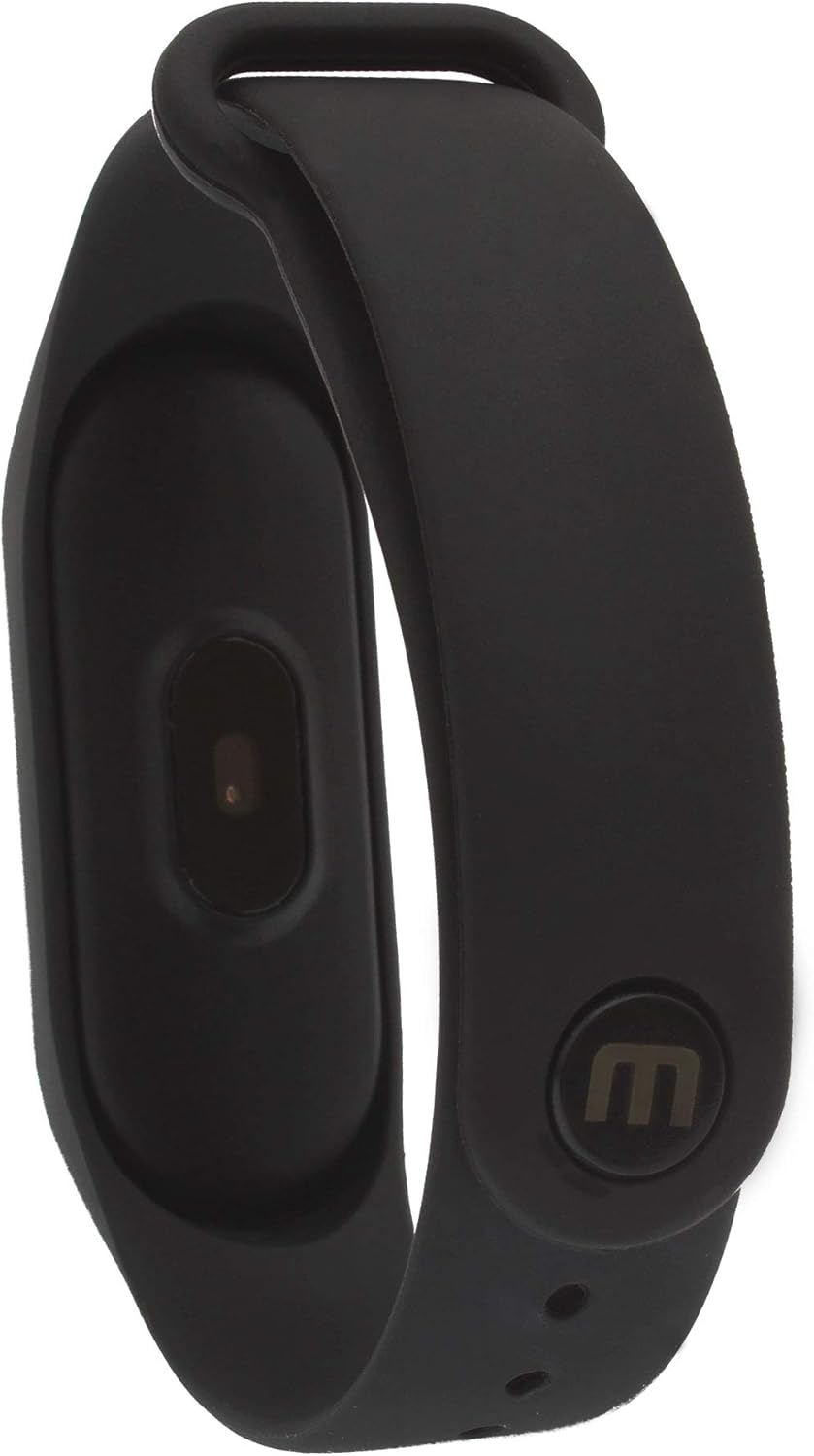
Figure 2.5: Back view of the Mobo Smart Band Pulse, revealing the optical sensor for heart rate monitoring and the Mobo brand logo embossed on the band.
3. Setup
3.1 Charging the Device
Before initial use, fully charge your Mobo Smart Band Pulse. Use the provided charging cable. Connect the cable to a USB power source (e.g., computer, USB wall adapter) and attach the other end to the charging contacts on the back of the smart band. A full charge typically takes 1-2 hours.
- Ensure the charging contacts on the band and cable are clean and dry.
- The display will indicate charging status.
3.2 App Installation and Pairing
To unlock the full functionality of your Smart Band Pulse, you need to install the companion application on your smartphone or tablet. Search for the official Mobo Smart Band app in your device's app store (e.g., Google Play Store for Android, Apple App Store for iOS).
- Download and install the Mobo Smart Band application.
- Enable Bluetooth on your smartphone or tablet.
- Open the Mobo Smart Band app and follow the on-screen instructions to create an account or log in.
- Within the app, navigate to the device pairing section.
- Select "Mobo Smart Band Pulse" from the list of available devices.
- Confirm the pairing request on both your smartphone/tablet and the smart band (if prompted).
- Once paired, the smart band will synchronize data with the app.
Note: The Smart Band Pulse is compatible with PCs, smartphones, and tablets that support Bluetooth connectivity.
4. Operating Instructions
4.1 Basic Navigation
The Mobo Smart Band Pulse features a touch-sensitive display for navigation. Tap the designated area (often indicated by an icon, like the fingerprint-like icon shown in Figure 2.1) to wake the screen or cycle through different display modes and functions.
- Tap: To switch between screens (e.g., time, steps, heart rate).
- Long Press: May activate specific functions or enter sub-menus (refer to the app for detailed gesture controls).
4.2 Key Functions
- Time and Date Display: Shows current time and date.
- Activity Tracking: Monitors steps taken, distance covered, and calories burned. Data is synchronized with the app.
- Heart Rate Monitoring: Measures your heart rate. Ensure the band is snug on your wrist for accurate readings.
- Sleep Monitoring: Tracks sleep patterns when worn during sleep.
- Notifications: Receives alerts for calls, messages, and app notifications from your paired smartphone (requires app configuration).
5. Maintenance
5.1 Cleaning Your Smart Band
Regular cleaning helps maintain the device's appearance and functionality.
- Wipe the display and band with a soft, damp cloth.
- Avoid using harsh chemicals, abrasive cleaners, or solvents.
- Ensure the charging contacts are clean and dry before charging.
5.2 Battery Care
- Avoid exposing the device to extreme temperatures.
- Do not attempt to replace the internal Lithium Polymer battery yourself. Contact customer support if battery issues arise.
- Charge the device regularly, even if not in constant use, to prolong battery life.
6. Troubleshooting
If you encounter issues with your Mobo Smart Band Pulse, refer to the following common solutions:
- Device not turning on/displaying:
- Ensure the device is fully charged. Connect it to the charger for at least 30 minutes.
- Perform a soft reset by long-pressing the touch area (if applicable, refer to app for specific reset instructions).
- Connectivity issues (Bluetooth):
- Ensure Bluetooth is enabled on your smartphone/tablet.
- Make sure the smart band is within range of your paired device.
- Unpair and re-pair the device through the Mobo Smart Band app.
- Restart both your smartphone/tablet and the smart band.
- Inaccurate readings (heart rate, steps):
- Ensure the band is worn snugly on your wrist, not too tight or too loose.
- Clean the sensor on the back of the device.
- Calibrate the device through the Mobo Smart Band app if an option is available.
- Display interference or unreadable screen:
- This could indicate a hardware issue. If troubleshooting steps do not resolve the problem, contact Mobo customer support.
7. Specifications
| Brand | Mobo |
| Model Name | Smart Band Pulse |
| Display Size | 1 inch / 3 cm (Visible Diagonal) |
| Connectivity Technology | Bluetooth |
| Wireless Communication Standard | Bluetooth |
| Compatible Devices | PC, Smartphone, Tablet |
| Battery Type | Lithium Polymer |
| Accessories Included | Charging Cable |
| Color | Black |
| Form Factor | Rectangular |
| Target Audience | Adults |
| Product Dimensions (Package) | 16.8 x 9.4 x 3.2 cm; 70 g |
| ASIN | B004HAZHS4 |
8. Warranty and Support
8.1 Product Warranty
Mobo products typically come with a limited warranty covering manufacturing defects. Please refer to the warranty card included with your purchase or visit the official Mobo website for specific warranty terms and conditions. Keep your proof of purchase for warranty claims.
8.2 Customer Support
For further assistance, technical support, or service inquiries, please contact Mobo customer support. Contact information can usually be found on the official Mobo website or on the product packaging.
- Before contacting support, ensure you have attempted the troubleshooting steps outlined in this manual.
- Have your product model name (Smart Band Pulse) and ASIN (B004HAZHS4) ready.
Ask a question about this manual
Ask about setup, troubleshooting, compatibility, parts, safety, or missing instructions. Manuals+ will review the question and use this page’s manual context to help answer it.