
1. Introduction
Welcome to the Mobo SmartWatch Knock user manual. This guide provides essential information for setting up, operating, and maintaining your new smartwatch. Please read these instructions carefully to ensure optimal performance and longevity of your device.
2. Package Contents
Ensure all items are present in your package:
- Mobo SmartWatch Knock
- Charging Cable (USB magnetic type)
- User Manual (this document)
3. Setup Guide
3.1 Charging the SmartWatch
Before first use, fully charge your Mobo SmartWatch Knock.
- Connect the USB end of the charging cable to a power adapter (not included) or a computer's USB port.
- Align the magnetic end of the charging cable with the charging contacts on the back of your smartwatch. The watch will vibrate and display a charging indicator.
- Allow the device to charge until the battery indicator shows 100%.
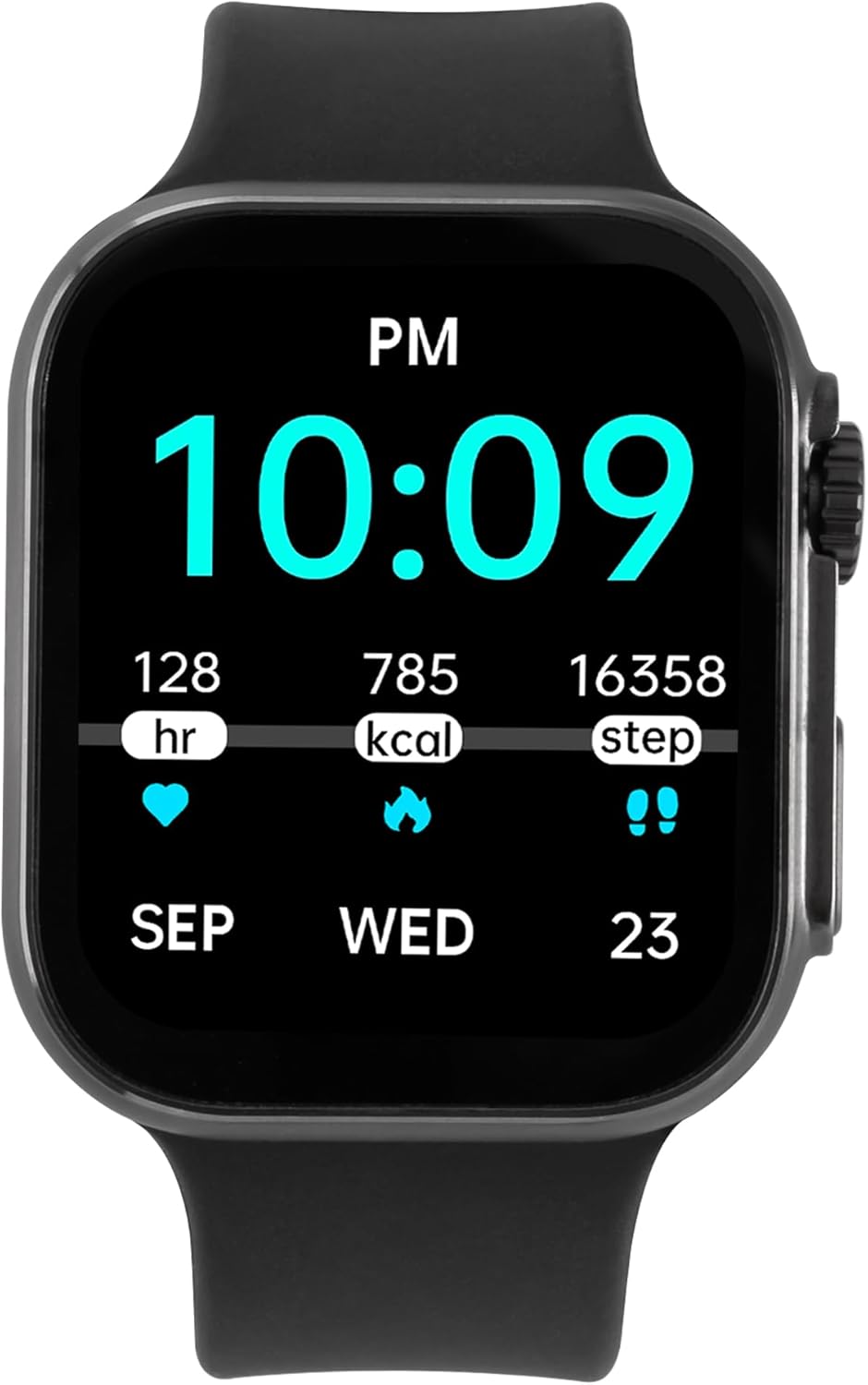
Image: The Mobo SmartWatch Knock displaying time and health metrics, indicating its readiness for use after charging.
3.2 Installing the Companion App
To unlock all features and synchronize data, download the recommended companion application on your smartphone.
- Scan the QR code provided in the watch interface or the quick start guide (if available) to download the app.
- Alternatively, search for "Da Fit" (or specified app name) in your smartphone's app store (Google Play Store for Android, Apple App Store for iOS).
- Install the app and follow the on-screen instructions to create an account and set up your profile.
3.3 Pairing with Your Smartphone
After installing the app, pair your smartwatch with your phone via Bluetooth.
- Ensure Bluetooth is enabled on your smartphone.
- Open the companion app and navigate to the device pairing section.
- The app will search for available devices. Select "Mobo SmartWatch Knock" from the list.
- Confirm the pairing request on both your smartphone and smartwatch.
4. Operating Instructions
4.1 Basic Navigation
- Touchscreen: Swipe left, right, up, or down to navigate through menus and screens. Tap to select an option.
- Side Button/Crown: Press to wake the screen, return to the home screen, or access the app menu. Rotate the crown (if applicable) to scroll through lists or adjust settings.
4.2 Health Monitoring
The Mobo SmartWatch Knock offers various health tracking features:
- Heart Rate: Monitor your heart rate throughout the day.
- Blood Pressure: Measure your blood pressure (for reference only, not medical advice).
- Blood Oxygen (SpO2): Check your blood oxygen levels.
- Sleep Tracking: Analyze your sleep patterns, including deep and light sleep.
- Steps & Calories: Track your daily steps, distance, and calories burned.

Image: The smartwatch screen showing daily steps, calories burned, and heart rate data.
4.3 Sports Modes
Select from a variety of sports modes to track your workouts accurately. The watch supports tracking for activities such as running, cycling, and alpinism.
4.4 Notifications and Calls
- Call Management: Answer or reject incoming calls directly from your smartwatch when connected via Bluetooth.
- Message Alerts: Receive notifications for messages, emails, and app alerts from your paired smartphone.
4.5 Additional Features
- Music Control: Control music playback on your smartphone (play, pause, skip tracks).
- Alarm Clock: Set alarms directly on your watch.
- Customizable Watch Faces: Personalize your watch face through the companion app.
5. Maintenance
5.1 Cleaning Your SmartWatch
Regular cleaning helps maintain the appearance and functionality of your device.
- Wipe the screen and body with a soft, lint-free cloth.
- For stubborn stains, slightly dampen the cloth with water. Avoid using harsh chemicals or abrasive materials.
- Clean the charging contacts periodically to ensure proper charging.
5.2 Strap Care
The Mobo SmartWatch Knock features interchangeable straps. To change the strap, locate the quick-release pins on the underside of the strap and slide them to detach. Attach a new strap by reversing the process.

Image: A full-length view of the Mobo SmartWatch Knock, highlighting its design and strap attachment mechanism.
6. Troubleshooting
If you encounter issues with your Mobo SmartWatch Knock, try the following solutions:
- Device not turning on: Ensure the watch is fully charged. Connect it to the charger and wait a few minutes before attempting to power it on.
- Cannot pair with smartphone:
- Ensure Bluetooth is enabled on your phone and the watch is within range.
- Restart both your smartphone and the smartwatch.
- Check if the companion app is updated to the latest version.
- Forget the device in your phone's Bluetooth settings and try pairing again through the app.
- Inaccurate health data: Ensure the watch is worn snugly on your wrist, not too tight or too loose. Clean the sensors on the back of the watch.
- Notifications not received: Check app notification settings on your smartphone and within the companion app to ensure they are enabled for the smartwatch.
7. Specifications
| Brand | Mobo |
| Model | Knock |
| Display Size | 1.3 Inches |
| Display Type | OLED |
| Connectivity | Bluetooth |
| Compatible Devices | Smartphone, Tablet, PC |
| Special Feature | Lightweight |
| Included Accessories | Charging Cable |
| Dimensions | 22.6 x 10.3 x 4.9 cm; 140 g |
8. Warranty and Support
8.1 Warranty Information
For detailed warranty information, please refer to the warranty card included with your product or visit the official Mobo website. Keep your proof of purchase for any warranty claims.
8.2 Customer Support
If you require further assistance or have questions not covered in this manual, please contact Mobo customer support through their official website or the contact information provided in your product packaging.