
Introduction
The 3M Pocket Projector MP180 is a compact and versatile multimedia projector designed for portability and ease of use. It integrates advanced connectivity features such as Wi-Fi and Bluetooth, allowing for seamless content access and sharing. This manual provides essential information for setting up, operating, maintaining, and troubleshooting your MP180 projector.
Package Contents
- 3M Pocket Projector MP180 Unit
- Power Adapter
- VGA Cable
- USB Cable
- Soft Carrying Pouch
- Quick Start Guide
Product Overview

Figure 1: Front view of the 3M Pocket Projector MP180, highlighting its intuitive touch-screen interface and compact design. The screen displays icons for various functions including web browsing, video playback, music, photos, documents, and system settings.

Figure 2: Angled view of the MP180, showcasing the projection lens at the front and the integrated ventilation grilles designed for efficient heat dissipation during operation.

Figure 3: The MP180 held in an adult's hand, illustrating its highly portable and compact form factor, making it easy to carry for presentations or entertainment on the go.
Setup
1. Charging the Battery
Before first use, fully charge the projector's internal battery. Connect the power adapter to the projector's charging port and then to a power outlet. The charging indicator light will illuminate. A full charge typically takes approximately 2-3 hours.
2. Powering On/Off
- To power on, press and hold the power button until the screen illuminates.
- To power off, press and hold the power button until the shutdown prompt appears, then confirm.
3. Adjusting Focus
Locate the focus wheel near the projection lens. Rotate the wheel until the projected image appears sharp and clear on your desired surface.
4. Positioning the Projector
Place the projector on a stable, flat surface. For optimal image quality, ensure the projection surface is smooth and light-colored. The MP180 can project images from 10 inches up to 80 inches diagonally, depending on the distance from the surface.
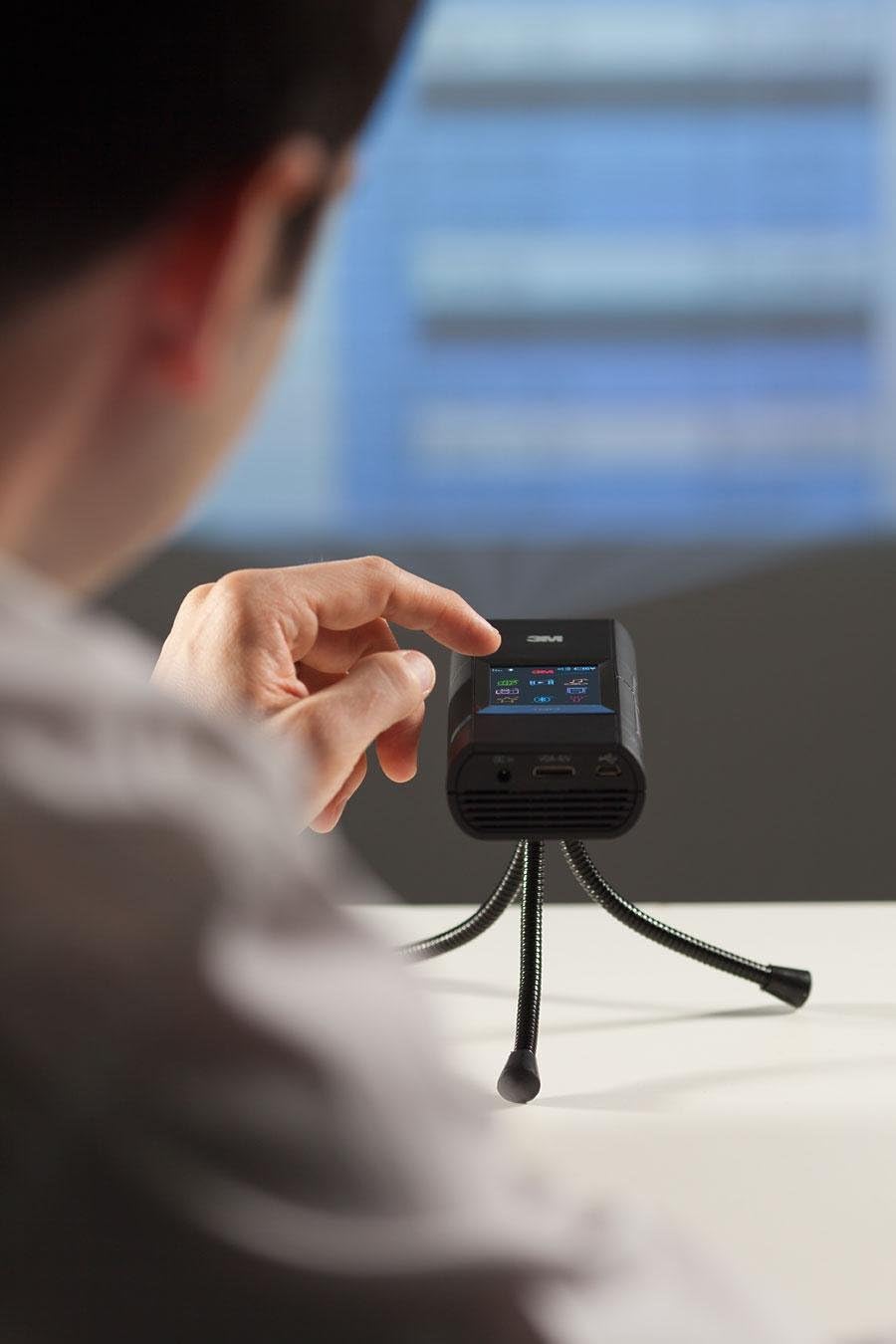
Figure 4: A user adjusting the MP180 while it is mounted on a small tripod, demonstrating its use in a presentation or viewing setup. The projector is capable of displaying content on various surfaces.
Operating Instructions
1. Navigating the Interface
The MP180 features a built-in touch-screen display. Use your finger or the included stylus to navigate through menus and select options. The main screen provides access to various applications and settings.
2. Connecting to Wi-Fi
- From the main menu, select the Settings icon.
- Choose Network Settings or Wi-Fi.
- Select your desired Wi-Fi network from the list.
- Enter the network password using the on-screen keyboard.
- Confirm to connect.
Once connected, you can use the built-in web browser or download files directly to the projector.
3. Using Bluetooth
The MP180 supports Bluetooth connectivity for pairing with compatible devices such as external speakers or headphones. Access Bluetooth settings from the main menu to pair new devices.
4. Playing Media and Documents
The projector supports various file formats, including common business tools like MS Word, MS Excel, MS PowerPoint, and Adobe PDF. It also plays music, audio, and picture files.
- Internal Memory: The MP180 has 4GB of internal storage.
- MicroSD Card: Insert a microSD card (up to 16GB) into the designated slot to expand storage.
- USB Connection: Connect the projector to a computer via USB to transfer files.
Navigate to the respective application (e.g., Documents, Photos, Videos) on the touch screen to browse and open your files.
5. External Connectivity
The MP180 can connect to external devices via its Display Port (VGA cable included). This allows you to project content from laptops or other compatible sources.
Maintenance
1. Cleaning the Lens
Use a soft, lint-free cloth specifically designed for optical lenses to gently wipe the projector lens. Avoid using abrasive materials or chemical cleaners, which can damage the lens coating.
2. Cleaning the Unit
Wipe the exterior of the projector with a soft, dry cloth. Do not use liquid cleaners or sprays directly on the unit.
3. Storage
When not in use, store the projector in its soft carrying pouch in a cool, dry place, away from direct sunlight and extreme temperatures.
4. Battery Care
To prolong battery life, avoid fully discharging the battery frequently. If storing for an extended period, charge the battery to approximately 50% before storage.
Troubleshooting
| Problem | Possible Cause | Solution |
|---|---|---|
| No image projected | Projector not powered on; Lens cap on; Input source not selected; Focus not adjusted. | Ensure power is on; Remove lens cap; Select correct input source; Adjust focus wheel. |
| Image is blurry | Focus not adjusted; Projector too far/close to surface. | Adjust the focus wheel; Reposition the projector for optimal distance. |
| No sound | Volume too low; Muted; External speakers not connected/paired. | Increase volume; Unmute; Ensure Bluetooth speakers are paired or wired speakers are connected correctly. |
| Wi-Fi connection issues | Incorrect password; Out of range; Network interference. | Verify password; Move closer to Wi-Fi router; Restart projector and router. |
| Projector shuts down unexpectedly | Low battery; Overheating. | Charge the battery; Ensure ventilation ports are clear and allow the unit to cool down. |
Specifications
- Model: 3M Pocket Projector MP180
- Display Technology: LCOS
- Native Resolution: SVGA (800 x 600)
- Maximum Resolution: 800 x 600
- Light Source: LED
- LED Life: Approximately 20,000 hours
- Connectivity: Wireless (Wi-Fi, Bluetooth), Display Port (VGA compatible)
- Internal Memory: 4GB
- Expandable Memory: MicroSD card slot (up to 16GB)
- Projection Size: 10" to 80" (diagonal)
- Aspect Ratio: 4:3 (native)
- Battery Life: Up to 2 hours (approximate, depending on usage)
- Dimensions (L x W x H): 5.94 x 4.05 x 1.3 inches (15.09 x 10.29 x 3.3 cm)
- Weight: 11.8 ounces (334.5 grams)
Warranty Information
3M warrants this product against defects in material and workmanship for a period of one (1) year from the original date of purchase. This warranty does not cover damage caused by misuse, accident, unauthorized modification, or normal wear and tear. For warranty service, please retain your proof of purchase and contact 3M customer support.
Support
For technical assistance, product inquiries, or service requests, please visit the official 3M website or contact 3M customer support:
- Website: www.3m.com
- Customer Service: Refer to your region-specific 3M contact information available on their website.
Please have your product model number (MP180) and serial number ready when contacting support.

