
Introduction
This manual provides comprehensive instructions for the safe and efficient use of your BlackBerry HS-300 Wireless Bluetooth Headset. Please read this manual thoroughly before operating the device and retain it for future reference. The BlackBerry HS-300 is designed for hands-free communication with compatible Bluetooth-enabled devices.
Package Contents
Verify that your package contains the following items:
- BlackBerry HS-300 Wireless Bluetooth Headset
- Ear hook (optional, for secure fit)
- Ear gels/tips (various sizes for comfort)
- Charging cable
- User Manual (this document)
Device Overview
Familiarize yourself with the components of your BlackBerry HS-300 headset.
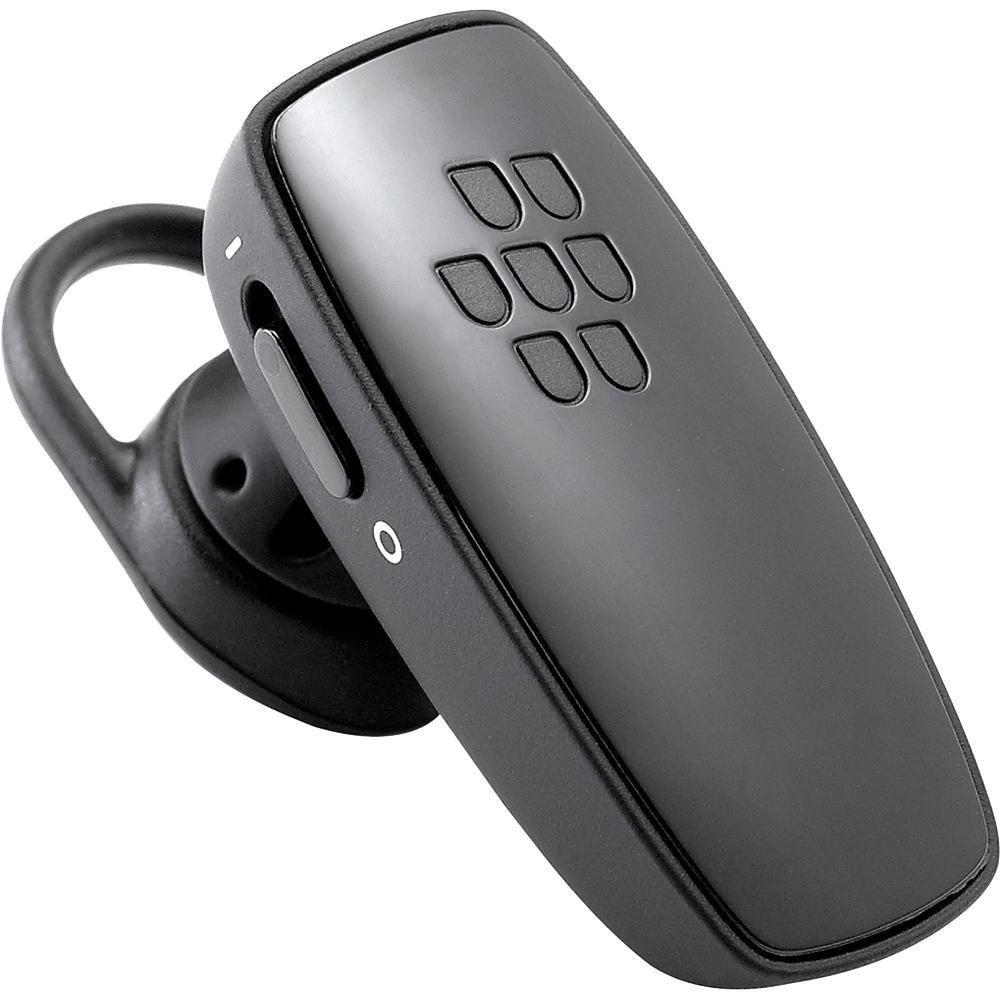
Image 1: Front view of the BlackBerry HS-300 Wireless Bluetooth Headset. The image displays the main body of the headset, featuring the BlackBerry logo (seven-dot pattern) on the front surface. A slender button, likely for volume control or multi-function, is visible on the side. An ear hook is attached, designed to secure the headset over the ear. A small indicator light is also present near the button.
- Multi-function Button: Used for answering/ending calls, voice commands, and pairing.
- Volume Control Buttons: Adjusts call and media volume.
- LED Indicator Light: Displays status (power, pairing, charging).
- Microphone: Captures your voice during calls.
- Power Switch: Turns the headset on or off.
- Charging Port: Connects to the charging cable.
Setup
1. Charging the Headset
Before initial use, fully charge your headset. The HS-300 features rapid charge capabilities.
- Connect the charging cable to the headset's charging port and to a compatible USB power source.
- The LED indicator will show the charging status (e.g., solid red for charging, solid blue for fully charged).
- A full charge provides up to 4 hours of talk time.
2. Pairing with a Bluetooth Device
To use your headset, it must be paired with a Bluetooth-enabled phone or device.
- Ensure the headset is turned off.
- Press and hold the Multi-function Button until the LED indicator flashes blue and red alternately. This indicates pairing mode.
- On your phone, enable Bluetooth and search for new devices.
- Select "BlackBerry HS-300" from the list of available devices.
- If prompted for a passcode, enter "0000" (four zeros).
- Once paired, the LED indicator will flash blue periodically.
Operating Instructions
Power On/Off
- To Power On: Slide the Power Switch to the 'On' position. The LED indicator will flash blue.
- To Power Off: Slide the Power Switch to the 'Off' position. The LED indicator will turn off.
Making and Receiving Calls
- Answering a Call: Press the Multi-function Button once.
- Ending a Call: Press the Multi-function Button once during a call.
- Rejecting a Call: Press and hold the Multi-function Button for approximately 2 seconds.
- Making a Call: Dial the number on your phone. The call will automatically transfer to the headset if connected.
- Voice Dialing (if supported by phone): Press the Multi-function Button once when not on a call.
Volume Control
- Use the Volume Control Buttons on the headset to adjust the call or media volume.
Maintenance
- Clean the headset regularly with a soft, dry cloth.
- Avoid exposing the headset to extreme temperatures, moisture, or corrosive substances.
- Store the headset in a cool, dry place when not in use.
- Do not attempt to disassemble or modify the headset, as this will void the warranty and may cause damage.
Troubleshooting
| Problem | Solution |
|---|---|
| Headset does not turn on. | Ensure the headset is charged. Connect it to a power source using the charging cable. |
| Cannot pair the headset with my phone. |
|
| No audio or poor audio quality. |
|
| Headset disconnects frequently. |
|
Specifications
| Feature | Detail |
|---|---|
| Model Number | HS-300 |
| Connectivity | Bluetooth Wireless (Version 2.1) |
| Talk Time | Up to 4 hours |
| Charging | Rapid charge capable |
| Controls | Volume control, Multi-function button |
| Microphone | Integrated |
| Form Factor | On-ear (single ear) |
| Weight | Approximately 3.2 ounces |
| Dimensions | 2.5 x 2 x 6.5 inches (approximate) |
Warranty and Support
For warranty information and technical support, please refer to the documentation provided at the time of purchase or visit the official BlackBerry support website. Keep your proof of purchase for warranty claims.
Online Support: www.blackberry.com/support


