
1. Introduction
This manual provides essential information for the proper setup, operation, and maintenance of your Cisco Scientific Atlanta IPN330HD Internet Set Top Box. Please read this manual thoroughly before using the device.
2. Safety Information
- Ensure the device is placed on a stable, flat surface.
- Do not expose the device to water or excessive moisture.
- Avoid blocking ventilation openings to prevent overheating.
- Use only the power adapter supplied with the device.
- Disconnect the power cable during lightning storms or when unused for long periods.
3. Package Contents
Verify that all items are present in the package:
- Cisco Scientific Atlanta IPN330HD Set Top Box
- Power Adapter
- Remote Control (if included)
- HDMI Cable (if included)
Note: Specific cable inclusions may vary.
4. Product Overview
The IPN330HD is an Internet Protocol Set Top Box designed for digital television services. It features various connectivity options for integration with your home entertainment system.
4.1 Front Panel
The front panel typically includes status indicators and an IR receiver for the remote control.
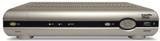
Image: Front view of the Cisco Scientific Atlanta IPN330HD Set Top Box. This image displays the device's front panel, which typically features power indicators and an infrared receiver for remote control commands.
4.2 Rear Panel Connections
The rear panel provides all necessary ports for connecting the set top box to your television and network.
- HDMI Output: For high-definition video and audio connection to a compatible TV.
- Component Video Output (YPbPr): For high-definition video connection to older TVs.
- Coaxial (RF) Output: For standard definition video and audio connection.
- Composite Video Output (RCA): For standard definition video connection.
- S-Video Output: For enhanced standard definition video connection.
- Audio Outputs (RCA L/R): For analog stereo audio.
- Ethernet Port: For network connection (if applicable for your service).
- Power Input: For connecting the power adapter.
5. Setup
Follow these steps to connect your IPN330HD Set Top Box:
- Position the Set Top Box: Place the device on a flat, stable surface near your television, ensuring adequate ventilation.
- Connect to TV:
- For best quality, connect an HDMI cable from the HDMI Output on the set top box to an HDMI Input on your TV.
- Alternatively, use Component, S-Video, Coaxial, or Composite cables based on your TV's available inputs.
- Connect to Network (if required): If your service provider requires an Ethernet connection, connect an Ethernet cable from the Ethernet Port on the set top box to your home network router or wall jack.
- Connect Power: Plug the power adapter into the Power Input on the set top box, then plug the other end into a wall outlet.
- Power On: Turn on your television and select the correct input source (e.g., HDMI 1, Video 2) that corresponds to your set top box connection. The set top box should power on automatically or can be turned on using the remote control.
- Service Activation: Important: This unit requires activation from your service provider. It will not function out of the box without proper activation. Contact your service provider to register and activate the device.
6. Operating Instructions
Once activated by your service provider, you can begin using your IPN330HD Set Top Box.
- Power On/Off: Use the power button on the remote control or the front panel to turn the device on or off.
- Channel Navigation: Use the CH+/CH- buttons or the number pad on your remote control to change channels.
- Volume Control: Use the VOL+/VOL- buttons on your remote control to adjust the audio volume.
- Menu Access: Press the "Menu" button on your remote to access on-screen guides, settings, and other features provided by your service provider.
- Interactive Features: Explore interactive features and on-demand content as offered by your service provider.
7. Maintenance
- Cleaning: Use a soft, dry cloth to clean the exterior of the set top box. Do not use liquid cleaners or aerosols.
- Ventilation: Ensure that the ventilation openings are not obstructed to prevent overheating.
- Firmware Updates: Firmware updates are typically managed by your service provider. Do not attempt manual updates unless instructed.
8. Troubleshooting
If you encounter issues, refer to the following common solutions:
| Problem | Possible Solution |
|---|---|
| No Picture/Sound |
|
| Device Not Working Out of Box | This device requires activation by your service provider. Contact them to register the unit and enable service. It will not function without this step. |
| Remote Control Not Responding |
|
| Freezing Picture/Signal Loss |
|
9. Specifications
| Feature | Detail |
|---|---|
| Model Number | IPN330HD |
| Manufacturer | Cisco (Scientific Atlanta) |
| Connectivity | HDMI, Component, Coaxial, Composite, S-Video outputs |
| Product Type | Internet Protocol Set Top Box |
| First Available | October 11, 2010 |
10. Important Notes on Activation
Please be aware that the Cisco Scientific Atlanta IPN330HD Set Top Box is designed to work with specific service providers and requires activation. This unit will not function as a standalone device or "out of the box" without being provisioned and activated by your digital TV service provider. Technical support for activation and service-related issues must be obtained directly from your service provider.
11. Warranty and Support
Specific warranty details for this product are typically provided by your service provider at the time of service activation or purchase. For technical support, service-related inquiries, or warranty claims, please contact your digital TV service provider directly. The manufacturer does not provide direct technical support for end-users of this device.


