
1. Introduction
The PNY NVIDIA Quadro 2000 is a professional graphics solution engineered for demanding CAD and Digital Content Creation (DCC) applications. It integrates NVIDIA's Scalable Geometry Engine technology and 1GB of GDDR5 memory to facilitate the rapid processing of complex models and scenes. This manual provides essential information for the installation, operation, and maintenance of your Quadro 2000 graphics board.
2. Package Contents
Verify that all the following items are included in your product package:
- NVIDIA Quadro 2000 by PNY professional graphics board
- DVI to VGA adapter
- DisplayPort to DVI adapter
- Driver CD (for Windows 7, Vista, XP) with PDF documentation
- Printed Quick Install Guide
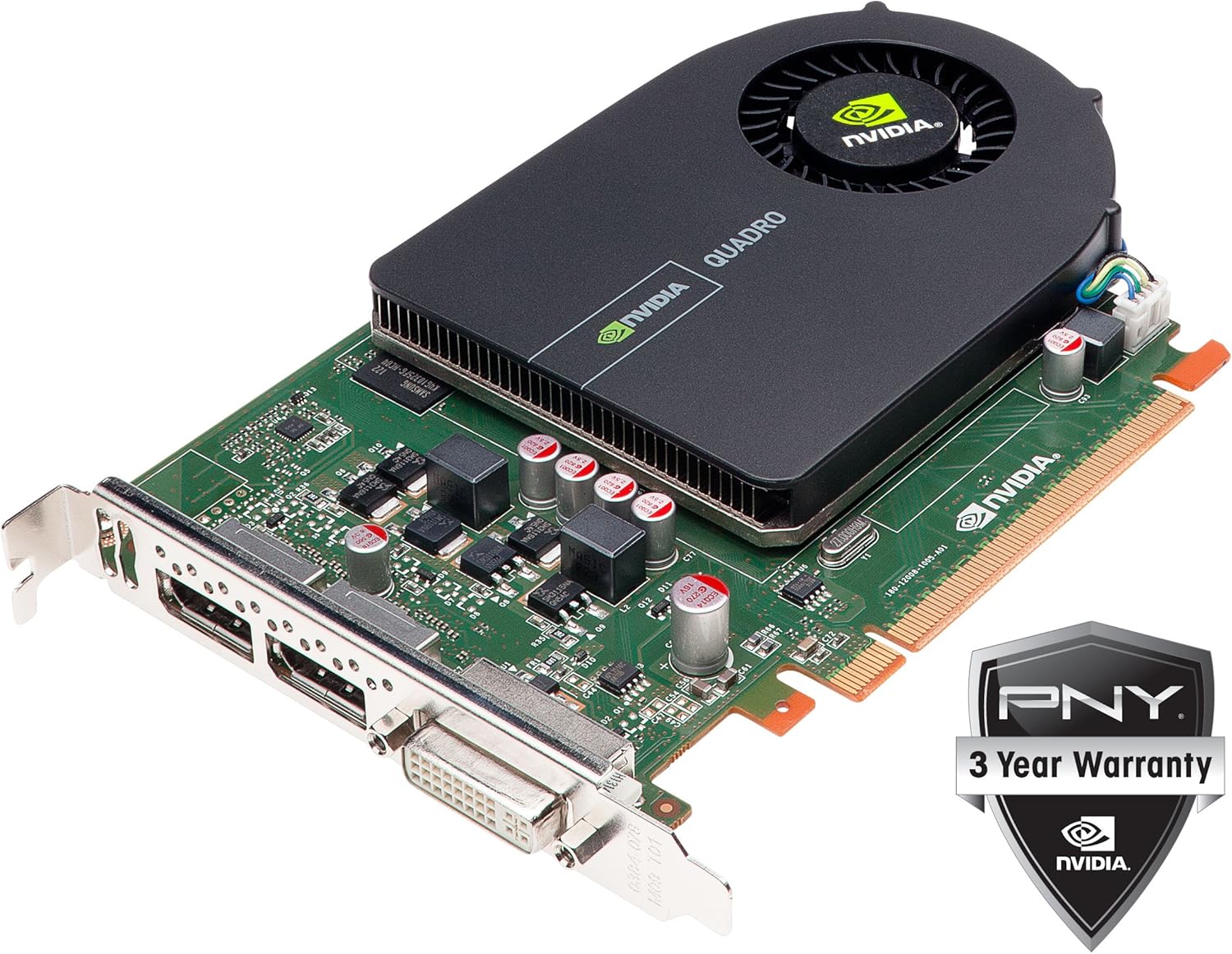
Image: The PNY NVIDIA Quadro 2000 graphics board shown alongside its DVI to VGA and DisplayPort to DVI adapters, and a PNY 3-Year Warranty badge.
3. Minimum System Requirements
Before installing the graphics board, ensure your system meets the following minimum requirements:
- Operating System: Windows® 7, Vista, XP SP3, Linux®, or Solaris®
- Available PCIe x16 expansion slot
- System Memory: 1GB or more (2GB recommended)
- Disk Space: 200MB of available disk space for full driver installation
- Optical Drive: Blu-ray, DVD-ROM, or CD-ROM drive for driver installation (alternatively, drivers can be downloaded)
- Display: DisplayPort, DVI, or VGA compatible display(s)
4. Setup and Installation
Follow these steps to install your PNY NVIDIA Quadro 2000 graphics board:
- Power Off: Shut down your computer and disconnect the power cord from the wall outlet.
- Open Case: Open your computer's chassis to access the motherboard.
- Locate PCIe Slot: Identify an available PCI Express 2.0 x16 slot on your motherboard.
- Insert Graphics Board: Carefully align the graphics board with the PCIe x16 slot and press down firmly until it is securely seated.
- Secure Board: Use the screw or retention clip provided by your computer case to secure the graphics board in place.
- Close Case: Replace the computer's side panel and reconnect the power cord.
- Connect Display: Connect your monitor cable(s) to the appropriate port(s) on the graphics board (DVI-I or DisplayPort). Use the provided adapters if necessary.
- Power On: Turn on your computer.
- Install Drivers: Insert the driver CD or download the latest drivers from the official NVIDIA website. Follow the on-screen instructions to complete the driver installation.

Image: A top-down view of the PNY NVIDIA Quadro 2000 graphics board, highlighting its cooling fan and overall single-slot design.
5. Operating Instructions: Display Configuration
The NVIDIA Quadro 2000 graphics board offers flexible display connectivity options:
- Display Connectors: The board features one DVI-I port and two DisplayPort outputs.
- Dual Display Support: The Quadro 2000 supports a maximum of two active displays simultaneously. This can be any combination of the available DVI-I and DisplayPort outputs.
- Supported Resolutions:
- DVI-DL and DisplayPort: Up to 2560 x 1600 at 60Hz.
- DVI to VGA Adapter (included): Up to 2048 x 1536 at 85Hz.
- HDMI 1.3a (with separately purchased 3rd party adapter): Up to 1920 x 1080 at 60Hz.
- Driver Configuration: After driver installation, use the NVIDIA Control Panel (accessible from your operating system's display settings or system tray) to configure display settings, including resolution, refresh rate, and multi-monitor setup (extended desktop or clone mode).

Image: A close-up view of the rear bracket of the PNY NVIDIA Quadro 2000, clearly showing the two DisplayPort connectors and one DVI-I connector.
6. Features
The NVIDIA Quadro 2000 incorporates several technologies to enhance professional workflows:
- Next-Generation NVIDIA CUDA Architecture: Integrates parallel computing capabilities and advanced visualization for accelerated professional workflows.
- NVIDIA Scalable Geometry Engine: Improves geometry performance across CAD, DCC, and medical applications, enabling interaction with complex models.
- NVIDIA GigaThread Engine: Provides faster context switching and improved thread block scheduling.
- Fast 3D Texture Transfer: Facilitates quick transfer and manipulation of 3D textures for interactive visualization of large volumetric datasets.
- Full-Scene Antialiasing (FSAA): Up to 64X FSAA reduces visual aliasing artifacts for improved image quality.
- GPU Tessellation with Shader Model 5.0: Automatically generates detailed geometry for cinematic quality environments without performance degradation.
- 16K Texture and Render Processing: Supports texturing from and rendering to 16K x 16K surfaces for high-resolution image processing.
- NVIDIA High Precision High Dynamic Range (HDR) Technology: Enhances image clarity and quality through floating-point capabilities in shading, filtering, texturing, and blending.
- OpenGL Quad Buffered Stereo Support: Enables a smooth and immersive 3D stereo experience for professional applications. NVIDIA 3D Vision Pro support is available via a USB connection to the 3D Vision Pro hub.
7. Specifications
| Graphics Processor | NVIDIA Quadro |
| Frame Buffer Memory | 1 GB GDDR5 |
| Memory Interface | 128-bit |
| Memory Bandwidth | 41.6 GB/s |
| CUDA Parallel Processing Cores | 192 |
| Max Power Consumption | 62 W |
| Physical Dimensions | 4.376" H x 7.00" L (Single Slot) |
| Display Connectors | 1x DVI-I, 2x DisplayPort |
| Number of Displays Supported | 2 |
| Graphics Bus | PCI Express 2.0 x16 |
| Thermal Solution | Active |
| 3D Vision Pro Support | Via USB |
| Item Weight | 1.25 pounds |
| Model Number | VCQ2000-PB |
8. Troubleshooting
If you encounter issues with your Quadro 2000 graphics board, consider the following:
- No Display Output: Ensure the graphics board is fully seated in the PCIe x16 slot. Verify that your monitor cable is securely connected to the graphics card and the monitor. Try connecting to a different display port or using a different cable/adapter if available.
- Driver Issues: Confirm that the correct and latest drivers for your operating system are installed. Outdated or corrupted drivers can cause display problems. Uninstall existing drivers and perform a clean installation of the latest version from the NVIDIA website.
- System Compatibility: Double-check that your computer meets all minimum system requirements, especially regarding the PCIe slot and system memory.
- Multiple Monitors: Remember that this graphics card supports a maximum of two active displays simultaneously, regardless of the number of physical ports available. If you are attempting to use three or more monitors, only two will function.
- Performance Problems: Ensure your system has adequate cooling. Overheating can lead to performance throttling. Verify that your power supply unit (PSU) provides sufficient wattage for all system components, including the graphics card.
9. Maintenance
To ensure optimal performance and longevity of your PNY NVIDIA Quadro 2000 graphics board:
- Driver Updates: Regularly check the official NVIDIA website for the latest graphics drivers. Keeping your drivers updated can improve performance, stability, and compatibility with new software.
- Dust Removal: Periodically inspect the graphics card's fan and heatsink for dust accumulation. Use compressed air to gently clean dust from these components to maintain efficient cooling. Ensure the computer is powered off and unplugged before cleaning.
- System Airflow: Ensure your computer case has proper airflow to prevent heat buildup, which can affect the graphics card's performance and lifespan.
10. Warranty and Support
PNY stands behind the NVIDIA Quadro 2000 graphics board with comprehensive support:
- Warranty: The PNY NVIDIA Quadro 2000 graphics board is covered by a 3-year warranty.
- Technical Support: PNY offers pre-sales and post-sales support, including dedicated Quadro Field Application engineers and direct technical support hotlines. For specific support contact information, please refer to the PNY official website or the documentation included with your product.


