
1. Introduction
This manual provides essential information for the safe and efficient use of your CASIO Darwin GX-700 word processor. Please read this manual thoroughly before operating the device and keep it for future reference. The CASIO Darwin GX-700 is an integrated word processing system featuring a display, keyboard, printer, and floppy disk drive, designed for creating and managing documents.
1.1 Package Contents
Upon unpacking, ensure all the following items are present:
- CASIO Darwin GX-700 Main Unit
- Power Cable
- Floppy Disk for Storage
The unit has been tested for printing, floppy disk saving, reading, and initialization. While generally clean with no prominent scratches or dirt, some discoloration due to the product's age may be present.
2. Setup
2.1 Unpacking and Placement
Carefully remove the word processor from its packaging. Place the unit on a stable, flat surface with adequate ventilation. Avoid direct sunlight, excessive heat, or humidity.

Figure 2.1: Front-side view of the CASIO Darwin GX-700 word processor in its closed position.
2.2 Power Connection
Connect the provided power cable to the power input port on the rear of the unit and then to a standard electrical outlet. Ensure the power switch is in the 'OFF' position before connecting.

Figure 2.2: Rear view of the GX-700, highlighting the power input and other connectivity ports.
2.3 Ribbon Cartridge Installation
- Open the printer cover located at the top of the unit.
- Carefully insert the ink ribbon cartridge (Type Ew) into its designated slot, ensuring it clicks into place. Follow the arrows on the cartridge for correct orientation.
- Close the printer cover securely.
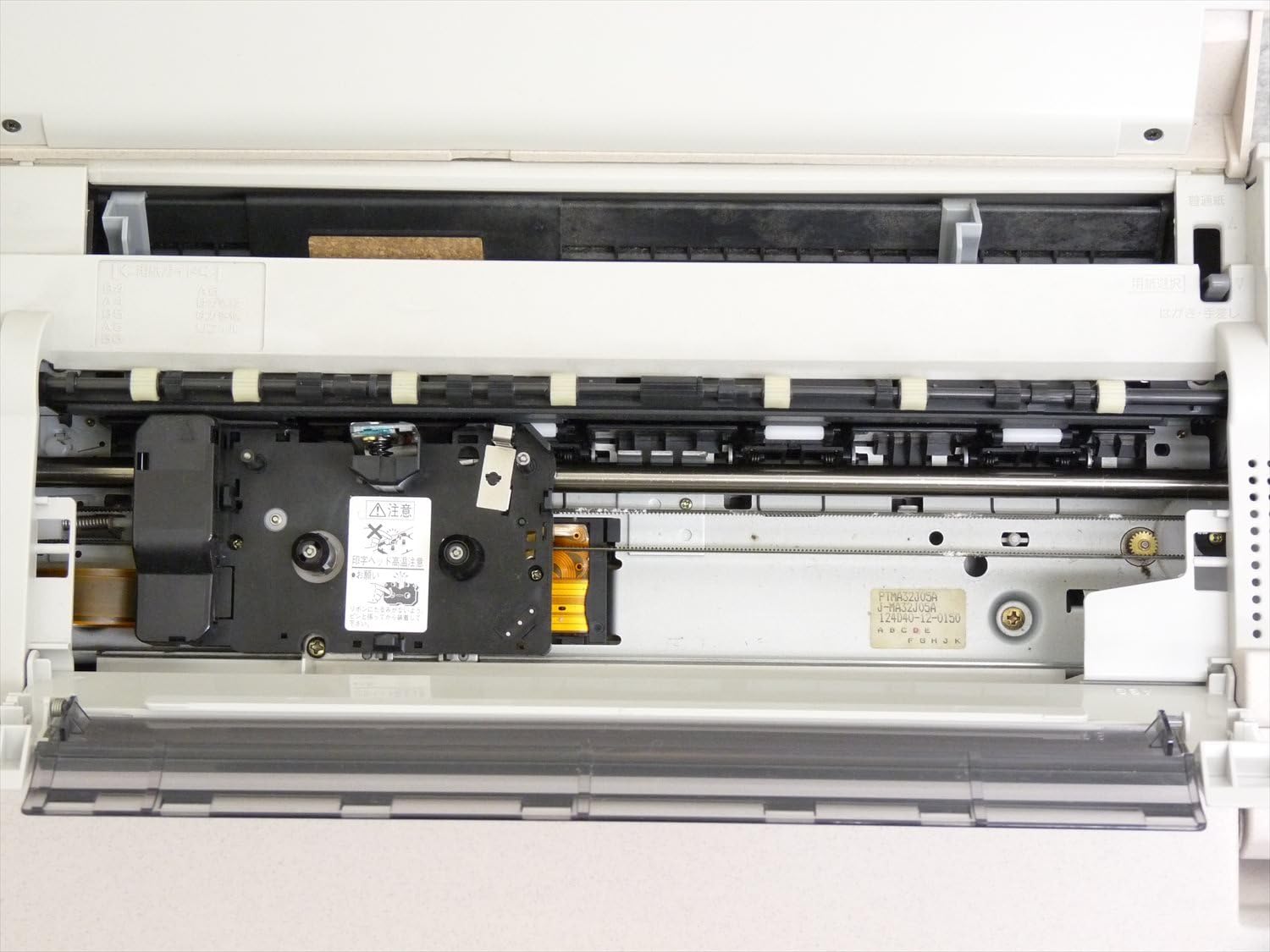
Figure 2.3: Internal view of the printer mechanism, showing the area for ribbon cartridge installation.

Figure 2.4: Detailed view of the ribbon cartridge slot, indicating proper placement.
2.4 Floppy Disk Insertion
To use the floppy disk for saving or loading documents, gently insert the floppy disk into the floppy disk drive slot until it clicks into place. Ensure the disk is inserted with the correct orientation.
3. Operating Instructions
3.1 Powering On and Main Menu
Flip the power switch to the 'ON' position. The unit will perform a self-check, and then the main menu will appear on the color LCD display. Use the arrow keys and 'Enter' key to navigate through the menu options.

Figure 3.1: The main menu interface of the Darwin GX-700, showing available applications.
3.2 Text Input
Select the 'Word Processor' application from the main menu. The keyboard features a standard QWERTY layout with additional keys for Japanese character input and special functions. Begin typing your document directly onto the screen.

Figure 3.2: Close-up of the GX-700 keyboard, illustrating the key layout for text input.
3.3 Document Creation and Editing
The word processor offers various functions for creating and editing documents, including text formatting, paragraph alignment, and basic spell-checking. Refer to the on-screen help or specific application guides for detailed instructions on advanced features.
3.4 Saving and Loading Documents
To save your document, select the 'Save' option from the application menu. If a floppy disk is inserted, you can save your work directly to it. To load an existing document, select 'Load' and choose the file from the floppy disk.
3.5 Printing Documents
Ensure a ribbon cartridge is installed and paper is loaded into the printer. From the word processor application, select the 'Print' option. You may be prompted to confirm print settings before the document begins printing.
4. Maintenance
4.1 Cleaning the Unit
Regularly clean the exterior of the word processor with a soft, dry cloth. For stubborn dirt, slightly dampen the cloth with water. Avoid using abrasive cleaners or solvents. Keep the display screen free of dust and fingerprints.
4.2 Replacing the Ribbon Cartridge
When print quality deteriorates or the ribbon runs out, replace the ribbon cartridge. Follow the steps outlined in Section 2.3 for installation. Always use genuine CASIO Type Ew ink ribbon cartridges for optimal performance.
4.3 Floppy Disk Care
Handle floppy disks with care. Avoid touching the magnetic surface, exposing them to strong magnetic fields, or extreme temperatures. Store disks in a protective case when not in use.
5. Troubleshooting
5.1 Common Issues and Solutions
- Unit does not power on: Ensure the power cable is securely connected to both the unit and the electrical outlet. Check if the power switch is in the 'ON' position.
- Printer not printing: Verify that a ribbon cartridge is correctly installed and that paper is loaded. Check for any error messages on the display.
- Floppy disk error: Ensure the floppy disk is inserted correctly and is not damaged. Try using a different floppy disk to rule out disk issues.
- Screen display issues: If the screen is blank or distorted, try turning the unit off and on again. If the problem persists, contact support.
6. Specifications
| Brand | CASIO |
| Model | GX-700 |
| Product Type | Word Processor with Integrated Printer |
| Printing Method | Ink Ribbon (Type Ew) |
| Memory Device | Floppy Disk Drive |
| Postal Code Support | 7-digit compatible |
| Display Type | Color LCD |
| Unit Color | White |
| Approximate Dimensions (Closed) | 40 x 38 x 15 cm |
| Approximate Weight | 5.7 kg |
7. Warranty and Support
7.1 Warranty Information
This CASIO Darwin GX-700 unit includes a 30-day warranty from the date of purchase. This warranty covers defects in materials and workmanship under normal use. Please retain your proof of purchase for warranty claims.
7.2 Customer Support
For technical assistance, troubleshooting beyond this manual, or warranty service, please refer to the official CASIO website or contact their customer support department. Specific contact details may vary by region.
