
Introduction
This manual provides essential instructions for the installation, operation, and maintenance of your NVIDIA M64.032-A4-NV02-S1 AGP E-TNT2 M64 Graphics Card. Please read this manual thoroughly before proceeding with installation to ensure proper setup and functionality. This graphics card is designed to enhance the visual capabilities of compatible desktop computer systems.
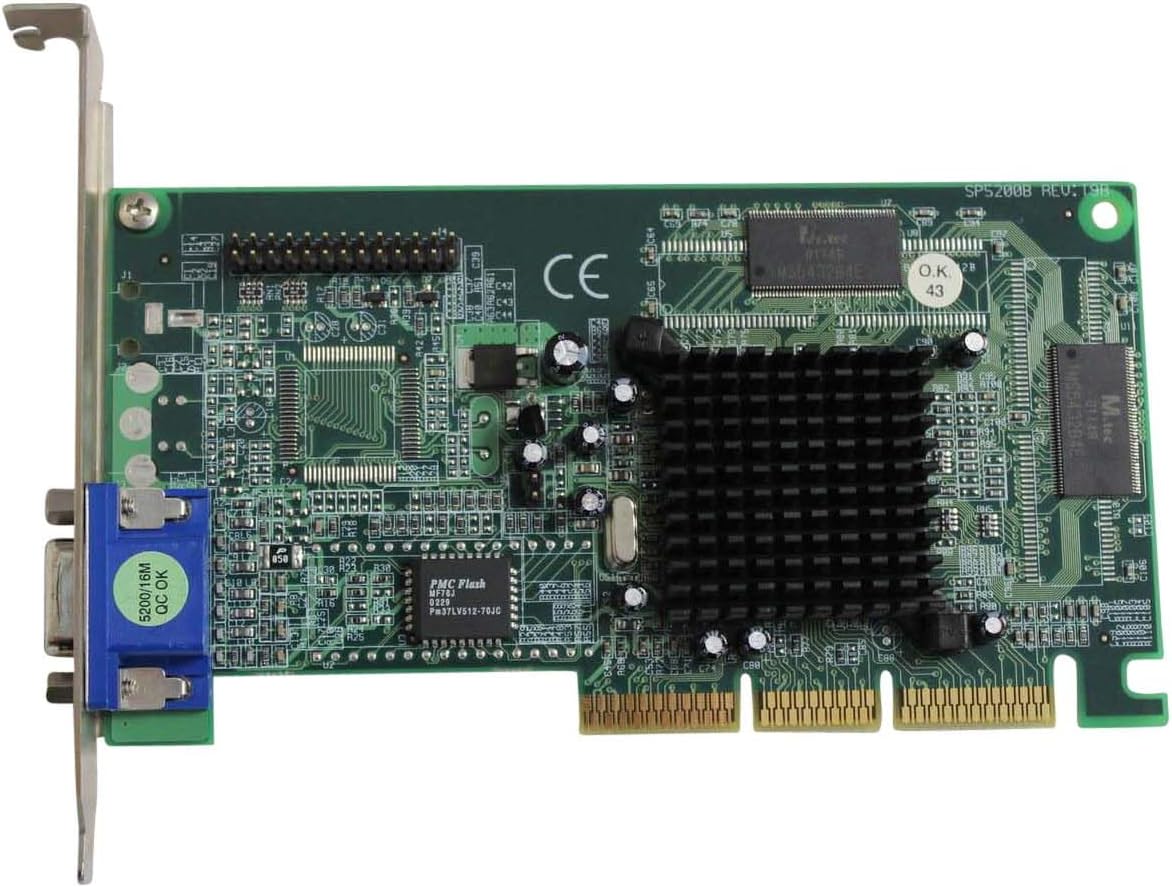
An overhead view of the NVIDIA M64.032-A4-NV02-S1 AGP E-TNT2 M64 graphics card. The green circuit board features a large black heatsink over the GPU, memory chips, and an AGP connector at the bottom. A blue VGA port is visible on the left, along with the metal bracket for securing it in a computer case.
Setup
Pre-installation Checklist
Before installing the graphics card, ensure you have the following:
- A compatible desktop computer with an available AGP slot.
- A Phillips head screwdriver.
- An anti-static wrist strap (recommended) or ensure proper grounding to prevent electrostatic discharge.
- The latest display drivers for your operating system (available from the NVIDIA website).
- Sufficient power supply for your system, considering the graphics card's power requirements.
Installation Steps
- Power Off and Disconnect: Shut down your computer completely and disconnect all power cables and peripherals.
- Open Computer Case: Remove the side panel of your computer case to access the motherboard.
- Locate AGP Slot: Identify the AGP slot on your motherboard. It is typically a brown slot, distinct from PCI or PCIe slots.
- Remove Slot Cover: Remove the metal slot cover corresponding to the AGP slot on the back of your computer case.
- Insert Graphics Card: Carefully align the graphics card with the AGP slot. Apply even, firm pressure to seat the card fully into the slot. Ensure the retention clip (if present) engages.
- Secure Card: Secure the graphics card to the computer case using a screw through the metal bracket.
- Close Case and Reconnect: Replace the computer case side panel, reconnect all power cables and peripherals, and connect your monitor to the VGA port on the graphics card.
- Power On: Power on your computer.
Driver Installation
After physical installation, operating system drivers are required for full functionality.
- Upon first boot, your operating system may detect new hardware and attempt to install generic drivers.
- For optimal performance, download the latest compatible drivers for the NVIDIA E-TNT2 M64 from the official NVIDIA website (www.nvidia.com/drivers).
- Follow the on-screen instructions provided by the driver installer. A system restart may be required after installation.
Operating
Once installed and drivers are configured, the NVIDIA M64.032-A4-NV02-S1 graphics card will automatically manage display output. You can adjust display settings such as resolution, refresh rate, and color depth through your operating system's display control panel or the NVIDIA control panel software (if installed with drivers).
- Verifying Installation: To confirm the card is recognized, open your operating system's Device Manager (Windows) or System Information (Linux/macOS) and check under "Display adapters" for the NVIDIA E-TNT2 M64.
- Adjusting Display Settings: Right-click on your desktop and select "Display settings" or "NVIDIA Control Panel" to customize your display preferences.
Maintenance
Proper maintenance ensures the longevity and optimal performance of your graphics card.
- Dust Removal: Periodically (e.g., every 6-12 months), power down and open your computer case to gently clean dust from the graphics card's heatsink and fan (if present) using compressed air. Hold the fan blades to prevent over-spinning.
- Environmental Conditions: Operate the computer in a well-ventilated area. Avoid extreme temperatures and high humidity, which can negatively impact electronic components.
- Driver Updates: Keep your graphics drivers updated by regularly checking the NVIDIA website for new releases.
Troubleshooting
If you encounter issues with your graphics card, refer to the following common troubleshooting steps:
- No Display Output:
- Ensure the monitor cable is securely connected to both the graphics card and the monitor.
- Verify the graphics card is fully seated in the AGP slot.
- Check if your monitor is set to the correct input source (VGA).
- Test with a different monitor or cable if possible.
- Display Artifacts or Corruption:
- Update your graphics drivers to the latest version.
- Check for overheating. Ensure the heatsink is clean and not obstructed.
- Reduce display resolution or refresh rate in your operating system settings.
- System Instability or Crashes:
- Ensure your power supply unit (PSU) provides sufficient and stable power.
- Verify that the graphics card is properly installed and secured.
- Run a memory diagnostic tool to check for RAM issues.
If problems persist after attempting these steps, consult the NVIDIA support website or a qualified computer technician.
Specifications
| Feature | Detail |
|---|---|
| Brand | NVIDIA |
| Model | M64.032-A4-NV02-S1 |
| Graphics Processor | NVIDIA E-TNT2 M64 |
| Memory Size | 32MB |
| Interface | AGP (Accelerated Graphics Port) |
| Compatible Devices | Desktop Computers |
| Memory Clock Speed | 1066 MHz (Note: This value is as provided in product data. Actual clock speeds for E-TNT2 M64 typically vary.) |
| ASIN | B00456Z8UM |
Warranty Information
NVIDIA products are typically covered by a limited warranty. For specific details regarding the warranty period and terms for your M64.032-A4-NV02-S1 graphics card, please refer to the documentation included with your purchase or visit the official NVIDIA website. Warranty coverage generally applies to defects in materials and workmanship under normal use.
Support
For further assistance, technical support, or driver downloads, please visit the official NVIDIA support website:
You may also find community forums and knowledge bases helpful for common inquiries.


